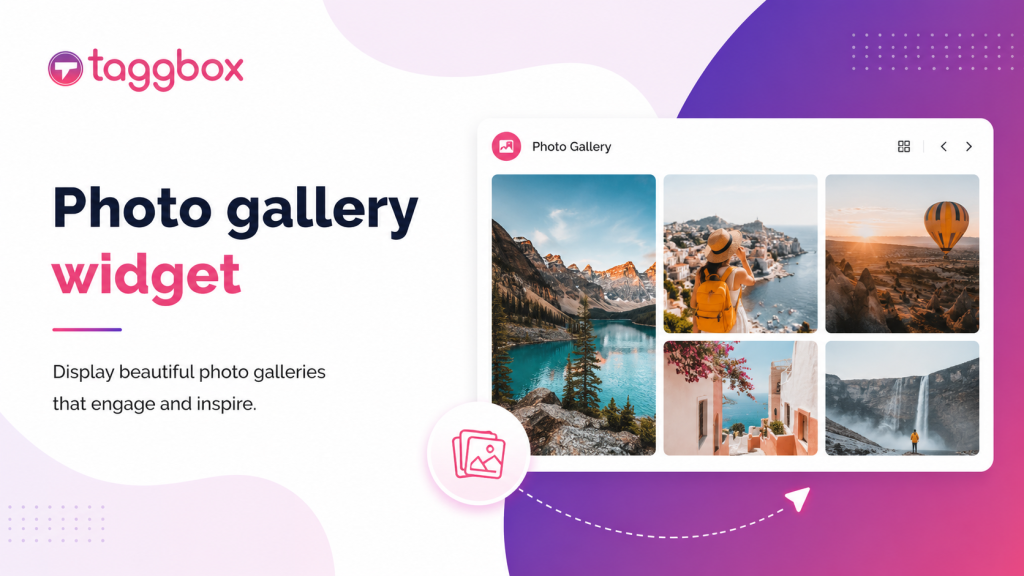
Hai difficoltà con codici complessi e tecnicismi quando cerchi di creare una galleria fotografica mozzafiato per il tuo sito web? Non preoccuparti, ci pensiamo noi! In questo articolo ti semplificheremo la vita presentandoti una soluzione fantastica: un widget per gallerie fotografiche che non richiede alcuna conoscenza di programmazione ed è incredibilmente semplice da usare.
Scopriamo insieme come questo widget per gallerie fotografiche responsive, ottimizzato per i siti web, può diventare il tuo strumento ideale per creare gallerie fotografiche accattivanti senza alcuno sforzo.
Che cos'è un widget Galleria fotografica?
Un widget galleria fotografica è uno strumento utilizzato per visualizzare immagini e foto direttamente sul tuo sito web, raggruppando più immagini in un unico blocco di visualizzazione coerente.
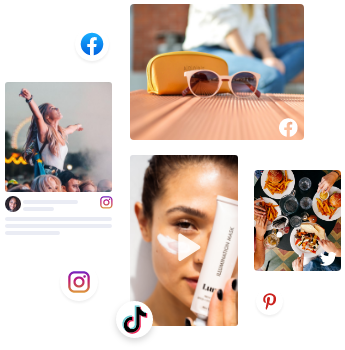
Con TaggboxPuoi aggregare foto da vari social network, tra cui Instagram, X (precedentemente Twitter), Facebook e Pinterest. Puoi anche visitare i widget della galleria fotografica. Libreria di modelli Esplora tutti i temi disponibili e scopri cos'altro puoi realizzare con una galleria social e un widget. Elimina la necessità di programmazione complessa o competenze tecniche, rendendo questo widget per gallerie di immagini estremamente intuitivo accessibile a tutti, dai proprietari di siti web e blogger ai fotografi professionisti.
Come si integra una galleria fotografica su un sito web?
Grazie a un moderno widget fotografico, puoi creare facilmente gallerie di immagini accattivanti che migliorano l'estetica generale del tuo sito web. Ti permette di organizzare e mostrare le tue immagini in modo strutturato e coinvolgente, offrendo un'esperienza fluida ai tuoi visitatori.
Che tu voglia mostrare il tuo portfolio, condividere momenti memorabili di un evento o presentare i tuoi prodotti, imparare a incorporare gallerie fotografiche in streaming offre una soluzione efficace. Quando sei pronto a incorporare una galleria fotografica nel layout del tuo sito web, il processo prevede pochi semplici passaggi:
1: Creare un Taggbox Account
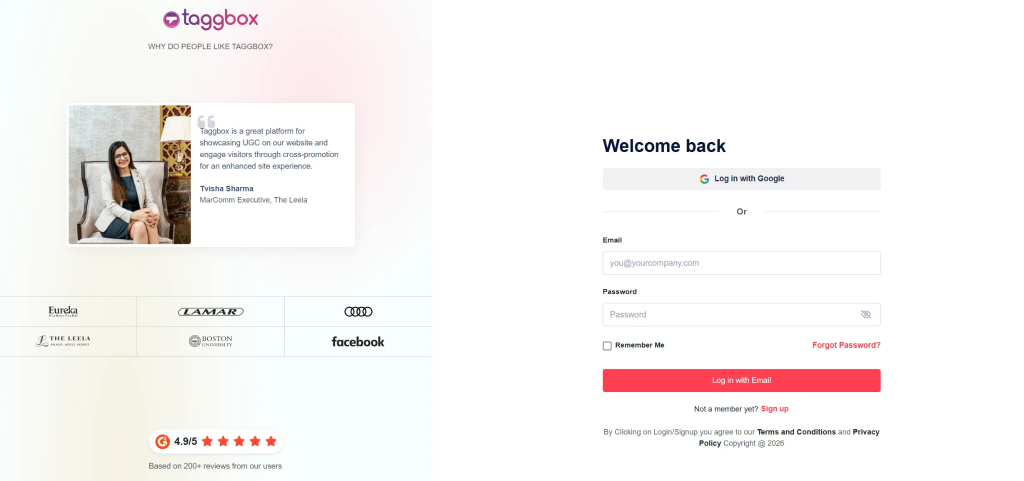
- Inizia accedendo al tuo Taggbox account. Se non ne hai ancora uno, iscriviti gratuitamente account. Una volta effettuato l'accesso, verrai indirizzato alla schermata di selezione del social network.
2: Scegli la tua fonte
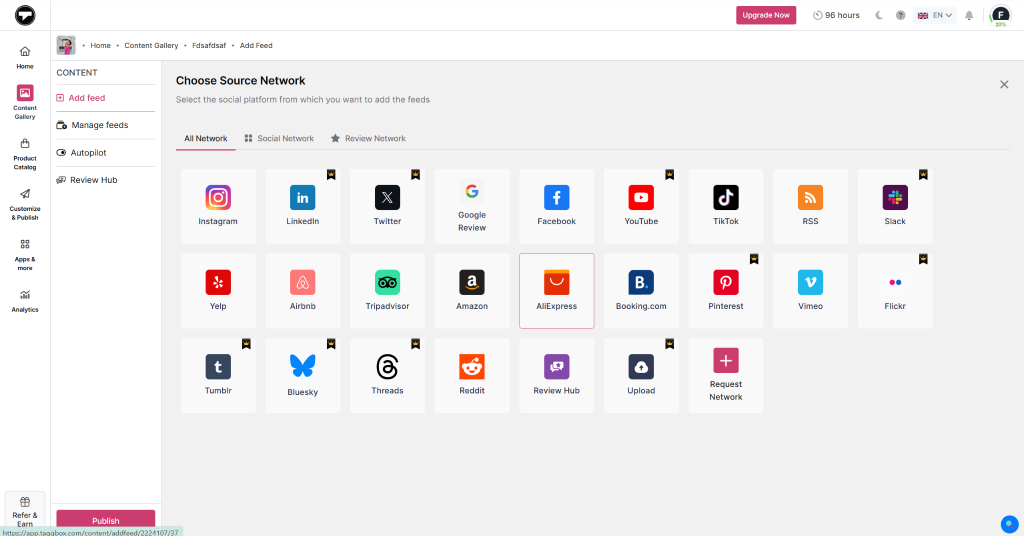
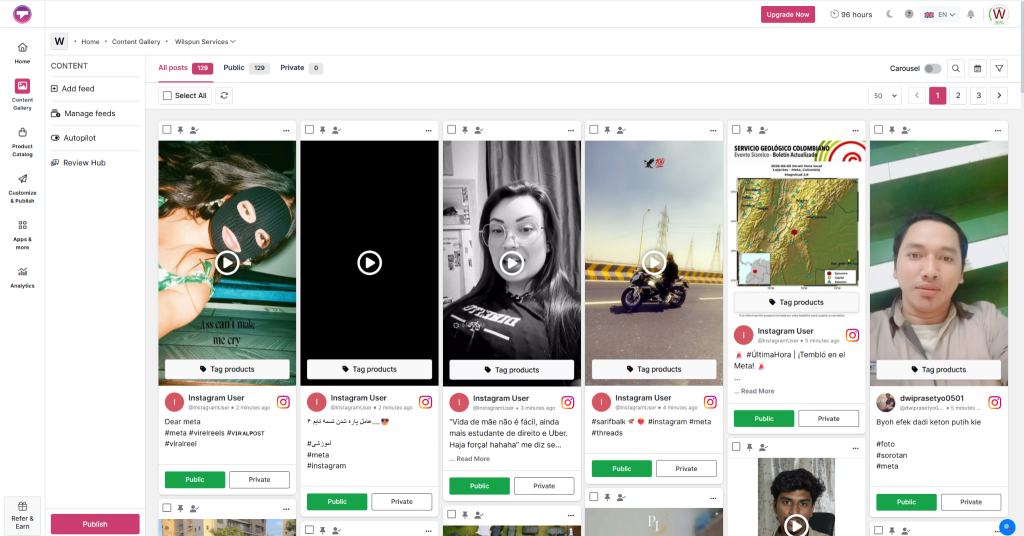
Nella dashboard, fare clic su “Aggiungi feed social” per importare contenuti fotografici nel widget fotografico. Nel pop-up sorgente che appare, seleziona la piattaforma preferita (ad esempio Instagram, Facebook, o X). Inserisci il tipo di post o gli handle desiderati e fai clic su "Crea Feed" pulsante.
3: Alimentazione moderata
Filtra i post che non desideri mostrare nel tuo widget pubblico. Utilizza la funzione di moderazione basata sull'intelligenza artificiale per svolgere questo compito in modo intelligente.
4: Personalizza il widget
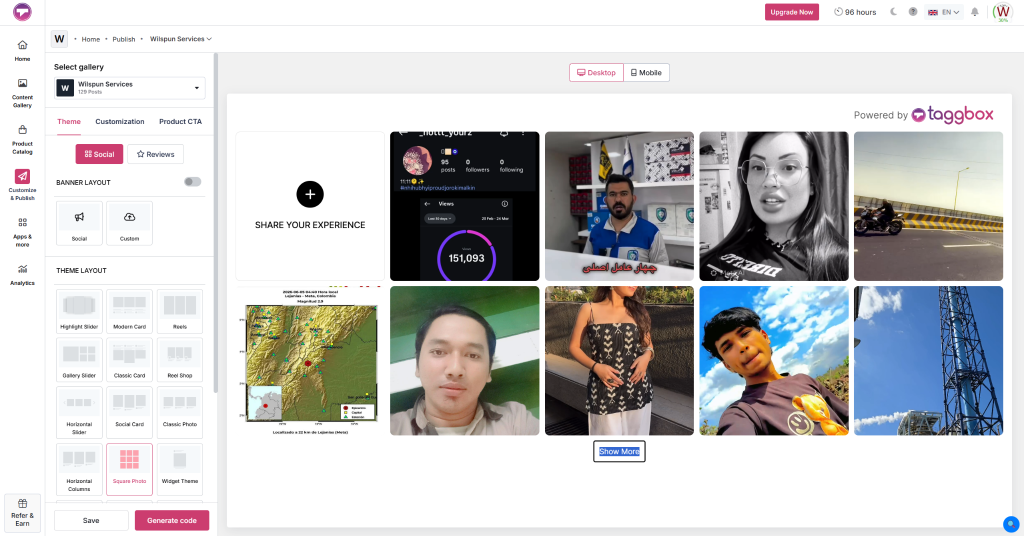
Utilizza i temi più recenti e le altre funzionalità di personalizzazione per personalizzare facilmente il tuo widget fotografico. Rendilo più accattivante e in linea con il tema del tuo sito web.
5: Incorpora e pubblica
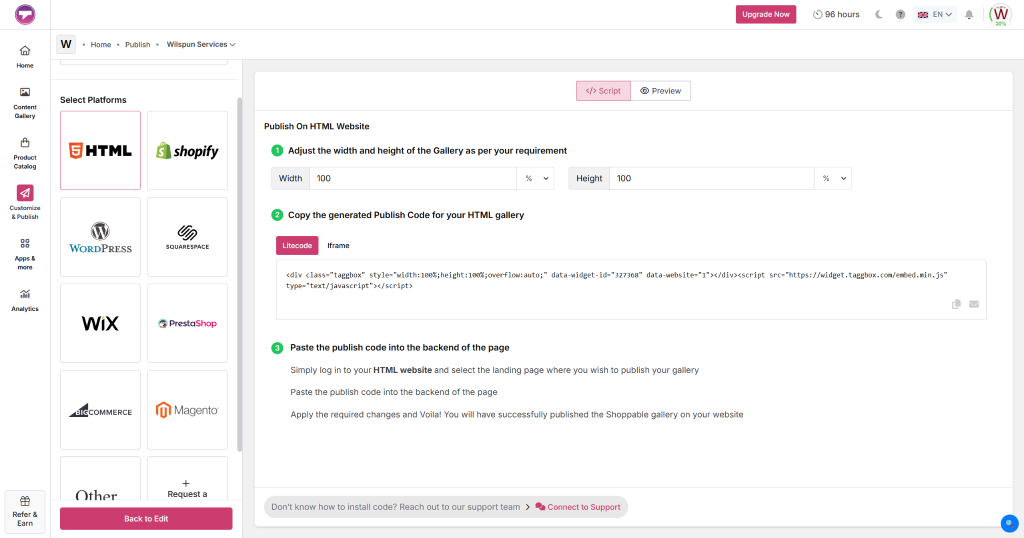
Clicca sul Pubblica pulsante e scegli il tuo specifico strumento di creazione di siti web (ad esempio, WordPress, Wix, o Squarespace). Copia il codice di incorporamento generato, vai alla pagina di backend in cui desideri che appaia la galleria e incollalo in un HTML blocco per distribuire il widget personalizzato della galleria fotografica HTML.

Crea e incorpora gallerie fotografiche gratuite!
Sfrutta un widget dinamico per la galleria fotografica per mostrare contenuti da Instagram, Facebook, X e altro ancora. Temi multipli.
Iscriviti, è GRATISNon è necessaria la carta di credito.
Caratteristiche distintive del Taggbox Widget Galleria Fotografica
Scopri le funzionalità principali progettate per migliorare l'impatto visivo e l'esperienza utente del tuo sito web:
a). Opzioni personalizzabili:
Il widget della galleria di immagini è completamente personalizzabile e consente di modificare colori, caratteri, spaziatura e modelli per creare un percorso visivo unico che si allinei perfettamente con l'identità del tuo marchio.
a). Design reattivo:
Questo layout adattivo per widget fotografici regola automaticamente le sue dimensioni per adattarsi perfettamente a qualsiasi schermo o dispositivo, inclusi computer desktop, tablet e smartphone.
c). Aggiornamenti in tempo reale:
Il sistema recupera i post in tempo reale dalle piattaforme social da te selezionate. Ogni volta che viene pubblicato un nuovo contenuto, la tua galleria social e il widget si aggiornano istantaneamente e automaticamente.
D). Didascalie delle immagini:
Fornisci contesto o narrazione mostrando o nascondendo le didascalie delle singole immagini all'interno del feed generato.
E). Moderazione avanzata:
Assumi il pieno controllo di ciò che appare sul tuo sito. Filtra i contenuti, blocca tag specifici o approva manualmente i post prima che vengano pubblicati nella tua galleria fotografica. widget per il sito web layout.
f). CSS personalizzato:
Per chi desidera il controllo assoluto sul design del widget della galleria fotografica HTML, è possibile inserire codice CSS personalizzato per perfezionare il layout e trasformare la galleria in un capolavoro su misura.
g). Hub di revisione:
Raccogli facilmente il feedback degli utenti utilizzando un pulsante "ReviewHub" o un codice QR dedicato generato direttamente all'interno del tuo sito web, riducendo la dipendenza da piattaforme di recensione esterne.
Qual è il modo migliore per utilizzare un widget galleria fotografica per aumentare le conversioni sul sito web?
La posizione in cui inserisci le immagini è fondamentale. Ecco le collocazioni più efficaci per ottenere il massimo impatto:
1. Pagina iniziale:
Inserire un widget fotografico in questo punto funge da introduzione dinamica al tuo marchio, coinvolgendo immediatamente i visitatori con le tue ultime novità o i tuoi prodotti più recenti.
2. Pagina dedicata alla galleria:
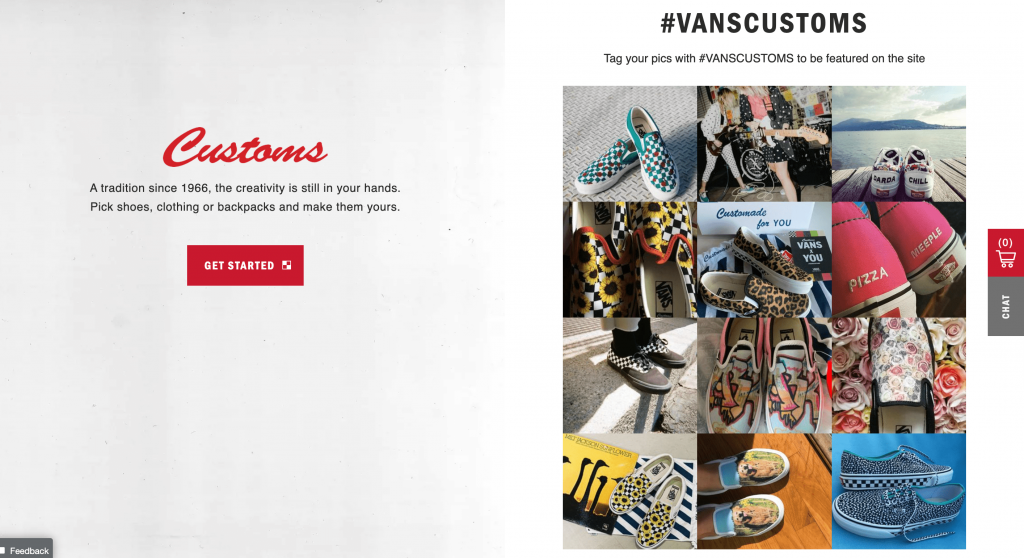
Ideale se possiedi una vasta collezione di foto o se desideri organizzare il tuo lavoro in album chiari e di facile consultazione.
3. Pagine di prodotto o portfolio:
Indispensabile per i siti di e-commerce e i professionisti creativi per mostrare dettagli ravvicinati, varianti o casi d'uso reali tramite un widget galleria di immagini.
4. I post del blog:
Interrompi i post del blog ricchi di testo con gallerie di immagini pertinenti per illustrare i tuoi concetti e rendere i tuoi articoli più leggibili.
5. Pagine dei ricordi o del muro della fama:
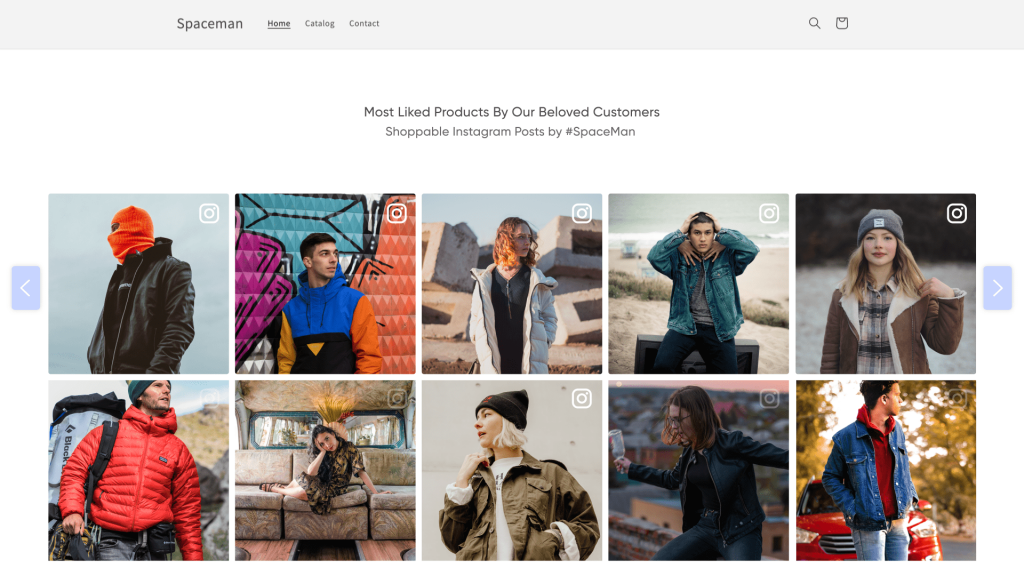
Ottimo per costruire la riprova sociale. Ad esempio, Leela Hotels ha utilizzato un Taggbox La pagina dei ricordi mette in evidenza i contenuti generati dagli utenti, favorendo con successo la creazione di una community e il coinvolgimento sul sito.
6. Pagine degli eventi:
Utilizzate le gallerie fotografiche come riepilogo visivo degli eventi passati, consentendo ai partecipanti di rivivere l'esperienza e mostrando ai potenziali ospiti cosa aspettarsi la prossima volta.
7. barre laterali:

Su siti o blog ricchi di contenuti, integra i tuoi contenuti principali aggiungendo piccoli feed di immagini in evidenza nella barra laterale.
8. Intestazione o piè di pagina:
In queste zone, delle mini-gallerie discrete e rotanti aggiungono un interesse visivo continuo senza interrompere l'impaginazione principale.
9. Pagine di destinazione:
Le campagne di marketing si basano fortemente sugli elementi visivi per generare conversioni. L'inserimento di una galleria fotografica in una landing page di un sito web aumenta significativamente la fiducia nei suoi confronti. Per dare una spinta iniziale al layout senza dover partire da zero, valuta la possibilità di abbinare il widget a modelli predefiniti, come ad esempio i modelli per landing page di marketing digitale o di contabilità.

Integra gratuitamente la Galleria Immagini del Sito Web sul tuo Sito Web
Inizia gratuitamente
Perché i brand hanno bisogno di un widget per la galleria fotografica?
a). Aumenta il coinvolgimento dei visitatori:
Coinvolgi gli utenti con storie visive altamente stimolanti tramite una galleria social interattiva e un widget che catturano l'attenzione molto meglio del testo standard.
b) Aumentare le vendite del sito web:
Immagini di alta qualità e testimonianze degli utenti aiutano i potenziali clienti a comprendere meglio i tuoi prodotti, infondendo loro la fiducia necessaria per l'acquisto.
c). Migliora l'esperienza dell'utente:
Una galleria ben organizzata consente agli utenti di sfogliare facilmente più immagini senza dover passare a pagine web separate.
D). Aumenta il tempo trascorso in loco:
Quando gli utenti sono attratti dalle tue immagini, rimangono più a lungo sul sito. Questo maggiore tempo di permanenza segnala ai motori di ricerca un buon livello di coinvolgimento, contribuendo a ridurre la frequenza di rimbalzo e a migliorare il posizionamento SEO.
E). Racconta una storia visiva avvincente:
Condividi la storia del tuo brand, presenta il tuo team o offri uno sguardo dietro le quinte delle tue attività per creare un legame emotivo con il tuo pubblico. Come blogger, puoi facilmente utilizzare lo storytelling visivo tramite il widget della galleria fotografica di Blogger per instaurare un rapporto emotivo più forte con i tuoi lettori.
Avvolgere Up
L'implementazione di un widget per galleria fotografica offre una soluzione semplice e intuitiva per trasformare l'aspetto visivo del tuo sito web. Grazie alla sua facilità di configurazione, questo sistema permette a chiunque di creare in pochi minuti un percorso fotografico interattivo e di grande impatto. Implementalo oggi stesso per offrire ai tuoi visitatori un'esperienza online più coinvolgente!
 Yuvraj
 Wagisha
 Jennet

 Harshita Rajoria