
Vous rêvez d'afficher un compte Facebook rempli d'avis clients élogieux sur votre site Shopify ? Ne cherchez plus ! On s'occupe de tout. Intégrer votre flux Facebook à votre site Shopify transforme votre simple page en un véritable concentré de preuves sociales, d'engagement et de convivialité. Vous y découvrirez de vrais clients satisfaits de vos produits, votre contenu sera automatiquement mis à jour et vous inciterez même vos visiteurs à passer à l'achat.
Dans ce guide, nous vous présenterons des méthodes simples pour ajouter un flux Facebook à votre site web Shopify et lui donner un aspect exceptionnel.
Ajouter un flux Facebook à Shopify


| Thèmes multiples |
Pourquoi ajouter un flux Facebook à Shopify ?
Vous vous demandez pourquoi vous devriez vous donner la peine d'ajouter un Widget Facebook de Shopify sur votre site web ? Voici pourquoi :
1. Construire une preuve sociale
Lorsqu'un visiteur voit de vrais avis, photos et publications de clients actuariels, la confiance s'installe instantanément. Preuve sociale via un Facebook widget Cette méthode est extrêmement efficace sur un site Shopify. Les clients se sentent plus à l'aise pour acheter lorsqu'ils voient que d'autres apprécient et utilisent déjà vos produits.
2. Finies les pages ennuyeuses et obsolètes
L'ajout d'un flux Facebook à votre boutique Shopify permettra de maintenir automatiquement votre site web à jour avec du contenu récent. La seule condition est d'utiliser un flux en temps réel. agrégateur de médias sociaux Pour vous faire gagner des heures de téléchargement manuel. À terme, cela se traduit par un meilleur référencement naturel et un engagement accru grâce à un flux constant de contenu mis à jour.
3. Meilleur engagement
Un contenu mis à jour attire toujours les visiteurs. Pourquoi ? Parce qu'à chaque fois, ils découvrent quelque chose de nouveau sur votre site web (par exemple, intégrer des Facebook Reels), au lieu de faire défiler le même texte statique et les mêmes offres. Cela permet d'améliorer l'engagement sur votre site et de réduire son taux de rebond.
4. Mettez en valeur la personnalité de votre marque
Votre marque, c'est bien plus que des produits et des prix. Elle possède une voix, un ton et une personnalité qui se reflètent chez vos clients. Facebook est une plateforme idéale pour que cette personnalité s'exprime pleinement. Intégrez votre flux Facebook à votre site Shopify pour permettre aux visiteurs de découvrir l'authenticité de votre marque et de mieux refléter sa personnalité.
5. Augmenter les ventes naturellement
Intégrer votre flux Facebook Shopify à votre site web, c'est comme faire du marketing indirect. Cela ne génère pas forcément une vente directe, mais cela influence fortement les décisions d'achat. Lorsque les internautes voient d'autres personnes apprécier votre produit, ils ont davantage confiance et sont bien plus enclins à l'acheter.
Comprendre l'intégration de Shopify et Facebook
L'intégration de Shopify et Facebook connecte votre boutique en ligne à l'une des plus grandes plateformes d'avis via un Agrégateur FacebookAu lieu de considérer les réseaux sociaux et le e-commerce comme deux entités distinctes, cette intégration les réunit en un flux continu. Leur synergie permet d'accroître la visibilité et la portée avec un minimum d'efforts. Lorsque les visiteurs voient du contenu Facebook authentique sur votre site Shopify, cela renforce la crédibilité et enrichit leur expérience d'achat.
Voici ce que l'intégration de Shopify et Facebook peut vous apporter :
- Intégrer des vidéos Facebook et publie directement sur votre boutique Shopify
- Synchronisez vos produits avec vos publications Facebook et rendez-les disponibles à l'achat.
- Instaurer la confiance en affichant de vrais commentaires et publications.
- Gardez votre site web Shopify à jour grâce aux mises à jour en temps réel.
Méthodes pour ajouter un flux Facebook à Shopify Taggbox
Maintenant que vous connaissez tous les bienfaits et les avantages extraordinaires de intégrer un flux Facebook Pour votre site web Shopify, il est temps de comprendre les méthodes à suivre. Examinons cela en détail :
Étape 1 – Connectez-vous et créez votre galerie Facebook
- Connectez-vous à votre compte existant Taggbox compte. Si vous êtes nouveau sur la plateforme, vous pouvez créer un frcompte ee.

- Une nouvelle fenêtre s'ouvrira pour vous permettre de choisir parmi les options suivantes : Flux sociaux sur le site Web, Flux de produits achetables sur le site Web ou affichage des flux à l'écran.

- Choisissez votre secteur d'activité préféré, ajoutez votre numéro de téléphone et cliquez sur « Soumettre.
- Vous devez vérifier votre adresse e-mail pour continuer.

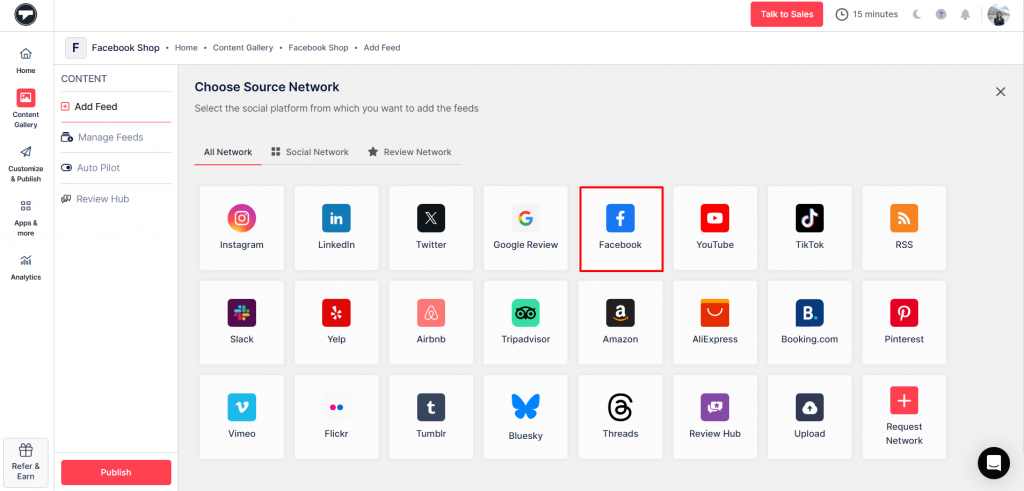
- Choisissez 'Facebook' comme réseau source à partir de la section contenu de la barre latérale.
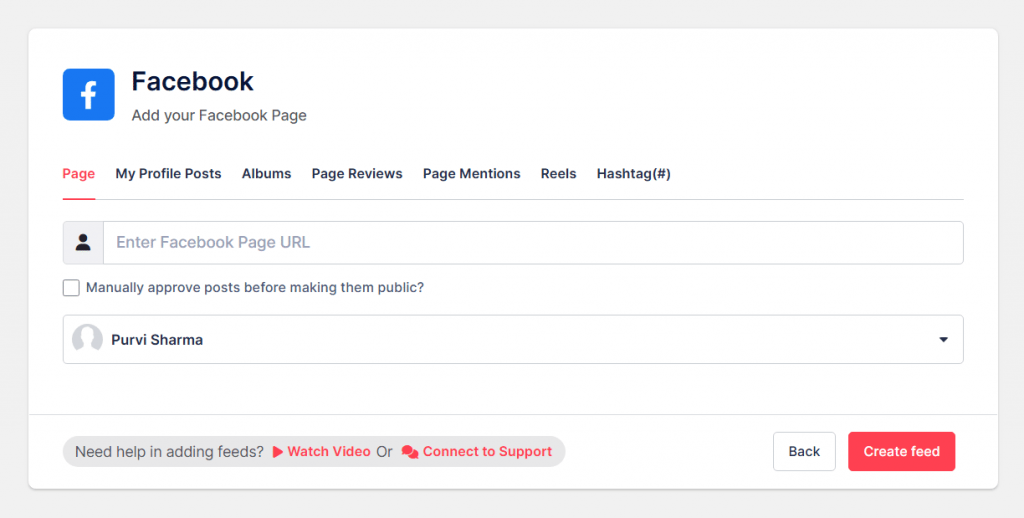
- Sélectionnez votre type de flux parmi les options suivantes : Page, Publications de mon profil, Albums, Mentions de page, Reels, Hashtag
- Cliquer sur 'Créer un flux,' et vous avez terminé.
- Modérez maintenant votre flux en supprimant le contenu non pertinent. Vous pouvez le faire manuellement ou en mode pilote automatique.
Aucune configuration complexe. Aucune compétence technique requise. Juste un flux Facebook clair et en temps réel pour votre boutique.


Étape 2 – Rendre votre flux commercialisable
- Depuis la barre latérale, accédez à «Catalogue'option.
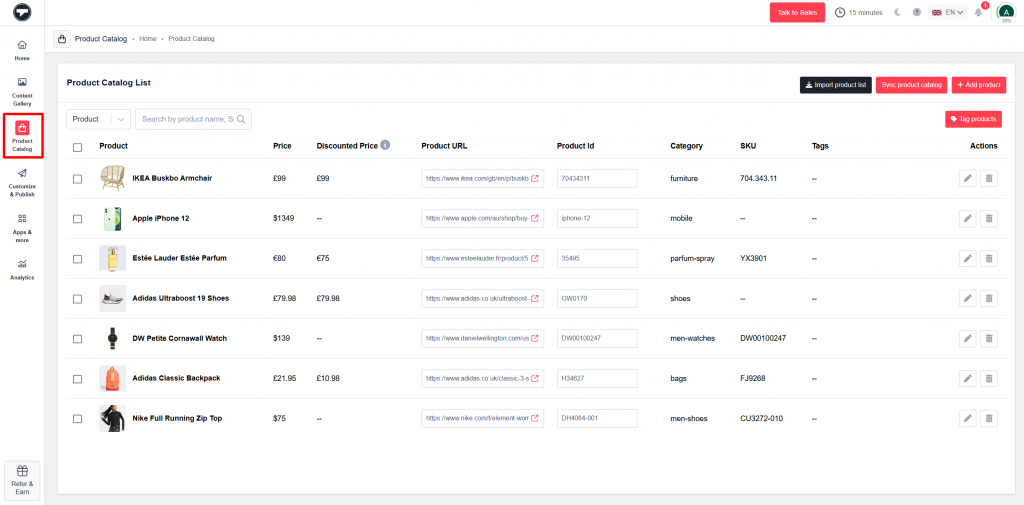
- Ici, synchronisez votre catalogue de produits à l'aide d'un lien ou ajoutez manuellement votre produit.
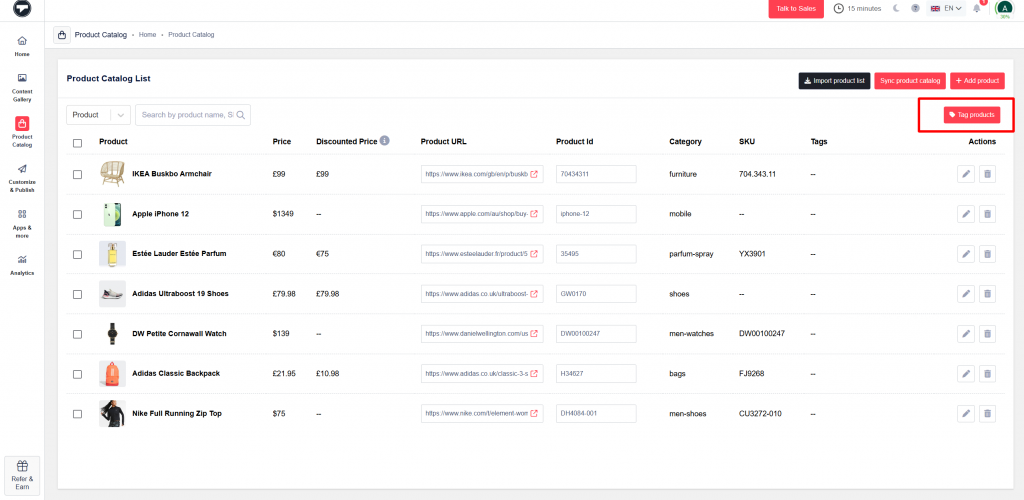
- Ensuite, cliquez sur 'Marquer les produitset ajoutez manuellement des produits à vos publications.
Étape 3 – Personnaliser et publier
- Cliquer sur 'Personnaliser et publier« et cliquez sur « Ajouter une chaîne » et saisissez le « nom de la chaîne ».

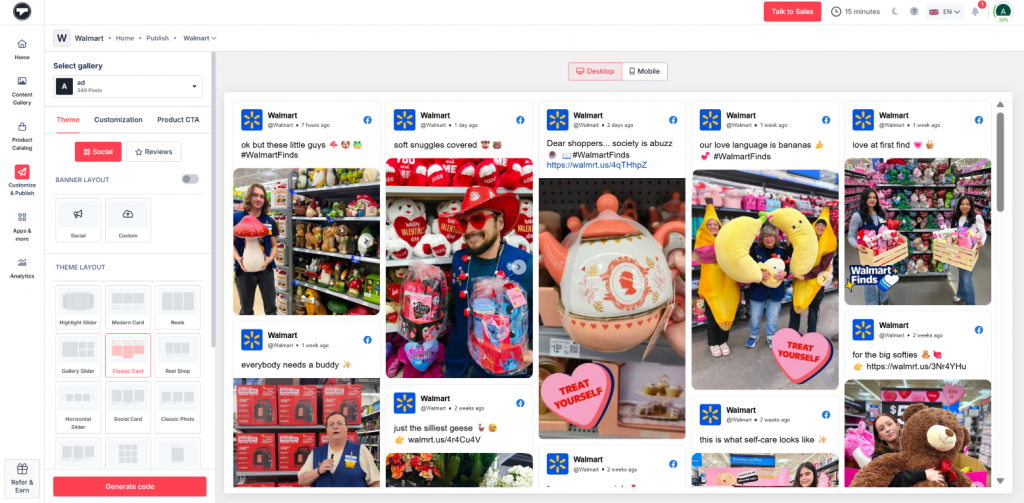
- Ici, personnalisez votre flux en ajoutant des thèmes, des mises en page, des polices, des arrière-plans, des couleurs et bien plus encore.
- Une fois terminé, cliquez sur «Générer du code.
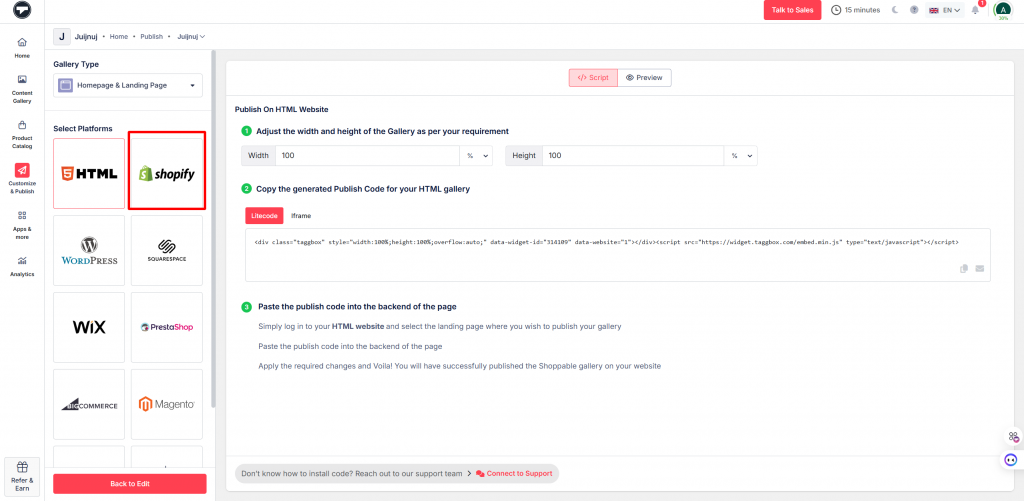
- Sélectionnez 'Shopify" comme plateforme CMS.
- Ajustez la largeur et la hauteur, puis copiez le code d'intégration.
Étape 4 – Intégrer sur le site web Shopify
- Connectez-vous à votre boutique Shopify.
- Accédez à l'option de boutique en ligne et choisissez le thème ou la page sur laquelle vous souhaitez intégrer le flux Facebook.
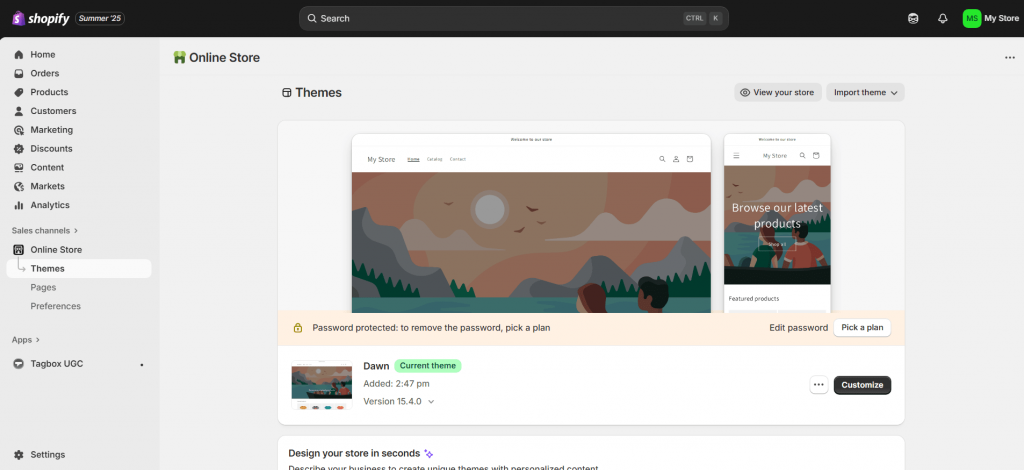
- Cliquez sur « Modifier » pour ouvrir l’éditeur de contenu.
- Cliquez sur le bouton « Afficher le code HTML ».
- Insérez votre Taggbox Insérez le code du widget dans la section.
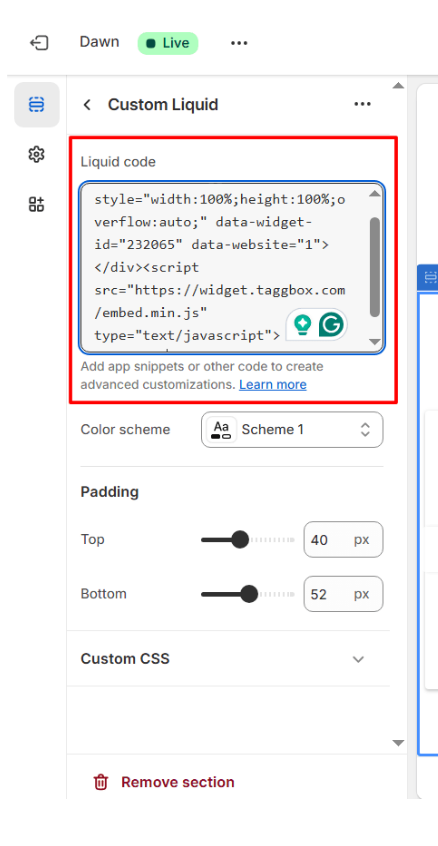
- Enregistrez vos modifications, et c'est terminé.
Configurez votre flux Facebook en quelques minutes et transformez le contenu authentique de vos clients en confiance instantanée.

Conseils pour optimiser votre flux Facebook sur Shopify
Suivez ces conseils pour optimiser votre flux Facebook sur votre boutique Shopify :
1. Choisissez le bon emplacement
Ne reléguez pas votre flux Facebook tout en bas de la page, là où, soyons honnêtes, personne ne fait défiler jusque-là. Placez-le à un endroit visible, comme sur la page d'accueil, les pages produits ou près des témoignages clients, pour qu'il soit vraiment efficace. La visibilité est essentielle : elle influence les décisions d'achat et contribue à la cohérence visuelle de votre site.
2. Afficher le contenu pertinent
Toutes les publications Facebook n'ont pas besoin d'être publiées sur votre site web. Utilisez des outils comme Taggbox Filtrez les publications non pertinentes pour donner un aspect professionnel à votre contenu. Privilégiez les avis clients, les photos de produits, les lancements et les publications de la communauté. Ainsi, votre flux Facebook restera clair et pertinent sur votre site Shopify.
3. Veillez à ce que le design soit en harmonie avec votre magasin.
Assurez-vous que votre flux Shopify soit cohérent avec vos thèmes, couleurs et mises en page Shopify. Cela donnera à votre site web une apparence professionnelle et soignée, car un design incohérent peut être perturbant et donner une impression de manque de professionnalisme, même si le contenu est de qualité.
4. Optimiser pour les utilisateurs mobiles
La plupart de vos visiteurs viendront depuis un mobile. Si votre flux Facebook s'affiche mal sur les petits écrans, les utilisateurs le quitteront immédiatement. Il est donc essentiel de toujours tester l'affichage mobile et de l'optimiser pour les utilisateurs mobiles avant sa publication.
5. Mettre à jour régulièrement
Un fil d'actualité Facebook qui n'a pas été mis à jour depuis des semaines semble abandonné. Il est recommandé d'utiliser un agrégateur en temps réel comme Taggbox, qui maintient automatiquement le contenu à jour sans mises à jour manuelles.
Problèmes courants et dépannage
Ajouter un flux Facebook à votre boutique Shopify semble simple, mais tout ne se passe pas toujours comme prévu. Voici quelques problèmes courants que vous pourriez rencontrer et comment les résoudre :
1. Le flux Facebook ne s'affiche pas
Cela se produit généralement lorsque vous ajoutez un code incorrect ou en raison de problèmes d'autorisation. Vérifiez que votre page Facebook ou votre contenu est public et que votre code d'intégration est correctement copié et complet.
2. Le flux ne se met pas à jour en temps réel.
L'intégration native de Facebook ne fonctionne pas en temps réel. Si votre flux ne se met pas à jour instantanément, cela est dû à une limitation de la plateforme. Par conséquent, assurez-vous d'utiliser un agrégateur de réseaux sociaux en temps réel pour un fonctionnement optimal.
3. Chargement lent de la page
Le widget Facebook peut parfois ralentir votre site Shopify, surtout s'il est présent sur plusieurs pages. Essayez de limiter le flux à une seule page principale ou de réduire le nombre de publications affichées.
4. Problèmes d'affichage sur mobile
Un flux qui s'affiche parfaitement sur ordinateur peut présenter des problèmes d'affichage sur mobile. Cela est généralement dû à des soucis de thème ou à une mise en page à largeur fixe. La seule solution consiste à tester la version mobile sur différents appareils ; ajuster le CSS peut également s'avérer très utile.
5. Incohérence de mise en page ou de conception
Si le flux ne s'intègre pas harmonieusement au design de votre boutique Shopify, le résultat est disgracieux. Il est donc conseillé de personnaliser le style ou d'utiliser un outil d'intégration plus flexible comme… Taggbox peut aider à mieux correspondre à la marque.
Commençons à engager les visiteurs de votre site Web dès maintenant !
Intégrez facilement votre flux Facebook à votre site web Shopify.
Conclusion
Ajouter un flux Facebook à votre site Shopify peut sembler anodin, mais cela peut faire toute la différence. Cela contribue à instaurer la confiance, à maintenir votre site à jour et à montrer aux visiteurs que votre marque bénéficie de la confiance de nombreux clients. Au lieu de simplement vanter les mérites de vos produits, vous leur permettez de le constater par eux-mêmes, ce qui, il faut bien l'avouer, est beaucoup plus efficace. Si vous débutez, Taggbox est un excellent outil pour débuter. Il offre des fonctionnalités puissantes et une configuration facile, ce qui simplifie la mise en valeur de contenu Facebook authentique et la conversion des visiteurs en clients convaincus.



 Upendra
 Harshita Rajoria
 Rohan Singh