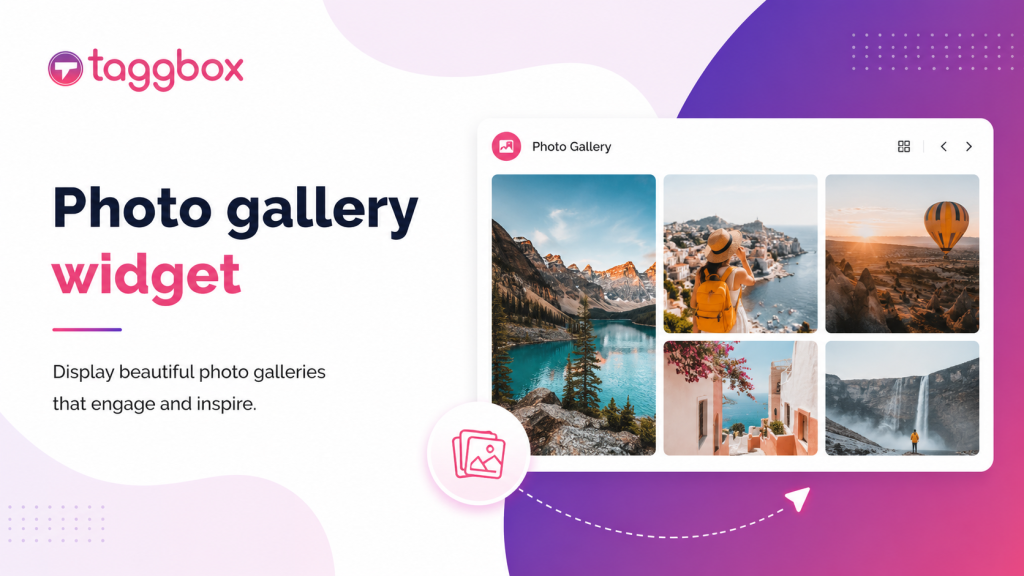
Worstelt u met ingewikkelde code en technisch jargon bij het maken van een prachtige fotogalerij voor uw website? Wij helpen u graag! In deze blog introduceren we een fantastische oplossing: een widget voor fotogalerijen die volledig codevrij en ongelooflijk eenvoudig in gebruik is.
Ontdek hoe deze responsieve fotogalerijwidget voor websiteoptimalisatie uw ideale tool kan worden om moeiteloos aantrekkelijke fotogalerijen te creëren.
Wat is een fotogalerijwidget?
Een fotogalerijwidget is een tool waarmee u afbeeldingen en foto's direct op uw website kunt weergeven door meerdere afbeeldingen samen te voegen tot één samenhangend weergaveblok.
Met TaggboxJe kunt foto's verzamelen van verschillende sociale netwerken, waaronder Instagram, X (voorheen Twitter), Facebook en Pinterest. Je kunt ook de widgets voor fotogalerijen bezoeken. Sjablonenbibliotheek Ontdek alle beschikbare thema's en zie wat je nog meer kunt bereiken met een sociale galerij en widget-opstelling. Het maakt complexe code of technische expertise overbodig, waardoor deze zeer intuïtieve afbeeldingsgalerij-widget toegankelijk is voor iedereen, van website-eigenaren en bloggers tot professionele fotografen.
Hoe integreer je een fotogalerij op websiteplatformen?
Met een moderne fotowidget creëer je moeiteloos visueel aantrekkelijke galerijen die de algehele uitstraling van je website verbeteren. Je kunt je afbeeldingen op een gestructureerde en boeiende manier ordenen en presenteren, wat zorgt voor een naadloze ervaring voor je bezoekers.
Of je nu je portfolio wilt presenteren, memorabele momenten van evenementen wilt delen of producten wilt laten zien, leren hoe je fotogalerijen kunt integreren biedt een effectieve manier om dit te doen. Het integreren van een fotogalerij in je website is een proces dat bestaat uit een paar eenvoudige stappen:
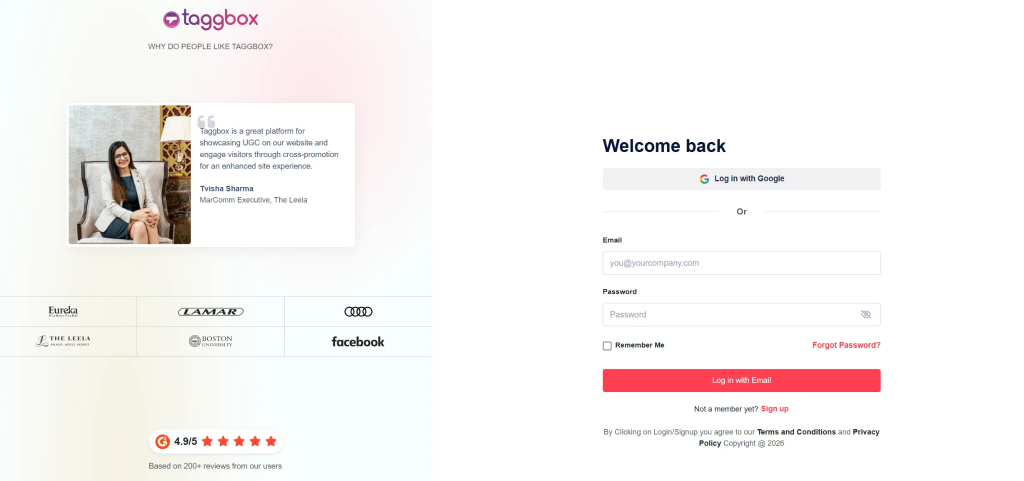
1: Maak een Taggbox Account
- Begin door in te loggen op uw Taggbox account. Als je er nog geen hebt, meld je gratis aan account. Zodra je bent ingelogd, word je doorgestuurd naar het scherm voor het selecteren van een sociaal netwerk.
2: Kies uw bron
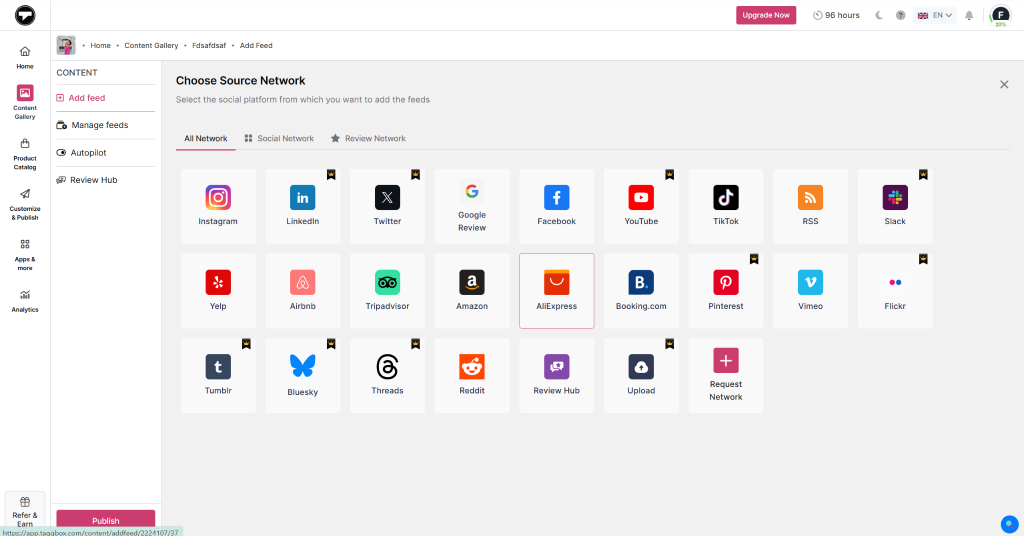
Klik op het dashboard op “Voeg sociale feeds toe” om foto's in je fotowidget te importeren. Selecteer in het pop-upvenster dat verschijnt je voorkeursplatform (zoals Instagram, Facebook, of X). Voer het gewenste berichttype of de gewenste gebruikersnamen in en klik op de “Feed maken” knop.
3: Matige voeding
Filter alle berichten eruit die je niet in je openbare widget wilt weergeven. Gebruik de AI-moderatiefunctie om dit op een slimme manier te doen.
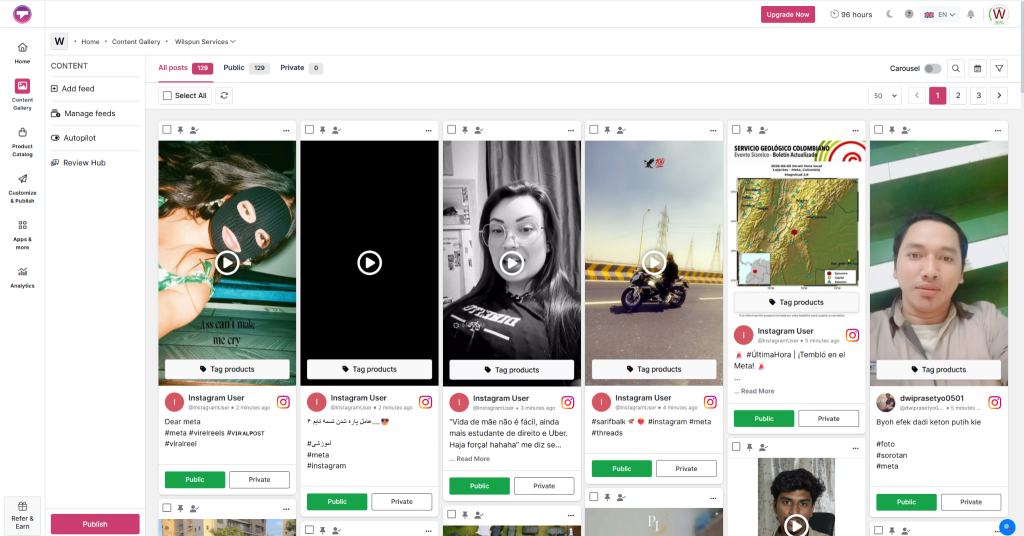
4: Pas de widget aan
Gebruik de nieuwste thema's en andere aanpassingsmogelijkheden om uw fotowidget eenvoudig aan te passen. Maak hem aantrekkelijker en beter afgestemd op het thema van uw website.
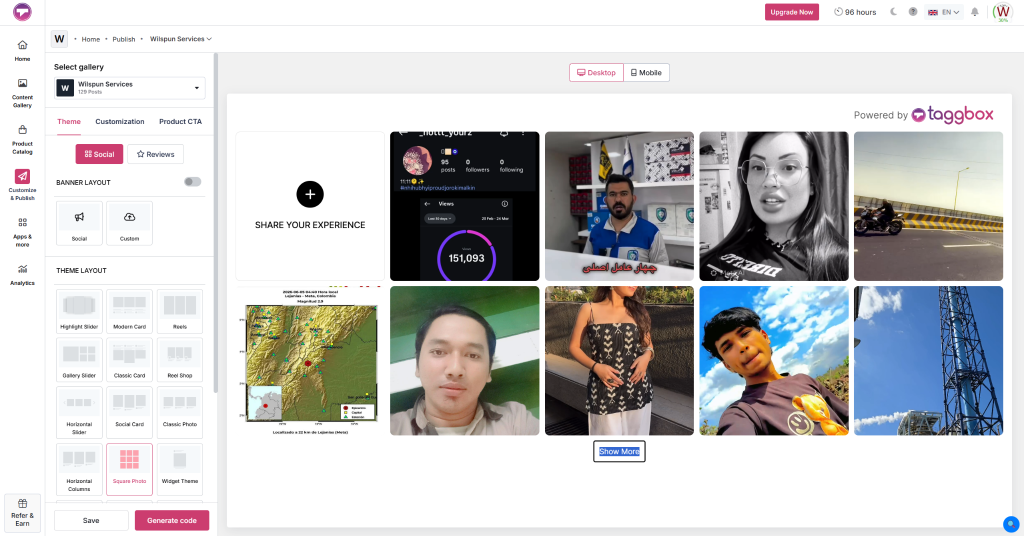
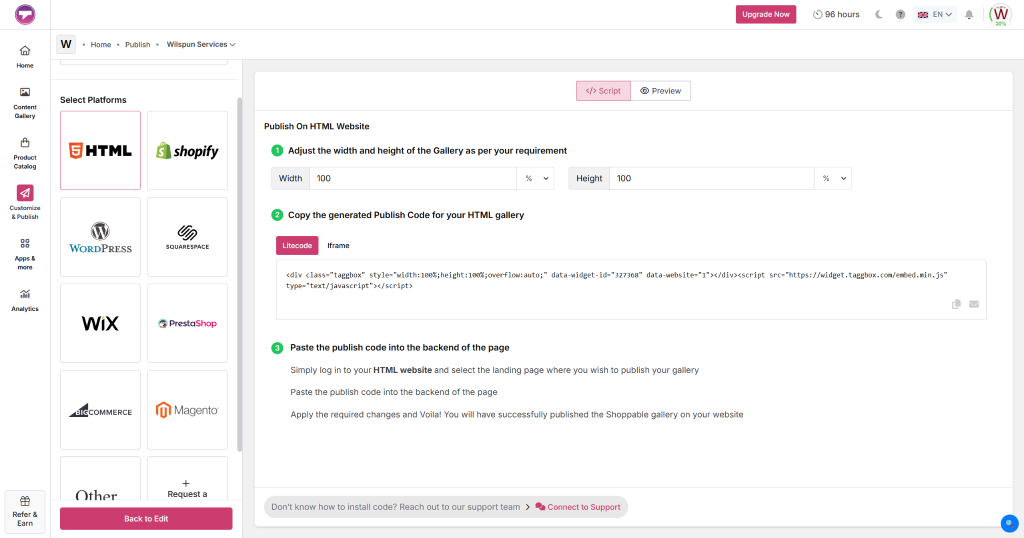
5: Insluiten en publiceren
Klik op de Publiceer klik op de knop en kies je specifieke websitebouwer (bijv. hood.discount, Wix(of Squarespace). Kopieer de gegenereerde embedcode, ga naar de backendpagina waar je de galerij wilt laten verschijnen en plak deze in een HTML Dit blok dient om uw aangepaste HTML-fotogalerijwidget te implementeren.
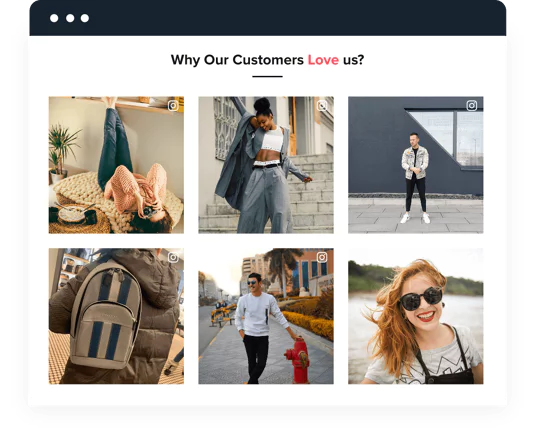
Maak en integreer gratis fotogalerijen!
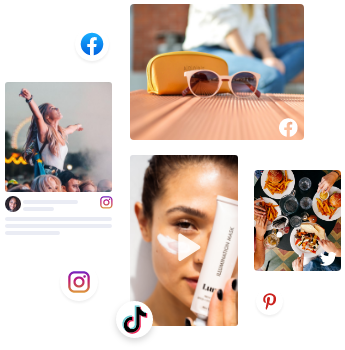
Gebruik een dynamische fotogalerijwidget om content van Instagram, Facebook, X en meer te tonen. Meerdere thema's.
Aanmelden, het is GRATISGeen creditcard nodig.
Opvallende kenmerken van de Taggbox Fotogalerijwidget
Ontdek de belangrijkste functies die zijn ontworpen om de visuele impact en gebruikerservaring van uw website te verbeteren:
a). Aanpasbare opties:
De widget voor de afbeeldingsgalerij is volledig aanpasbaar, waardoor u kleuren, lettertypen, afstand en sjablonen kunt wijzigen om een unieke visuele ervaring te creëren die perfect aansluit bij uw merkidentiteit.
b). Reagerend ontwerp:
Deze adaptieve fotowidget past zich automatisch aan de grootte van elk scherm of apparaat aan, inclusief desktops, tablets en smartphones.
c). Realtime-updates:
Het systeem haalt live berichten op van de door u gekozen sociale mediaplatformen. Zodra er nieuwe content wordt geplaatst, worden uw sociale galerij en widget direct en automatisch vernieuwd.
NS). Afbeeldingsbijschriften:
Geef context of vertel een verhaal door bijschriften bij individuele afbeeldingen in de gegenereerde feed weer te geven of te verbergen.
en). Geavanceerde moderatie:
Neem de volledige controle over wat er op je site verschijnt. Filter content, blokkeer specifieke tags of keur berichten handmatig goed voordat ze in je fotogalerij worden gepubliceerd. widget voor website lay-outs.
f). Aangepaste CSS:
Voor wie absolute controle wil over het ontwerp van zijn HTML-fotogalerijwidget, is het mogelijk om aangepaste CSS-code in te voegen om de lay-out te verfijnen en van de galerij een uniek meesterwerk te maken.
G). Review Hub:
Verzamel moeiteloos feedback van gebruikers met een 'ReviewHub'-knop of een speciale QR-code die direct op uw website wordt gegenereerd, waardoor u minder afhankelijk wordt van externe beoordelingsplatformen.
Wat is de beste manier om een fotogalerijwidget te gebruiken voor websiteconversies?
De plaatsing van je afbeeldingen is belangrijk. Hier zijn de meest effectieve plaatsingen voor maximale impact:
1. Startpagina:
Door hier een fotowidget te plaatsen, creëer je een dynamische introductie van je merk en trek je direct de aandacht van bezoekers met je nieuwste hoogtepunten of producten.
2. Speciale galerijpagina:
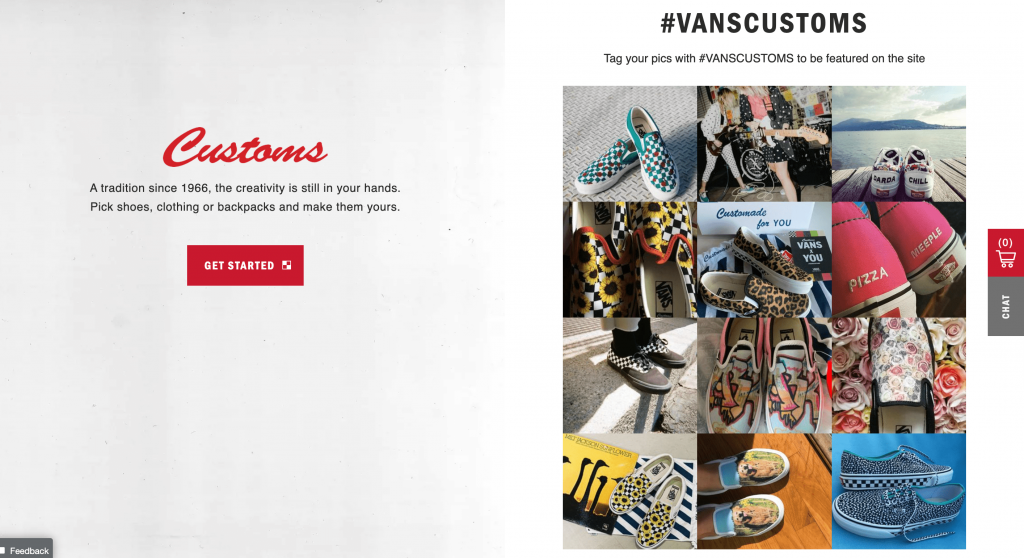
Ideaal als je een uitgebreide fotocollectie hebt of je werk wilt ordenen in overzichtelijke, gemakkelijk te navigeren albums.
3. Product- of portfolio-pagina's:
Essentieel voor e-commercewebsites en creatieve professionals om close-updetails, variaties of praktijkvoorbeelden te tonen met behulp van een afbeeldingsgalerijwidget.
4. Blog berichten:
Verdeel tekstrijke blogs in kleinere stukken met relevante afbeeldingengalerijen om je punten te illustreren en je artikelen leesbaarder te maken.
5. Herinneringen of pagina's op de Wall of Fame:
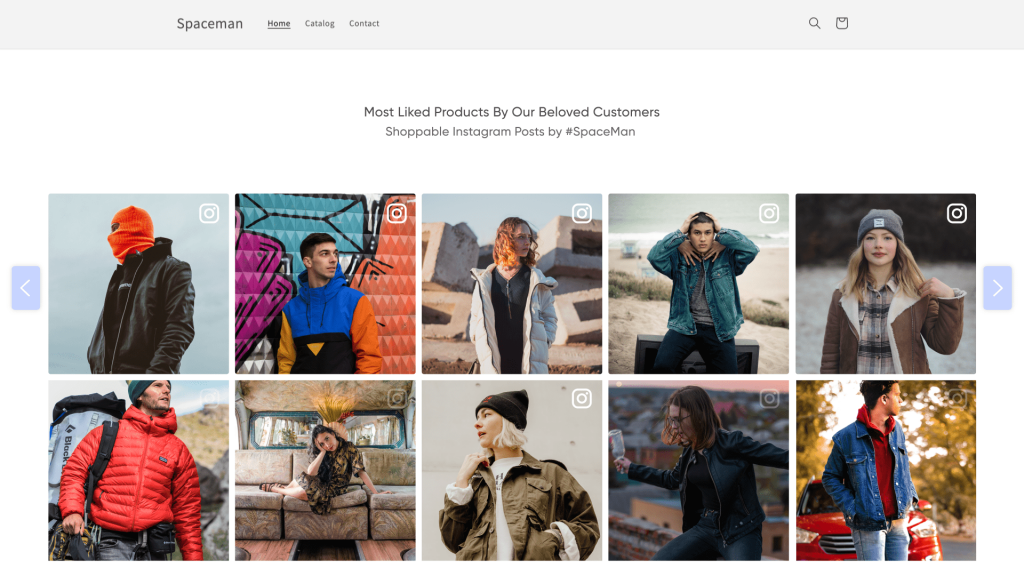
Uitstekend voor het opbouwen van sociale bewijskracht. Leela Hotels maakte bijvoorbeeld gebruik van een Taggbox De pagina met herinneringen is bedoeld om door gebruikers gegenereerde content uit te lichten, wat succesvol bijdraagt aan de opbouw van de community en de betrokkenheid op de website.
6. Evenementpagina's:
Gebruik fotogalerijen als een visuele samenvatting van eerdere evenementen, zodat deelnemers de ervaring opnieuw kunnen beleven en potentiële gasten kunnen zien wat ze de volgende keer kunnen verwachten.
7. Sidebars:
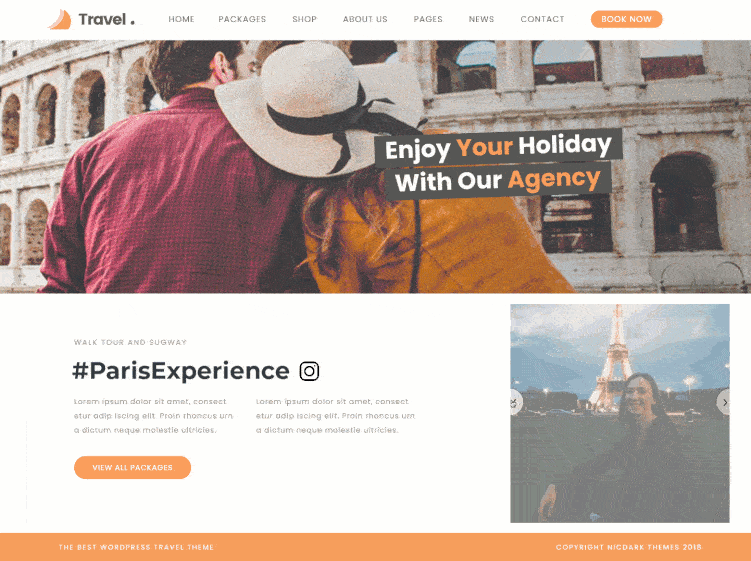
Vul de hoofdinhoud van je contentrijke websites of blogs aan door kleine, uitgelichte afbeeldingen in de zijbalk toe te voegen.
8. Koptekst of voettekst:
Subtiele, roterende minigalerijen in deze zones zorgen voor een continue visuele afwisseling zonder de lay-out van de hoofdpagina te verstoren.
9. Landing Pages:
Marketingcampagnes zijn sterk afhankelijk van visuele elementen om conversies te genereren. Wanneer je een fotogalerij op een landingspagina van een website plaatst, vergroot je het vertrouwen aanzienlijk. Om je lay-out te starten zonder helemaal opnieuw te hoeven beginnen, kun je je widget combineren met vooraf ontworpen sjablonen, zoals sjablonen voor landingspagina's voor digitale marketing of boekhouding.

Integreer de website-afbeeldingengalerij gratis op uw website
Begin gratis
Waarom hebben merken een widget voor fotogalerijen nodig?
a). Verhoogt de betrokkenheid van bezoekers:
Boei gebruikers met zeer stimulerende visuele verhalen via een actieve sociale galerij en widget die veel beter de aandacht trekt dan standaardtekst.
b). Verhoog de websiteverkoop:
Hoogwaardige afbeeldingen en door gebruikers gegenereerde sociale bewijzen helpen potentiële klanten uw producten beter te begrijpen, waardoor ze met vertrouwen tot aankoop overgaan.
c). Verbetert de gebruikerservaring:
Een goed georganiseerde galerij stelt gebruikers in staat om moeiteloos door meerdere afbeeldingen te bladeren zonder naar aparte webpagina's te hoeven navigeren.
NS). Verhoogt de tijd die ter plaatse wordt doorgebracht:
Wanneer gebruikers door uw visuals worden aangetrokken, blijven ze langer op uw website. Deze langere verblijftijd is een positief signaal voor zoekmachines, wat helpt om uw bouncepercentage te verlagen en uw SEO-ranking te verbeteren.
en). Vertelt een meeslepend visueel verhaal:
Deel het verhaal van je merk, stel je team voor of geef een kijkje achter de schermen van je bedrijfsvoering om een emotionele band met je publiek op te bouwen. Als blogger kun je visuele storytelling eenvoudig gebruiken via de fotogalerijwidget van Blogger om een sterkere emotionele band met je publiek te creëren.
Afsluiten
Het implementeren van een fotogalerijwidget biedt een probleemloze en gebruiksvriendelijke oplossing om de visuele aantrekkingskracht van uw website te vergroten. Omdat dit systeem werkt als een eenvoudig te configureren HTML-fotogalerijwidget, kan iedereen binnen enkele minuten een prachtige, interactieve fotogalerij creëren. Implementeer er vandaag nog een en geef uw websitebezoekers een boeiendere online ervaring!
 Yuvraj
 Wagisha
 Jennett
 Harshita Rajoria