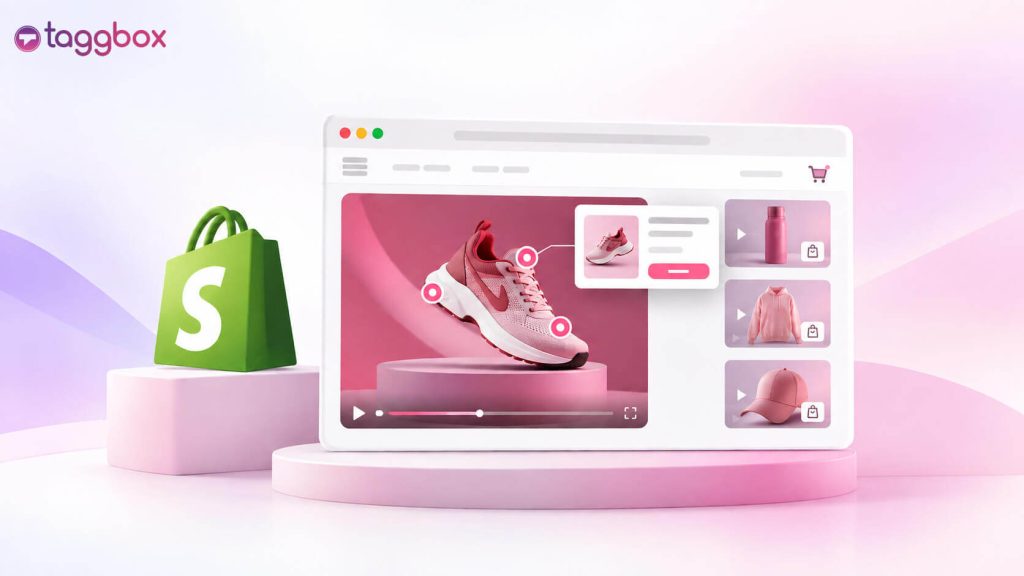
Incorpora un video acquistabile su Shopify con un'app come Taggbox by adding clickable product tags to your videos and embed them on your Shopify store without heavy coding or editing your theme. The setup is quick, so you can turn existing product, UGC, or creator videos into shoppable experiences in minutes.
If you’ve already got product videos, reels, or other UGC, you don’t need to start from scratch to make them shoppable on Shopify. All you need is to add a shopping layer to the content you already have,
Piattaforme come Taggbox make this process easy by bringing your existing social and Video generati dagli utenti into your Shopify store and building shoppable experiences around them.
In this blog, we’ll see how to embed a shoppable video on Shopify, the mistakes that limit its performance and how to tell whether the video is earning its place on the page.
Step-by-Step: Embedding Shoppable Video On Shopify
Workflow At A Glance
Shopify → Install Taggbox → Add/Import Videos → Create Video Feed → Sync Shopify Product Catalog → Tag Products in Videos → Enable Shoppable → Customize → Add Taggbox App Block / Generate Code → Publish on Shopify → Track Analytics
Passo 1: installazione Taggbox su Shopify
- Log in to your Shopify Admin.
- Use the search bar and search for Taggbox.
- Select “Search Taggbox in Shopify Store.”
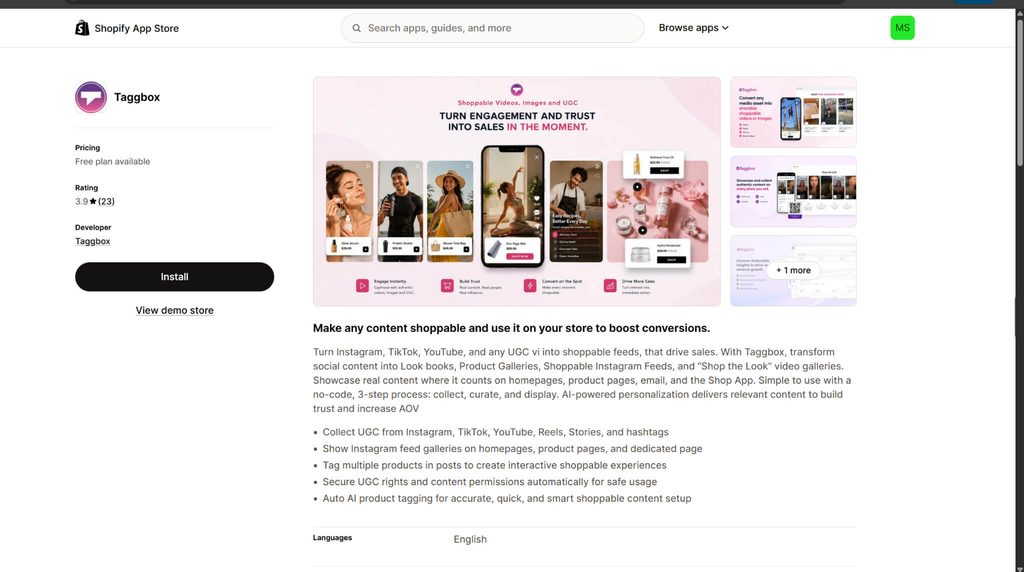
- Fare clic su Taggbox dai risultati della ricerca.
- On the left-hand side, click Install.
- You’ll be redirected to a new tab. Click Install again.
- Migliori Taggbox dashboard will open.
Taggbox supports shoppable videos and can turn videos from sources such as Instagram, TikTok, YouTube, UGC, and uploaded videos into shoppable experiences.
Step 2: Add Your Videos
Dal Taggbox pannello di controllo:
- Choose the video source you want to use. You can select a social platform such as Instagram, TikTok, YouTube, and more.
- If you have your own video files, select “Upload” to add them directly.
- Click Create Feed.
Taggbox also supports uploading videos directly, so the videos don’t necessarily have to come from a social platform.
Step 3: Connect Your Shopify Product Catalog
To make your videos shoppable, connect the products that appear in your videos.
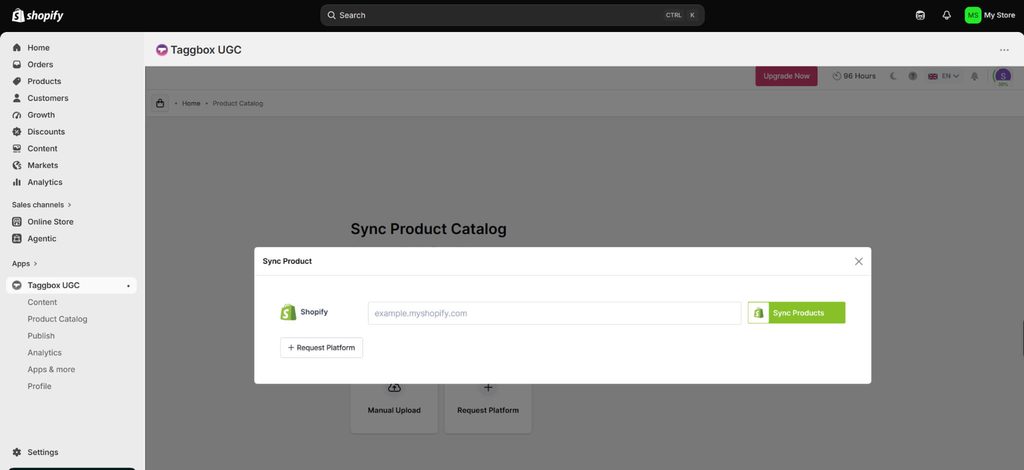
- Go to Product Catalog in the Taggbox cruscotto.
- Connect/sync your Shopify product catalog.
- Once the products sync, they’ll be available for tagging.
Step 4: Tag Products in the Videos
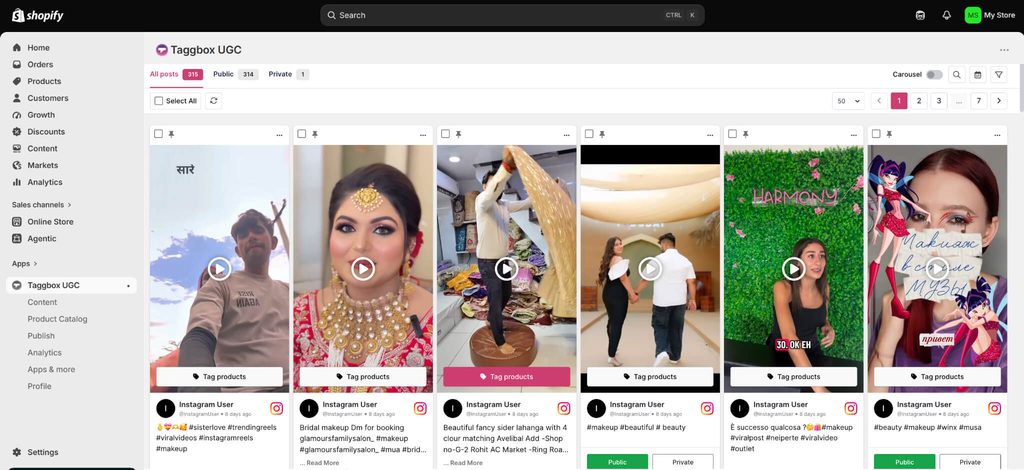
- Go back to your video feed.
- Select the video you want to make shoppable.
- Click Tag Products and select the Shopify product(s) shown in that video.
- Add the product tag/hotspot to the relevant area of the video and save the changes.
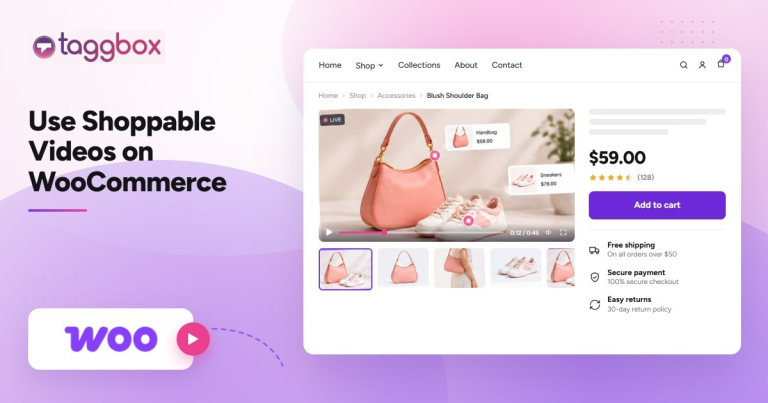
Taggbox supports interactive product hotspots on videos, allowing shoppers to click products while viewing the video.
Note:: Remember to enable the Shoppable Feature:
- Go to Apps & More on the left-hand side.
- Find Shoppable and enable the feature.
This converts your regular video feed into an interactive shopping experience.
Step 5: Customize the Video Feed
Go to Customize and adjust your video feed’s appearance. You can customize things such as:
- Video layout
- Tema
- Disegno della carta
- Colore
- Caratteri
- Spaziatura
- Invito all'azione del prodotto
- CSS personalizzato
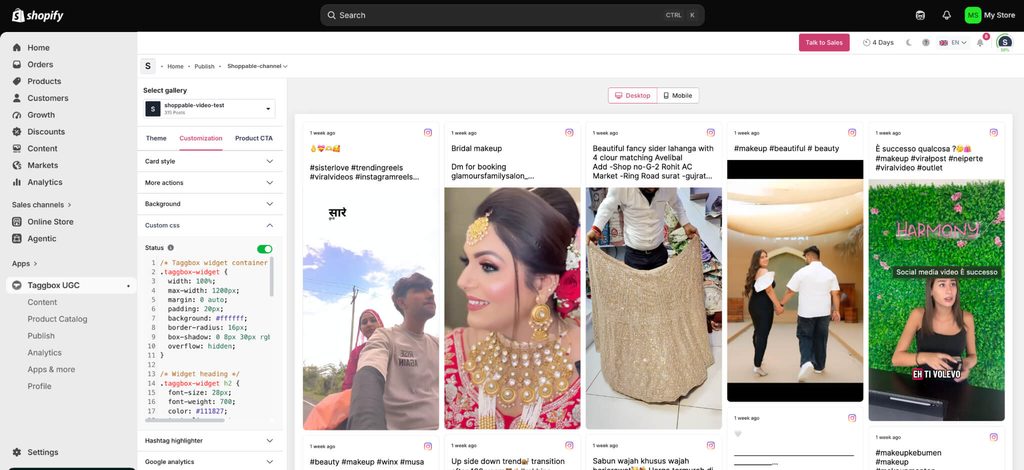
Taggbox specifically supports customization options including themes, layouts, fonts, custom CSS, and product CTAs.
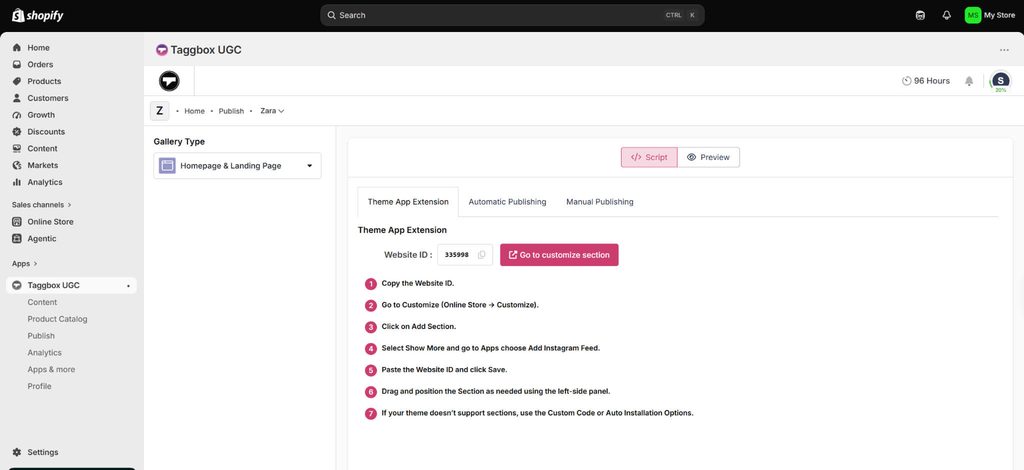
Passaggio 6: Genera il codice di incorporamento
Once your video feed looks the way you want:
- Click Publish / Generate Code.
- Now you’ll see 3 publishing options:
- Theme App Extension – Gives you a website ID.
- Automatic Publishing – Select your Shopify page, theme and position, then publish.
- Manual Publishing – Adjust the width and height of the Gallery and then publish,
- Select whichever suits you best and then publish your gallery.
Step 7: Add the Video Feed to Shopify
Su Shopify:
- Go to Online Store → Themes.
- Click Customize on your current theme.
- Navigate to the page where you want the video feed, for example, the homepage, product page, collection page, or landing page.
- Add the generated code in the HTML block.
- Seleziona la tua Taggbox feed, save, and preview the page.
Taggbox’s Shopify app displays feeds directly within Shopify, including on homepages and product pages.
Step 8. Test the Shoppable Videos
Before going live, check:
- Videos load correctly.
- Videos work on mobile and desktop.
- Product hotspots appear in the correct location.
- Clicking a product takes the customer to the correct Shopify product.
- The product information is correct.
- The video feed doesn’t negatively affect the page layout or loading experience.
Step 9: Track Analytics
Once the feed is live, use Taggbox analytics to monitor its performance. You can track metrics such as:
- Visualizzazioni video
- Visitatori
- Clic sui prodotti
- CTR
- Coinvolgimento
- Other available performance metrics
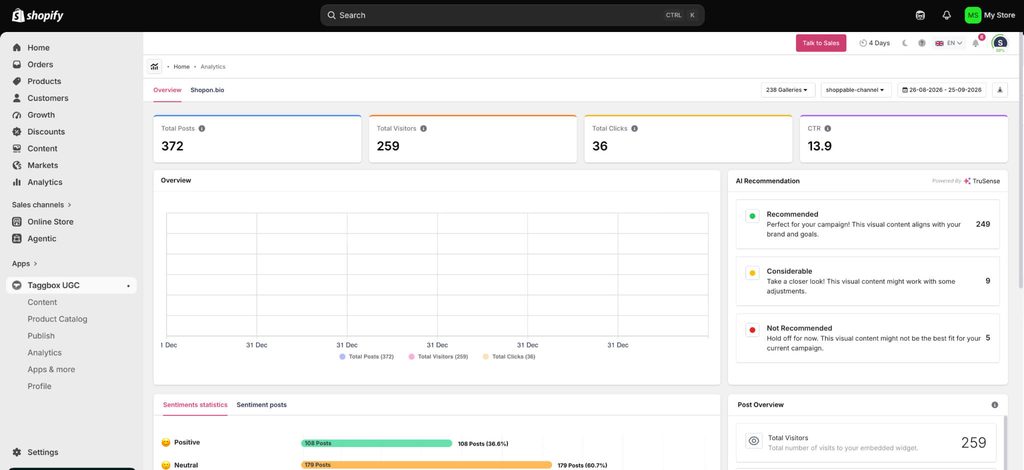
Taggbox positions its shoppable video product around tracking engagement and turning video interactions into measurable shopping activity.
Set Up Your First Shoppable Video in 10 Minutes
Inizia gratisWhat Are Shoppable Video Mistakes That Limit Your Performance
A shoppable video feed can go live, look correct, and still convert poorly, usually because of one decision made somewhere in steps 2 through 8. Catching these now saves a return trip through every video later:
1. Creating a mixed content feed instead of a video-only one
Sources like Instagram and TikTok pull in photos by default alongside video, so skipping the video filter in step 2 turns the “shoppable video” section into a shoppable image gallery with a few videos mixed in. This undercuts the entire point of the feature and confuses anyone measuring video-specific performance later.
2. Tagging products before the catalog is fully synced
If the product catalog sync hasn’t finished or a few SKUs failed to import, tagging happens against an incomplete list, and the fix afterward means going back through every video to re-tag whatever was missing the first time.
3. Overloading a single video with product tags
A video with six or seven hotspots stacked into one 15-second clip stops feeling like content and starts feeling like an ad overlay. One to three well-placed tags per video, tied to what’s really visible on screen at that moment, converts better than tagging everything the brand sells.
4. Not testing hotspot placement on mobile separately from desktop
Hotspots positioned to sit neatly on a desktop-sized video frame often end up in the wrong spot, or off-screen entirely, when the same video is rendered at mobile width. And since the majority of video consumption happens on mobile, this is where most of the traffic actually is.
5. Embedding the video feed above the fold without lazy-loading
A video widget loading immediately on page load, especially on a homepage or PDP, competes with the largest contentful paint and can drag down page speed and Core Web Vitals, which then works against the very SEO goals this post is written for.
6. Leaving feed on default styling instead of matching site’s theme
An unstyled, default-look video widget reads as a bolted-on third-party plugin rather than a native part of the store, which quietly reduces the trust and click-through the feature is supposed to build in the first place.
7. Publishing without confirming Shoppable is actually enabled
The video feed can go live and play perfectly while the hotspots don’t function because the Shoppable toggle was never switched on. Worth checking this during the Step 8 testing phase, not assuming it carried over from setup.
8. Treating analytics as a one-time check instead of an ongoing loop
Publishing the feed and never returning to the dashboard means missing early signals like high views but low product clicks that would otherwise prompt a fix to hotspot placement or which videos are featured.
How to Improve Shoppable Video Performance?
Once the base feed is live, a few upgrades push it from functional to genuinely high-performing.
Pull video from more than one source instead of relying on a single platform: Miscelazione Instagram acquistabile, TikTok acquistabile, and direct customer uploads keeps the feed from feeling repetitive and gives you more raw material to test. Let AI-based tagging suggest product matches instead of tagging every video manually, which cuts setup time and reduces missed tags as your catalog grows.
Place the feed on more than just the homepage: Un shoppable video widget on the product page itself, sitting near reviews or the buy box, tends to convert better than the same widget sitting on the homepage, simply because the shopper is already closer to a purchase decision.
Turning on UGC rights requests: Securing permission automatically through bulk UGC right requests before featuring a customer’s video protects the brand legally and lets you reuse that same clip in ads or email without a separate approval step later.
Treat the feed as something to curate: Pull out videos with consistently low engagement every month or two, and feature new content in their place. A feed that never changes starts to blend into the background the same way a banner ad does.
Not Sure Where to Place Your First Shoppable Video?
Inizia gratisCiò che rende Taggbox’s Shoppable Video Different
Beyond the standard tag-and-embed flow, a few things are specific to Taggbox and worth calling out directly rather than folding into the steps above.
Videos can be pulled in from 20+ sources at once: Instagram, TikTok, YouTube, Reels, Stories, and hashtag or mention-based collections, so the feed isn’t limited to whatever’s been manually uploaded.
AI-based tagging suggests product matches automatically as new videos come in, which matters once a store has more than a handful of videos to manage.
UGC rights requests go out automatically before a customer’s video is featured, so permission is secured without a separate manual step. You can reuse the same content later in ads or email without asking again.
Moderazione dei contenuti runs on top of all of it, filtering out low-quality or irrelevant clips before they ever reach the live feed.
Inizia gratis: None of this requires a paid plan to try. Taggbox’s free tier lets a store set up a first shoppable video feed, tag products, and see it live on the site before deciding whether to upgrade for higher view limits or advanced moderation.
“Sobroome gained +53% Conversions, +50% traffic and +40% engagement with Taggbox Shoppable UGC Gallery.” Leggi il caso di studio.
Conclusione
Setting up shoppable videos on Taggbox takes under 10 minutes. Still, the difference between a shoppable video feed that quietly sits on the homepage and one that actually moves numbers comes down to what happens after it’s live, where it’s placed, which videos are featured, and whether the data backs up that it’s converting.
Getting that part right is usually less about more features and more about setup decisions specific to the store, which is where talking it through directly tends to save more time than trial and error. If you’re weighing where to place the feed, which sources to pull from, or want a second opinion on the setup before going live, parlare con il Taggbox team; we can walk through the specifics for your store rather than the general case.
Hai domande? Abbiamo le risposte!
Yes, you can add shoppable video to Shopify without coding. Platforms like Taggbox let you embed shoppable video through an app block or a generated code snippet, no developer needed. The full setup, from installing the app to publishing the feed, typically takes under 10 minutes on most Shopify themes.
Yes, shoppable video works on Shopify’s free themes, including Dawn and other Online Store 2.0 themes. Taggbox adds the feed as an app block, so it fits into free themes the same way it does paid ones, without custom theme code.
The cost to add shoppable video to a Shopify store depends on the app and plan. Taggbox offers a free plan to set up and test a shoppable video feed before upgrading, with paid tiers unlocking higher view limits, advanced moderation, and more video sources as the store grows.
Yes, shoppable video is indirectly good for SEO. Shoppable video increases time on page and engagement, both of which support SEO, but only if it’s lazy-loaded so it doesn’t slow the page down. An unoptimized embed can hurt Core Web Vitals and offset any SEO benefit gained.
Yes, you can make a video shoppable on Shopify using a platform like Taggbox to tag products directly within a video, turning it into a clickable, shoppable experience where viewers add items to cart without leaving the page or pausing what they’re watching.
Clickable product links, or hotspots, are added through the video app’s dashboard, not Shopify itself. In Taggbox, this means syncing the product catalog first, then tagging the relevant product directly on the video when it appears.
You should add shoppable videos on product pages as they tend to convert best, since shoppers there are already close to buying, though homepages and collection pages work well for discovery. Testing placement on one or two pages first gives a clearer read than adding it site-wide immediately.
Yes, shoppers can buy products directly from a shoppable video, and that’s the core function. Tapping a tagged product inside the video adds it to the cart or takes the shopper to the product page, without needing to pause the video or search for the item separately.
You manage multiple videos from one dashboard rather than individually. Taggbox lets you group videos into a single feed, tag products across all of them, and check performance for each video from the same analytics view.

Sanskriti è uno specialista di marketing dei contenuti presso TaggboxSpecializzata in contenuti generati dagli utenti, social media marketing, esperienze web e fiducia digitale, con oltre 3.5 anni e mezzo di esperienza nel marketing SaaS e B2B, combina ricerche di mercato, approfondimenti sui clienti, strategie di go-to-market ed esempi concreti di brand per aiutare i professionisti del marketing a creare esperienze digitali più autentiche e performanti.

 Yuvraj
 Diario di Deepanshi Jain