Introduction
The Taggbox BigCommerce App helps you bring your social media content directly to your BigCommerce store and create engaging shopping experiences.
With the app, you can collect content from multiple social media platforms, customize your social media widgets, display them on your storefront, and turn your social content into a shoppable gallery by tagging products from your BigCommerce product catalog.
This guide explains the complete process of installing the Taggbox BigCommerce App, connecting your account, creating widgets, syncing products, tagging products, and displaying shoppable social galleries on your store.
Prerequisites Before Getting Started
Before installing and using the Taggbox BigCommerce App, make sure you have:
- An active BigCommerce store
- Admin access to your BigCommerce account
- A Taggbox account
- Social media content sources connected to your Taggbox account
If you want to use the shoppable gallery feature, make sure your BigCommerce store has active products available in your product catalog.
Installing Taggbox BigCommerce App
Follow these steps to install the Taggbox App on your BigCommerce store.
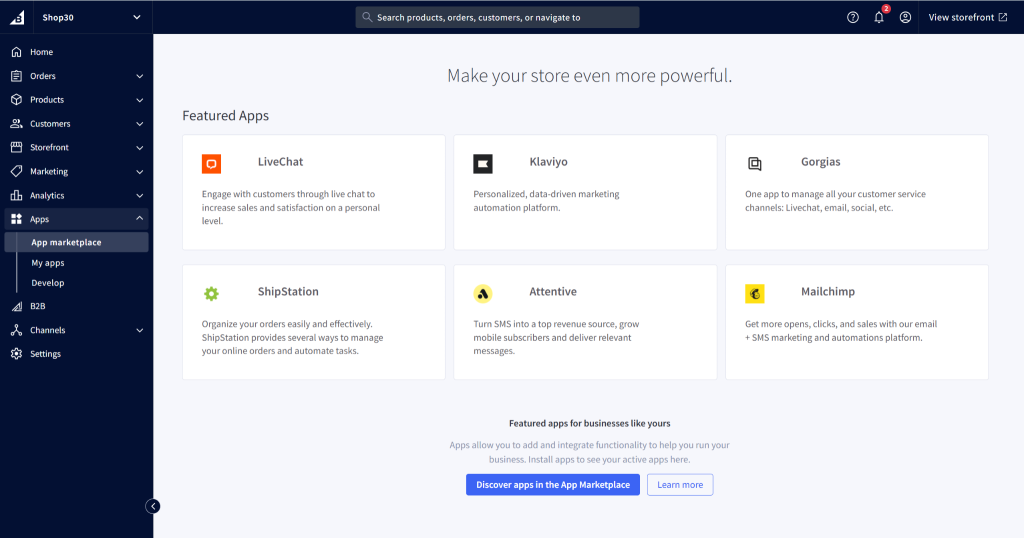
Step 1: Open BigCommerce App Marketplace
- Log in to your BigCommerce admin dashboard.
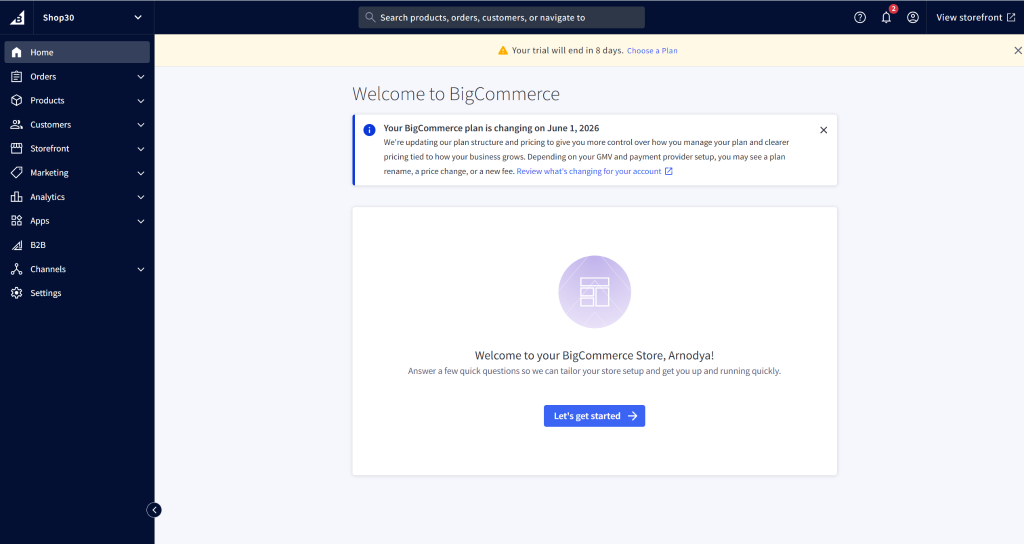
- Navigate to Apps → App Marketplace.
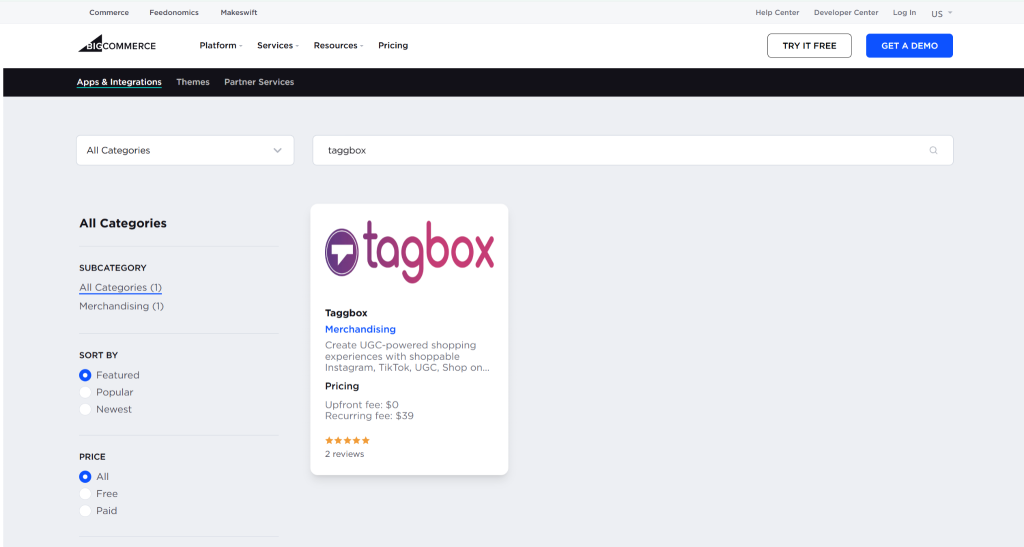
- Search for Taggbox.
- Open the Taggbox App listing.
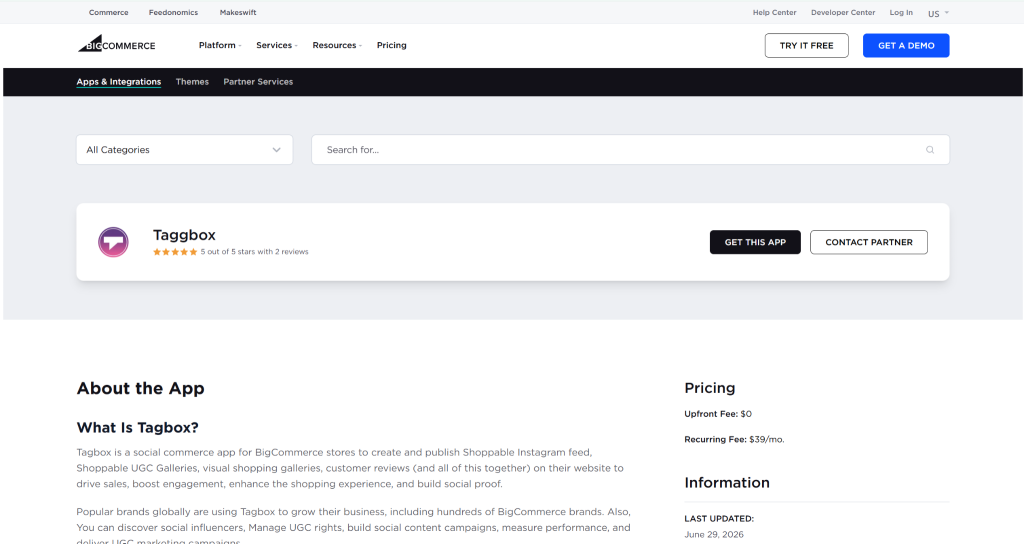
Step 2: Install the App
- Click Install.
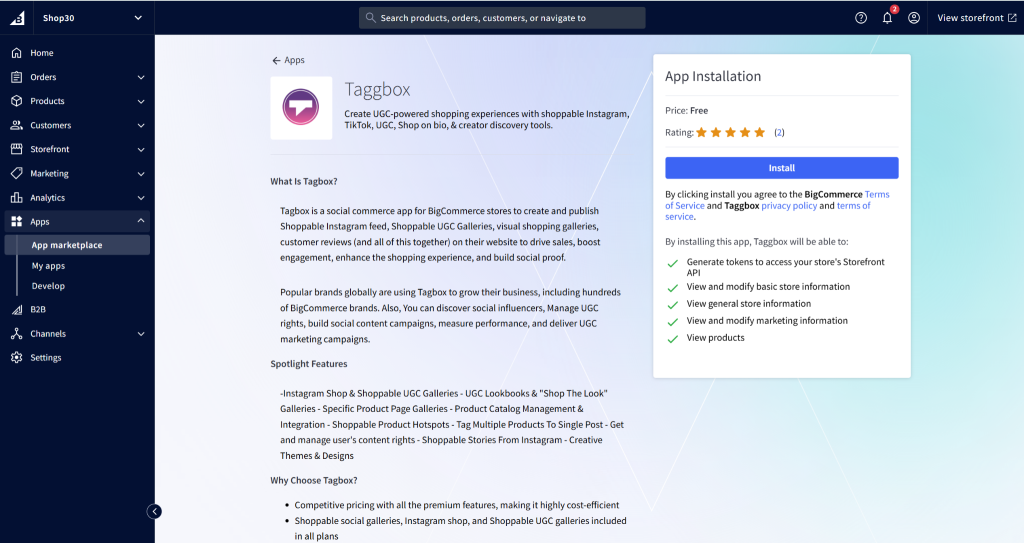
- Review the required permissions.
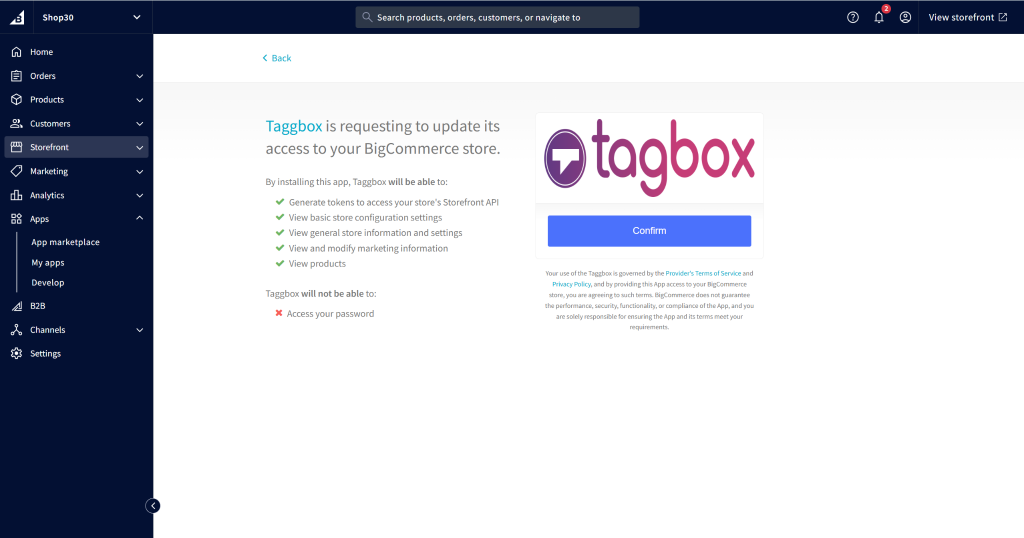
- Confirm the installation.
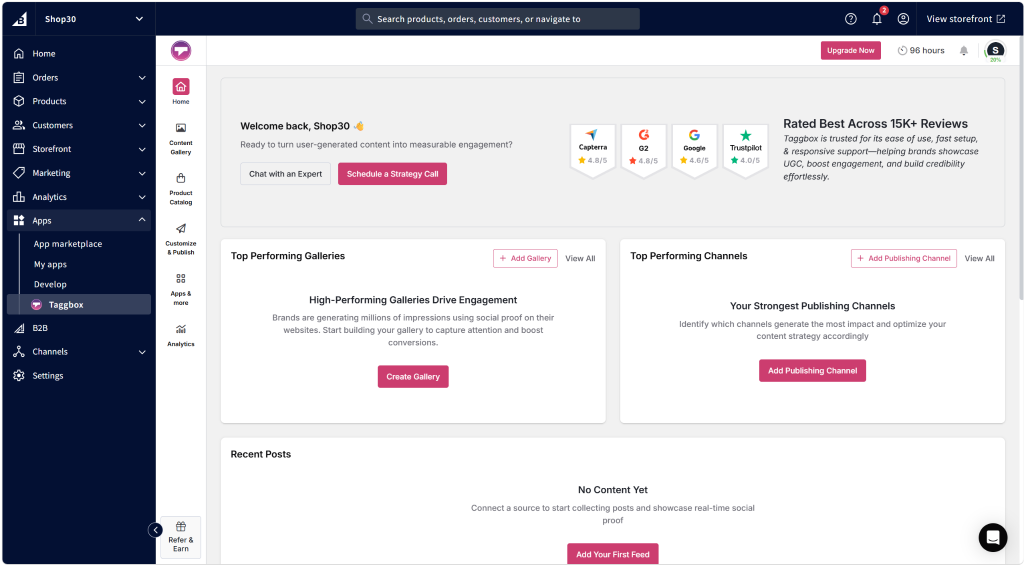
Once installed, the Taggbox App will appear under the Apps section in your BigCommerce dashboard.
Connecting Your Taggbox Account
After installing the app, connect your Taggbox account to manage your widgets and social content.
Follow these steps:
- Open Apps → Taggbox from your BigCommerce dashboard.
- Click Connect Account.
- Enter your Taggbox account credentials.
- Authorize the connection.
After successful authentication, your Taggbox widgets and settings will become available inside the app.
Creating a Social Media Widget
A widget allows you to display social media content on your BigCommerce storefront.
Step 1: Start the Taggbox app
Click on the Taggbox App on the left side to start it.
Step 2: Connect Your Social Source
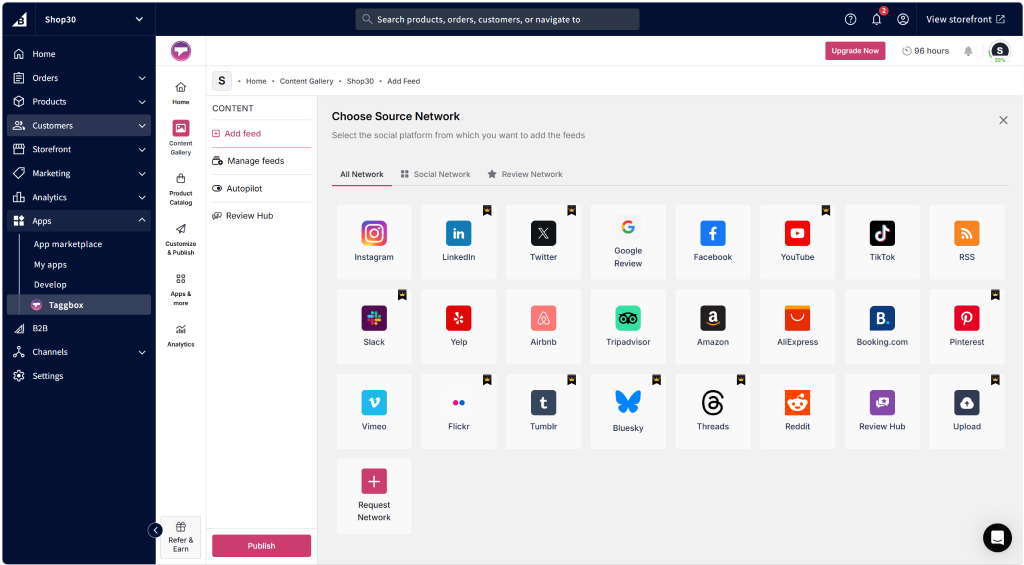
- Select your preferred social platform. Instagram, Facebook, YouTube, TikTok, etc
- Connect your account or enter the required source details.
- Choose the type of content you want to display.
- Create your feed.
Your selected social media content will start appearing in your Taggbox widget.
Step 2: Connect Your Social Source
Moderate your content & Control what appears on your website by:
- Approving posts manually
- Removing unwanted content
- Filtering posts
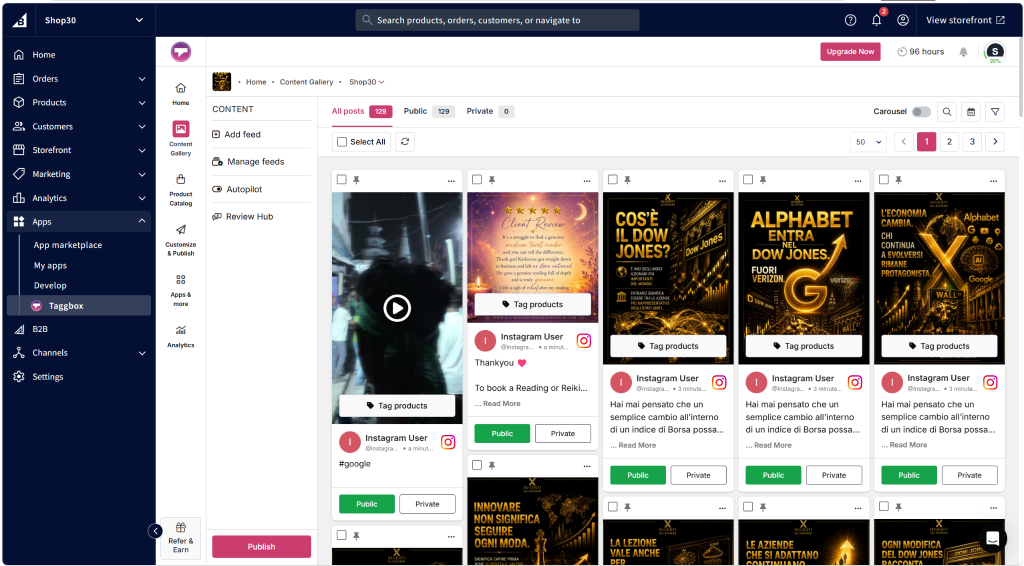
Step 3: Customizing Your Taggbox Widget
Before publishing your widget, customize it according to your brand requirements.
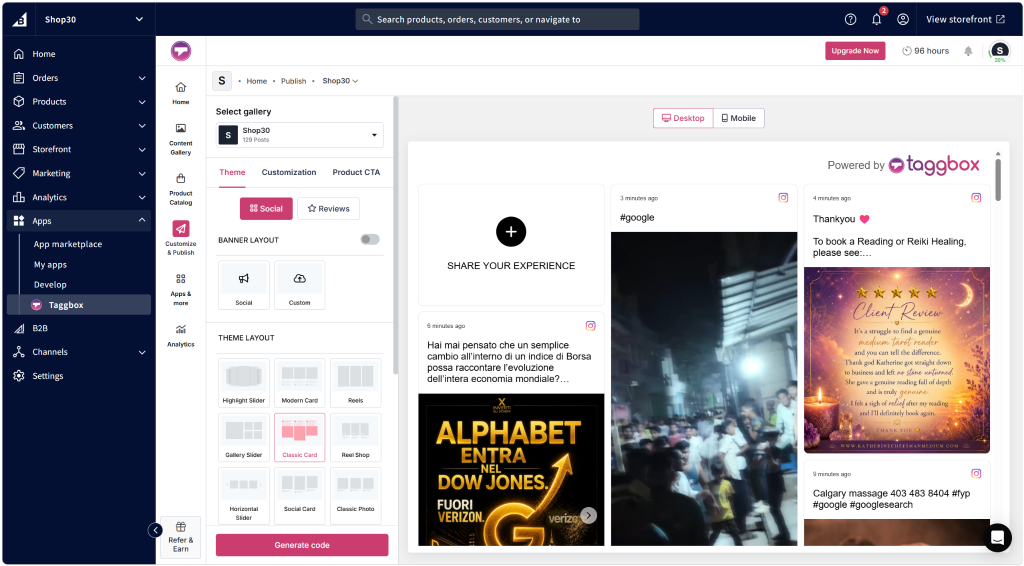
You can customize:
Widget Layout
Choose from multiple layouts:
- Grid
- Carousel
- Slider
- Masonry
Design Settings
Modify:
- Themes
- Colors
- Fonts
- Spacing
- Post styles
- Card appearance
Call-to-Action Options
Add interactive elements such as:
- Shop Now buttons
- Product links
- Redirect options
Creating a Shoppable Gallery with Taggbox
The Taggbox BigCommerce App allows you to transform your social media gallery into a shoppable experience.
With the shoppable feature, you can connect your BigCommerce products with social media posts and allow visitors to explore products directly from your content.
Customers can interact with your social posts, view tagged products, and move toward purchase.
How to Sync BigCommerce Product Catalog
Before tagging products, you need to sync your BigCommerce product catalog with Taggbox.
Follow these steps:
- Open the Taggbox App.
- Go to Product Catalog.
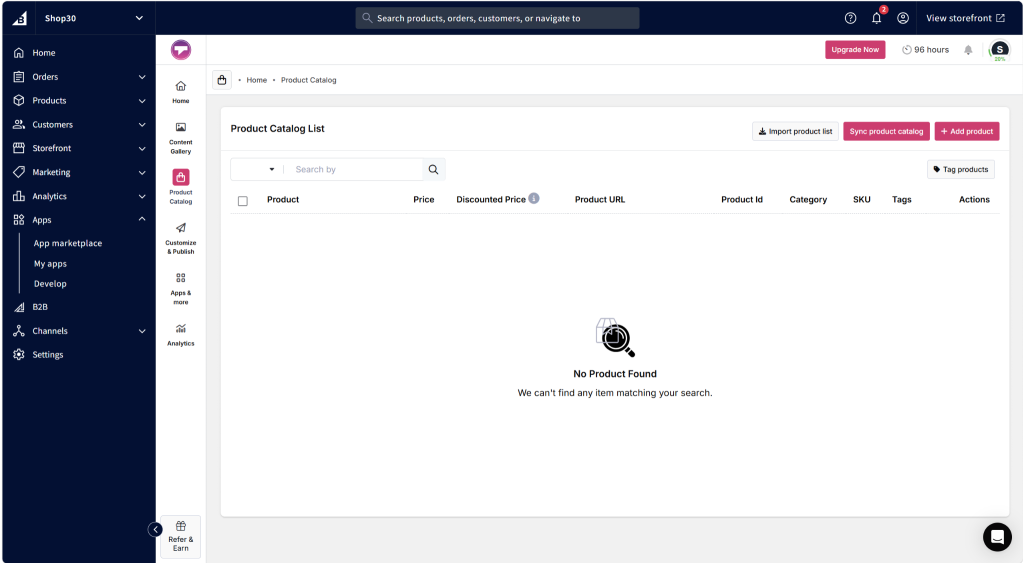
- Click Sync Product Catalog.
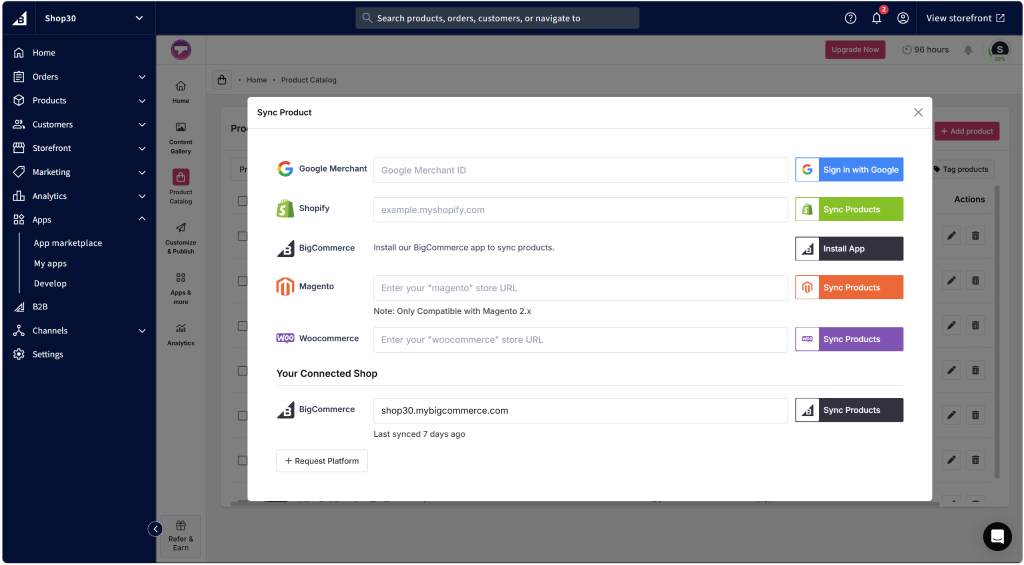
- Wait for the synchronization process to complete.
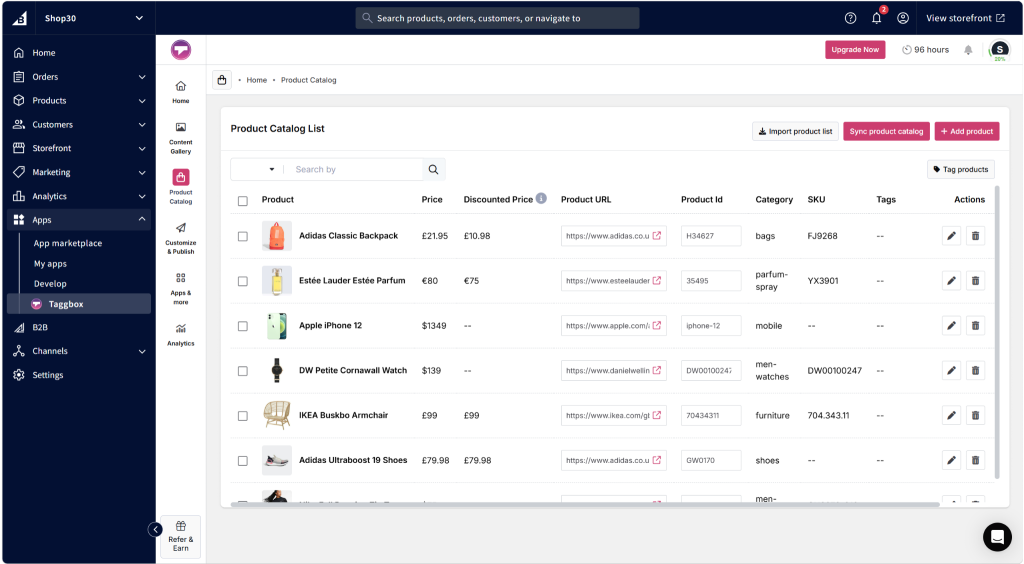
Once synced, your products will appear inside Taggbox.
The product catalog includes details such as:
- Product name
- Product image
- Price
- Product URL
- Product ID
- Category
- SKU
- Product tags
How to Tag Products in Social Media Posts
After syncing your products, you can connect them with your social media content.
Follow these steps:
- Open your Taggbox widget dashboard. Select the social media post you want to make shoppable.
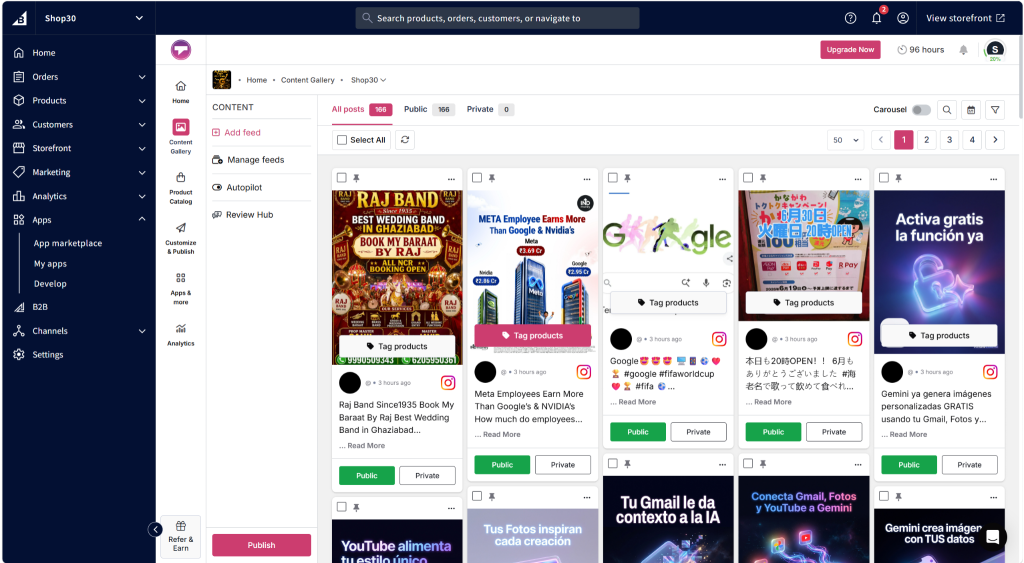
- Click Tag Products.
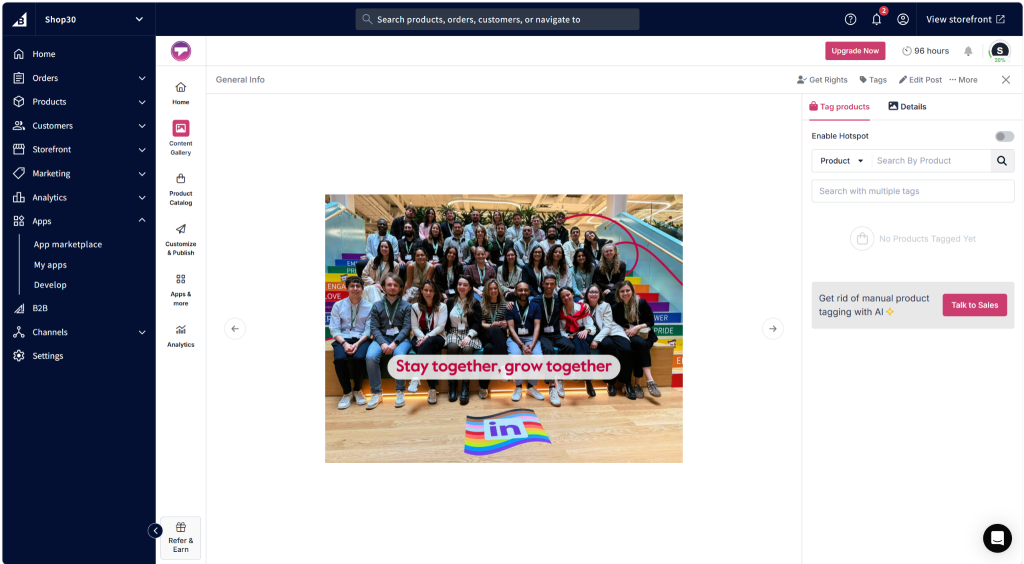
- Search for the relevant product from your synced catalog.
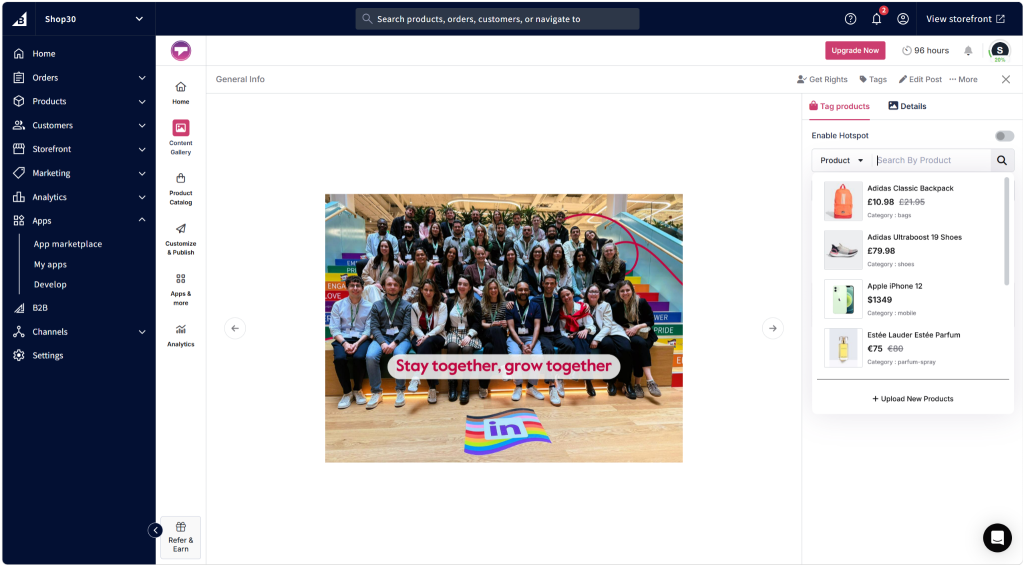
- Select the product. Save your changes.
The product will now be linked with that social media post.
Displaying Shoppable Gallery on Your BigCommerce Store
Once your products are tagged, publish the gallery on your storefront.
Add Widget Using BigCommerce Page Builder
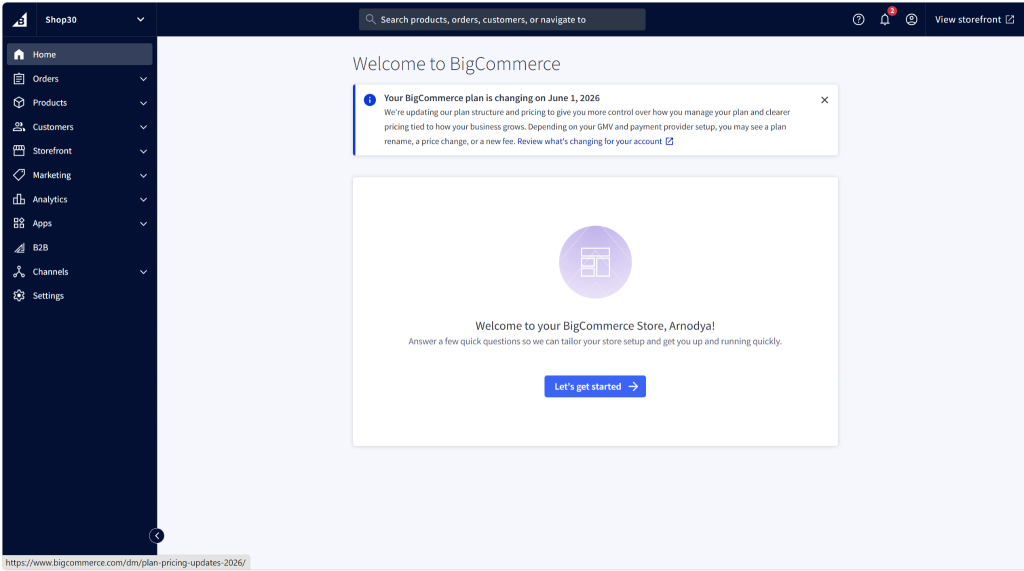
- Go to your BigCommerce dashboard.
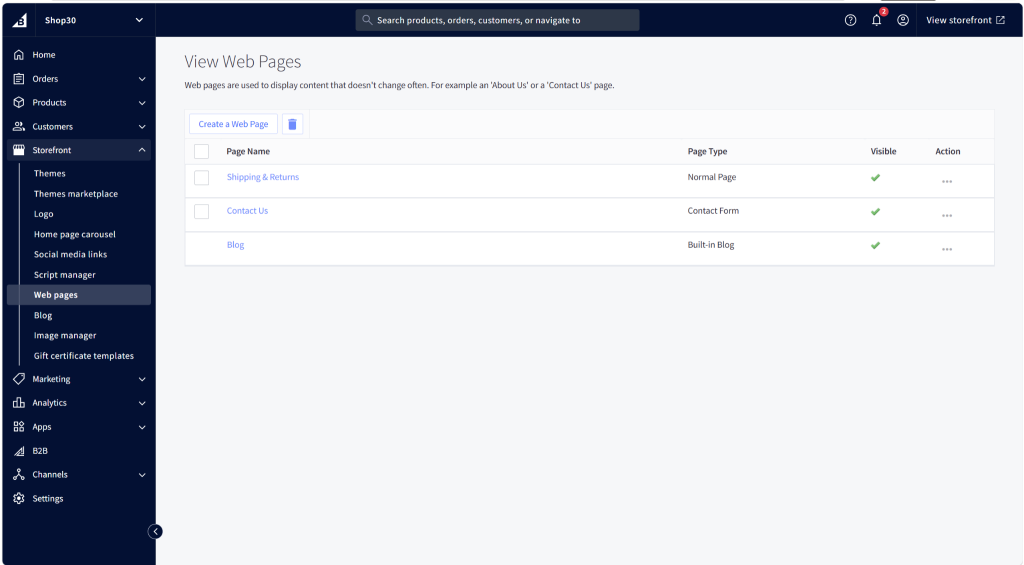
- Navigate to Storefront → Web Pages
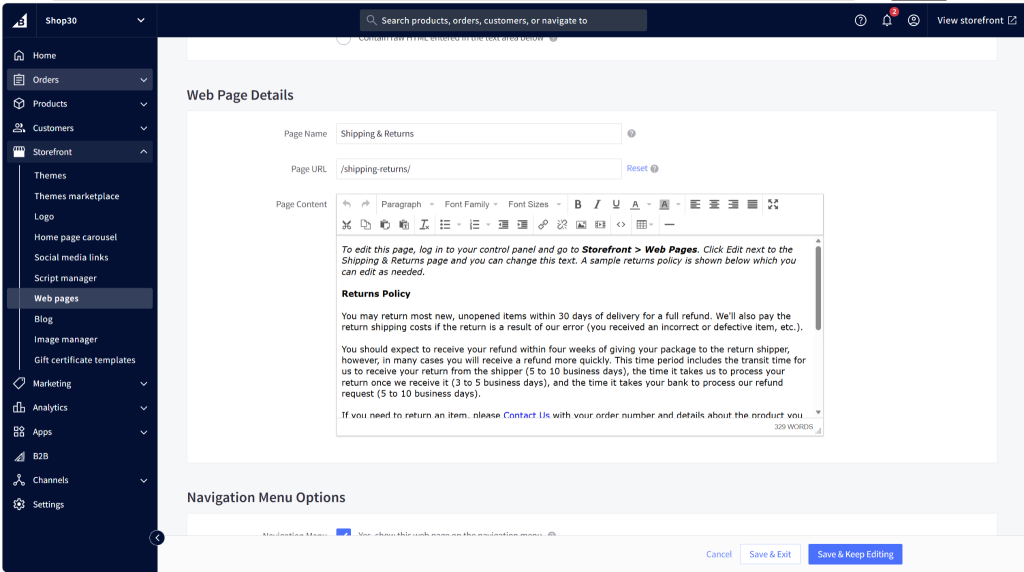
- Select the page where you want to display the gallery.
- Add an HTML widget/block.
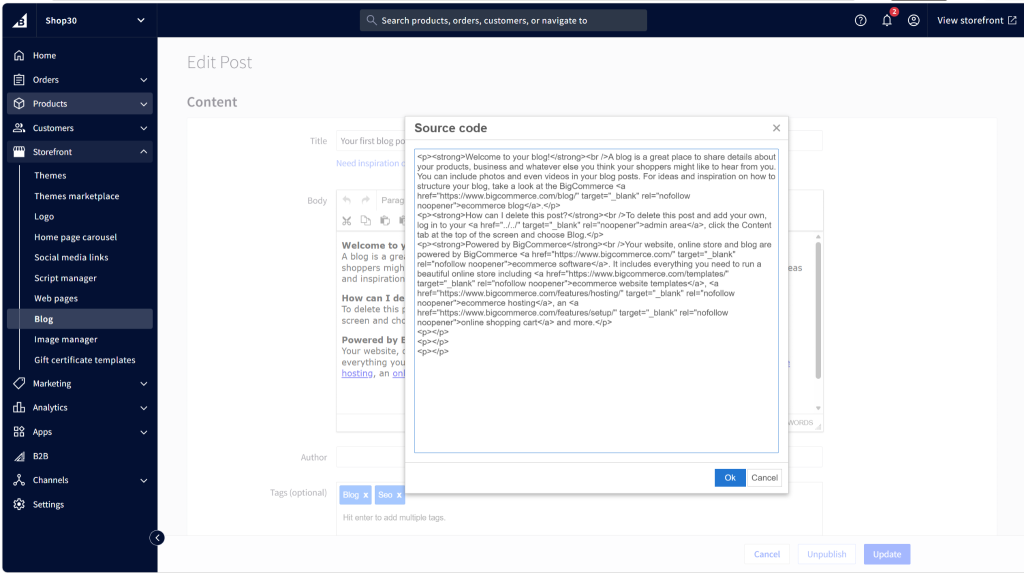
- Paste your Taggbox embed code.
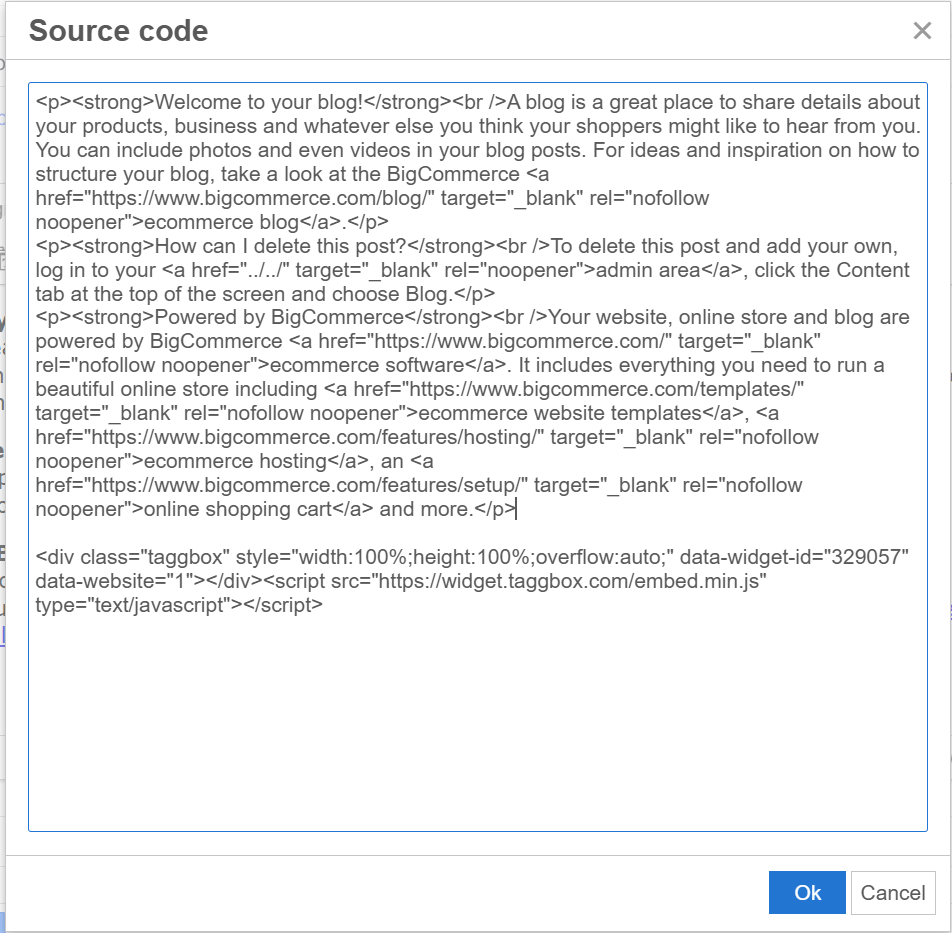
6. Save changes. Your shoppable social gallery will now appear on your website.