The Taggbox Shopify App helps Shopify merchants display engaging social media feeds, customer reviews, and user-generated content on their online stores without manually adding complex code.
With the Taggbox Shopify App, you can collect content from multiple sources, customize your widget design, and display it on important store pages to create engaging shopping experiences.
In this guide, we will explain how to install the Taggbox Shopify App, connect your account, create a widget, and display it on your Shopify store.
Before you start, you need
Make sure you have:
- A Shopify store
- A Taggbox account
- A social media feed or review source you want to display
Step 1: Install the Taggbox Shopify App
1: Log in to your Shopify admin account.
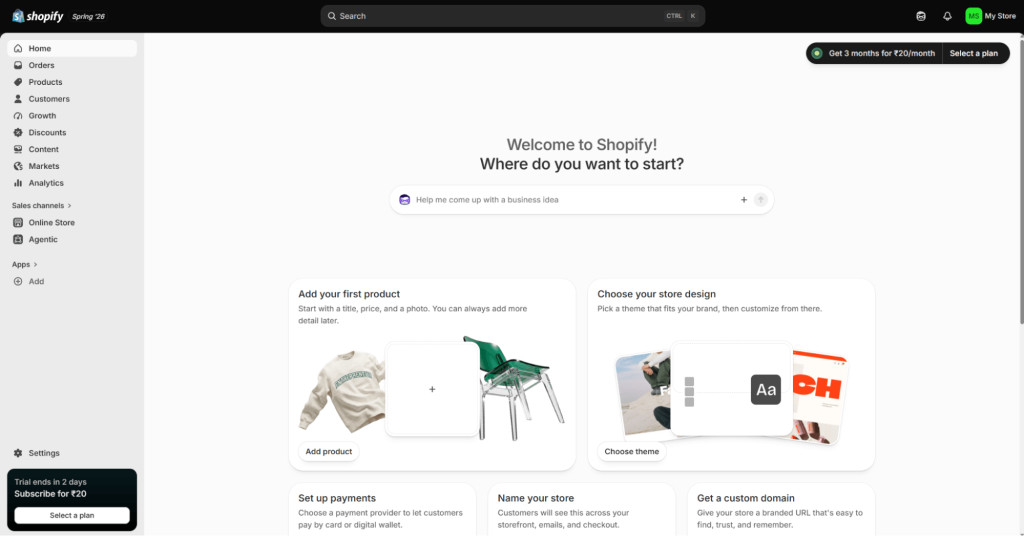
2: Go to: Apps → Shopify App Store
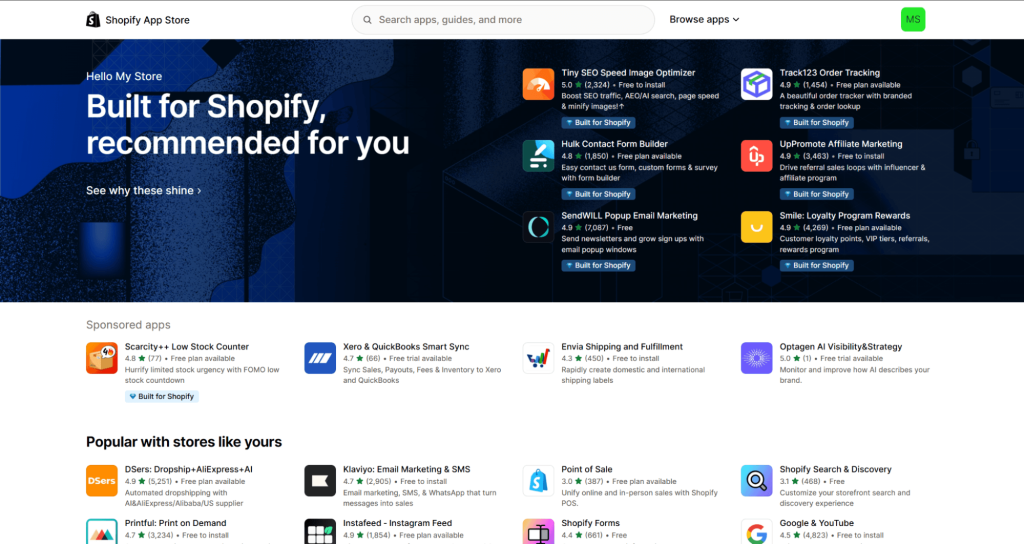
3: Search for: Taggbox
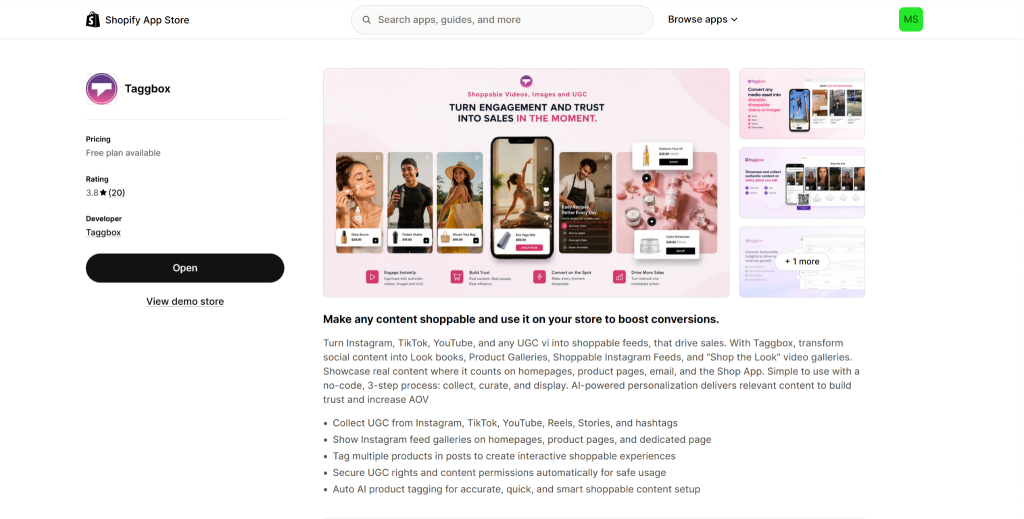
4: Click on Install, and your app will be installed on your store.
Step 2: Create Your Widget
After installation:
- Go to Apps → Taggbox
- You will be redirected to the Taggbox dashboard. Here you will see the Content Gallery. Open it and click on ” Create feed”
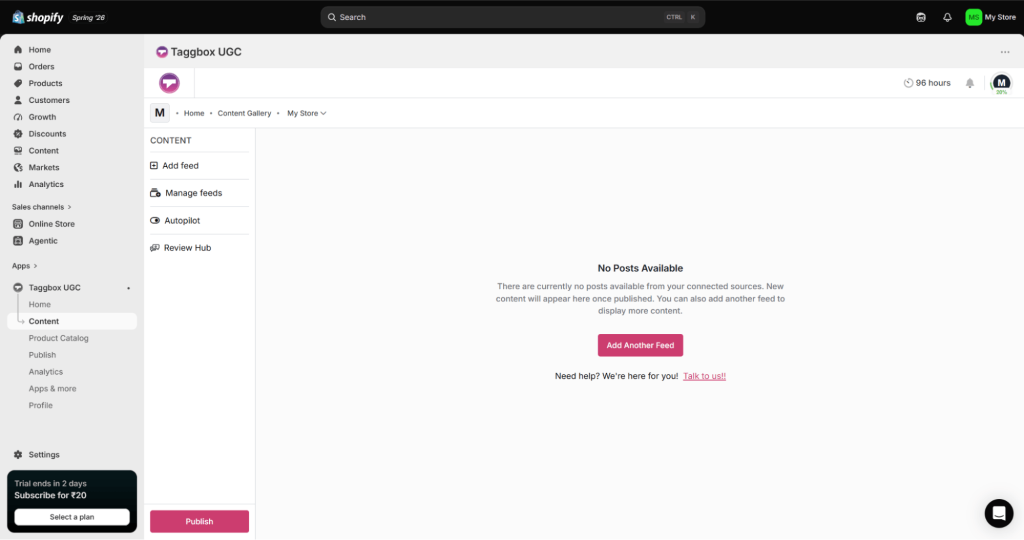
- Select your content source. Instagram, Facebook, LinkedIn, YouTube, Google Reviews, etc, Connect your desired source and create a feed
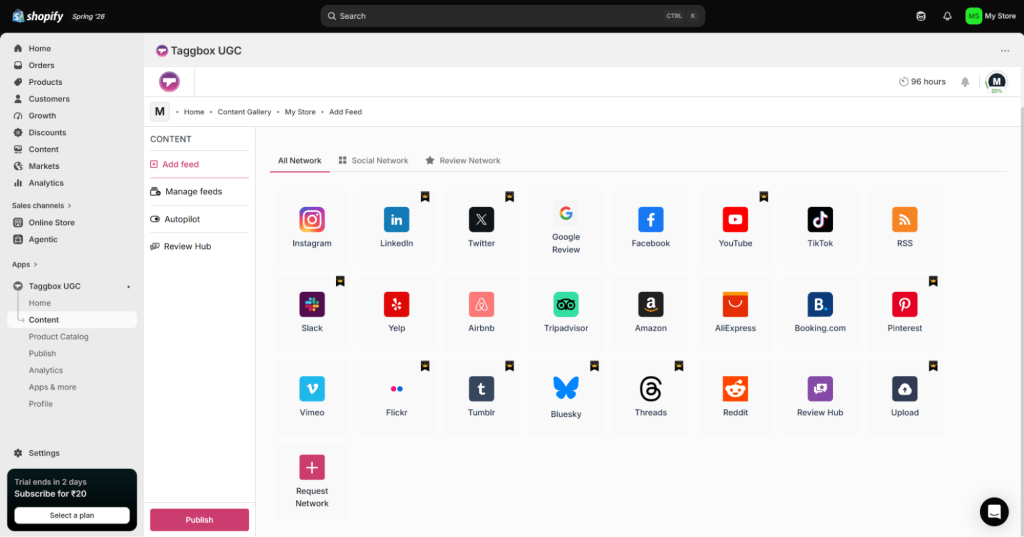
Now you feed will be aggregated here.
Step 3: Customize Your Widget Design
- Your content will be collected automatically. You can moderate your feed accordingly.
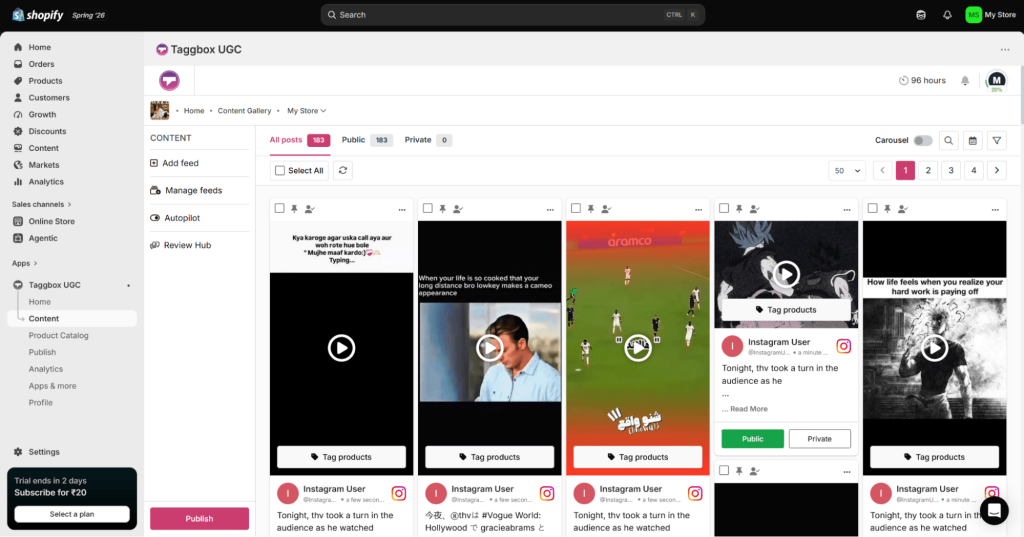
- After moderation, you can customize the layout and Design of your feed.
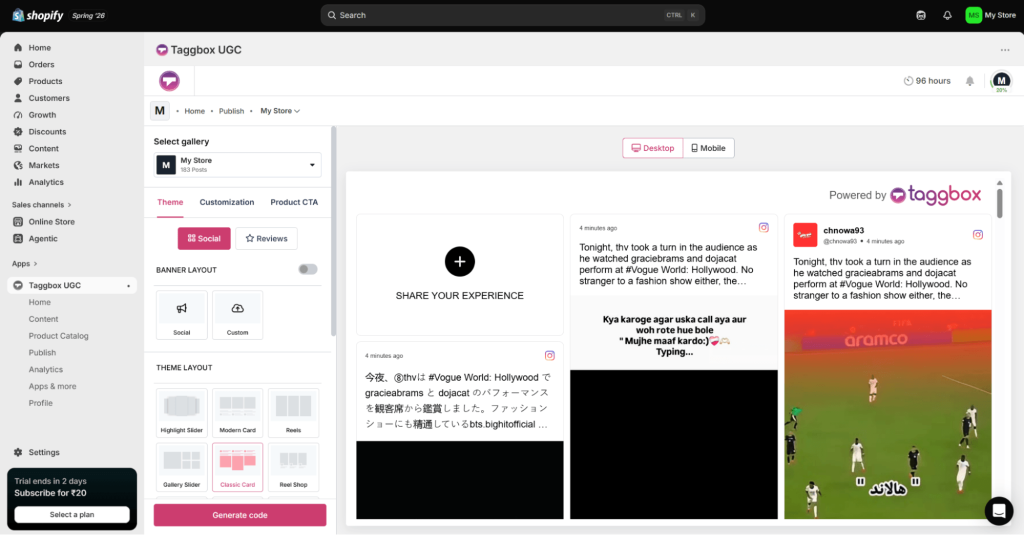
Step 4: Add Taggbox Widget to Shopify Store
- After customizing your widget, click Generate Code
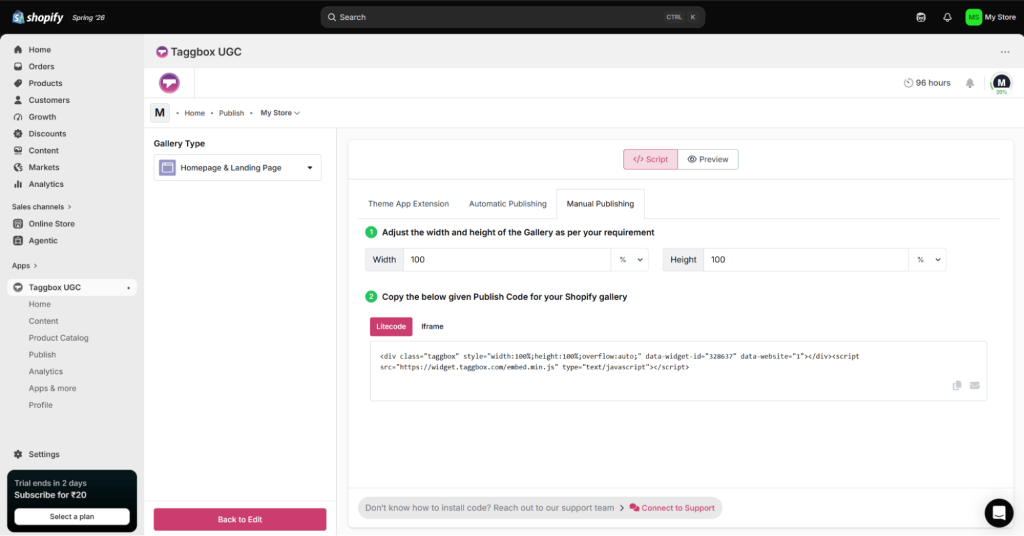
- Copy generated code, choose where you want to display your widget & paste the code.
You can add widgets to:
- Homepage
- Product pages
- Collection pages
- Custom pages
- Blog pages
3. Enjoy your feed on the website.
Get Started with Taggbox. – Start For Free
If you have any questions or need help, please Contact us or write us at [email protected]