Displaying Instagram content on your Shopify store can help keep your website fresh and engaging. A curated feed lets you showcase posts from selected hashtags, delivering relevant content directly to visitors. Using Taggbox, you can create, customize, and embed your widget for Instagram efficiently. This guide explains each step to set up and publish the Instagram Hashtag Shopify feed correctly.
How to Add an Instagram Hashtag Feed on a Shopify Website
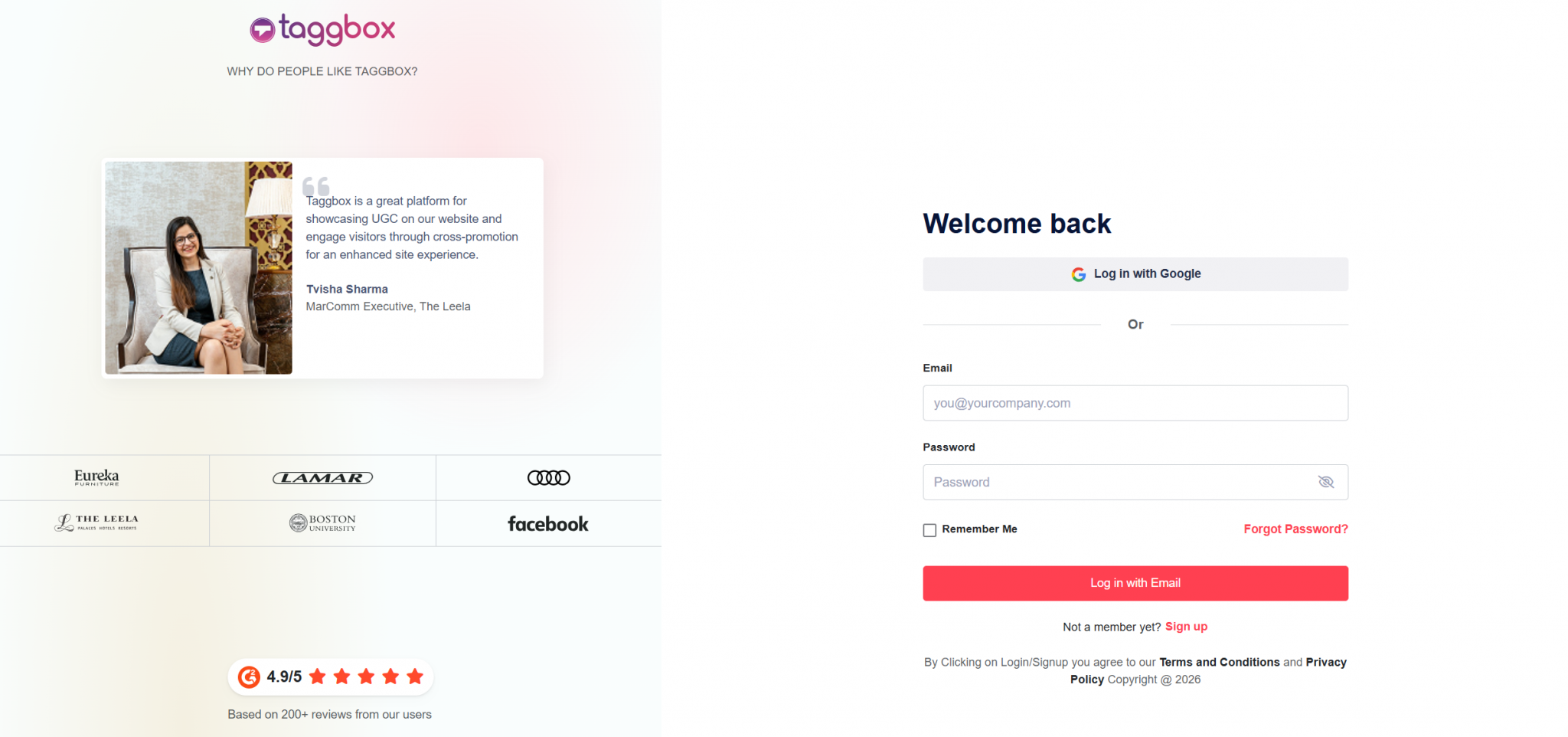
Step 1: Sign In or Register on Taggbox
- Create a new Taggbox Widget account or sign in to your existing account to get started.
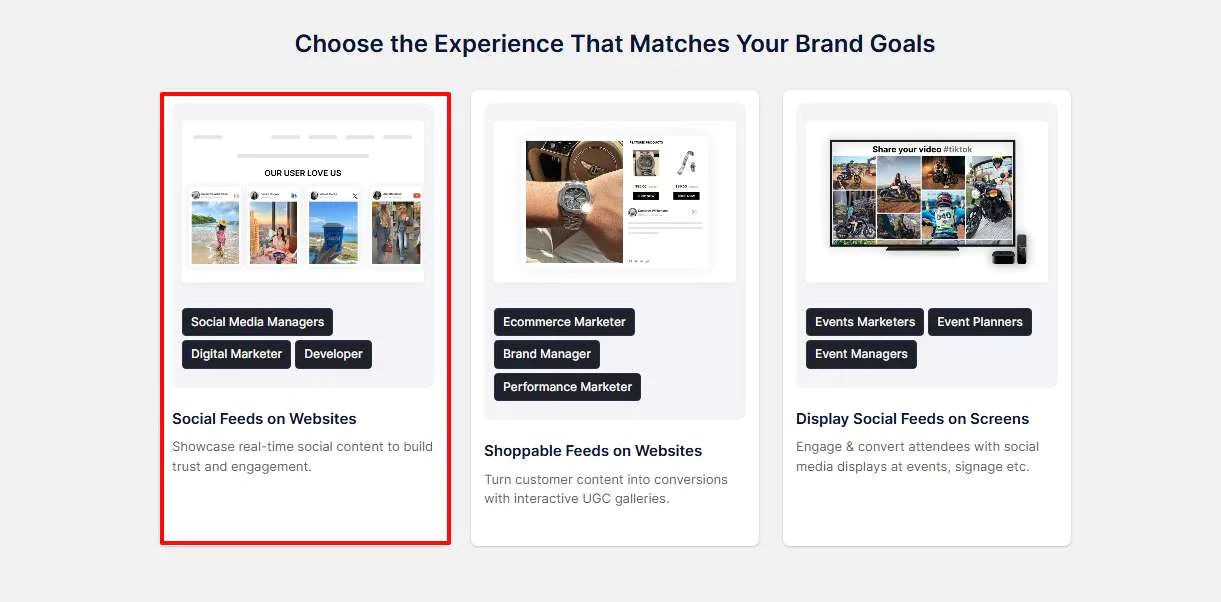
- Choose “Social Feed on Website” to Create Your Instagram Hashtag Feed
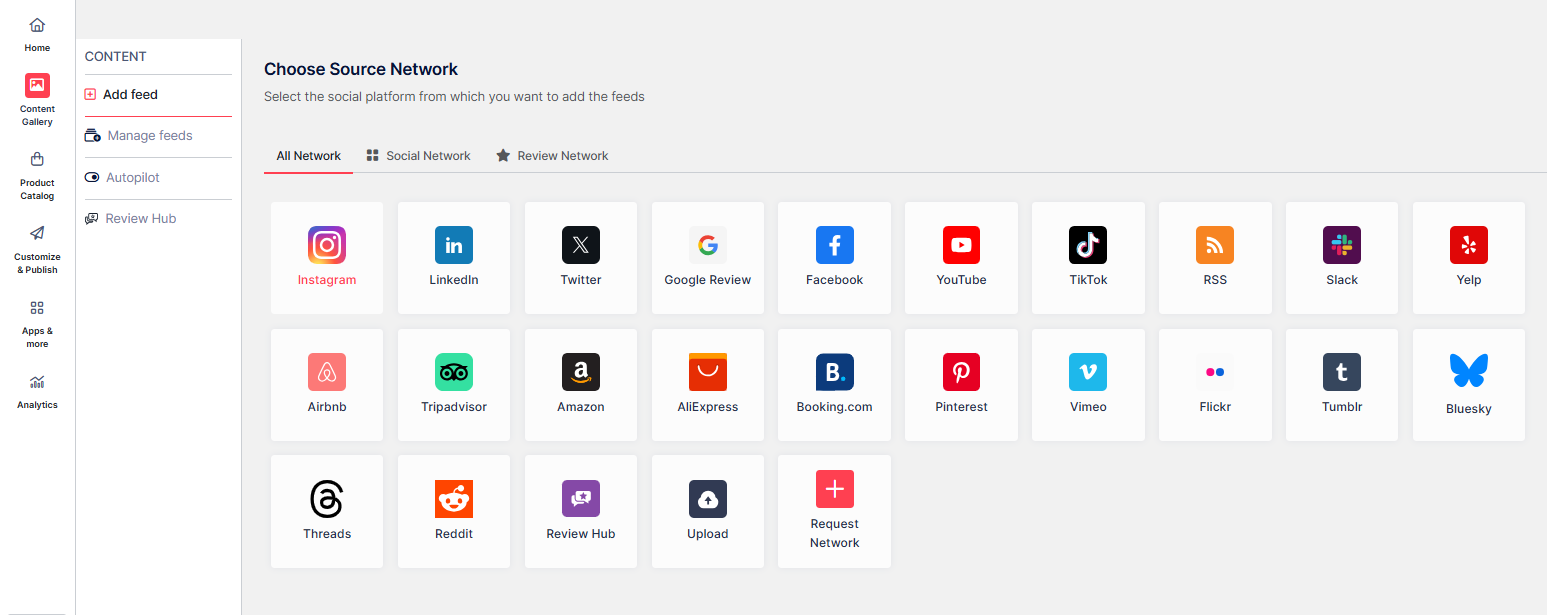
Step 2: Pick Your Network and Build Your Feed
- Go to the All Networks tab and select Instagram to start setting up your feed.
- By default, you’ll be on the Hashtag (#) input box. Enter your hashtag to fetch the feeds.
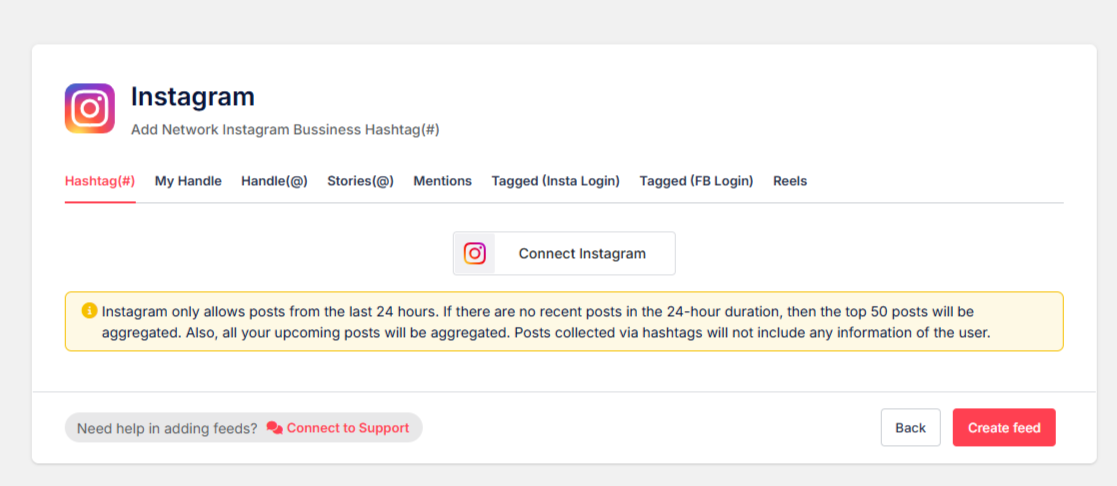
- Click on Create Feed.
Tips: You can refine your feeds before proceeding to embed by enabling the Manually Approve Posts checkbox.
Step 3: Customize and Moderate Your Instagram Feed
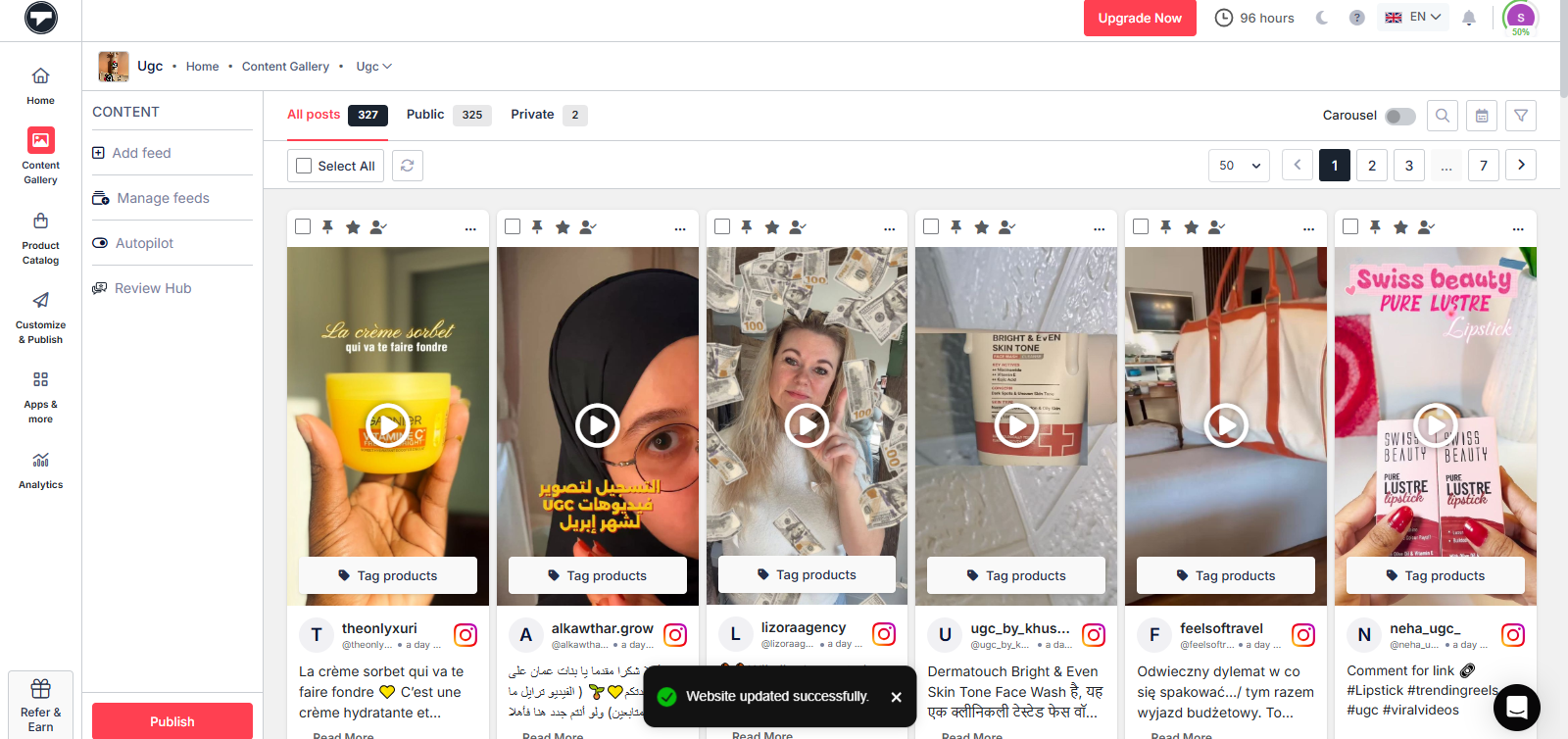
- Select the posts you want to showcase on your Shopify website and set them as Public or Private. Then, click Publish to make your feed live.
- Select a feed layout and adjust the colors, fonts, and styling to match your website’s design. Once done, your Instagram Shopify feed widget will be ready to go live.
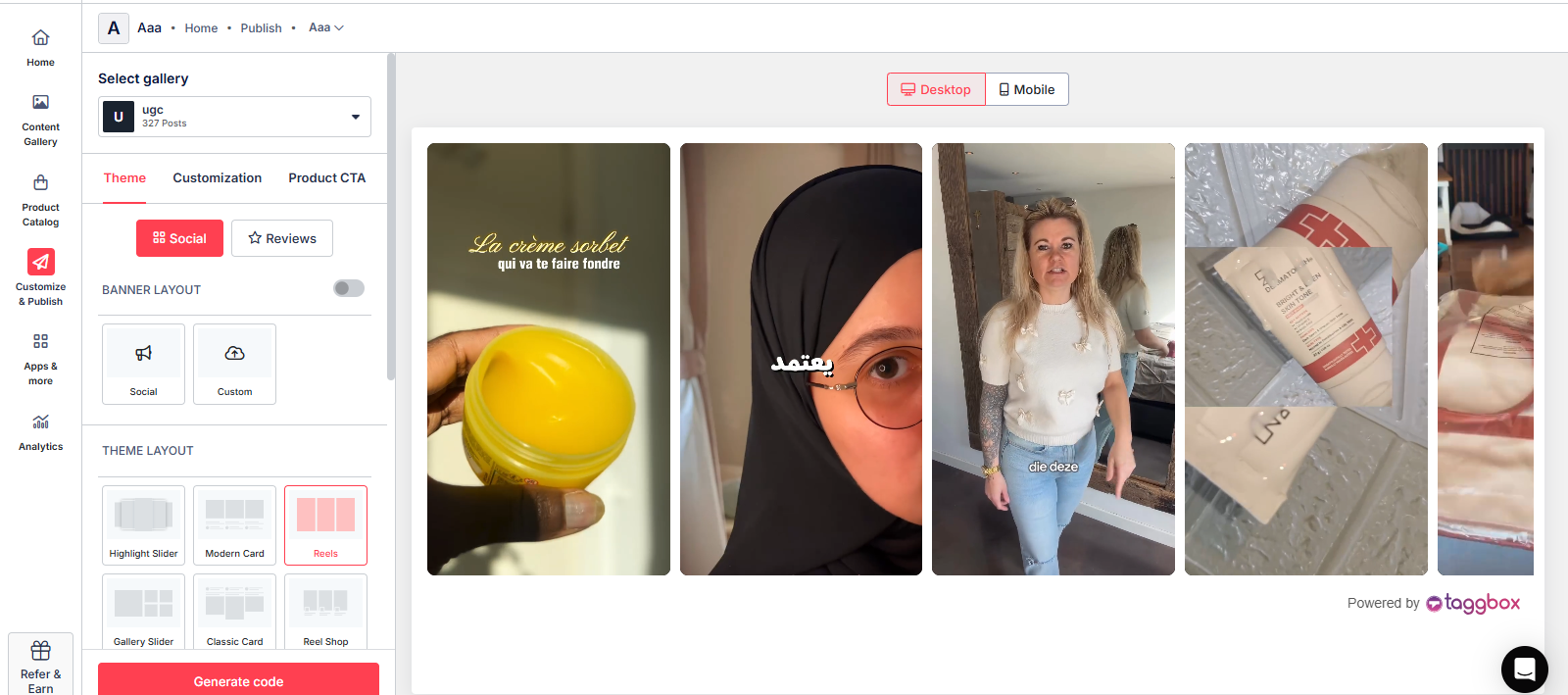
- Once done, click on “Generate Code”.
Step 4: Get the Code for the Shopify Website
- Click on the “Shopify” option to get the embed code for your Instagram Hashtag Feed.
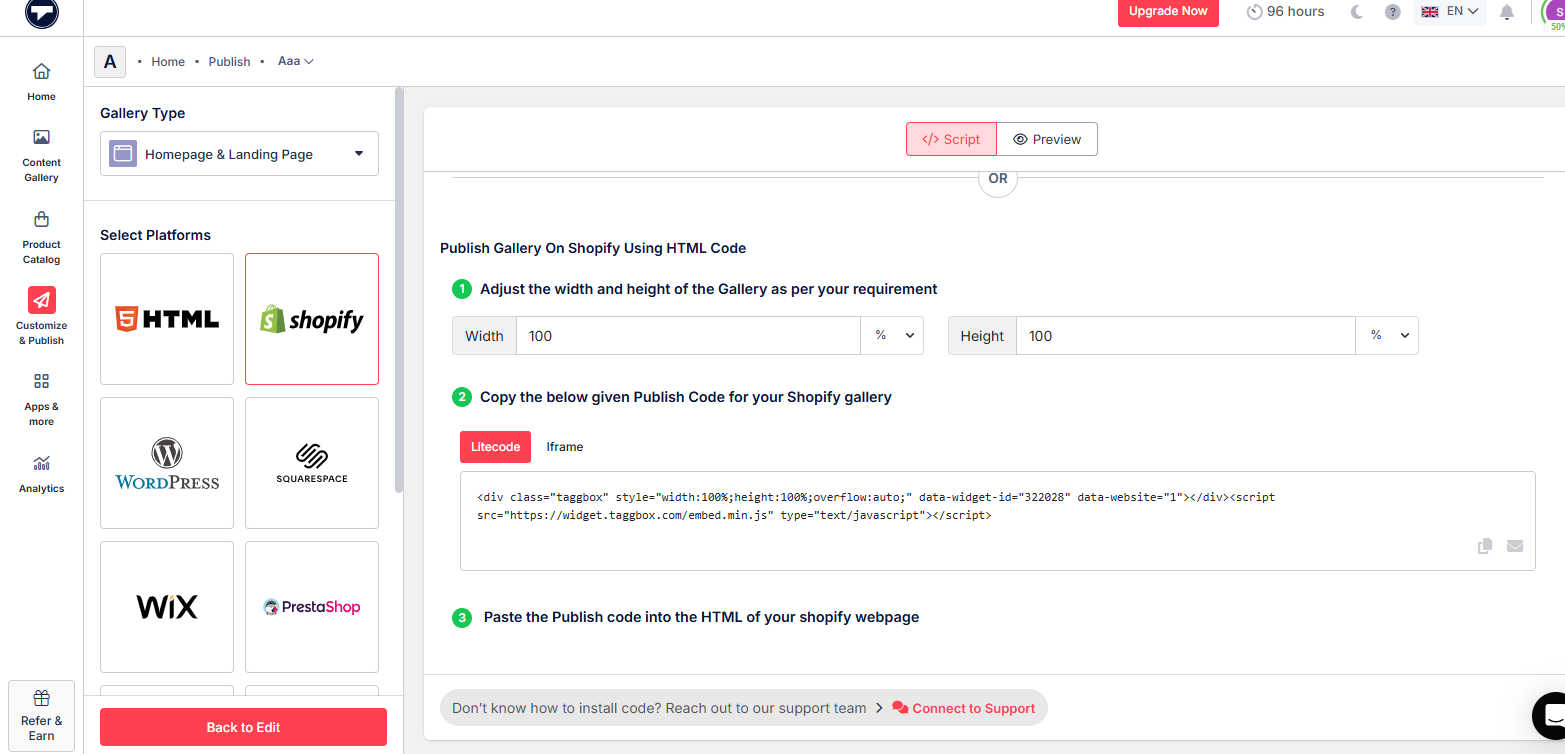
Copy the embed code provided to display your Instagram feed on a Shopify website.
Steps to connect the Instagram Hashtag Feed to the Shopify Website with the embed code:
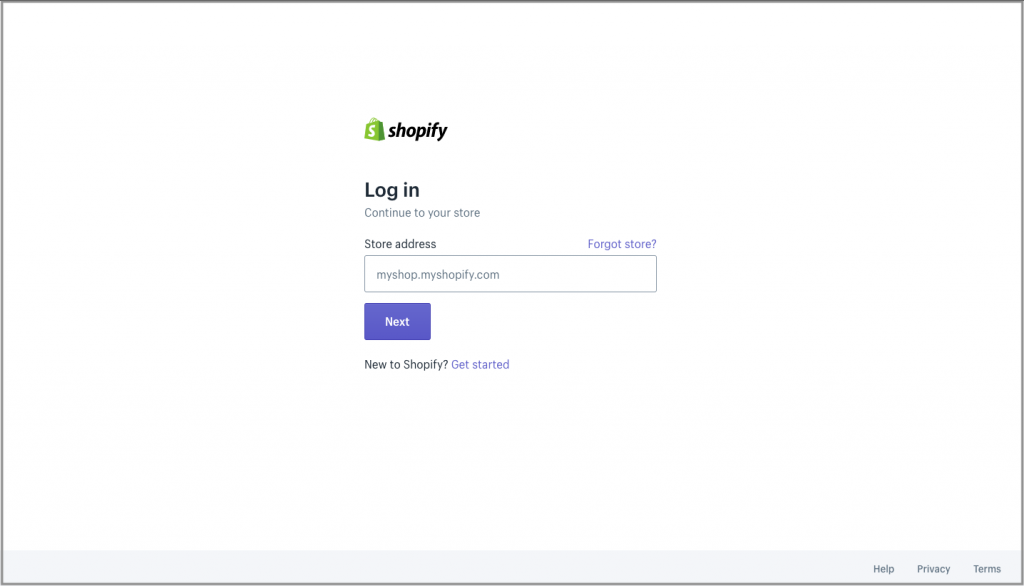
1. Log in to your Shopify website
2. Under the Sales Channels, click on Online Store
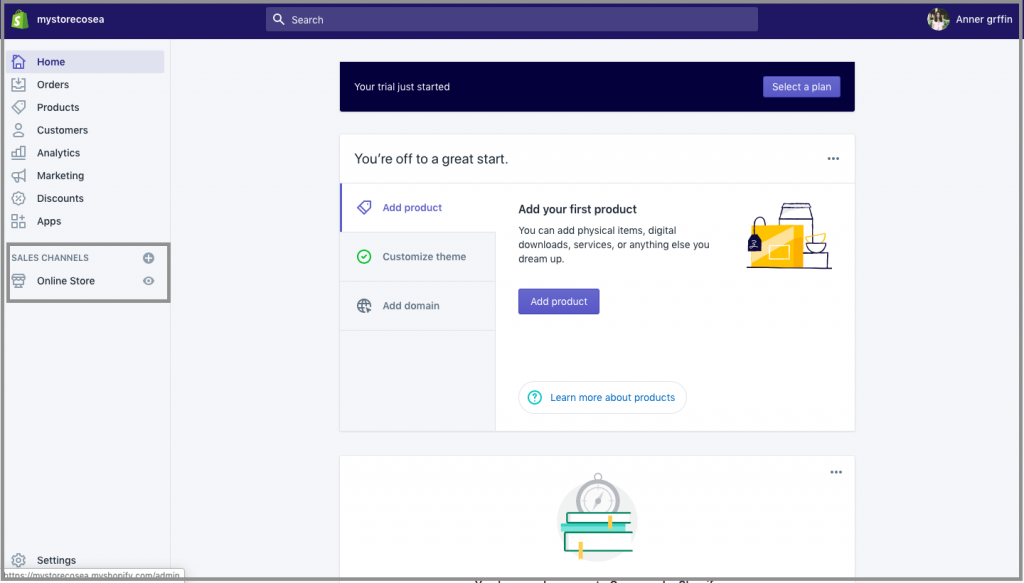
3. Click on the Themes option & you will see the Customize option
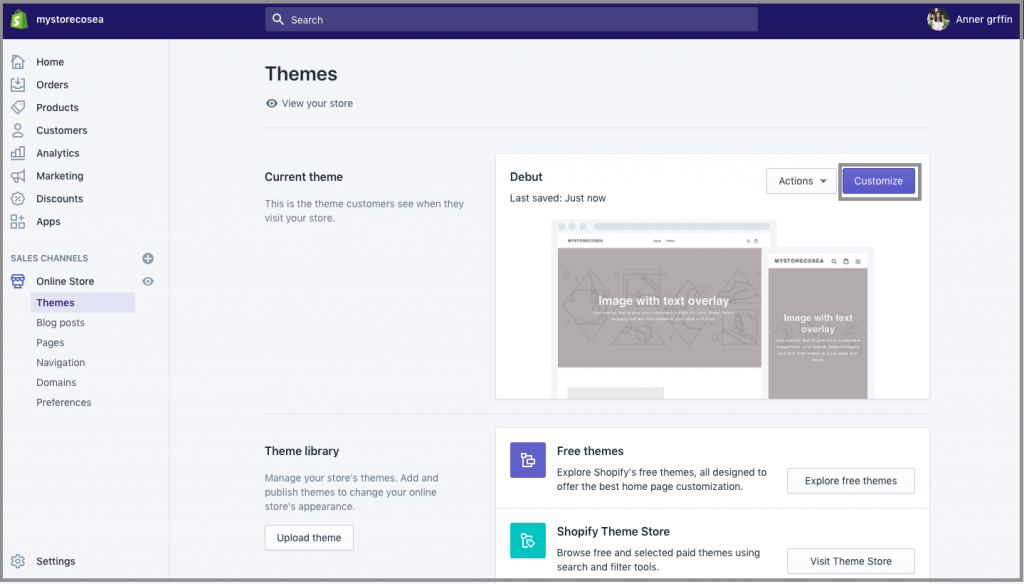
4. Click on Custom content on the left side of the page
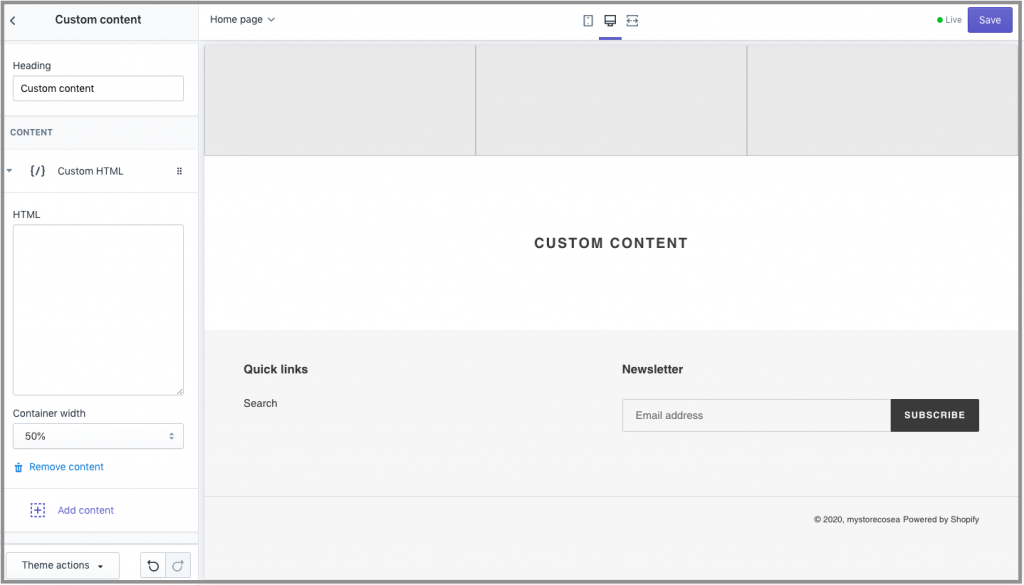
5. Then click on Custom HTML & paste the copied code
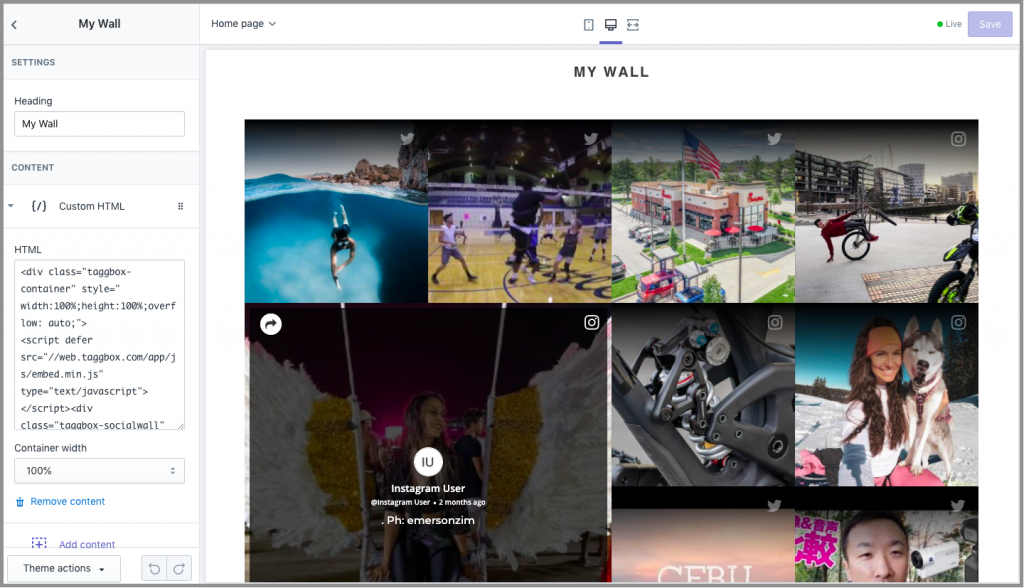
You have successfully embedded the Instagram hashtag feed on the Shopify website.
If you have any questions or need help, please contact us or write to us at support@taggbox.com