Adding an Instagram feed to your website is a great way to make it more engaging and visually appealing. If you’re learning how to embed an Instagram feed on a Google Site, it can help you display real-time content, keep your site updated automatically, and showcase authentic user-generated posts.
By adding Instagram feeds, you can build social proof, increase user engagement, and encourage visitors to connect with your brand on Instagram.
To create and add Instagram feeds on Google Sites, you need to follow the step-by-step guide given below-
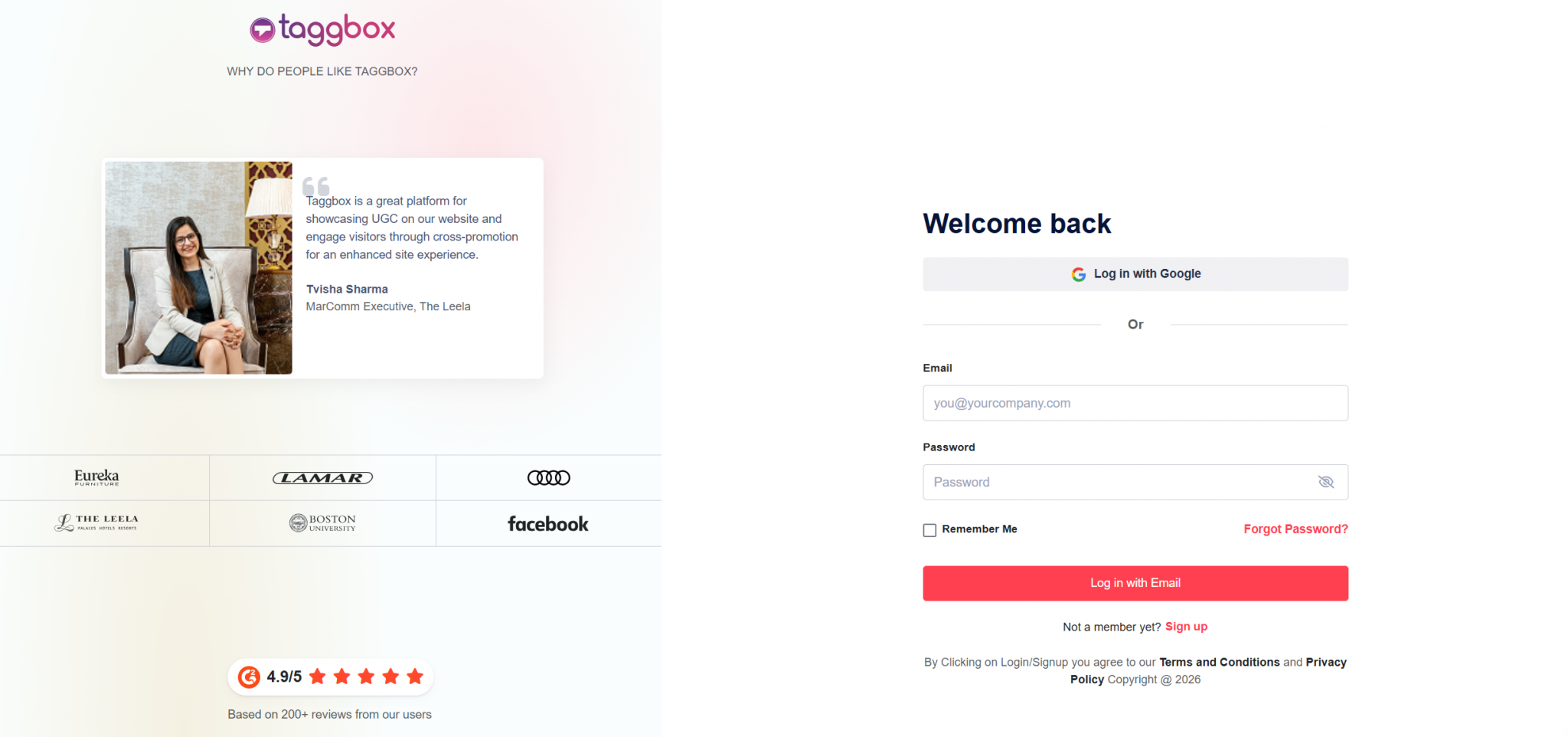
Step 1 – Login or Sign Up to Taggbox Widget
- First, log in to Taggbox Widget or sign up if you don’t have an account yet.
Step 2 – Choose Social Feeds on Website as your preferred Experience
- Click on “Social Feeds on Website,” then select your industry, add your contact information, and fill in the required details.

Step 3 – Choose Your Source Network and Create Your Feed
- Now select Instagram as your source network
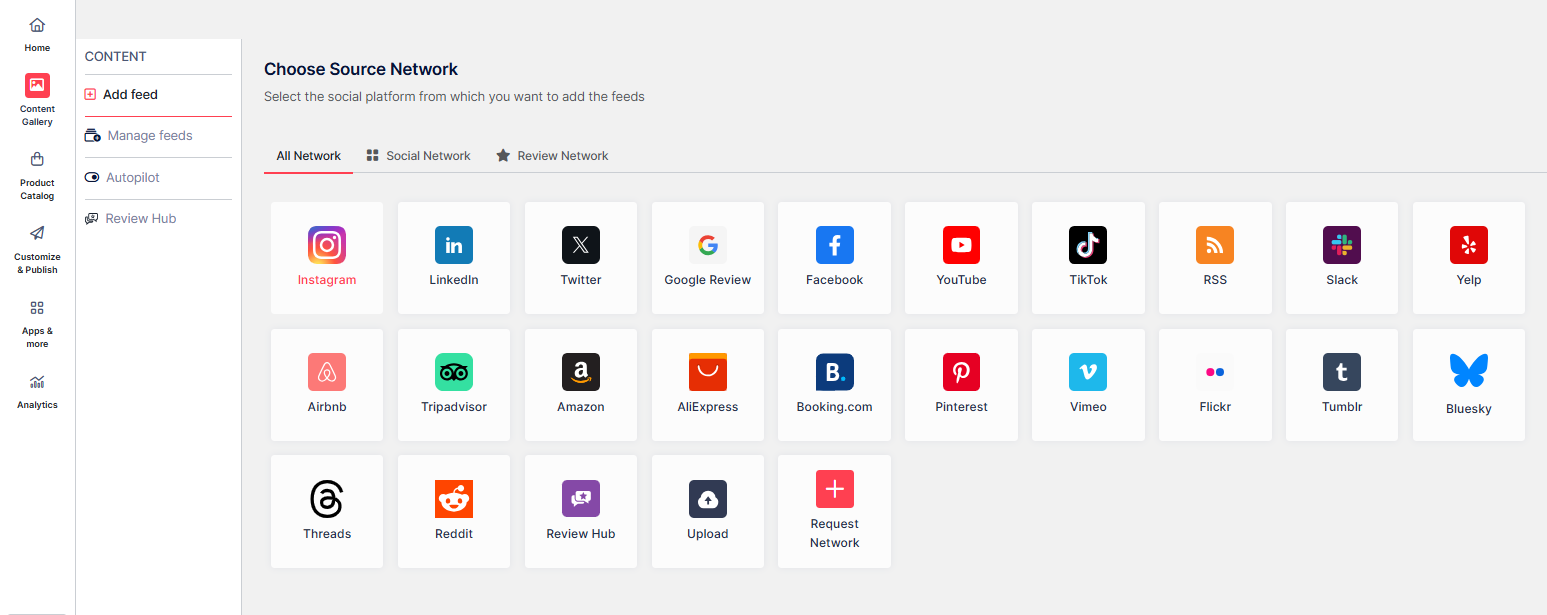
- You can now build your feed by selecting from the available options below
- Hashtag (#) – To fetch Instagram feeds using hashtags(#).
- My Handle – Connect your own Instagram handle feed
- Handle (@) – To fetch feeds from any Instagram account
- Stories – Connect your profile to add Instagram stories to the feed.
- Mentions – To fetch feeds in which your account is mentioned on Instagram Posts
- Tagged (Insta )– To fetch feeds in which your profile is tagged on Instagram Posts.
- Tagged (FB) – To fetch feeds in which your profile is tagged on Facebook Posts.
- Reels – Connect to show Instagram reels
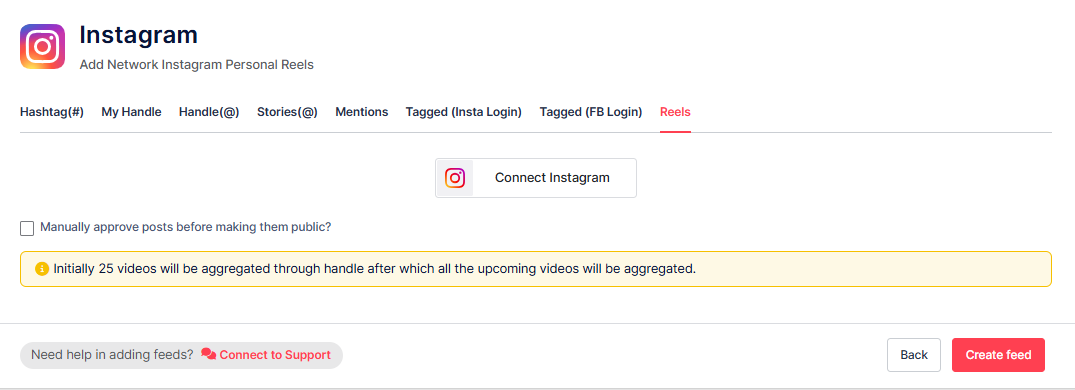
- Then, click on Create feed
Step 4: Manage and Personalize Your Feed
- You can now manage which posts to display, set them as public or private, or enable Autopilot to manage them automatically.
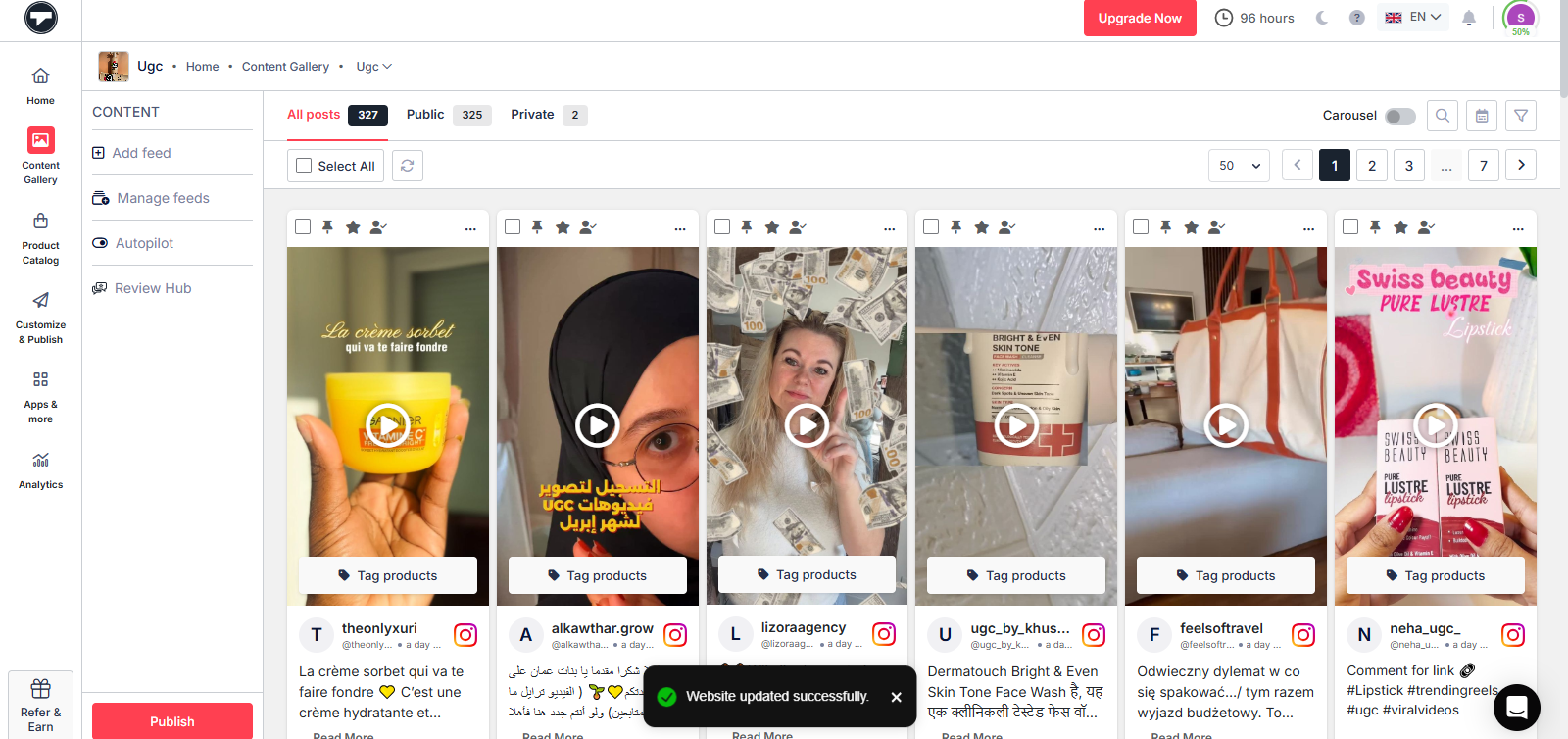
- Next, click on the Publish button
- Open the Theme tab, choose a layout you like, and then use customization to adjust colors, fonts, and styles of your Instagram widget.
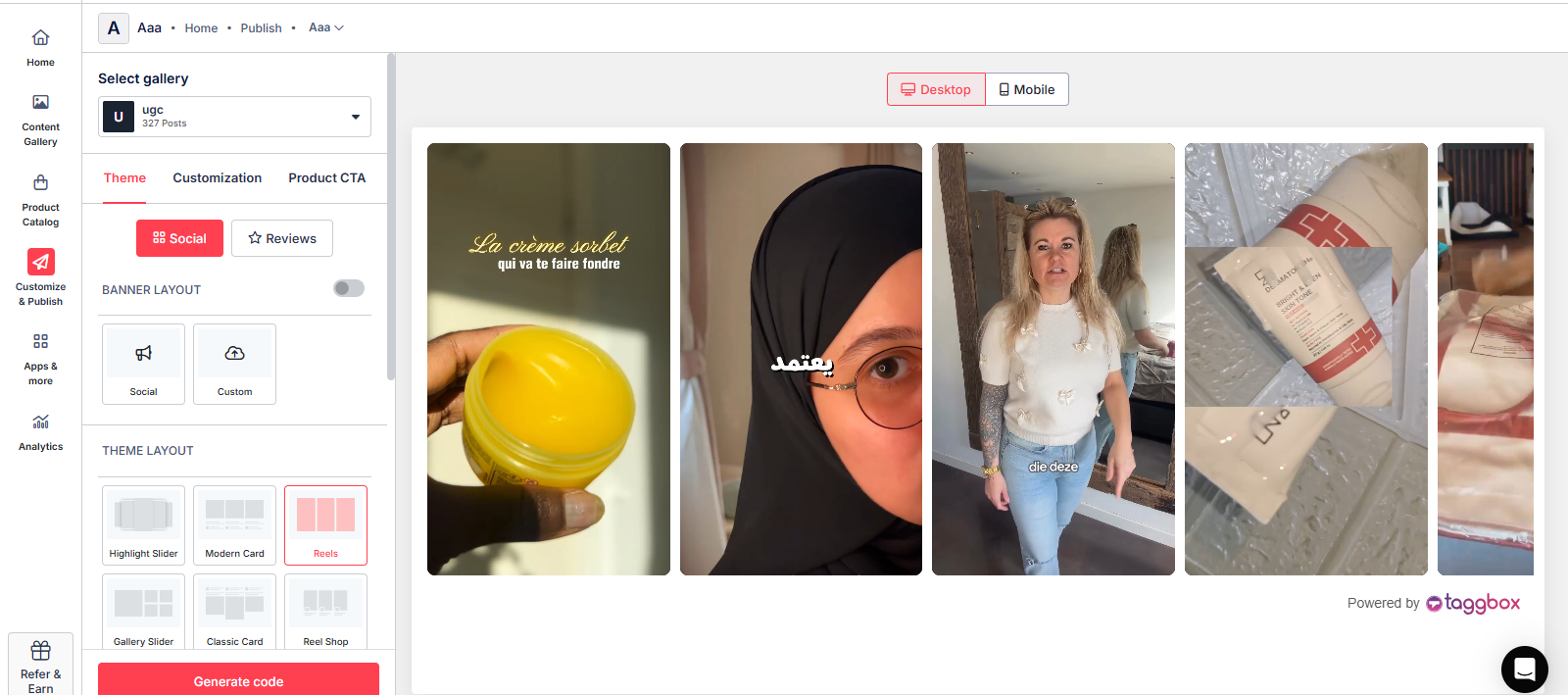
- Now, click on the “generate code” button.
Step 5 – Select Platform and copy the code
- From the available platform options, select “Other” to proceed with Google Sites.
- Copy the generated embed code.
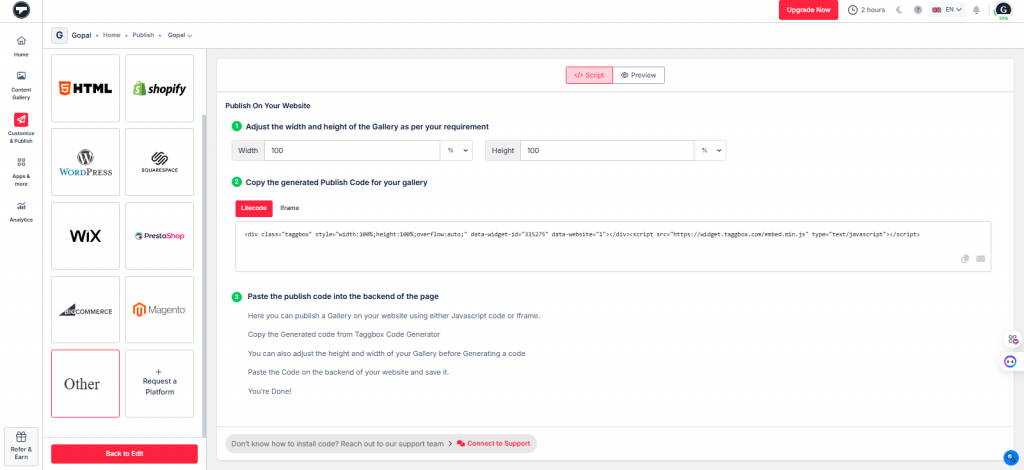
Steps to connect the Instagram Feed to Google Sites with the embed code
Follow these steps to embed an Instagram feed from the Taggbox Widget Editor to a Google site.
- Log in to your Google Site Account
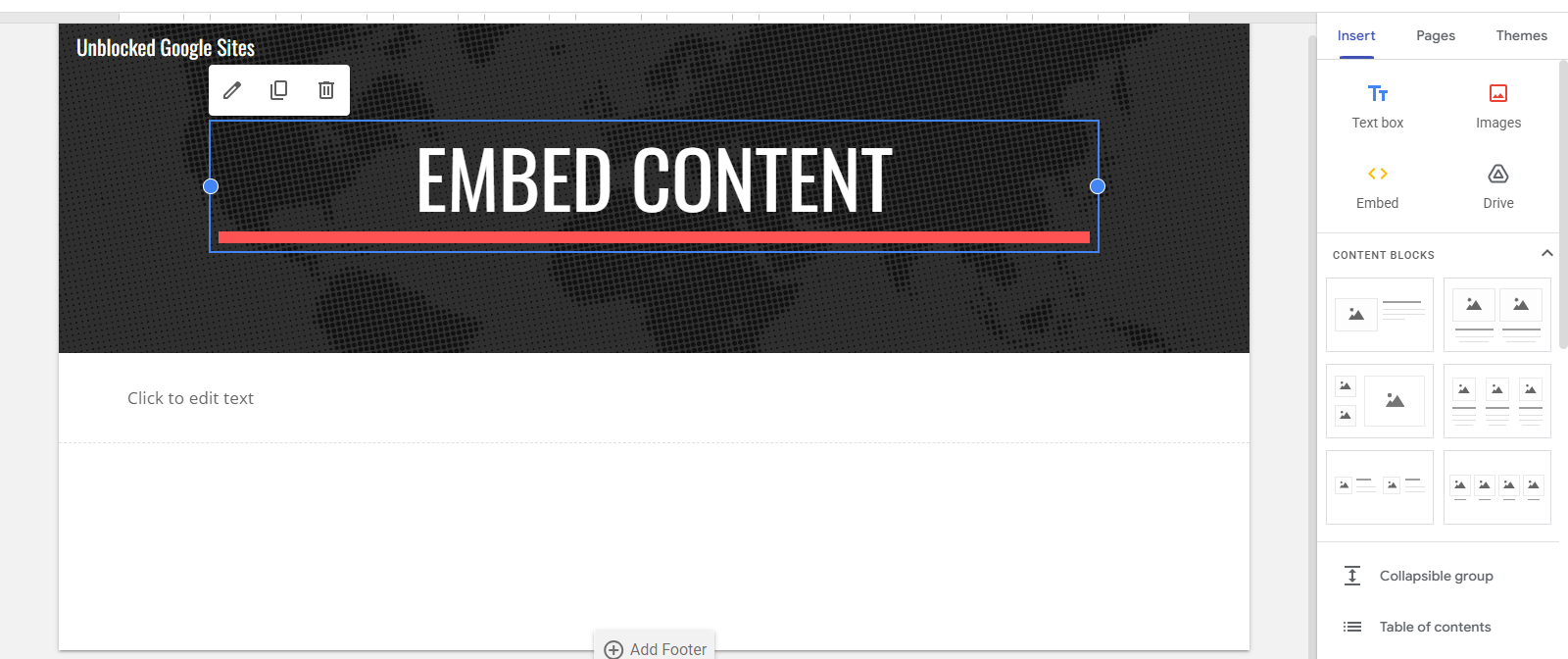
- On the right side, go to Insert and click on “Embed.”
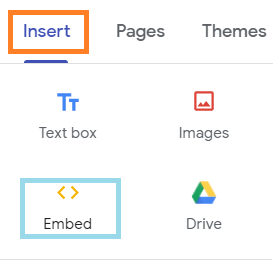
- Now, select the “Embed Code” option and paste your copied code there.
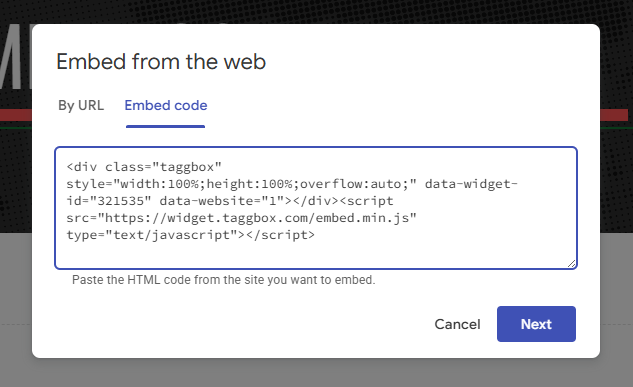
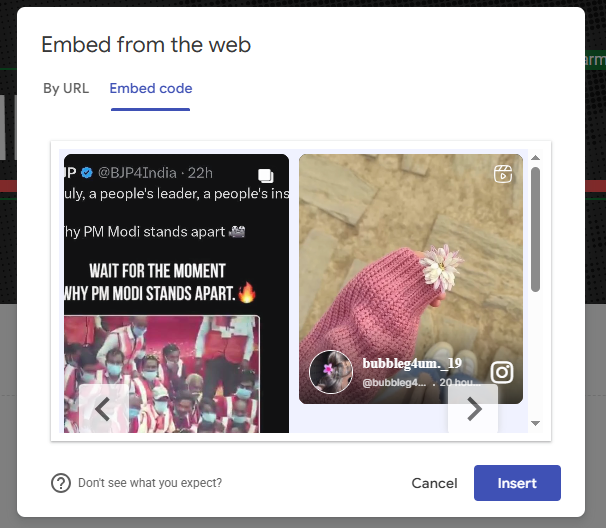
- Click “Next” and then select “Insert” to proceed.
- Click the ‘Publish’ button on the right side of the dashboard to make your changes live.
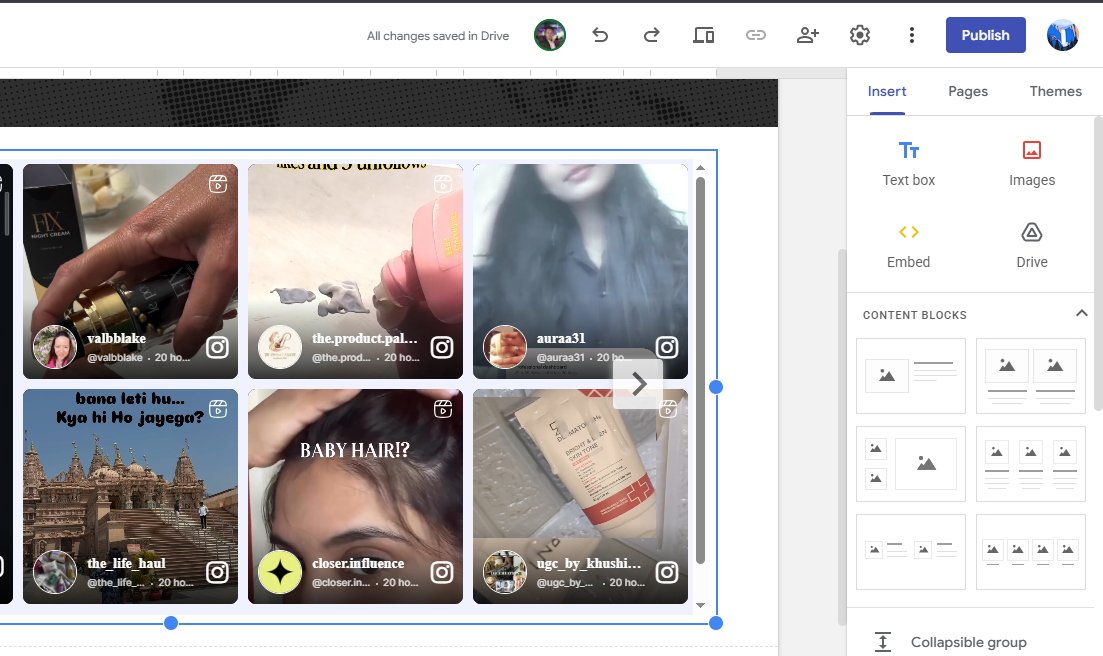
Great! You have successfully embedded Instagram feeds on your Google site.
If you have any questions or need help, please contact us at support@taggbox.com.