Want to add Instagram widget on Blogger website without dealing with complex code? You’re in the right place. Integrating an Instagram widget is one of the easiest ways to make your page more engaging, visually appealing, and socially connected.
By displaying Instagram content like posts, Reels, and Stories, you can keep visitors on your site longer while building trust and credibility. This step-by-step guide will help you quickly set up and embed Instagram videos on any website using a simple embed code.
Steps to Embed an Instagram Widget on Blogger
Follow the given steps to add an Instagram feed to Blogger:
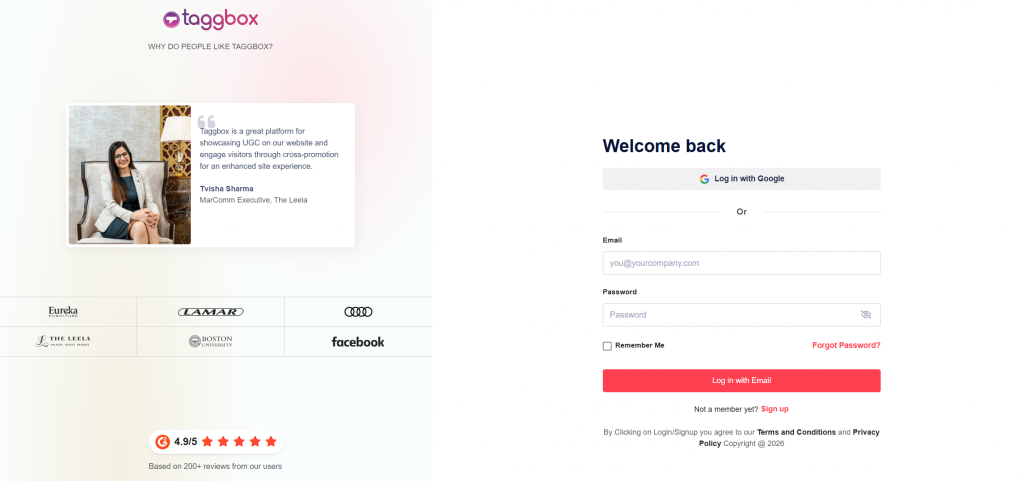
1. Set up your Taggbox Account
- First, create your Taggbox Widget account or log in to your existing account
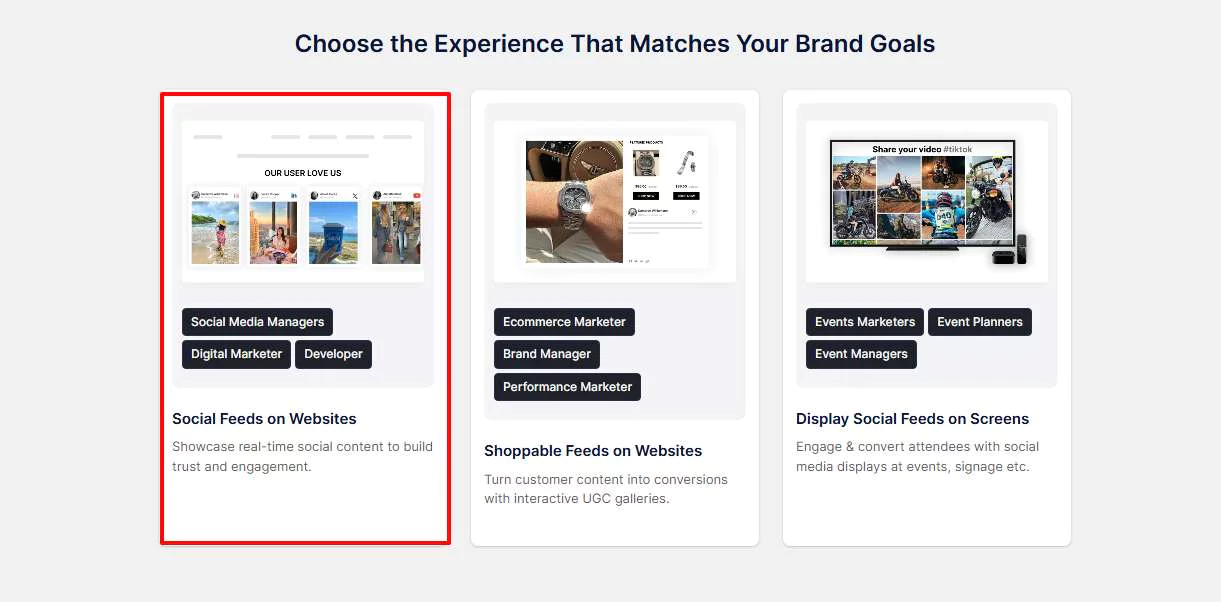
- Choose “Social Feed on Website” to create your Blogger Instagram Widget
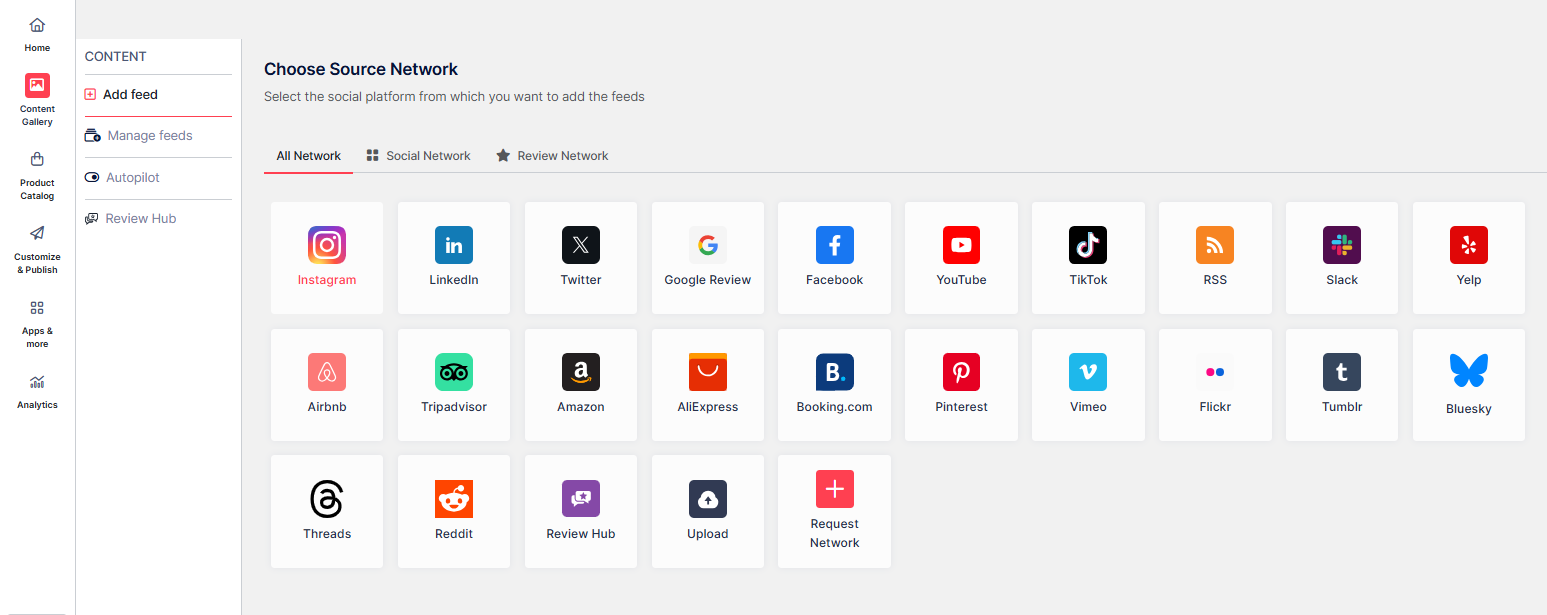
Step 2: Select Source Network and Create your Feed
- From the “All Networks” tab, select “Instagram” to start creating your feed.
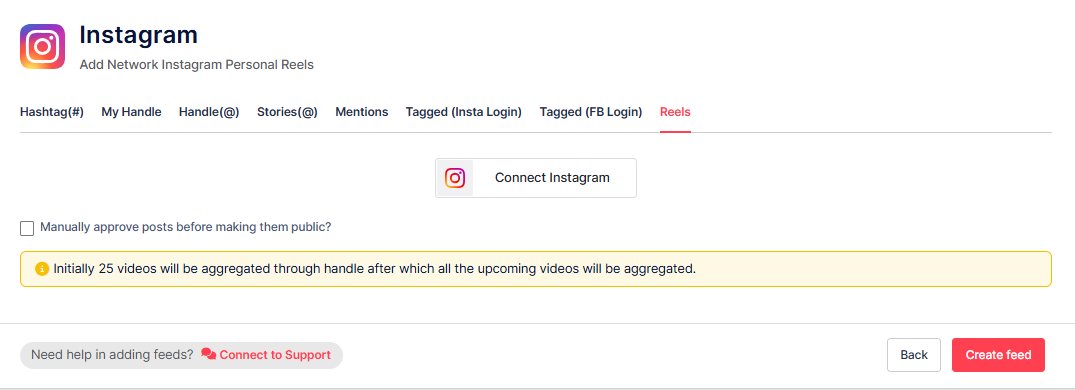
Next, choose one of the following options to create your feed:
- Hashtag (#) – Embed an Instagram hashtag feed on a website by using specific hashtags.
- My Handle – Connect your own Instagram account to showcase your posts.
- Handle (@) – Fetch content from any public Instagram profile.
- Stories – Add Instagram Stories by connecting your account.
- Mentions – Show posts where your account is mentioned.
- Tagged (Insta) – Display posts where your profile is tagged on Instagram.
- Tagged (FB) – Showcase posts where your profile is tagged on Facebook.
- Reels – Add Instagram Reels directly into your website feed.
Step 3: Modify and Personalize your Instagram Widget
- Choose the posts you want to display on your Blogger website’s Instagram feed and set them as public or private.
- You can also enable Autopilot to manage the feed automatically. Once done, click “Publish.”
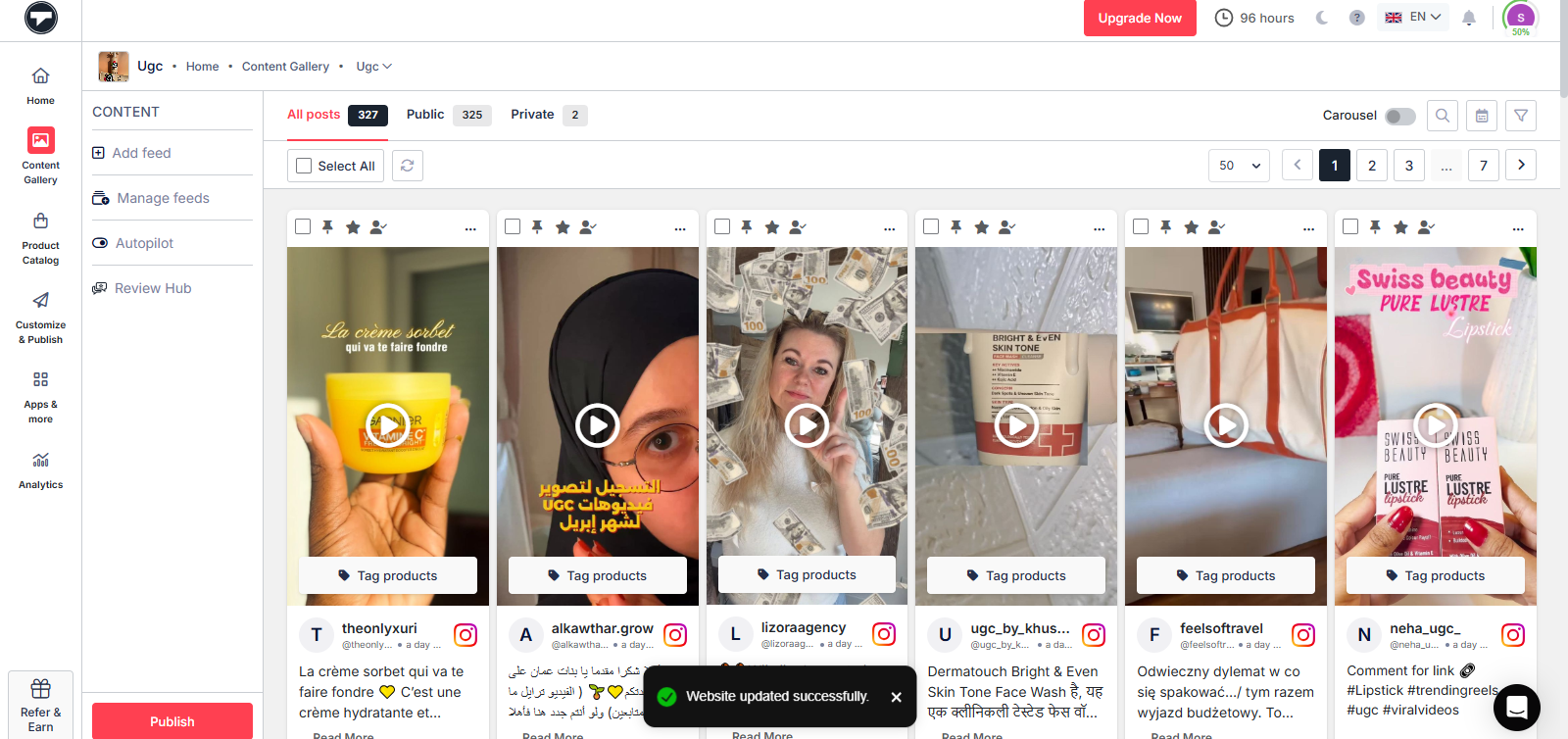
- Choose your preferred feed style, adjust its design elements to match your brand, and your free Instagram widget will be all set.
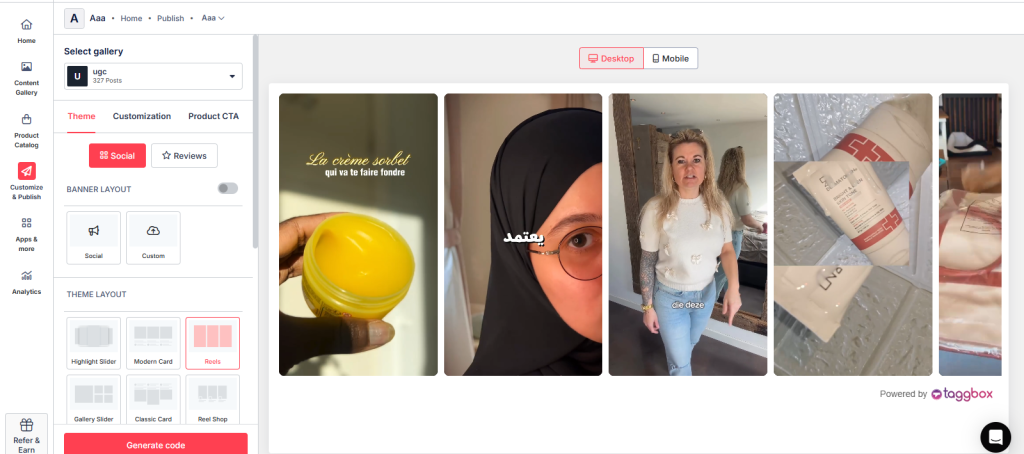
- Then, click on “Generate Code” to proceed.
Tips: You will find a “Design” option on the menu panel to customize your feed’s display, with many options to choose between.
Step 4: Generate the Embed Code
- Click on the “OTHER” option to get the embed code for your Blogger website.
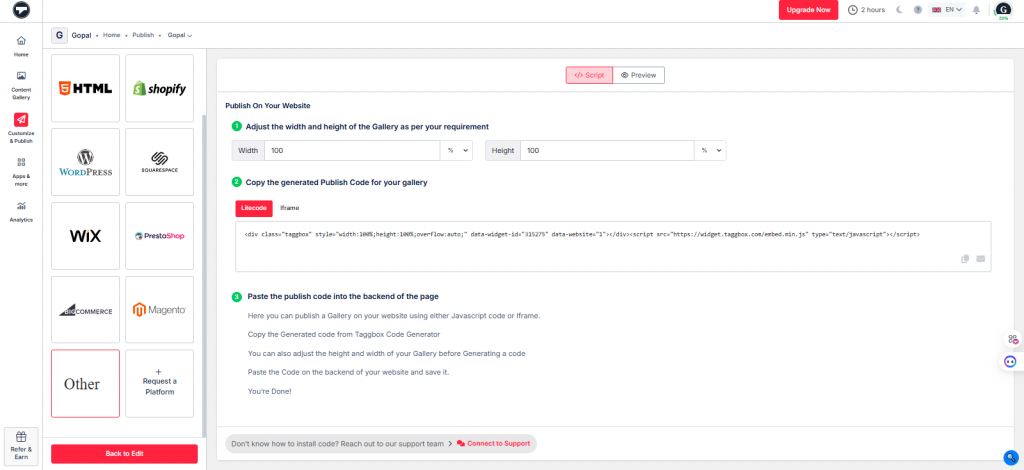
- Copy the code to display your Instagram feed on the website.
Steps to connect the Instagram feed to the Blogger website
- Log in to your Blogger account
- Select the page where you want to display the Instagram feed.
- Open the HTML code editor
- Paste the copied embed code into the body section
- Click “Publish” to make the changes live
Congratulations!! You have successfully embedded the Instagram Widget on the Blogger website.
If you have any questions or need help, please contact us or email support@taggbox.com.