Want to make your website more dynamic? Adding Instagram feed to Webflow websits lets you display live posts, keep your content fresh, and showcase real experiences from your audience. It’s a simple way to increase engagement, build trust, and make your website more interactive.
Want to know how you can embed Instagram feed on Webflow website? Read this step-to-step guide.
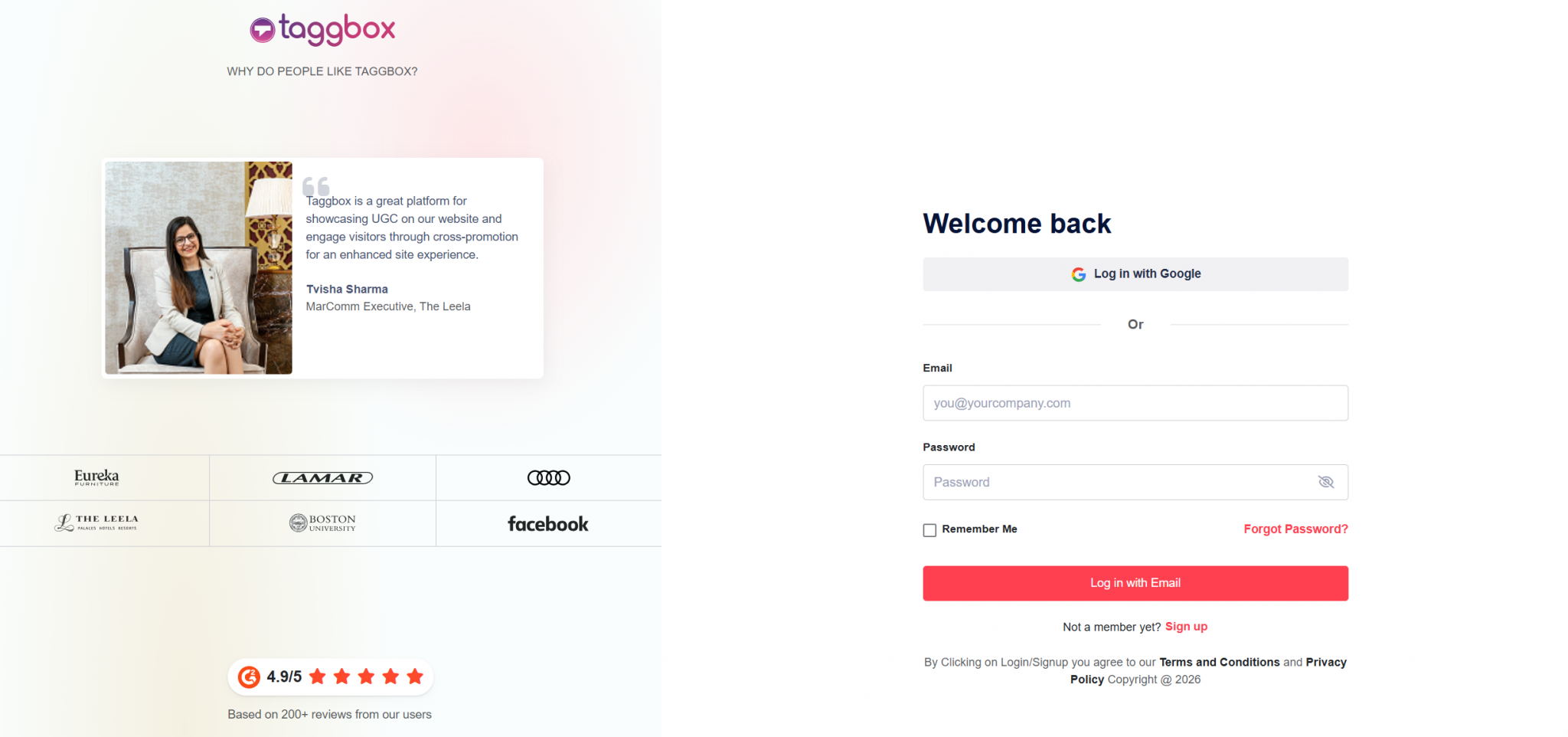
Step 1 – Create your Taggbox Widget account
1. First, create your free Taggbox Widget account or Log in to your existing account
Step 2 – Choose the Experience
- Select “Social Feeds on Website” as your preferred experience.

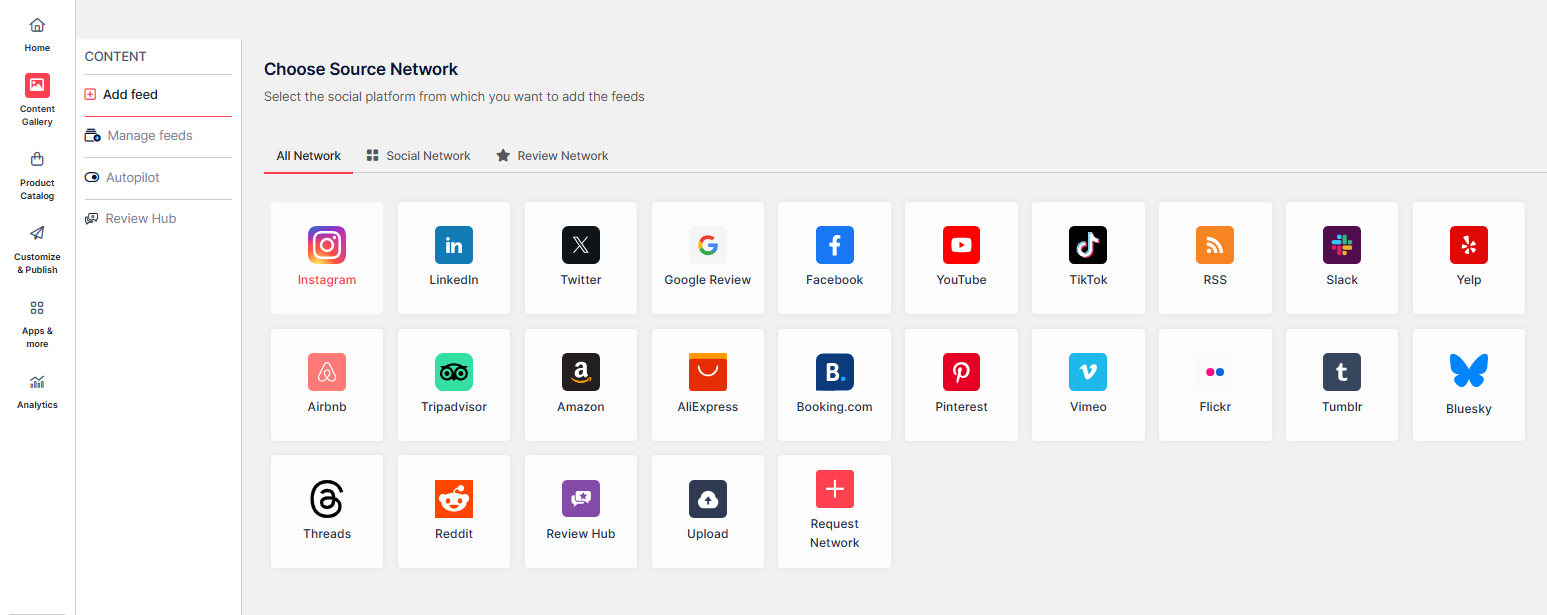
Step 3 – Select your source network and start building your Instagram feed.
- Choose Instagram from the available networks.
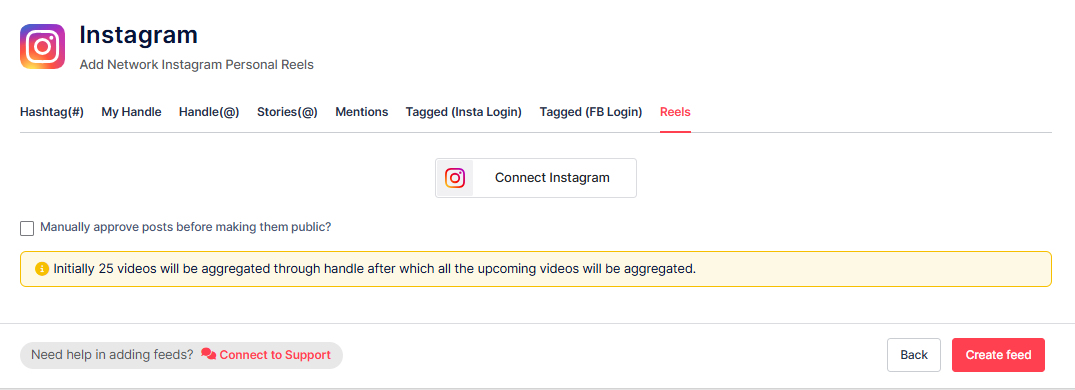
Now, choose one of the following options:
- Hashtag (#) – Create an Instagram Hashtag Feed using selected hashtags.
- My Handle – Link your own Instagram account to display your posts.
- Handle (@) – Pull feeds from any public Instagram account.
- Stories – Connect your profile to show Instagram stories in the feed.
- Mentions – Display posts where your account is mentioned on Instagram.
- Tagged (Insta) – Show posts where your profile is tagged on Instagram.
- Tagged (FB) – Show posts where your profile is tagged on Facebook.
- Reels – Connect to embed Instagram Reels in your feed.
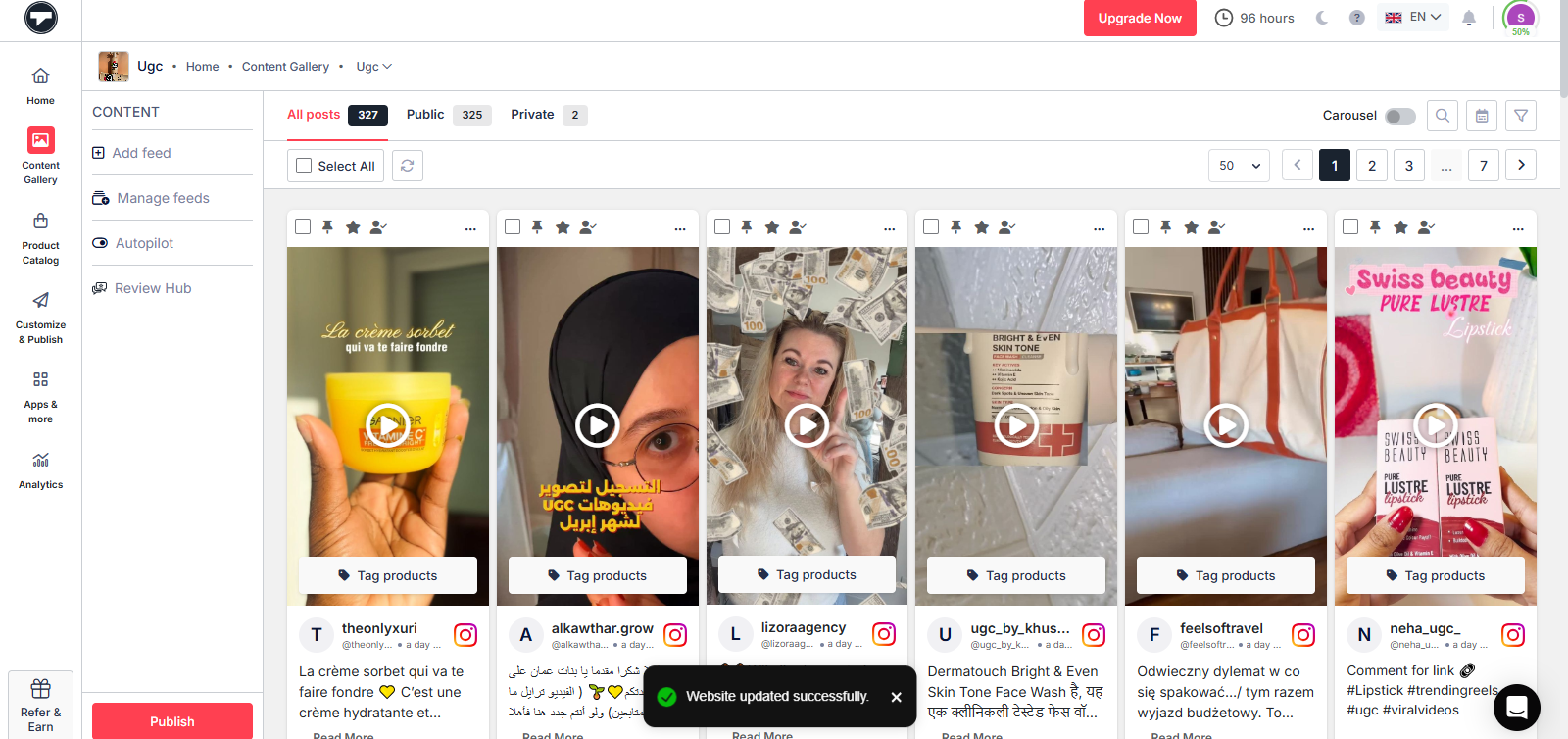
Step 4 – Moderate and Customize your Instagram feed
- Now, select the posts you want to display and set their visibility to public or private accordingly
- Choose a theme layout for your feed and customize colors, font sizes, and styles to match your design.
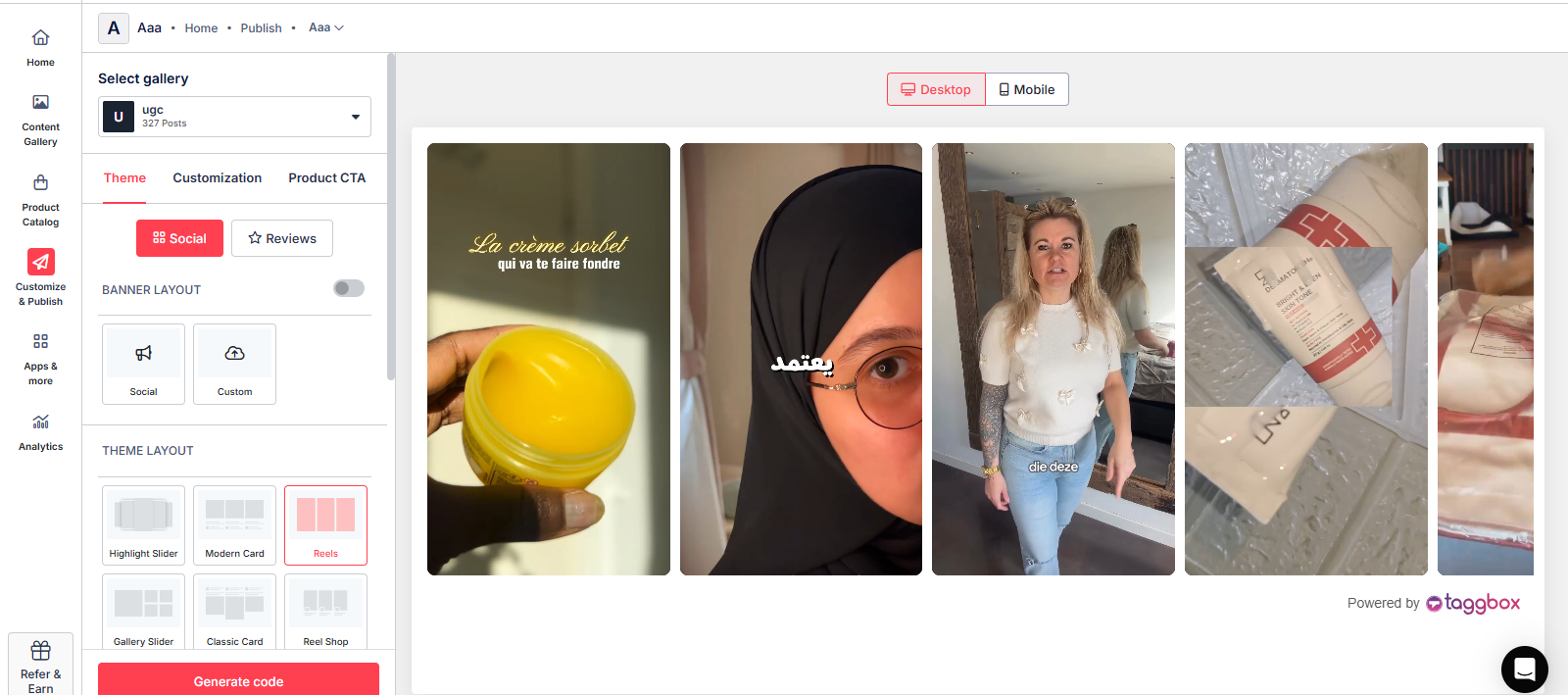
- Now, click on Generate code
Step 5 – Select your Platform and get the code
- Click on the “Other” option to get the code for the Webflow website.
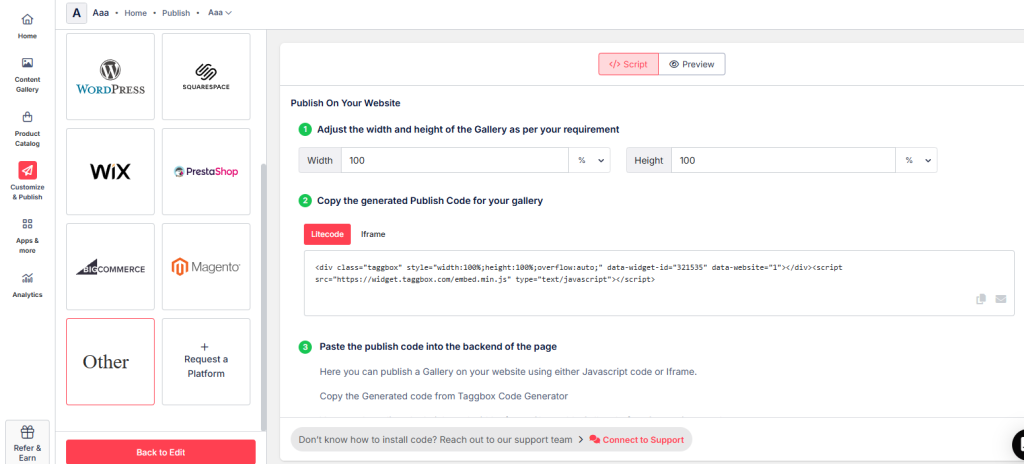
- Copy the given code to add instagram feed to the Webflow website.
Steps to connect the Instagram Feed to the Webflow Website with the embed code.
1. Log in to your Webflow Admin account and select your project.
2. Click on “Add Elements” from the left-hand side menu and drag and drop the “Embed” Element to the desired section of your website page.
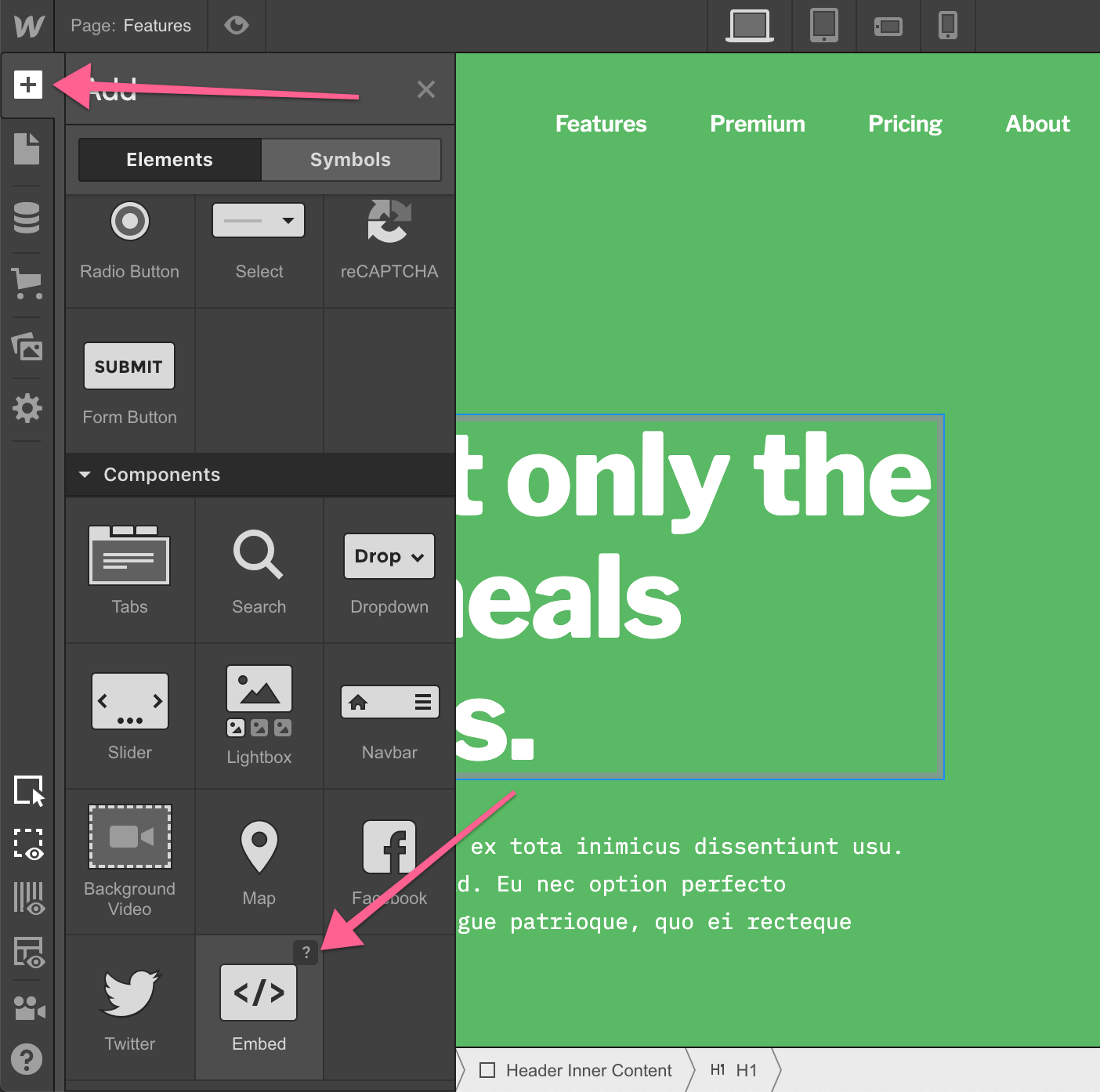
A Pop-up with an HTML Embed Code Editor will appear. Paste the code and click Save & Close. (Adjust any spacing if needed)
3. Click on Publish and select Publish to selected domains.
Now open your website and enjoy the embedded Instagram Feed widget on your Webflow website
If you have any questions or need help, please contact us or write us at support@taggbox.com