If you’re looking to add an Instagram feed to Webflow, you’re on the right track. Bringing your Instagram content to your website can make it feel more lively and interesting, and it gives visitors something real to engage with instead of just static pages.
A lot of people use no-code tools to quickly pull in their Instagram feed and customize it without any technical headaches. In this guide, we’ll go through the simplest way to do it and how you can get it looking good on your site. In this guide, we’ll walk you through the easiest way to set it up and get the best results.
Steps to Embed Instagram Feed on Webflow
Follow the steps below to display an Instagram feed on your Webflow site.
Step-1: Create Your Taggbox Account
- Sign in to your Taggbox Widget account, or register for a new account if you are a new user. Creating an account is easy and free.
Step-2: Start creating your Instagram Feed for Webflow
- On your screen, you will see various social media platforms. From the provided options, click on Instagram.
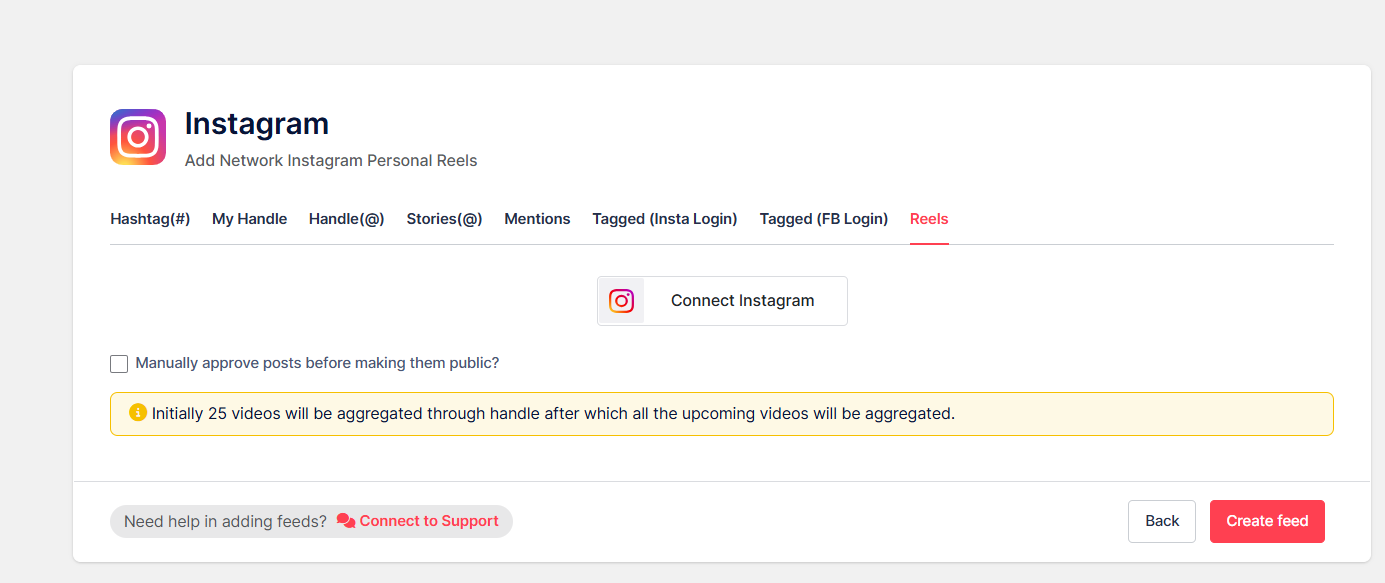
- To add Instagram content, you will see the following options.
- Hashtag (#) – To add Instagram hashtag feeds using a particular hashtag.
- My Handle – Connect your own Instagram handle feed.
- Handle (@) – To get feeds from any Instagram account.
- Stories – Connect your profile to display Instagram stories in the feed.
- Mentions – To fetch feeds in which your account is mentioned on Instagram Posts
- Tagged (Insta )– To fetch feeds in which your profile is tagged on Instagram Posts.
- Tagged (FB) – To fetch feeds in which your profile is tagged on Facebook Posts.
- Reels – Connect to show Instagram reels on the website.
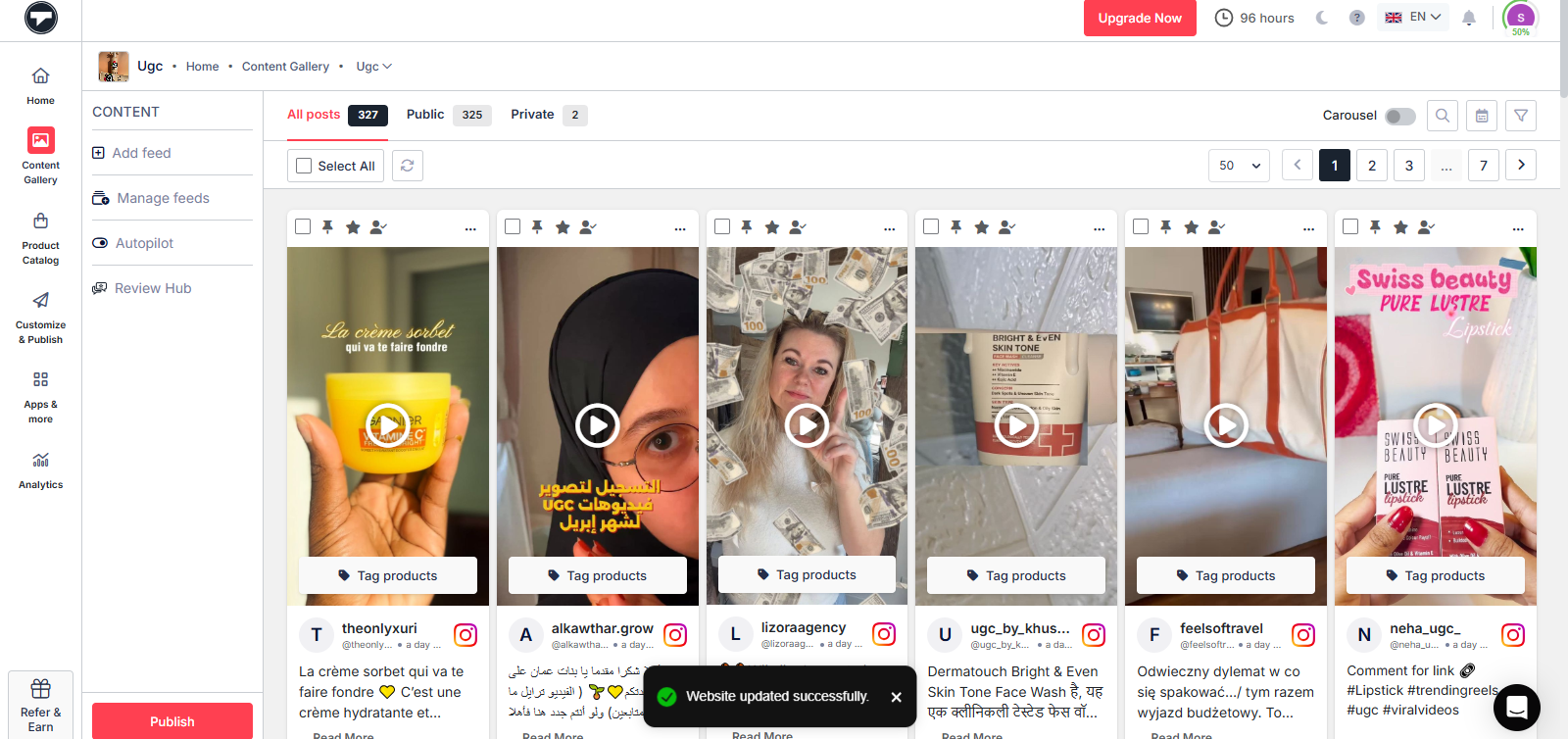
Step 3: Customize your Webflow Instagram feed
- You can also moderate your content manually. With this feature, you can remove any posts that seem inappropriate or do not align with your goals, and make them “Public” or “Private” accordingly.
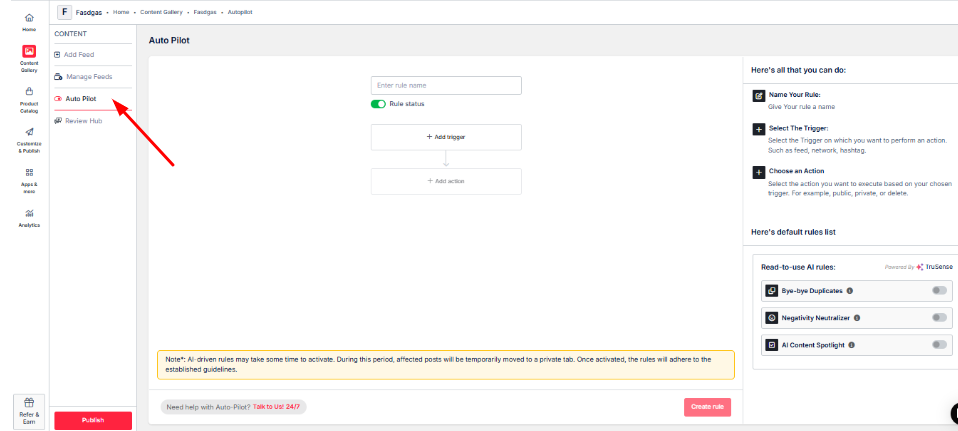
- If manually removing the content is taking much time, you also have the option of “Auto Pilot.”
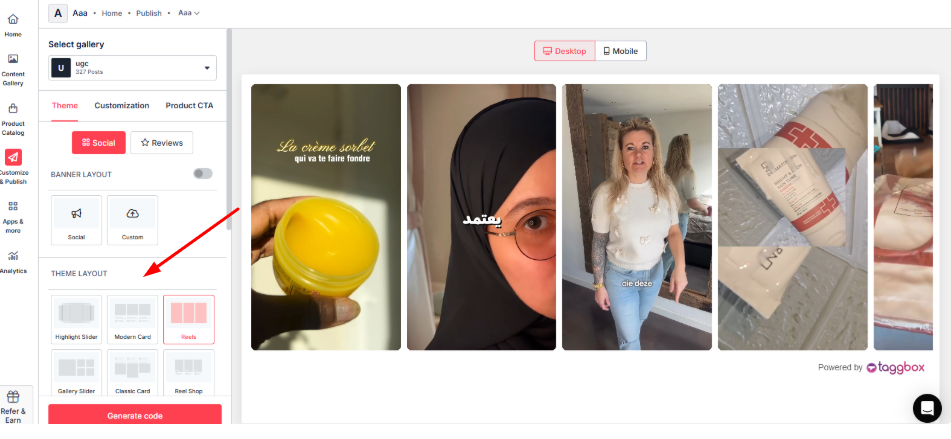
- In the Theme tab, select a layout and adjust the colors, fonts, and overall style of your Instagram widget to match your design.
Step 4 – Get the embed code
- Click on “Other” under the “Select Platform” heading and copy the provided embed code.
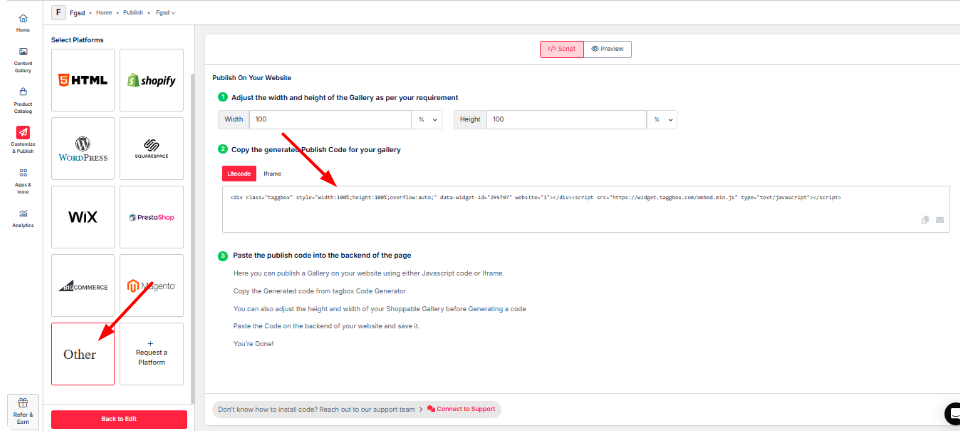
How to Connect an Instagram Feed to a Webflow Website with Embed Code
- Sign in to your Webflow account, then select the project where you want to embed the Instagram feed.
- Click the “+” icon in the left-hand side menu, then search for the Code Embed element.
- Drag and drop the “Code Embed” Element to the desired section of your website page.
- An HTML Embed Code Editor pop-up will appear. Paste the code and click “Save.”
- Click on the “Publish” Button.
Now you have successfully added an Instagram feed to your Webflow website.
Add Instagram Feed To Your Webflow Website (No Coding!)
Hook visitors. Build trust. Drive clicks.
Why Add an Instagram Feed to Your Webflow Website?
Adding an Instagram Feed to Webflow is a no-brainer for any business wanting to engage with customers. Taggbox makes it easy to showcase Instagram content that keeps your site fresh and drives significant conversions. Here’s why it’s a total game-changer:
1. Make Your Website Visually Dynamic & Engaging
Picture a visitor hitting your Webflow site and getting hit with a grid of Instagram UGC customer selfies rocking your gear, UGC video of your products in action, or Reels showing off your brand’s vibe. These vibrant visuals turn your site into a scroll-worthy masterpiece, boosting dwell time.
Taggbox’s customizable widgets let you craft social media feeds that align with Webflow’s design-first ethos, keeping visitors engaged and reducing bounce rates.
2. Build Trust with User-Generated Content (UGC)
93% of shoppers trust Instagram UGC over polished ads, making it a trust-building superpower for social proof ecommerce. Displaying genuine UGC customer reviews, tagged posts, or hashtag-driven content on your Webflow site feels raw and relatable.
3. Showcase Product Usage, Testimonials, or Brand Culture
Nothing sparks “I need this” vibes like seeing real people use your products. The real-world showcases drive more product views by letting customers visualize your gear in action. Moreover, with shoppable Instagram widgets, you can tag products in posts and link directly to your Webflow shop, making it easy for visitors to go from inspiration to checkout.
4. Increase Time-on-Site & Improve User Interaction
Dynamic Instagram feeds are like catnip for visitors; they can’t help but click through posts, increasing time on site. When you display instagram feed on a website, it transforms your website into a visually engaging experience. Imagine a travel agency embedding a feed of customer vacation snaps tagged #AdventureWithUs, sparking interaction as users explore dreamy destinations.
Taggbox’s real-time social media feeds keep content fresh, encouraging visitors to engage with Instagram UGC, such as Reels or Stories.
5. Keep Your Site Content Fresh Without Manual Updates
Who’s got time to update website content manually? Taggbox’s auto-sync pulls fresh Instagram content in real-time, so your Webflow site stays buzzing with new posts without you lifting a finger. This hands-off approach saves hours and boosts SEO with dynamic content. It also helps in improving your search engine ranking, as it signals to the engine that your website is active and posts fresh content.
Customization Tips for Best Results
Once you integrate the Instagram feed to Webflow, you should also customize it to achieve better results. To make your Instagram feed a Webflow showstopper, try these customization tips:
- Choose a Layout That Complements Your Site: Pick a carousel for a sleek, scrolling vibe or a grid for a clean, structured look. A masonry layout works for artsy brands with varied post sizes, aligning with Webflow’s design-first ethos.
- Use Moderation Tools to Control What Appears: Taggbox’s AI filters let you hide low-quality posts or negative comments, ensuring only Instagram UGC that aligns with your brand (e.g., customer testimonials) appears.
- Adjust Spacing and Responsiveness in Webflow: Place the embed in a Webflow container with a defined width to avoid wonky spacing. Test on mobile to ensure responsiveness.
- Match Feed Styling with Brand Colors and Fonts: Tweak Taggbox’s widget colors and fonts to mirror your Webflow site’s palette. For example, a wellness brand might use calming greens and sans-serif fonts for a cohesive look,
Conclusion
There you have it, now you are well aware of how to embed an Instagram feed to a Webflow website. Keep the customization tips in mind, and start your embedding process now to enjoy the mentioned benefits and more. It surely helps you gain an edge over your competitors and also improves the look and feel of your online presence. All these measures help you develop a brand name and reputation.