Adding an Instagram feed to your Wix website is a smart way to strengthen your brand’s credibility, engage visitors, and boost conversions. With millions of users exploring Instagram posts, Stories, and Reels every day, showcasing this content directly on your site can turn casual visitors into loyal followers.
An Instagram feed on Wix keeps your website dynamic and up-to-date, displaying real-time posts and user-generated content without constant manual updates. This not only builds trust but also encourages visitors to interact with your brand.
Using a flexible Instagram widget for Wix, like Taggbox, you can customize which posts appear, control the layout, and ensure the feed matches your website’s design. It’s an effortless way to bring your social media activity directly to your site while improving engagement and conversions.
In this guide, we’ll show you exactly how to embed Instagram feed to Wix website, step by step, so you can display your social content seamlessly and professionally.
Method 1: Embed Instagram Feed on Wix Using Taggbox
Taggbox is an amazing Instagram aggregator and embed tool. It allows you to create beautiful and stunning Instagram feeds that can be easily embedded on your WIX websites.
Taggbox Widget gives you the functionality to discover and aggregate Instagram content through channels like Hashtag(s), Handle(s), Mention(s) and Tagged. These aggregated Instagram feed can be easily embedded on your WIX website in a highly customized and curated manner.
In order to do that, first and foremost, you need to create an account on Taggbox. Follow these basic and simple steps to proceed further.
Step 1 – Set up your Taggbox account

- Select ‘Social Feeds on Website’ to add your Instagram feed to Wix. And you will land on the Dashboard.

Step 2 – Collect The Instagram Feeds
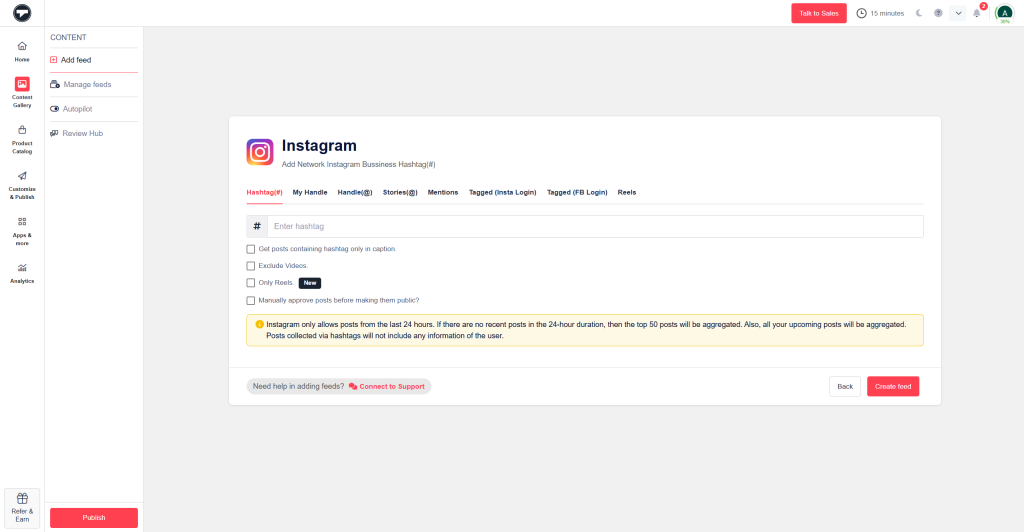
- Now select Instagram as your source network and choose your preferred connection type, such as Hashtag (#), My Handle, Stories (@), Mentions, Tagged posts, Reels, or a specific post URL.
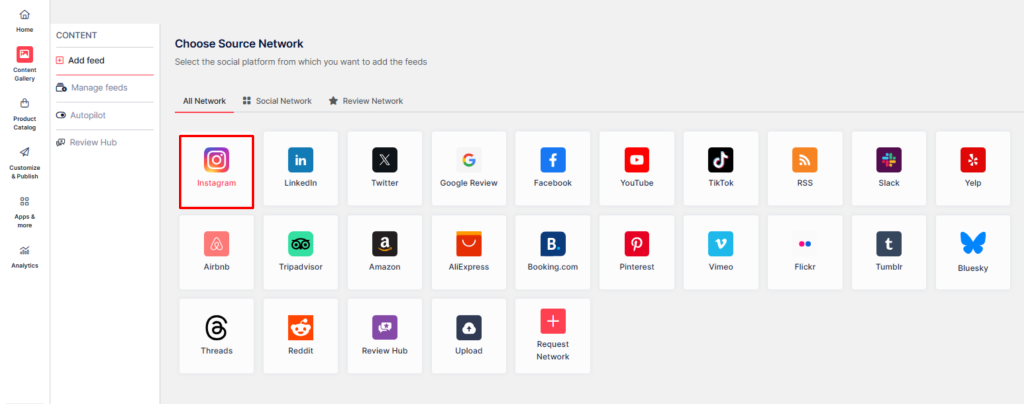
Hashtag (#): Gather Instagram posts using relevant hashtags for an Instagram hashtag feed.
Handles (@): Collects posts directly from the Instagram profile .
Stories: Collect and display engaging Instagram stories.
Mentions (@): Curate Instagram posts where your brand has been mentioned.
Tagged: Curates Instagram posts on which your brand has been tagged.
Reels: Collect and curate high-engagement Instagram reels by entering URL.
My Handle: Aggregate and display posts uploaded from your own business Instagram account
- Now, click on Create feed in the bottom right corner
Step 3 – Personalize & Customize Your Instagram Feed
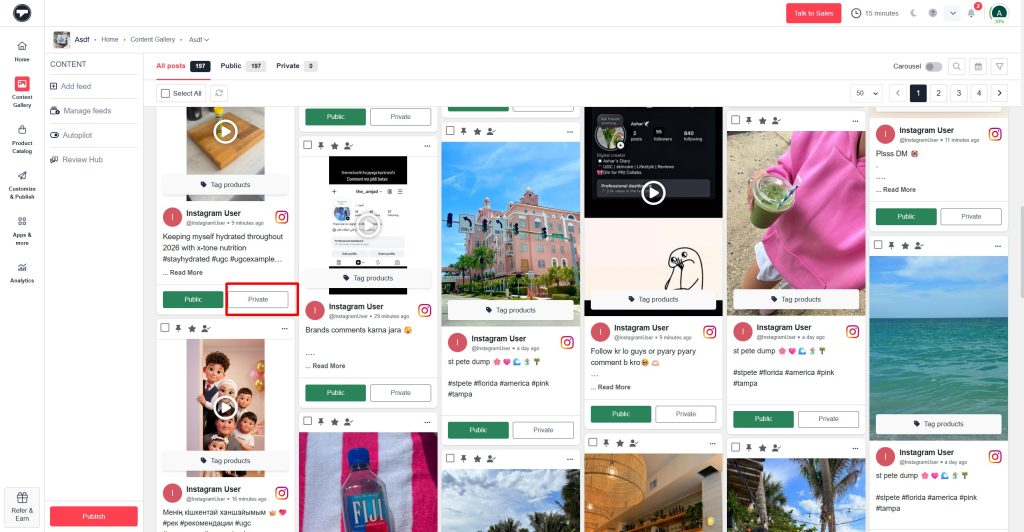
- Now, choose which posts you want to display on your Wix website. Set them as public or private, or enable Autopilot to manage the content automatically. Filter out any irrelevant posts to keep your feed clean and relevant.
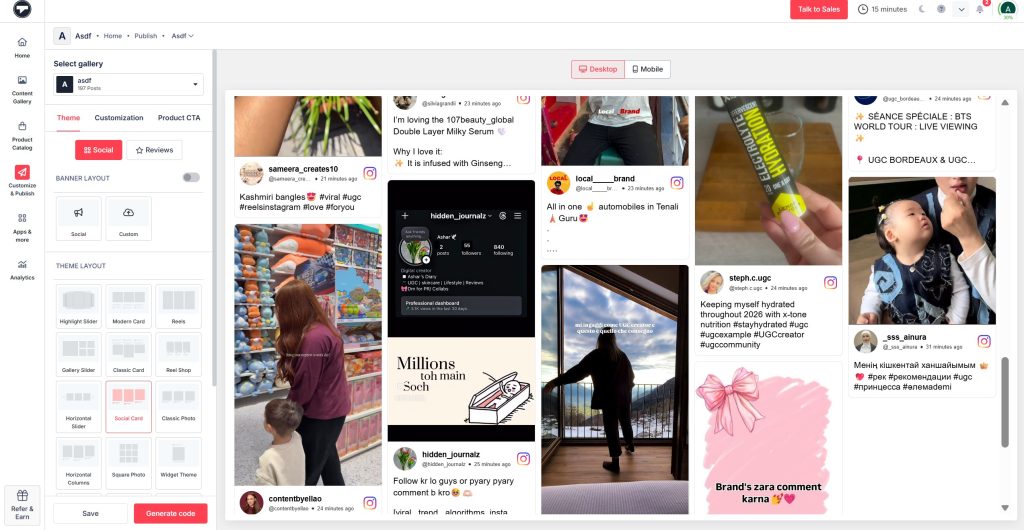
- Now, click on the Publish button
- After this, choose a theme layout for your Instagram feed that you want to display on your Wix website. You can also adjust colors, fonts, styles, and layout to match your Wix website’s design seamlessly..
Embed Instagram Feed To Your Wix Website Now
Bring your Instagram posts, Reels, and Stories to your wix website effortlessly
Step 4 – Generate Wix Instagram Feed Embed Code
- Once you are satisfied with the look of your Instagram widget, simply click on “Generate Code.”
- Now, choose Wix as your preferred website building platform.
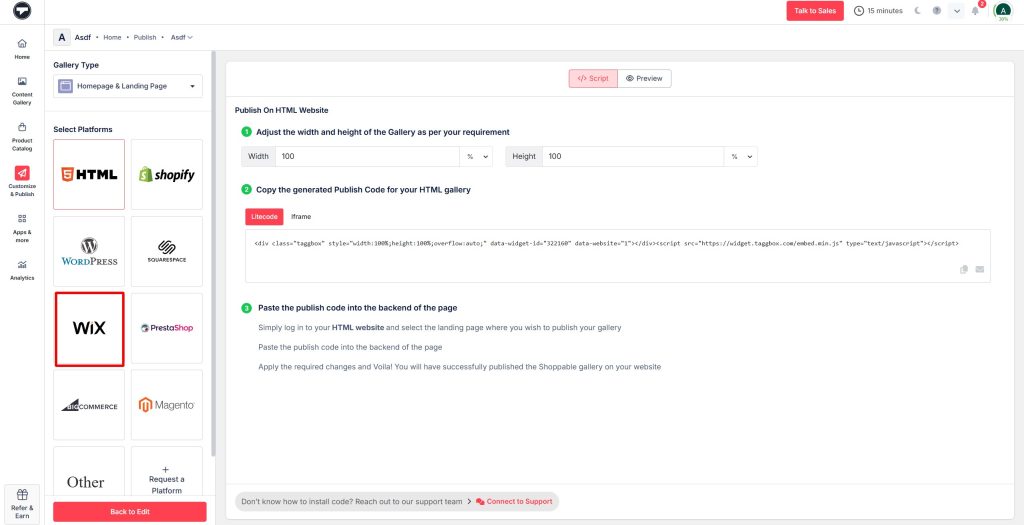
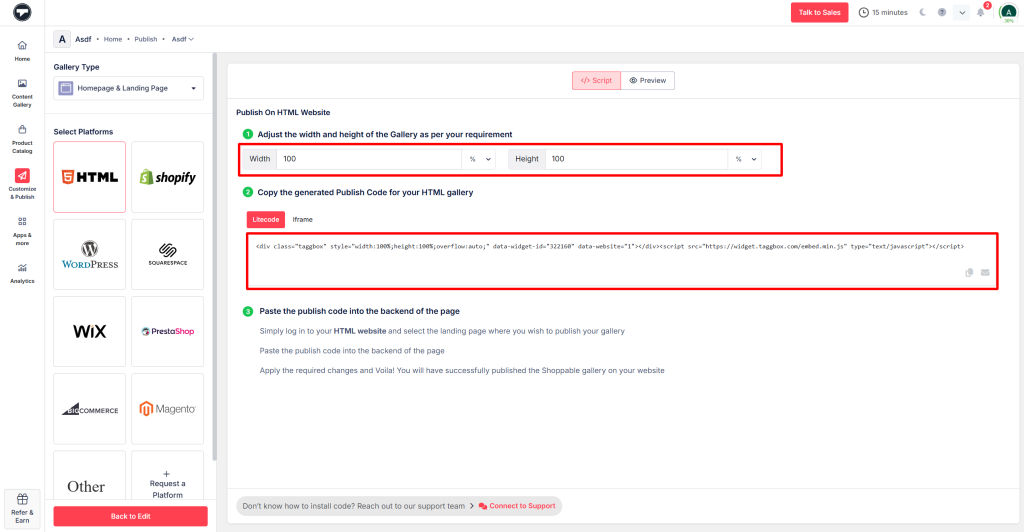
- Adjust the width and height of the widget as per the overall look of your website and copy the generated embed code for your Wix Website.
Step 5 – Embed Instagram Feed On Wix
- Now that you have already completed more than half of your journey, you are just a few steps away from adding Instagram feeds on WIX website.
- Login to your WIX website. Go to the backend of your website.
- In the backend of your WIX Editor, you will notice a plus button (+) on the left-hand side of the screen in the menu bar. It allows you to add elements to your web pages. Click on it.
- You will see a list of elements that you can add on your webpage. Click on the More button in the menu and select HTML iframe from the Embeds.
- Now, enter the Wix Instagram feed embed code that you generated from Taggbox and paste it in the code field here.
- Next, click on Apply.
Great! You have successfully embedded Instagram feeds on WIX website.
Ready to Integrate Your Instagram Feed on Wix Website?
Create a fully customized Instagram widget for your Wix website and turn your social content into real engagement
Method 2: Using Wix’s Native Instagram App
The easiest starting point is Wix’s own Instagram Feed app. It’s free on most plans and needs no extra tools. Here are the 5 simple steps to embed instagram feed on Wix:
- Open Wix Editor and Add the App
Log in to your Wix dashboard, open the editor, and go to the page where you want the feed. Click Add Apps on the left, search for “Instagram Feed”, and add the official Wix app to your site.
- Connect Your Instagram Account
Click the app box on the page, then select Connect Account. Log in with your Instagram Business or Creator account. This links your posts so the feed can pull content automatically.
- Customize Feed Appearance
Choose how many posts to display, pick a basic layout like grid or slider, and decide which details, such as captions, likes, or usernames, should show up on the widget.
- Resize the Widget to Fit Your Page
Drag the corners of the feed box to adjust its size so it blends nicely with the rest of your Wix page design, neither squeezed nor too large.
- Publish and Check the Live Feed
Click Publish at the top right. Visit your live site to make sure the Instagram feed appears correctly and starts showing your recent posts automatically.
Method 3: Embedding Instagram Feed with the Classic Wix Editor & Wix ADI
If you want more control over placement and design, you can embed Instagram feed on Wix using the HTML option. This method works in both the Classic Editor and Wix ADI.
Option 1: Using Classic Wix Editor
Follow these simple steps to add Instagram feed to Wix:
- Get Your Embed Code
Create your feed using a tool like Taggbox or any Instagram aggregator. Copy the embed code provided.
- Add HTML Element
Open your Wix site in the Classic Editor.
Click the “+” (Add) button → go to Embed → select HTML iframe / Embed HTML.
- Paste the Code
Paste your embed code into the box.
Resize and position the widget anywhere on your page.
- Preview and Publish
Click Preview to check desktop and mobile view.
If everything looks good, click Publish.
Your Wix Instagram feed will now be live and auto-updating.
Option 2: Using Wix ADI
You can also add Instagram to Wix ADI in a few quick steps:
- Open Editor
After your ADI site is created, click Edit Site.
- Insert Embed Code
Click the “+” button → go to Embed → choose HTML iframe.
Paste your Instagram feed embed code.
- Adjust Layout
Resize the section to fit your design.
Make sure it looks clean on mobile.
- Publish Changes
Click Publish to make your Instagram feed Wix live on your website.
Why Add Instagram Feed To Wix Website?
Adding Instagram feed to a Wix website brings a dynamic and engaging touch that instantly enhances its visual appeal. When you add Instagram to Wix, you introduce real-time social content that makes your website feel more alive, authentic, and interactive. Here’s why it’s a smart move:
Build Instant Trust with Social Proof
When people see actual customer photos and videos rather than just perfect brand photos, your site feels more honest. They tend to believe real user stories more easily. This comfort level often means they stay longer on the page and become more open to buying from you.
Keep Your Website Content Fresh
One of the biggest advantages of adding Instagram to Wix is automatic content updates. New posts from your Instagram account or hashtags appear without manual effort. This keeps your website looking active and up-to-date, encouraging repeat visits from users who want to see fresh content.
Increase User Engagement
When you embed Instagram feed on Wix, visitors naturally spend more time scrolling through engaging images and short videos. This increased interaction improves user experience and can positively impact SEO, as search engines consider time spent on your site a valuable ranking signal.
Make Your Website More Interactive
You can show how customers use your products on shop pages, highlight events on blog posts, or share daily moments on the homepage. One single feed can handle several jobs across your entire Wix site without any extra hassle.
Ensure Mobile-Friendly Experience
Well-made feeds adjust properly on phones and tablets, so nothing appears cut off or messy. Visitors can smoothly scroll through content without layout issues, which is crucial since most users browse on mobile devices.
Customize to Match Your Brand
When you embed Instagram Wix, you don’t lose control over design. You can choose layouts like grids or sliders, filter posts, and match colors with your website theme. This ensures your Instagram feed blends seamlessly into your Wix design.
Conclusion
So, you just embedded a beautiful Instagram feed on WIX website. Wasn’t that easy? Well, that’s what Taggbox does for you. It makes the most technical and difficult looking tasks easy enough for you to pursue.
If you’re an owner of an E-Commerce business with a legitimate website, then displaying user-generated Instagram content advocating for your brand’s authority is the best social proof you could offer your online visitors with the aim to convert them into permanent customers.