Adding an RSS feed to Spotify is one of the easiest ways to distribute your podcast and reach a larger audience. Once your RSS feed is connected, Spotify automatically pulls new episodes from your podcast host, ensuring your content is always up to date for listeners.
If you’re wondering how to add RSS feed to Spotify, you’re in the right place. This guide covers everything you need to know, including what an RSS feed is, how Spotify uses it, where to find your feed, and the benefits of getting your podcast listed on the platform.
An RSS feed is a unique URL generated by your podcast hosting provider. It contains all the essential information about your podcast, including:
- Podcast title
- Show description
- Episode information
- Audio files
- Cover artwork
- Publishing dates
Think of it as the master file that tells platforms like Spotify exactly what your podcast contains and when new episodes are ready.
Many podcasters and marketers are actively searching to add RSS feed to Spotify, as this single link makes distribution simple and consistent. Without a proper RSS feed, Spotify cann’t list or update your show. It acts as the bridge between your podcast host and the platform, ensuring everything stays in sync for your audience.
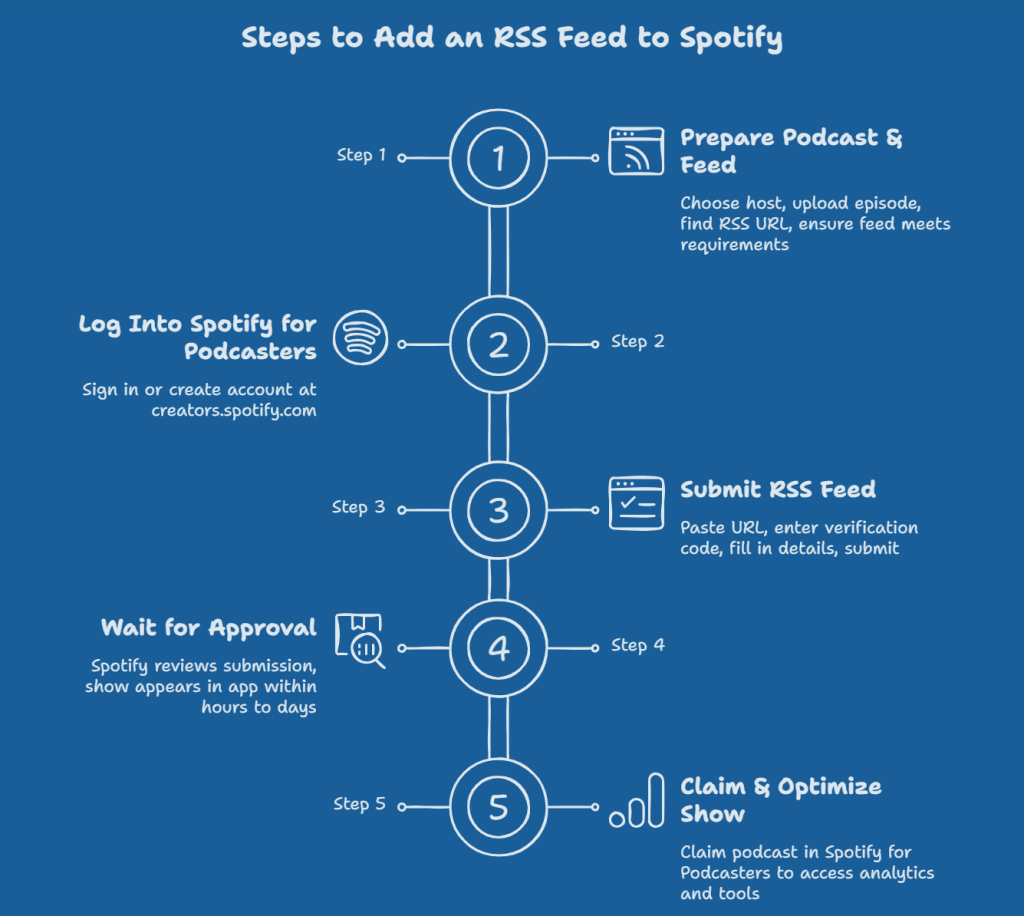
Here is the standard process most podcasters follow to add RSS feed. These steps are simple and can offer you significant benefits.
Step 1: Prepare Your Podcast and RSS Feed
Choose a reliable podcast host such as RSS.com, Buzzsprout, Libsyn, Podbean, or others. Upload at least one episode so your feed has content. Spotify usually rejects empty feeds.
Locate your RSS feed URL in your host’s dashboard. Look for sections labeled “RSS,” “Distribution,” or “Feed.” Copy the full link. Make sure your feed meets basic requirements:
- Clear title and description
- High-quality square cover art (at least 1400×1400 pixels, preferably 3000×3000)
- Proper audio format (MP3 is widely supported)
- Valid email address in the feed for verification (some hosts hide it by default for privacy)
Step 2: Log Into Spotify for Podcasters
Go to creators.spotify.com and sign in with your Spotify account. If you do not have one, create it using the same email associated with your podcast.
Navigate to the submission page (often podcasters.spotify.com/dash/submit). Paste your RSS feed URL. Spotify will send a verification code to the email listed in your feed. Enter the code to prove ownership.
Fill in details like category, language, and hosting provider. Review everything and submit.
Step 4: Wait for Approval
Spotify usually reviews submissions within a few hours to a few days. Some shows go live faster. Search for your podcast name in the Spotify app to check when it appears. Spotify does not always send a confirmation email, so manual checking helps.
Step 5: Claim and Optimize Your Show
Once live, claim your podcast in Spotify for Podcasters. This step unlocks analytics, listener insights, and promotional tools.
Create Your RSS Feed Widget Today
Connect your podcast to Spotify in minutes and unlock access to one of the world’s most popular podcast platforms.
Start For Free

There are various strong reasons to add your RSS feed to Spotify. Here are some handful of reasons that might convince you to consider this strategy.
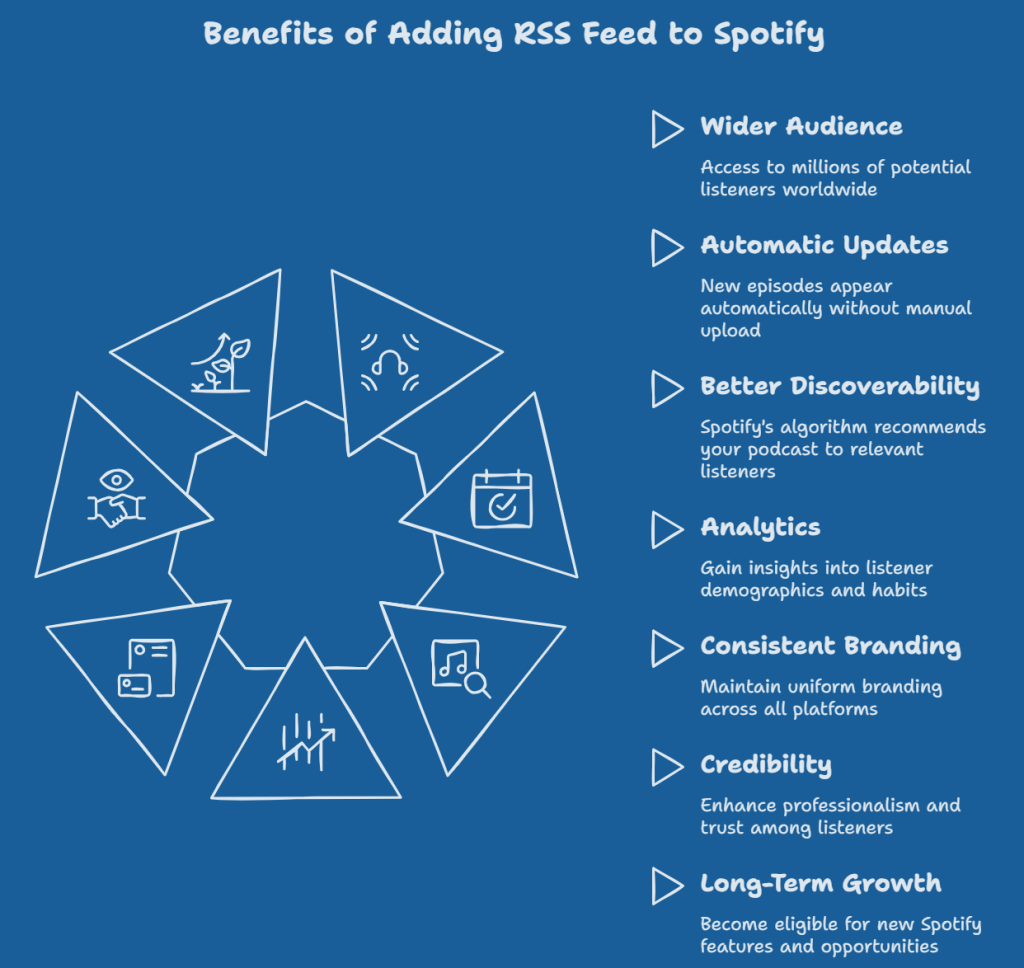
1. Reach Millions of Potential Listeners
Spotify has hundreds of millions of active users every month. By adding your RSS feed, your podcast becomes visible to a huge global audience that actively searches for new shows. This single move can dramatically increase your listener numbers and help your content reach people who might never find you otherwise.
2. Automatic Episode Updates
Once your RSS feed is connected, every new episode you publish appears automatically on Spotify. You do not need to upload episodes manually to the platform. This saves time and ensures your listeners always get fresh content right when it drops.
Spotify’s recommendation system works really well. When your podcast is properly listed through its RSS feed, the algorithm can suggest your show to the right listeners based on their interests. This leads to organic growth and helps new people discover your episodes naturally.
4. Access to Useful Analytics and Insights

After approval, you can claim your podcast on Spotify for Podcasters. This gives you valuable data such as listener demographics, listening habits, and top episodes. These insights help you understand your audience better and make smarter decisions about future content.
5. Maintain Consistent Branding Everywhere
Your RSS feed acts as the central source for your podcast information. When you add it to Spotify, your title, description, cover art, and branding remain consistent across platforms. You can also use an RSS feed widget on your website to display podcast episodes and maintain a consistent experience for your audience.
6. Gain More Credibility and Professionalism
Having your podcast listed on Spotify adds significant credibility. Many listeners trust and prefer shows available on major platforms. It makes your podcast look more established and professional, which can help attract guests, sponsors, and loyal fans who take your show more seriously.
7. Support Long-Term Growth

Spotify continues to add new features for creators, such as enhanced promotion tools, video podcasts, and audience engagement options. Once your RSS feed is added and your show is claimed, you become eligible for these opportunities as they roll out, keeping your podcast ready for long-term growth.
If you host directly with Spotify for Podcasters (formerly Anchor), your RSS feed becomes available after you publish your first episode.
- Log in to creators.spotify.com.
- Select your podcast.
- Go to Settings > Availability.
- Scroll to the RSS Distribution section.
Add RSS Feed to Spotify Now
Get your podcast listed on Spotify, expand your audience, and keep your content updated without any manual effort.
Start For Free Now
Conclusion
Adding an RSS feed to Spotify is a simple way to make your podcast available to a wider audience. Once your podcast is listed, Spotify automatically updates new episodes from your RSS feed, making it easier to manage and distribute your content.
Before submitting your podcast, make sure your feed, artwork, and podcast details are complete and accurate. A well-optimized podcast profile can improve discoverability and create a better listening experience. After your podcast goes live, you can focus on creating content while Spotify helps deliver it to your listeners.