Instagram feed to your Squarespace website helps you display real-time content, build trust, and boost engagement. With the right setup, you can easily add an Instagram feed to Squarespace, embed posts, reels, and even create shoppable experiences.
In this guide, you’ll learn how to add Instagram widget to your Squarespace site and turn social content into a sales tool with Taggbox, and connect Squarespace with Instagram Shopping to drive more conversions with shoppable feeds.
What is Instagram Squarespace Integration?
Instagram Squarespace integration simply connects your Instagram content to your Squarespace website so it appears automatically. It allows you to add an Instagram feed to Squarespace, display posts, reels, and user-generated content without manually uploading anything.
Think of it as turning your Instagram into a live content source for your website, so your site doesn’t just sit there, it updates itself.
Why Add an Instagram Feed to Squarespace?
When you add an Instagram feed to Squarespace, you showcase real content, build trust, and increase engagement, which in turn, multiplies conversions.
Social Proof that Builds Trust
When you embed an Instagram feed on Squarespace, visitors see real customer posts and user-generated content. This builds credibility and makes your brand more trustworthy.
Higher Engagement
A live Squarespace Instagram feed keeps users scrolling. Interactive layouts like grids or an instagram slider widget increase time spent on your site.
Fresh Content Automatically
Your Instagram feed updates in real time, so your website always looks active. This makes it easy to add instagram photos to squarespace without manual updates.
Better Conversions
Real content helps users decide faster. By adding instagram to squarespace along with shoppable features, you increase the chances of clicks, sign-ups, and purchases.
Visual Storytelling
Instagram is a beautiful mosaic of colorful UGC. You can embed Instagram videos, reels, and posts to visually showcase your brand and create a stronger connection with visitors.
Embed Instagram Feed to Squarespace Website For Free
Ways To Add an Instagram Feed To Squarespace Website
By embedding an Instagram Post on your Squarespace website, you can attract more customers and make your website look authentic with user-generated content. This user-generated content serves as social proof for the brand, thereby increasing conversion rates.
Moreover, the exciting images and videos of Instagram help in increasing the website’s vibrancy and thus make it more dynamic and responsive. It also enhances the audience’s interaction with the brand by increasing product visibility and creating a hub of eye-catching visual gallery.
Below are 3 easy ways to embed Instagram feed into your Squarespace site:
- Method 1: Using Third-Party Instagram Feed Tools – Taggbox
- Method 2: Connect Instagram Using Squarespace’s Native Integration
- Method 3: Embed Instagram Feed on Squarespace Manually
Steps to Add Instagram Feed to Squarespace Website Using Taggbox
Setting up an Instagram Widget on Squarespace website is a quick process that only requires a few easy steps before embedding it on your site.
Step 1: Sign up for a Free Taggbox Account
- Sign up or log in to Taggbox and select “Social Feeds on Website” to get started.

Step 2: Set Up Your Instagram Feed
- Choose “Instagram” as your social media source from the given options.
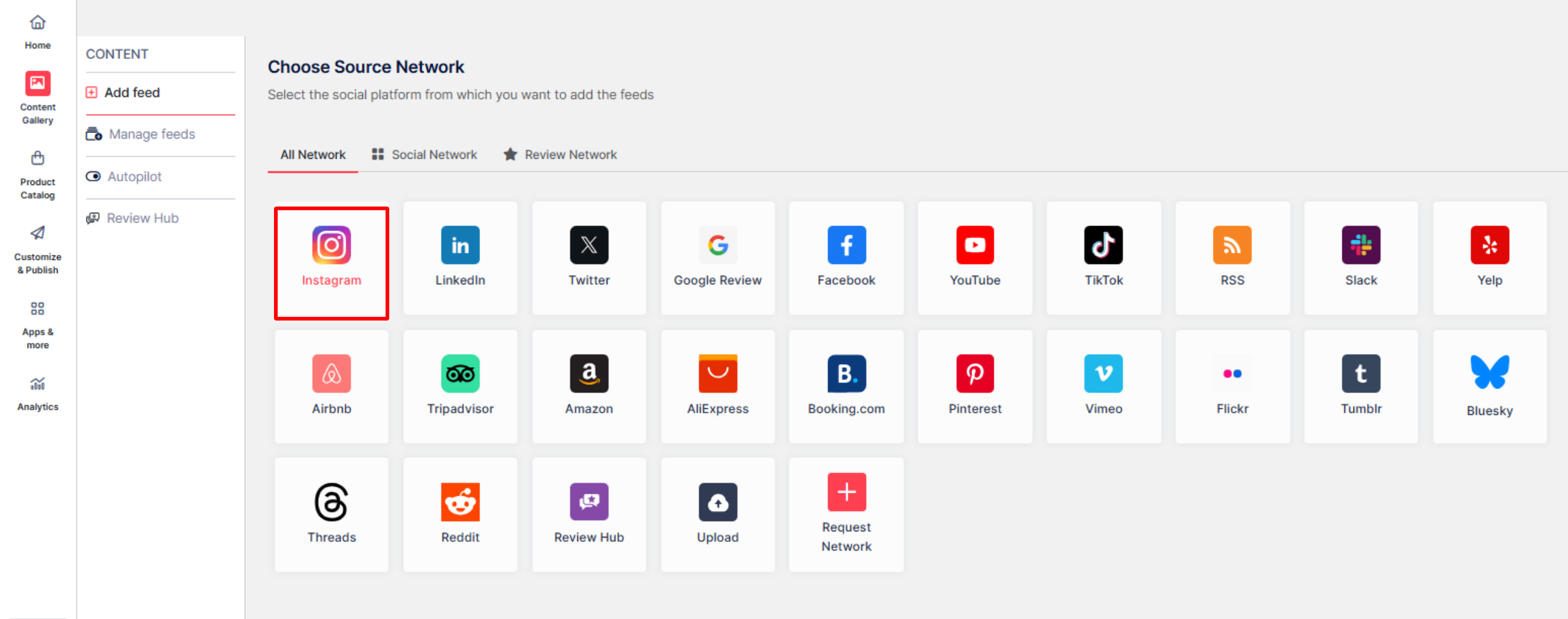
- Next, you can pick how you want to pull content (hashtags, tags, handle, etc).
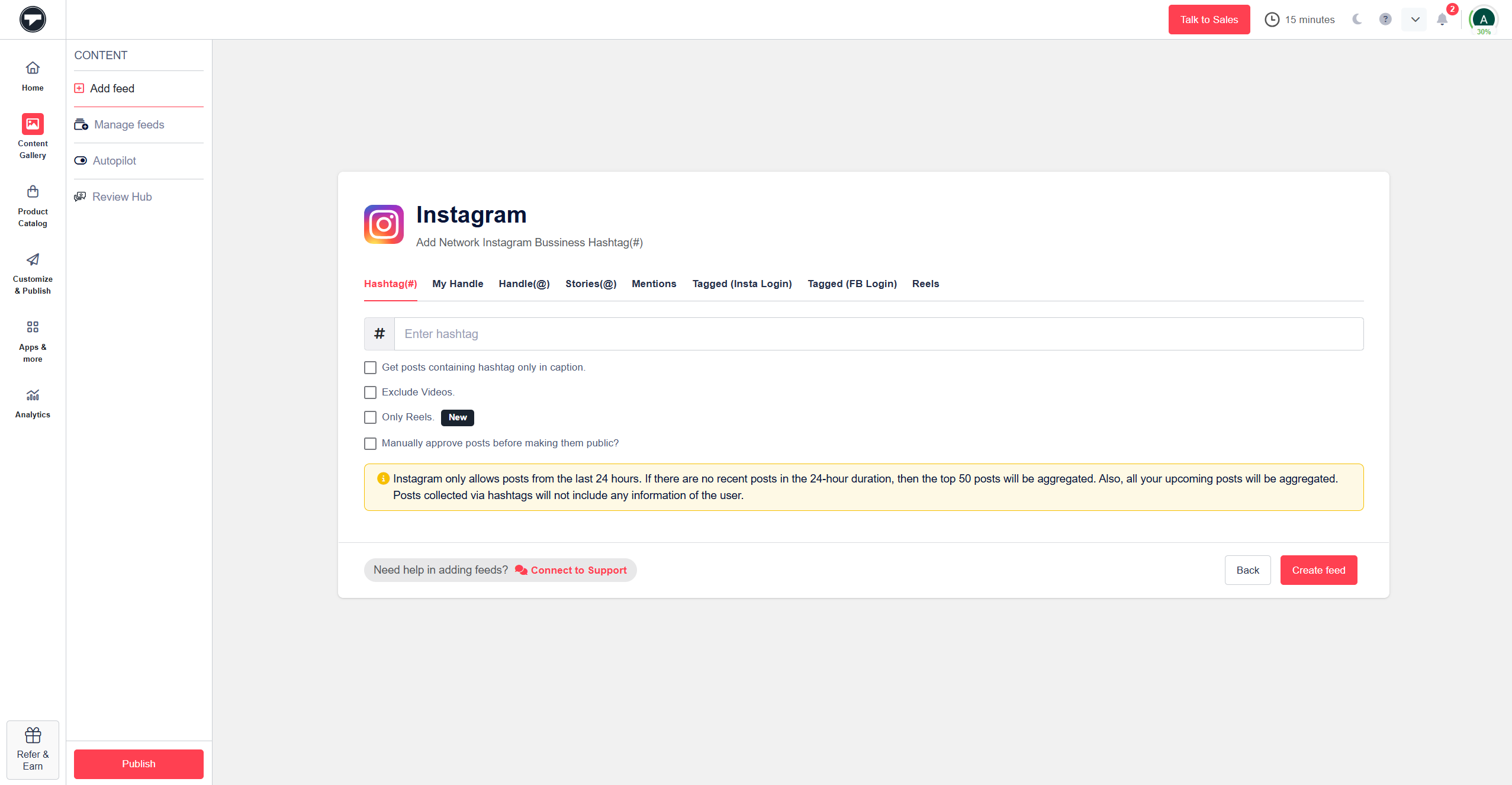
- Now Click on “Create Feed” to begin collecting your Instagram content.
Step 3: Moderate & Customize Your Instagram Feed
- Moderate the content you want to be public, and create the feed.
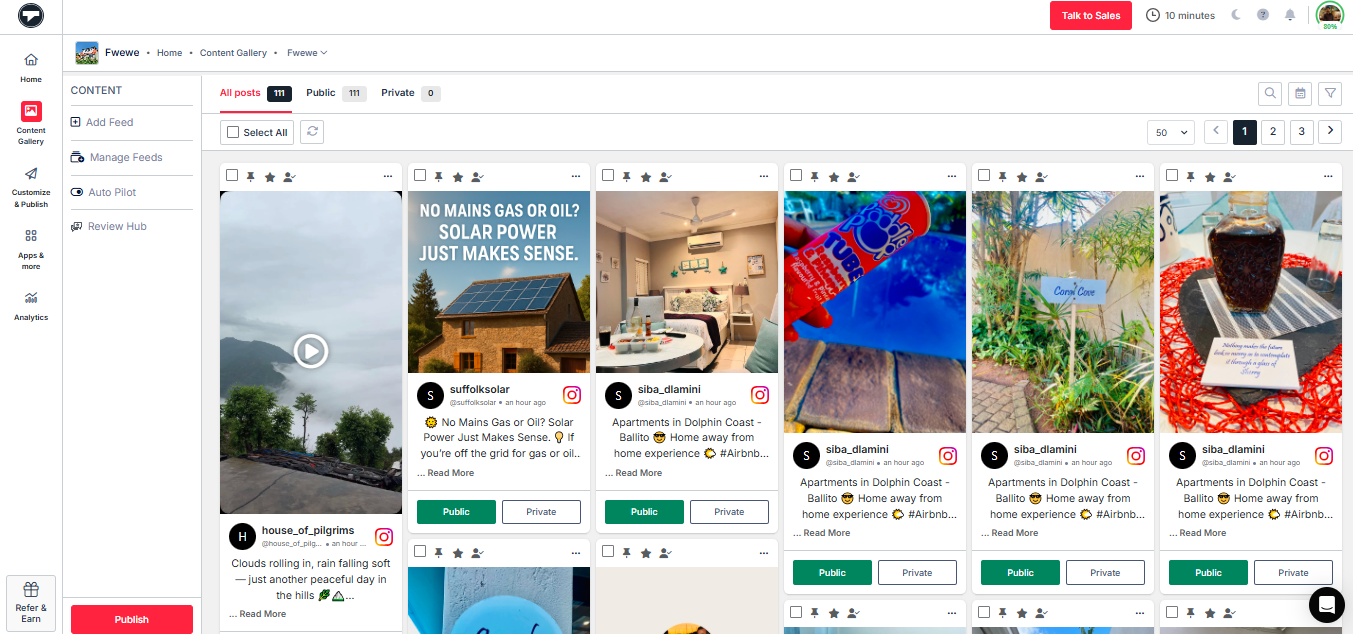
- Click the “Publish” button on the present on the left sidebar.
- Now, click on the “Theme” tab to select a layout that complements your website’s design.
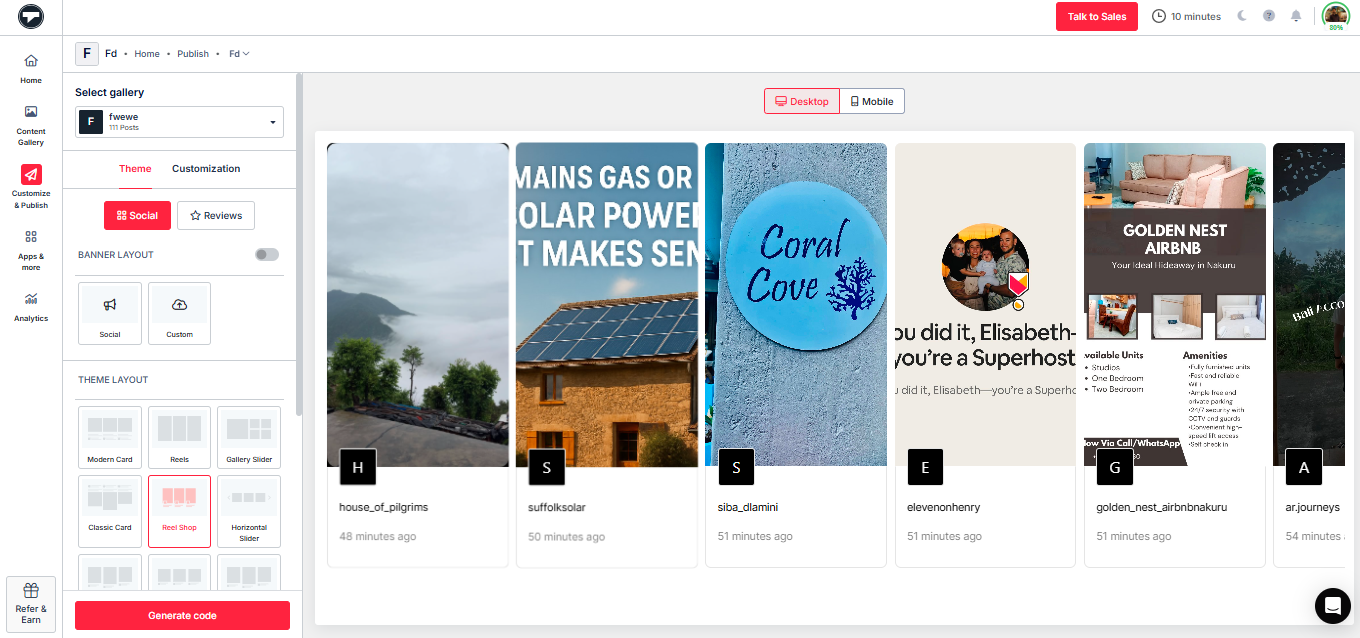
- Further personalize the feed in the “Customization” tab by adjusting font styles, colors, and other visual elements that you find appropriate for your website.
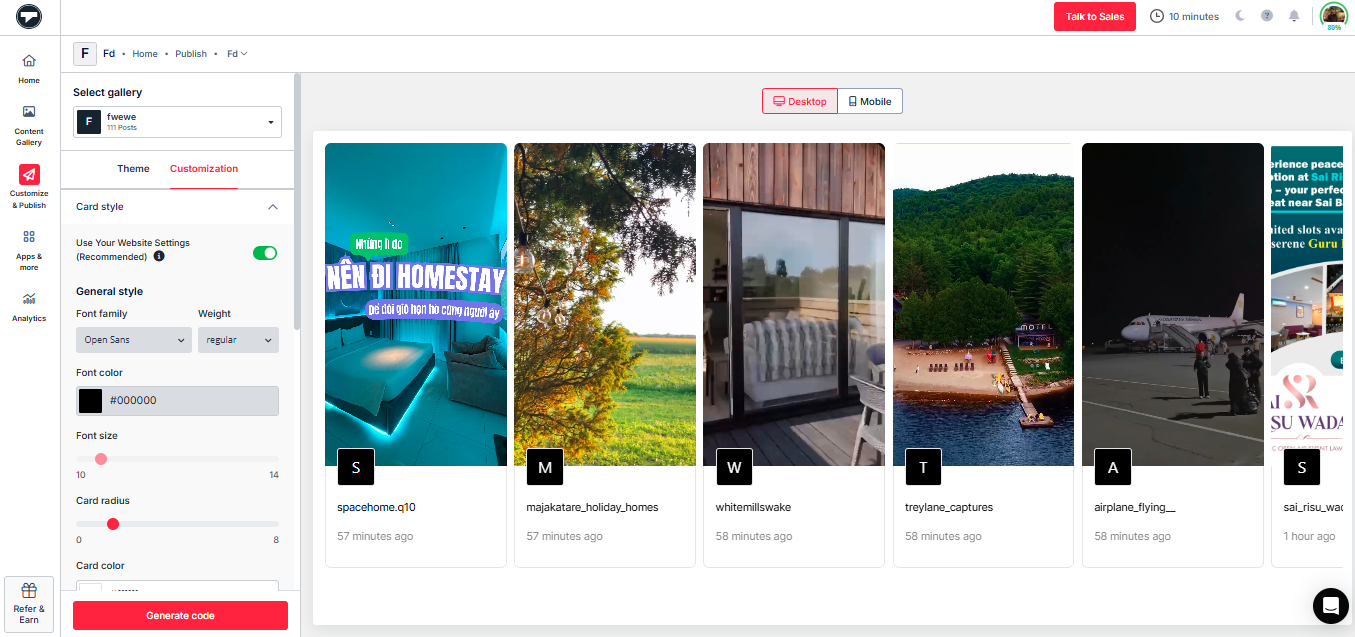
Step 4: Now Generate Squarespace Instagram Feed Embed Code
- Click on the “Generate Code” button.
- Choose the appropriate “Gallery Type” and select “Squarespace” as your platform.
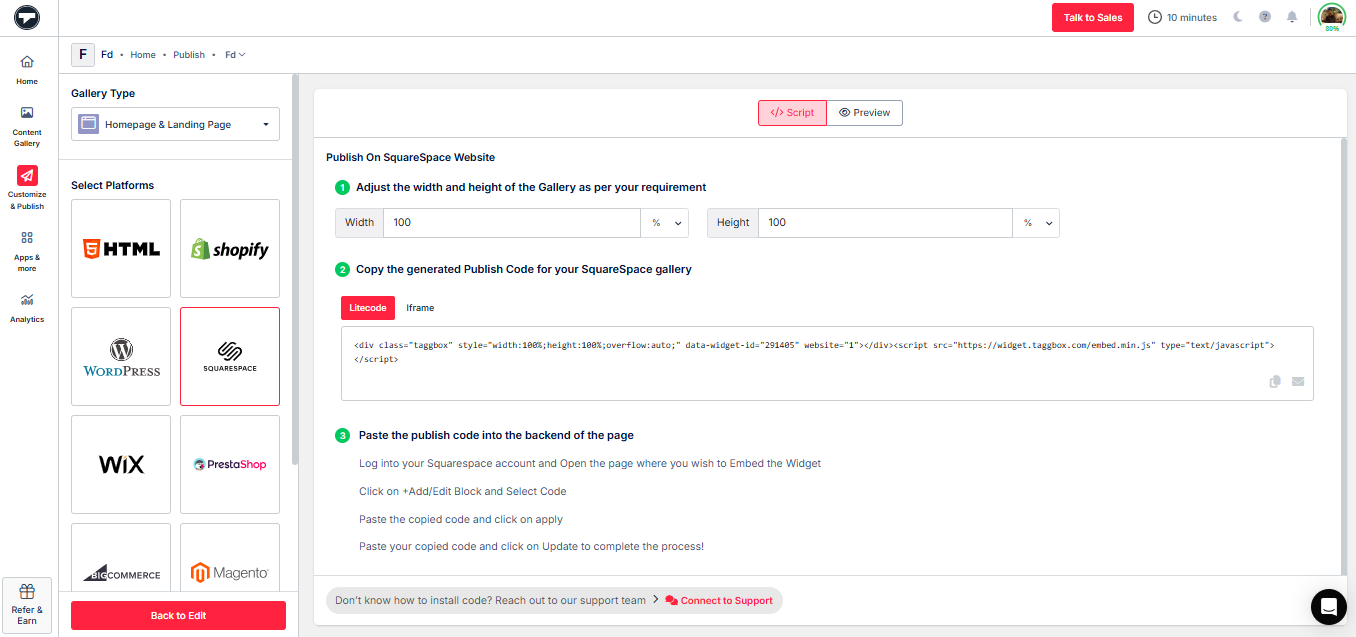
- Set the dimensions for a perfect fit, then copy the embed code.
Step 5: Add Your Instagram Feed To Your Squarespace Website
- From the backend page of your Squarespace website, open the post editor page.
- Click on “Add block.” Select embed from the drop-down menu and click on the code icon (</>) in the URL field.
- Paste your embed code on the box and click Set.
- Click Apply to make changes to your website.
You have successfully added Instagram post on your Squarespace website.
Add Instagram Feed To Your Squarespace Website
Create a customizable and engaging Instagram feed with real-time updates and full design control.
Other Options To Embed an Instagram Post On a Squarespace Website
Embed Instagram Post Directly from Instagram
One of the simplest ways to add Instagram to Squarespace is by embedding a post directly from Instagram. This method is free and works well if you only want to display specific content.
Follow these steps:
- Log in to your Instagram account.
- Select the post that you want to embed.
- Click on the three dots option on the upper right corner of the post.
- Choose the ‘embed’ option, and the code will be generated.
- Copy the code and paste it on the backend page of your Squarespace website.
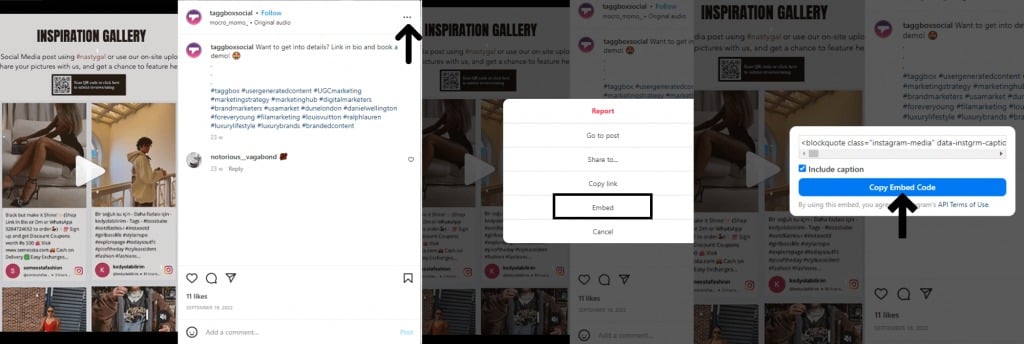
While this method helps you embed Instagram post on Squarespace quickly, it comes with limitations. You can only embed one post at a time and it does not possess any functionalities, such as customization, moderation, performance analytics, and live updates.
Pros
- Free and simple method
- Works well for embedding individual posts
- No third-party tool required
Cons
- Only supports single post embeds, not full feeds
- Cannot embed instagram feed on squarespace dynamically
- No customization or branding control
- Requires manual updates for new posts
- No support for embedding Instagram reels on website, stories, or hashtag feeds
Add Instagram Feed Using Squarespace Instagram Block
Another way to embed Instagram feed to Squarespace is by using the built-in Instagram block. Squarespace allows you to display Instagram posts on your site and it showcases your posts on the website without manually adding them to the gallery, rather it provides live updates on the site by syncing Instagram blocks with your Instagram account.
Here is the rundown of the steps to add Instagram block to your website.
- Open your Squarespace page editor and click on an insert point.
- Select the “Instagram” block from the menu
- Drag and position the block where you want it to appear
- Click on “Connected Account” and choose your Instagram account, or connect a new one
- Use the “Items to Display” slider to select how many posts you want to show (up to 20)
- Go to the Design tab to customize the layout
- Click Apply to save your changes your display.

This method makes Instagram Squarespace integration easier by automatically syncing your posts. But the drawback that follows with this procedure is that Instagram does not support the filtration of posts in Instagram blocks by Hashtags and Search terms. Also, it allows you to add a maximum of only 20 images at a time.
The solution to this is Taggbox’s Instagram Widget. It has not only bowled over this limitation but also has a lot to serve you with the best.
Pros
- Easy to set up without coding
- Direct way to add Instagram to Squarespace
- Works well for basic display needs
Cons
- Displays one post at a time, not a full Squarespace Instagram feed
- No advanced layouts (no grid or instagram slider widget)
- Limited styling and customization
- No analytics or content moderation
- Not suitable if you want to embed instagram feed in Squarespace at scale
Why Use Taggbox to Add an Instagram Feed to Squarespace?
Squarespace’s native options are limited in design, control, and scalability. With Taggbox, you can add an Instagram feed to a Squarespace website in a more flexible and conversion-focused way.

Curate Content Beyond Just Your Feed
Squarespace only pulls from one account. With Taggbox, you can collect posts using hashtags and mentions to embed instagram hashtag feed on a website and showcase real user-generated content. Instead of just your content, you show what others say about you.
Turn Your Feed into a Shoppable Experience
Native methods only display content. Taggbox lets you embed instagram feed in a Squarespace website and tag products directly inside posts. This leads casual browsing to purchasing in no time.
Control What Appears on Your Website
Squarespace shows whatever is posted. Taggbox adds moderation, so you can filter spam and approve content before you add instagram to squarespace. So, instead of risking poor content, you stay in control.
Manual embeds and native blocks can break due to API limits. Taggbox ensures your embed instagram feed on squarespace stays live and optimized.
Measure What Actually Works
Squarespace doesn’t offer insights. Taggbox provides analytics, so your adding instagram to squarespace becomes data-driven.
Comparison Table: Best Ways to Add Instagram Feed to Squarespace
| Feature / Method |
Native Instagram Block |
Manual Embed |
Taggbox (Recommended) |
| Ease of Setup |
Very Easy |
Easy |
Easy |
| Feed Type |
Limited single post view |
Single post only |
Full dynamic feed |
| Layout Options |
Basic |
None |
A variety |
| Auto-Updates |
Yes (limited) |
No |
Yes (real-time updates) |
| Hashtag Feeds |
No |
No |
Yes |
| Reels, Videos, Stories |
Limited |
Limited |
Yes |
| Customization |
Minimal |
None |
Full Control |
| Content Moderation |
No |
No |
Yes |
| Analytics |
No |
No |
Yes |
| Scalability |
Low |
Very Low |
High |
| Best Use Case |
Basic display |
Single post highlight |
Conversion-focused websites |
Best Place to Add Instagram Feed to Squarespace Website
Now, since you know what Instagram Feed is, why you should add Instagram feed on Squarespace, and how to embed it, let us go beyond and gather some ideas for where to display it on your website.
Home page
Your homepage is the first impression visitors have of your brand. It is the default main web page of your website that shows the summary of your business. Adding an Instagram feed here helps showcase real-time content, highlight your brand personality, and instantly build trust. It’s a great way to engage users and encourage them to explore further.
About page
This page allows visitors to dive deep into your business and learn more about it. Adding a Squarespace Instagram feed gallery on this page is an even better option to have a great impact on your visitors. It will enhance the page’s appearance and showcase a variety of images of your business and its products, rather than a few chosen ones.
Blog posts
Embedding your Squarespace Instagram feed at the end of blog posts is a smart way to drive engagement. After reading your content, visitors are more likely to interact with your social feed, helping increase visibility and grow your Instagram presence.
The bottom section of the webpage but an excellent option to display your feed. This is because the website footer appears automatically on every page of your website. So no matter on which page the visitor is navigating to, he will always have a chance to see your feed.
Expert Opinion
“Adding an Instagram feed to your Squarespace website is more than just a design enhancement—it’s a strategic way to build trust and showcase real-time brand activity. Businesses that effectively integrate social content often see higher engagement and improved user retention, as visitors connect more with authentic, visual experiences.”
— Upendra Goswami
Digital Marketing Strategist
LinkedIn Profile
Conclusion
In the digital age, social media, particularly Instagram, plays a crucial role. Integrating this Instagram with your website is a perfect idea to expand your market reach and engagement.
With the help of the Taggbox Widget, you can build trust by displaying your live Instagram photo feed on the website and hence boost conversions and sales.