Adding Instagram feed to Wix allows you to show live social content directly on your website. It helps improve engagement, build credibility, and keep your site visually appealing with fresh updates.
Learn how to display Instagram feed on Wix by following this simple step-by-step process to create, customize, and display your feed.
Step 1 – Set up your Taggbox Widget account
- Create a Taggbox Widget account or log in to your existing account to get started.

- Select ‘Social Feeds on Website’ to add your Instagram feed to Wix.

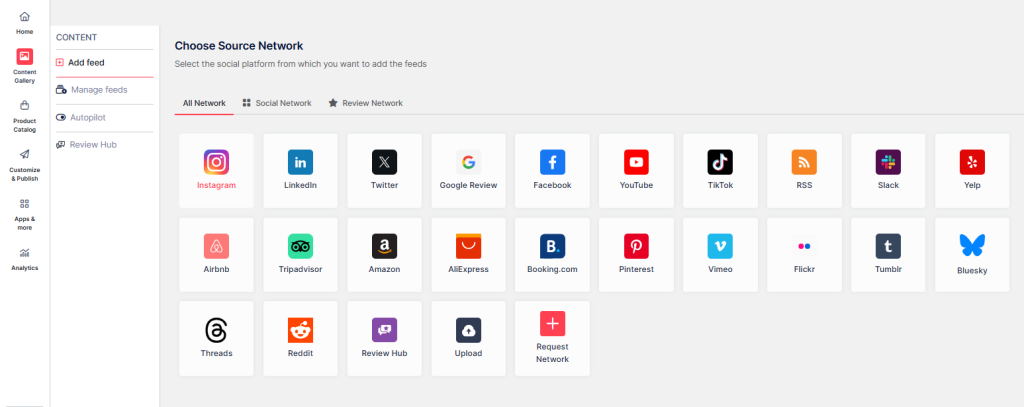
Step 2 – Select your Source Network and start setting up your feed.
- Select Instagram as your Source Network and proceed to organize your feed.
- Select from one of the following options:
- Hashtag (#) – To display Instagram hashtag feeds on website.
- My Handle – Connect your own Instagram handle feed.
- Handle (@) – To fetch feeds from any Instagram account.
- Stories – Connect your profile to display instagram stories in the feed.
- Mentions – To fetch feeds in which your account is mentioned on Instagram Posts.
- Tagged (Insta )– To fetch feeds in which your profile is tagged on Instagram Posts.
- Tagged (FB) – To fetch feeds in which your profile is tagged on Facebook Posts.
- Reels – Connect to add Instagram reels.
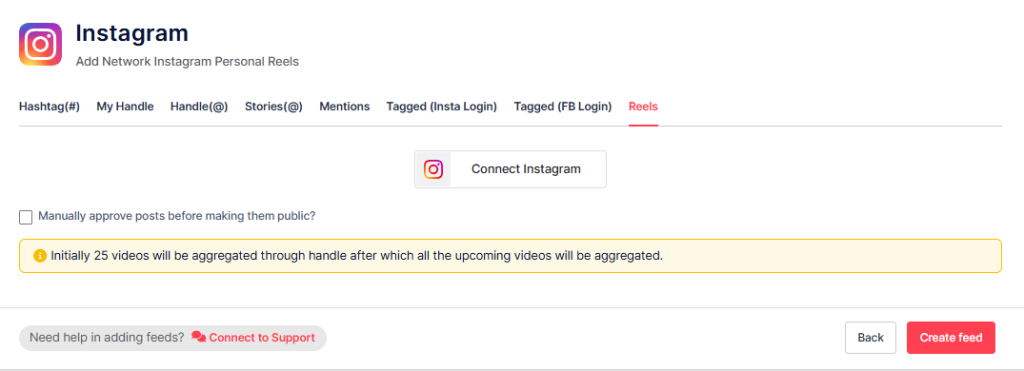
- Now, click on Create feed in the bottom right corner
Step 3 – Personalize and Customize Your Instagram Feed
- Manage the posts you want to show, set them as public or private, or enable Autopilot for automatic management.
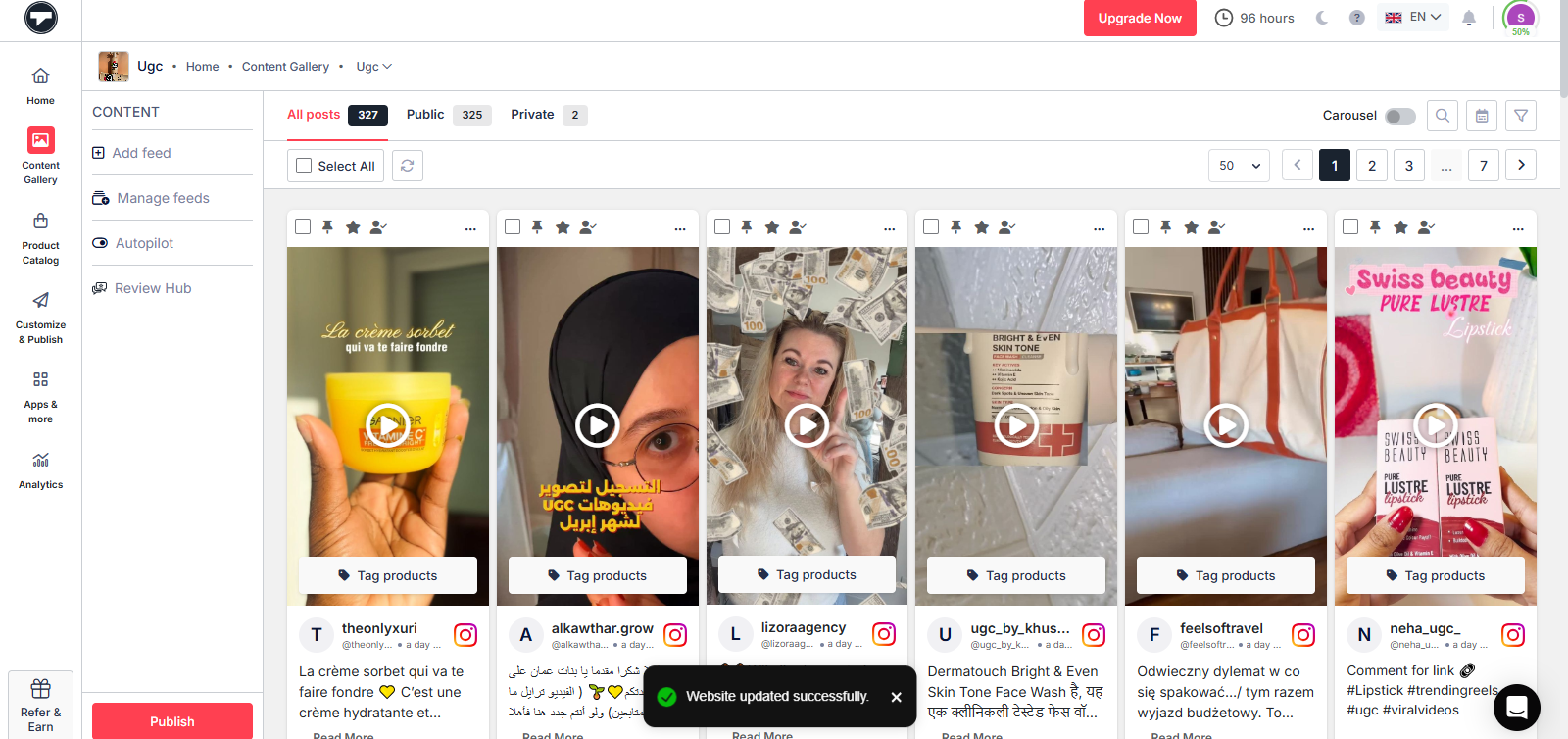
- Now, click on the Publish button
- After this, choose a theme layout for your Instagram feed that you want to display on your Wix website. You can also adjust colors, fonts, and styles.

- Click on “Generate Code,” and your Instagram feed widget will be ready to add to your website.
Step 4 – Choose the Platform and copy the code
- In the “Select Platform” box, just click on the Wix logo to get your embed code for adding instagram feed to Wix.
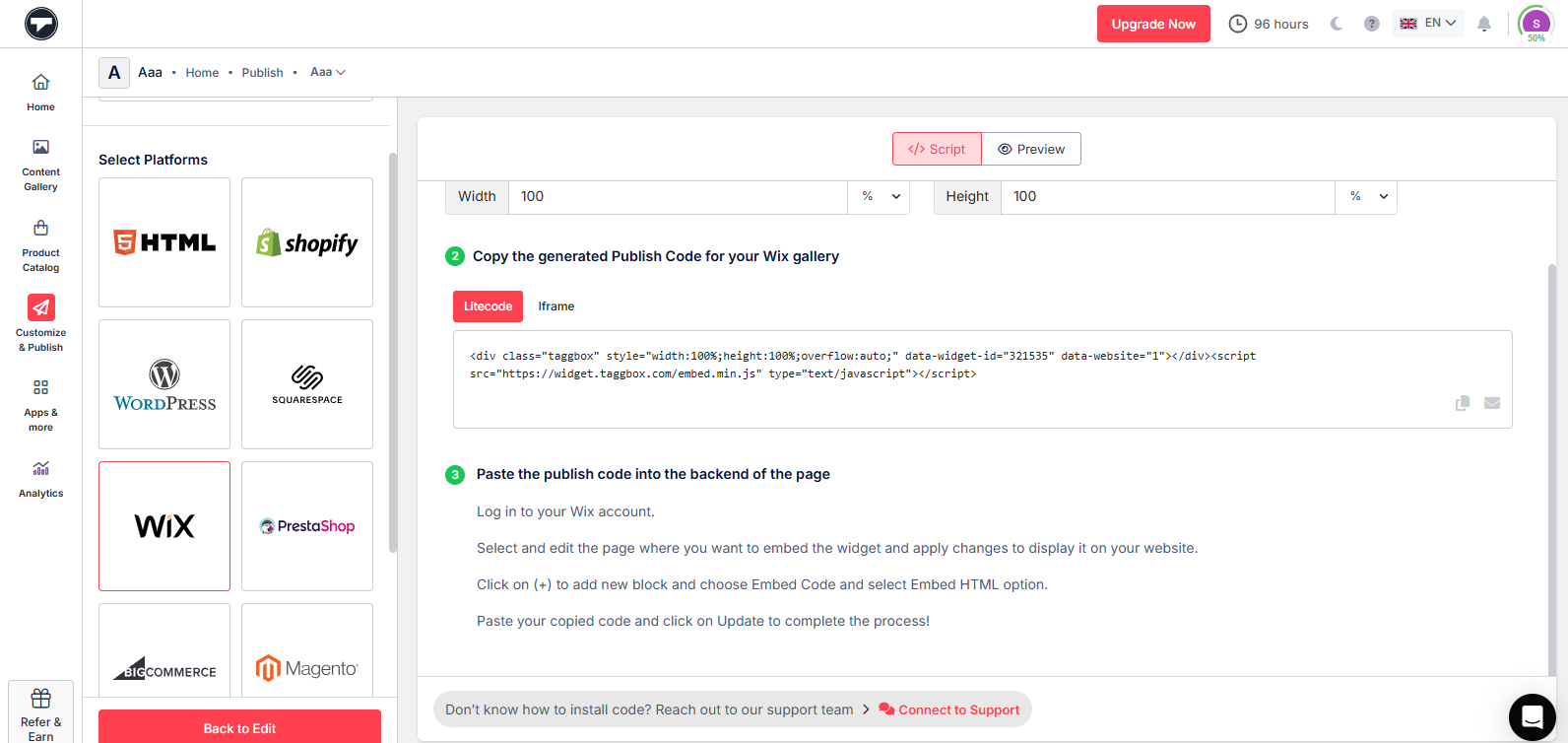
- Now, copy the generated code.
Steps to connect the Instagram Feed to Wix Website with the embed code
Follow these steps to embed an Instagram feed from the Taggbox Widget Editor to a Wix site.
1. Sign in to your Wix account and open your website dashboard.

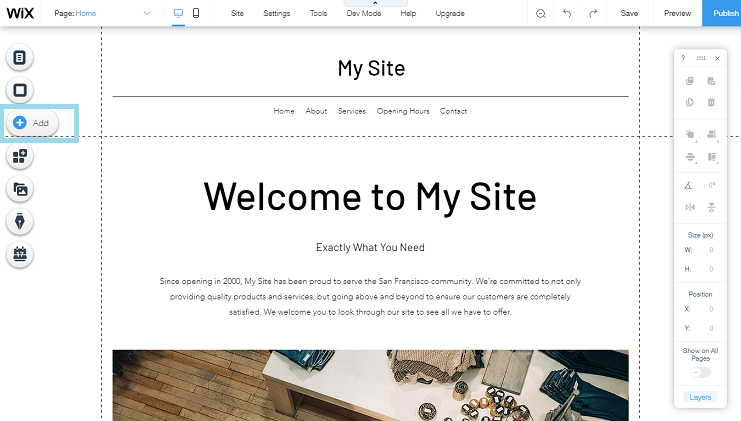
2. In the Wix Editor, click the add (+) button on the left-side menu to add elements to your page.
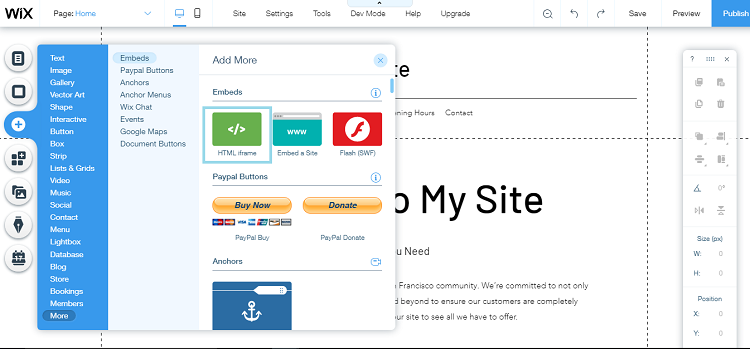
3. From the list of available elements, click on ‘More’ and select ‘HTML iframe’ under the Embeds section.
4. Paste the Instagram feed embed code generated from Taggbox.
5. Click on ‘Apply’ to embed the feed successfully.
Great! You have successfully added Instagram feed on your Wix website.
If you have any questions or need help, please contact us or email us at support@taggbox.com