Facebook account filled with mesmerizing reviews that you want to flaunt on your Shopify website? Stay here…we’ve got you covered. Adding a Facebook feed to your Shopify website can turn your ‘simple Shopify page’ into a hub of social proof, engagement, and fun. It shows real customers loving your products, keeps your content fresh automatically, and can even nudge visitors to buy.
In this guide, we will walk you through simple ways to add Facebook feed to Shopify website to make it look awesome.
Add Facebook Feed to Shopify
| Multiple Themes |
Why You Should Add Facebook Feed to Shopify
Wondering why you should bother adding a Shopify Facebook Widget to your website? Here’s why:
1. Build Social Proof
When a site visitor sees real reviews, photos, and posts from actuarial customers, it instantly builds trust. Social proof via a Facebook widget is highly effective on a Shopify site. People just feel more comfortable buying when they see that others are already loving and using your products.
2. No More Boring, Outdated Pages
Adding a Shopify Facebook feed will automatically keep your website updated with fresh content. The only condition is to use a real-time social media aggregator to save you hours of manual uploads. This ultimately leads to improved SEO rankings and higher engagement through a consistent stream of updated content.
3. Better Engagement
Updated content always appeals to visitors. Why? Because each time he gets acquainted with something new on your website (for example, embed Facebook Reels), instead of scrolling through the same static text and offers. This eventually levels up your site engagement and lowers a site’s bounce rates.
4. Showcase Your Brand Personality
Your brand is more than just products and prices. It has a voice, tone, and a brand personality that reflects in your customers. And Facebook is one such platform where that personality really shows. Add Facebook feed to Shopify website to lets visitors see the authentic side of your brand and better reflect your brand personality.
5. Boost Sales Naturally
A Shopify Facebook feed on your website is like doing soft marketing. IIt may not directly make a sale happen, but it definitely plays a big role in buying decisions. When people see others liking, sharing, and actually enjoying your product, they feel more confident and are way more likely to buy.
Understanding Shopify and Facebook Integration
Shopify and Facebook integration connect your online store to one of the largest review platforms using a Facebook aggregator. Instead of treating social media and e-commerce as two separate things, this integration brings them together in one smooth flow. When these two things work together, they increase visibility and reach with minimal effort. When visitors see real Facebook content on your Shopify website, it adds authenticity and enhances the shopping experience of the users.
Here’s what Shopify and Facebook integration can help you with:
- Embed Facebook videos and posts directly to your Shopify store
- Sync your products with Facebook posts and turn them shoppable
- Build trust by showing real comments and posts
- Keep your Shopify website fresh with real-time updates
Methods to Add Facebook Feed to Shopify Using Taggbox
Now that you know all the amazing things and benefits of embedding a Facebook feed to your Shopify website, it’s time to understand the methods for it. Let’s understand it in detail:
Step 1 – Log in and Create your Facebook Gallery
- Log into your existing Taggbox account. If you are new to the platform, you can create a free account.

- A new window will open for you to choose from the following options: Social feeds on website, Shoppable feeds on website, or display feeds on screen.

- Choose your preferred industry, add your phone number, and click ‘Submit.’
- You need to verify your email address to proceed further.

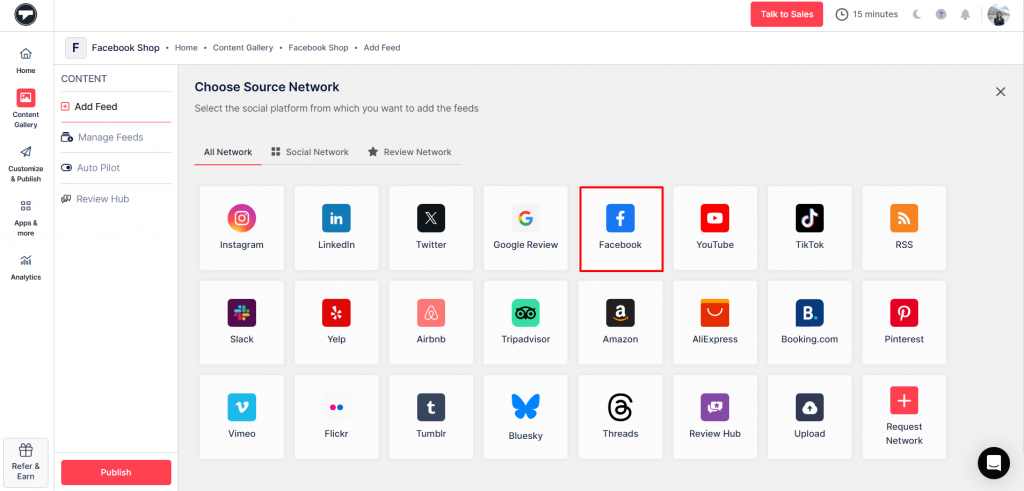
- Choose ‘Facebook’ as your source network from the content section on the sidebar.
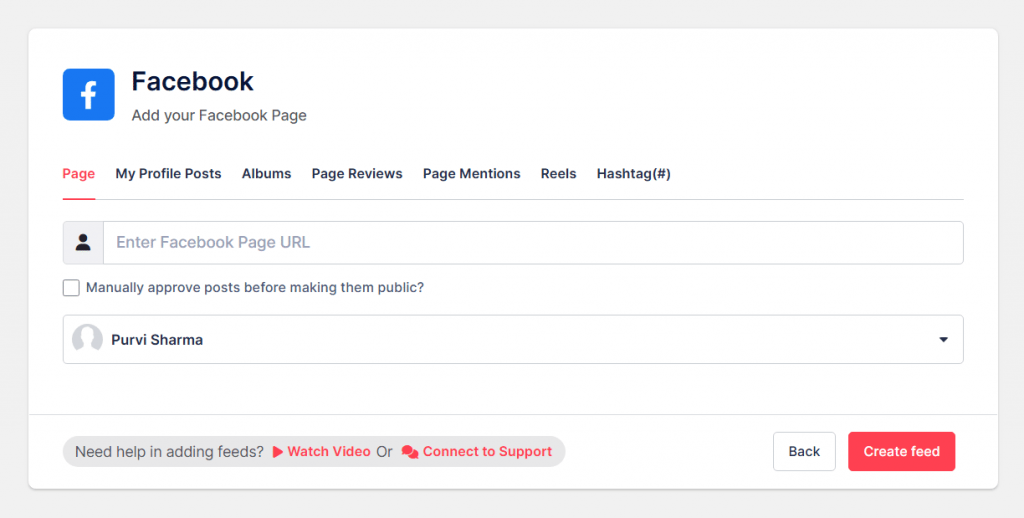
- Select your feed type from the following options: Page, My Profile Posts, Albums, Page Mentions, Reels, Hashtag
- Click on ‘Create Feed,’ and you’re done.
- Now, moderate your feed by removing the irrelevant content from your feed. You can do it either manually or using the autopilot feature.
Embed a Facebook Feed on Shopify Today
No complex setup. No technical skills. Just a clean, real-time Facebook feed for your store.
Step 2 – Turn Your Feed Shoppable
- From the sidebar, go to the ‘Product Catalog’ option.
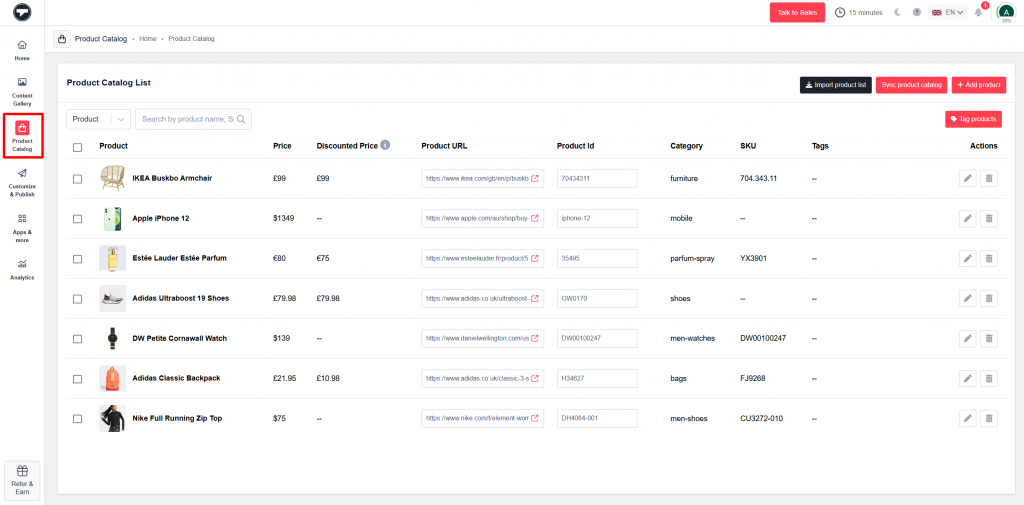
- Here, sync your product catalog using a link or manually add your product.
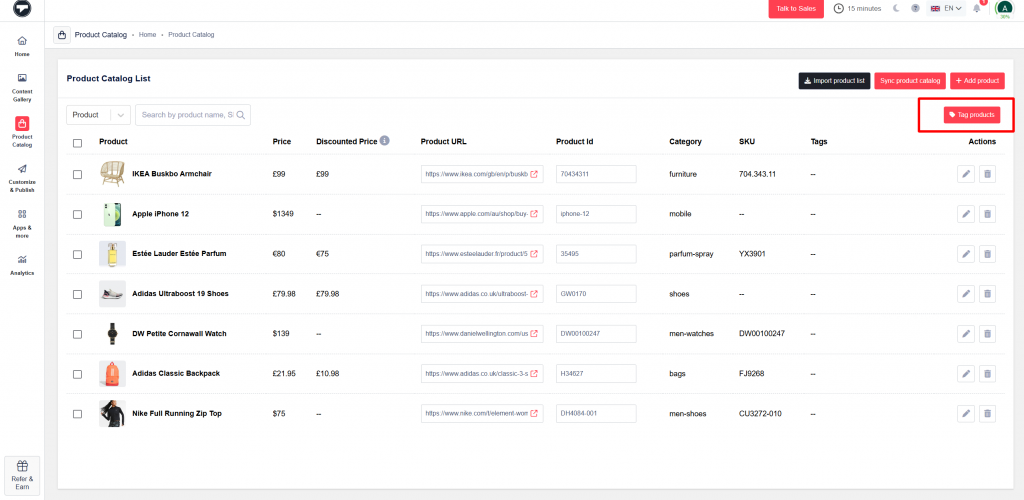
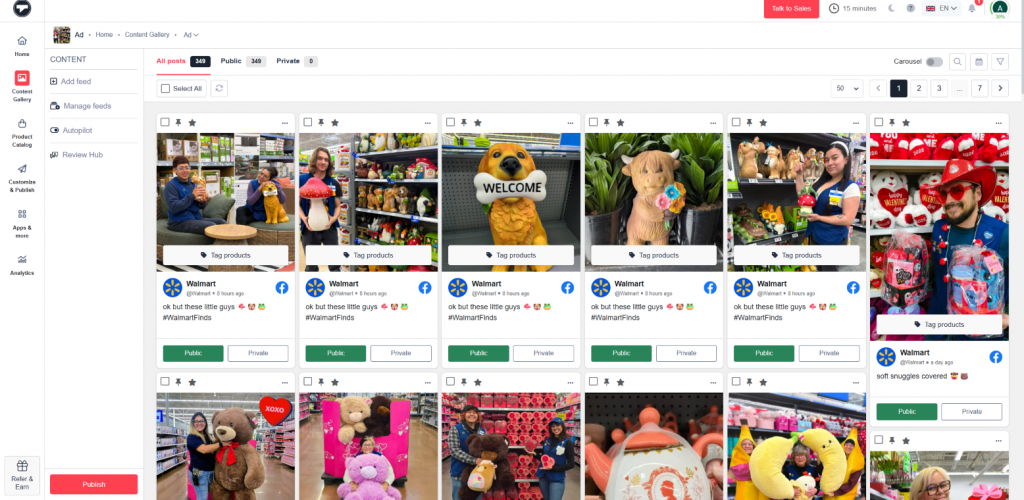
- Next, click on ‘Tag Products’ and manually add products to your posts.
Step 3 – Customize & Publish
- Click on ‘Customize & Publish’ and click on ‘add channel’ and enter the ‘channel name’.
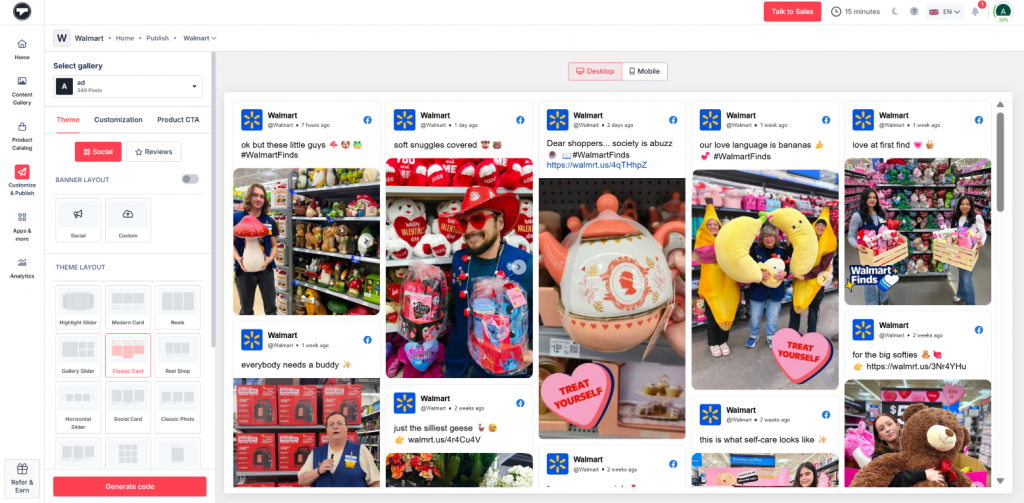
- Here, customize your feed by adding themes, layouts, fonts, background, colors, and more.
- Once done, click on ‘Generate Code.’
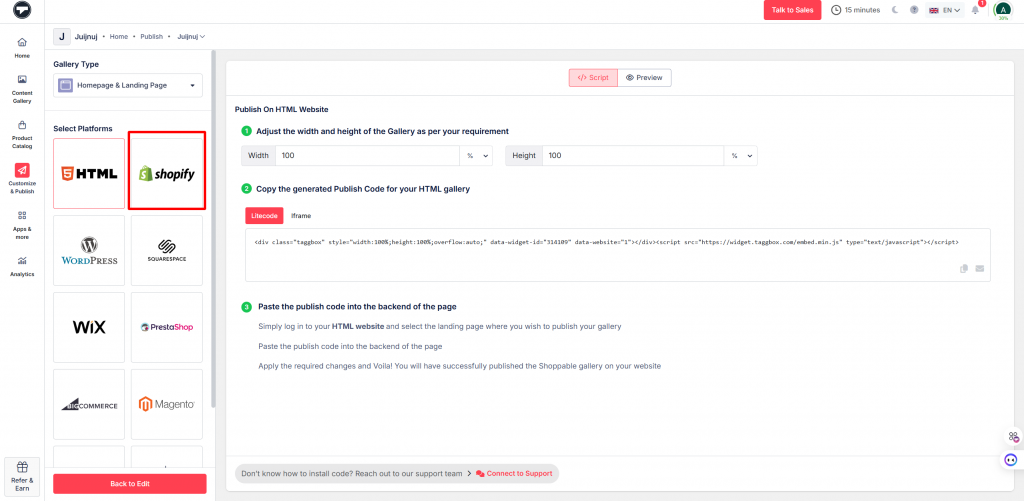
- Select ‘Shopify’ as your CMS platform.
- Adjust the width and height and copy the embed code.
Step 4 – Embed on Shopify Website
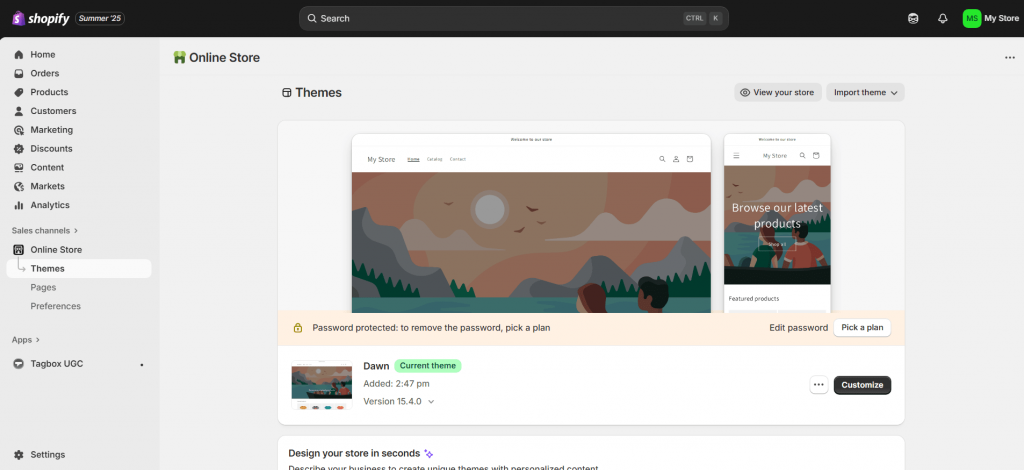
- Log in to your Shopify store.
- Navigate to the online store option and choose the theme or page where you want to embed the Facebook feed.
- Click on ‘edit’ to open the content editor
- Click on the ‘Show HTML’ button.
- Insert your Taggbox widget code into the section.
- Save your changes, and you’re done.
Add Facebook Feed On Your Shopify Website
Set up your Facebook feed in minutes and turn real customer content into instant trust.
Tips to Optimize Your Facebook Feed on Shopify
Follow these tips to optimize your Facebook feed on your Shopify store:
1. Choose the Right Placement
Don’t hide your Facebook feed all the way at the bottom of the page, where, honestly, no one really scrolls that far. Put it somewhere people can actually see it, like on the homepage, product pages, or near your testimonials, so it actually does its job. Visibility matters; it influences buying decisions and helps your site appear well-aligned.
2. Show Relevant Content
Not every Facebook post needs to be on your website. Using tools like Taggbox filter out all the irrelevant posts to make your content look professional. Focus more on the customer reviews, product photos, launches, and community posts. This keeps your Facebook feed clean and meaningful on your Shopify website.
3. Keep the Design Aligned to Your Store
Make sure that your Shopify feed matches your Shopify themes, colors, and layouts. This makes your website look professionally healthy because a mismatched design can feel distracting and unprofessional, even if the content is good.
4. Optimize For Mobile Users
Most of your visitors will come from mobile. If your Facebook feed looks broken on smaller screens, people will back off in no time. So, always test the mobile view and optimize it for mobile users before going live.
5. Update Regularly
A Facebook feed that hasn’t updated in weeks looks abandoned. It is recommended to use a real-time aggregator like Taggbox, which automatically keeps content fresh without manual updates.
Common Issues and Troubleshooting
Adding a Facebook feed to your Shopify looks simple, but things don’t always work smoothly. Here are some common issues that you might face and how to troubleshoot them:
1. Facebook Feed Not Displaying
This generally happens when you add incorrect code or due to some permission issues. Double-check that your Facebook page or content is public and that your embed code is copied correctly without missing anything.
2. Feed not updating in Real Time
The native Facebook embedding method doesn’t work in real time. If your feed is not getting updated in real time, it means it is a platform limitation. So, ensure that you always use a real-time social media aggregator to make things work.
3. Slow Page Loading
The Facebook widget can sometimes slow down your Shopify site, especially if placed on multiple pages. Try limiting the feed to one main page or reducing the number of posts being displayed.
4. Mobile Display Issues
A feed that looks pretty and perfect on desktop, but it might break on mobile screens. This generally happens due to theme issues or fixed width layout. The only solution is to test the mobile version across different devices, and adjusting CSS will also help a lot.
5. Layout or Design Mismatch
If the feed doesn’t align well with your Shopify store design, it looks awkward. Custom styling or using a more flexible embedding tool like Taggbox can help design match the brand more closely.
Let’s start engaging your website visitors now!
Easily Add Facebook Feed To Shopify Website
Conclusion
Adding a Facebook feed to your Shopify website might seem like a small thing, but it can make a big difference. It helps build trust, keeps your website updated, and shows visitors that your brand is trusted by many. Instead of just telling customers how good your products are, you’re letting them see it for themselves, which honestly works better. If you are just getting started, Taggbox is a great tool to begin with. It offers powerful features and an easy setup, making it simple to showcase authentic Facebook content and turn visitors into confident buyers.