Adding new social content to your site doesn’t have to be a huge hassle. If you have a Squarespace website and want to add Facebook feed, there are easy, reliable ways to do it without any coding or affecting your design.
Displaying a Facebook feed on your Squarespace site is a great way to keep your site fresh with real-time updates and to build customer trust through social proof. You can use your Facebook feed for announcements, user-generated content, or social interactions, and keep your website lively and interesting.
In this article, you will learn how to add Facebook feed to Squarespace website , why you should do it, and the easiest way to do it.
Why Add Facebook Feed To Squarespace?
If brands have already been experimenting with Facebook for a while, learning how to embed Facebook feed on website is a great way to serve your content better.
Your website is usually the first touchpoint for potential customers, so when you add Facebook widget to Squarespace, it allows direct social media engagement and on-site conversions.
In this way, many businesses manage to attract their audience by embedding Facebook feeds on Squarespace:
- Refresh your site regularly: Facebook feeds update automatically, so your site always features the latest activity.
- Leverage social proof to gain trust: Exhibit authentic posts, reviews, and local community interactions.
- Amplify engagement: When you embed Facebook videos, posts, and other forms of content, users are more likely to stay and explore content created by other users.
- Elevate brand identity: Align your website with your vibrant social media presence.
If brands have already been experimenting with Facebook widget for a while, then embedding the feed is a great way to make the content serve you better.
Add Facebook Feed To Squarespace Website
Method 1: Inbuilt Way To Add Facebook Feed To Squarespace Website
If you don’t need a live Facebook feed and simply want to link your Facebook page to your Squarespace website, you can use Squarespace’s built-in social links feature.
This method displays your Facebook icon and links visitors directly to your Facebook page.
How to add Facebook feed to Squarespace:
- Log in to your Squarespace dashboard
- Go to Settings
- Click on Social Links
- Add your Facebook page URL
- Save changes
Once added, the Facebook icon will automatically appear on your website, depending on your selected template.
Note: This option does not embed Facebook reels, posts or updates; it only includes a clickable icon that redirects visitors to Facebook.
Method 2: Embed Facebook Feed Using Facebook API
For those with technical expertise, the Facebook API allows you to have complete control over Facebook content appearing on your website. However, this method requires :
- Coding knowledge
- API authentication set up
- Ongoing maintenance
- Compliance with the Facebook platform’s policy
For most Squarespace users, a Facebook feed aggregator provides the best balance of functionality and ease of use.
Add Facebook Feed To Squarespace Site – Today
Start displaying live Facebook posts on your Squarespace website and turn visitors into engaged customers
Method 3: Add Facebook Feed To Squarespace Website Using Taggbox
We will take you through the very simple procedure to embed a Facebook feed on your Squarespace site through Taggbox – one of the best Facebook aggregators to collect, personalize, and showcase your social media content.
Step 1: Embed and Create Your Facebook Feed
- Create your Taggbox account or Login if you already have an existing account.

- Select “Social Feeds on Website” to proceed

- Pick the type of industry you are in to move forward

- Choose Facebook as the source of your content
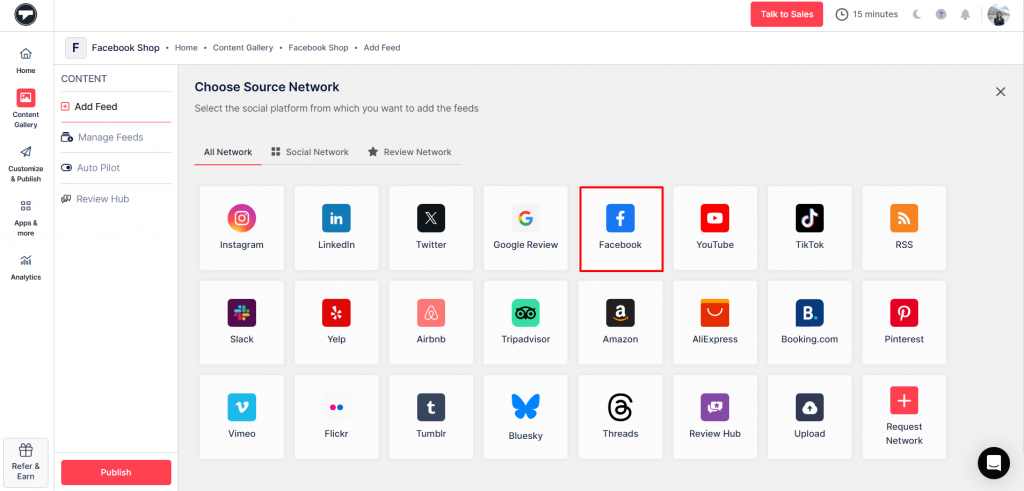
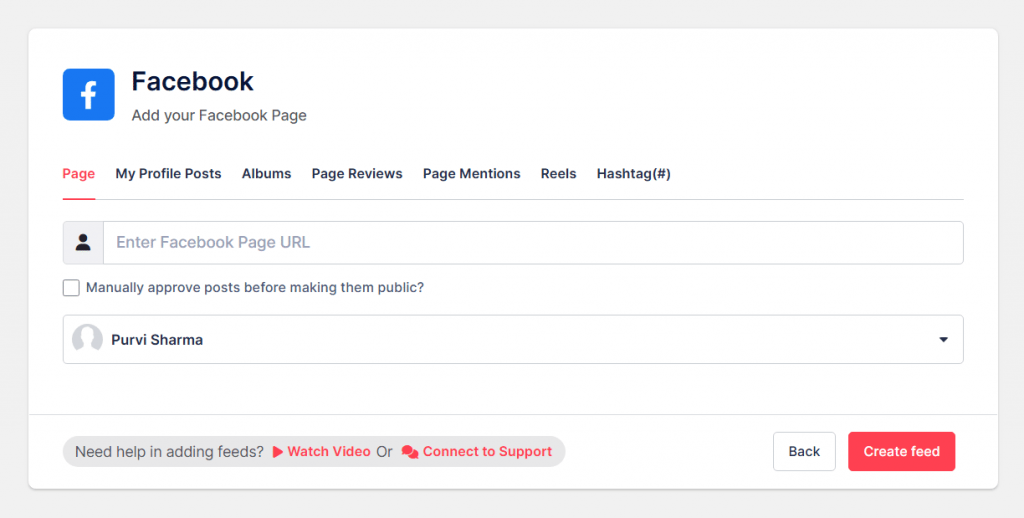
- Choose your preferred connection type, connect your Facebook account, and collect the content. Click on “Create Feed.” Your feed will be visible to you now.
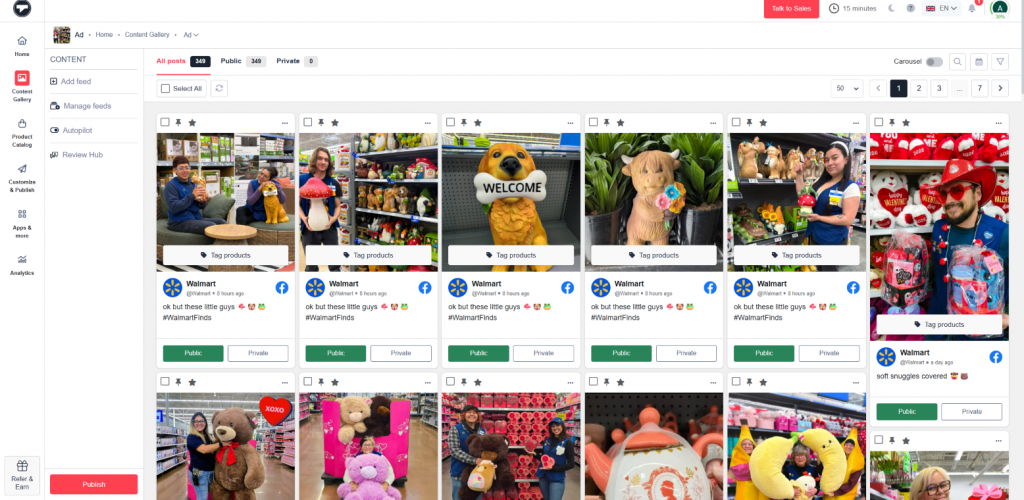
- Your Facebook feed gallery is now ready. Use the moderation tools to review and control which posts are displayed publicly.
Step 2: Moderate & Customize Your Facebook Feed
Use the built-in Filter & Moderation panel to review your collected posts and control what appears on your Squarespace website. Simply toggle the approval button to hide any content you don’t want to display publicly.
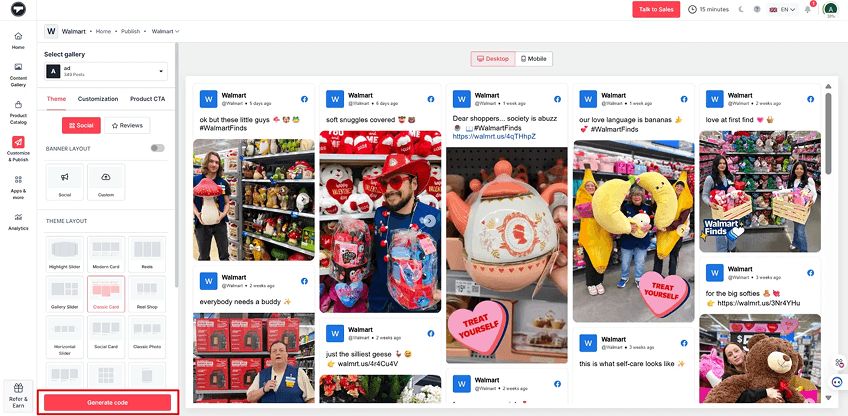
- Press on Customize & Publish. Pick Website as the channel

- Make your Facebook feed look nice by – Changing the typefaces and colors, selecting card styles and layouts, turning on or off captions, inserting CTA buttons, etc. When you have finished, hit Generate Code.
Step 3: Generate & Embed the Facebook Feed Embed Code
- From the list of CMSs, pick Squarespace
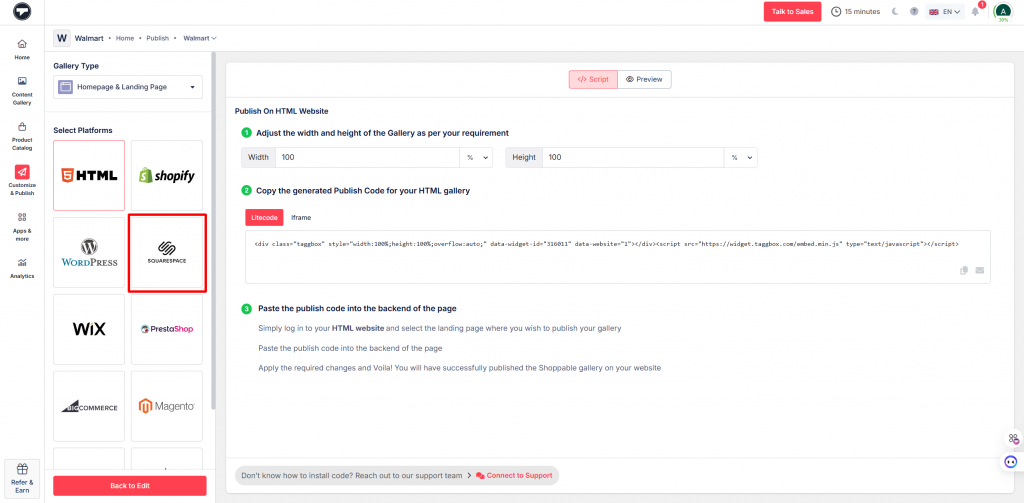
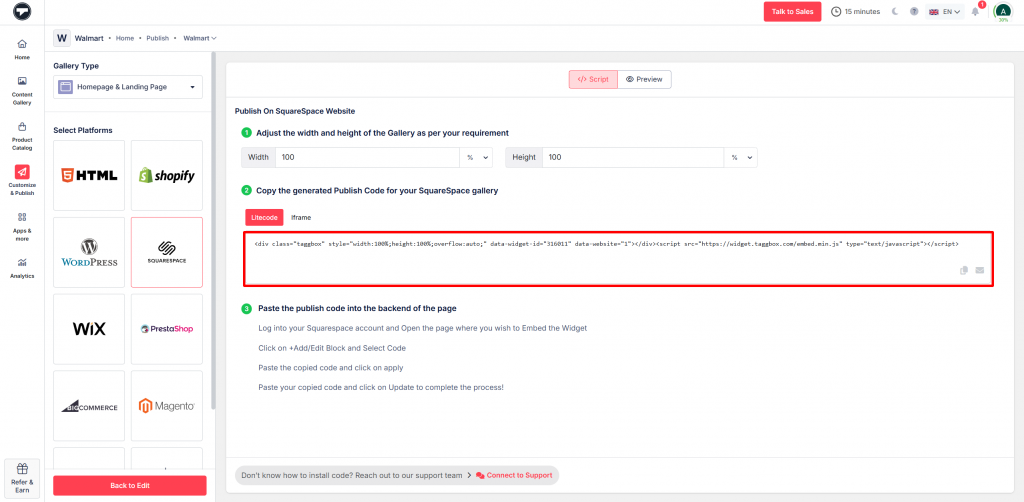
- Decide the widget’s width and height. Get the HTML embed code that was generated by copying it
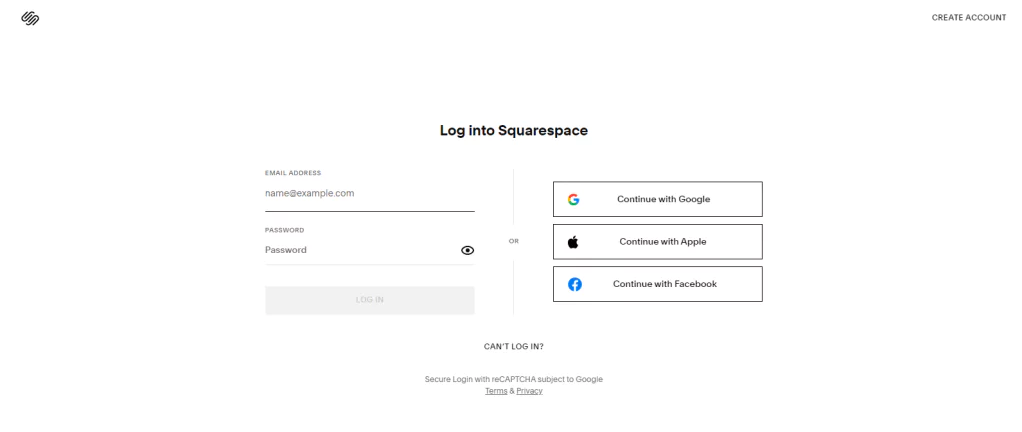
- Enter your Squarespace account
- Click on the Edit button to embed the Facebook feeds

- Press ( + ) Add Block and pick the Code block
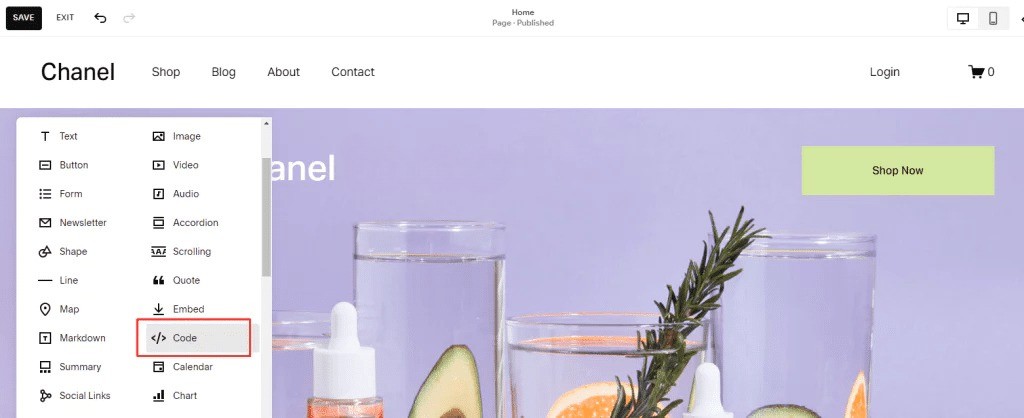
- Insert the Taggbox embed code and make your changes permanent by saving
You’re done. Embedding a Facebook feed on your Squarespace website just got easier.
Comparison Table: Which Method is Best?
| Feature | Social Links (Built-in) | Facebook API | Taggbox |
|---|
| Displays Live Facebook Feed | ❌ | ✅ | ✅ |
| Shows Posts, Photos & Videos | ❌ | ✅ | ✅ |
| Supports Reels & Albums | ❌ | Requires Custom Development | ✅ |
| Design & Layout Customization | ❌ | Fully Custom (Developer Needed) | Advanced (No Coding) |
| Content Moderation | ❌ | Must Be Built Manually | ✅ Built-in |
| Coding Knowledge Required | ❌ | High | ❌ |
| API Authentication Setup | ❌ | Required | Handled Automatically |
| Ongoing Maintenance | ❌ | Developer Required | Managed |
| Compliance with Facebook Policies | ❌ | Your Responsibility | Platform Managed |
| Setup Time | 1–2 Minutes | High Development Time | Few Minutes |
| Best For | Simple Linking | Technical Teams | Businesses & Marketers |
- If you only want visibility, use Social Links.
- If you want a simple live feed, use the Facebook API.
- If you want design control and engagement optimization, use a feed aggregator.
Show Facebook Feed on Squarespace Website
Display live Facebook posts and videos on your website in just a few simple steps.
The Final Word
Adding a Facebook feed to your Squarespace website is one of the simplest ways to turn a static site into a social-first experience. Instead of relying only on fixed content, you give visitors real-time updates, authentic interaction, and social proof that builds trust instantly. While Squarespace has its native way to add Facebook feed to Squarespace website, relying on tools like Taggbox is a good fit.