
Read summarized version with
 ChatGPT
 Perplexity
 Gemini
 Claude
 Grok
Grok
Google Sites is one of the easiest and most free website builders out there — but let’s be honest, it can feel a little plain straight out of the box.
That’s where Instagram comes in.
If you’re looking to add Instagram post on Google Sites, you’re making a smart move. Integrating Instagram content brings your site to life with real, visual, and engaging social proof whether it’s showcasing your products, sharing event highlights, or simply keeping your audience connected to your brand.
The best part? You don’t need to be a developer or spend a single dollar to make it happen.
In this step-by-step guide, we’ll walk you through every method to display Instagram post on Google Sites from the official embed approach to using smart third-party aggregator tools like Taggbox, while also ensuring smooth display for Instagram unblocked Google Sites environments.
No coding. No confusion. Just results.
Add Unblocked Instagram Post on Google Sites For Free


Things to Know Before You Start adding Instagram on Google Sites
Quick heads-up to avoid the usual headaches:
- Public account only: Private profiles? Embeds just won’t load. Switch to public, or it fails every time.
- What embeds nicely: Single posts, Reels, or full profile/hashtag feeds (via tools).
- Typical frustrations: Embeds refusing to load, looking weird on phones, vanishing after publish, or mobile/desktop mismatch.
People Google “Instagram unblocked Google Sites,” thinking something’s blocked, nah, it’s almost always one of those simple gotchas (private account, bad embed setup, or cache delay). Fixable.
Method 1: Add a Single Instagram Post on Google Sites (Super Simple & Native)
If you’re just wanting one killer post or Reel (like a hero image or latest Reel), this is dead easy. No sign-ups, no extras.
Step-by-step:
- Head to the Instagram post/Reel you love.
- Tap the three dots (…) → “Embed”.
- Copy the code (or just the URL if you prefer).
- In Google Sites: hit Insert → Embed.
- Paste the code (or URL) → Publish.
Boom done in under 2 minutes.
Pros:
- Zero cost
- No third-party anything
- Lightning fast
Cons:
- Only one at a time
- No auto-updates (new posts = manual redo)
- Not great for a full feed
Perfect for basics, but if you post often, you’ll get tired of copying every time.
Method 2: Add Live Instagram Posts on Google Sites Using Free Tools
This is what most folks upgrade to, and honestly, it’s the sweet spot for anything dynamic.
Use a free widget tool that grabs your posts automatically and shows them in a nice grid/slider/carousel via iframe. It updates live as you post on Insta, no more manual work.
What’s an Instagram feed widget, really?
Instagram feed widget is a tiny embeddable block that links to your public Insta (or hashtags/mentions), pulls fresh content in real-time, and displays multiple posts beautifully. Think auto-refreshing gallery that keeps your site feeling alive.
If you’ve ever struggled with Instagram unblocked Google Sites problems while trying to set this up, using a trusted widget tool like Taggbox actually eliminates most of those issues — since it handles the embed cleanly over HTTPS and works within Google Sites’ iframe rules without any friction.
Google Sites doesn’t mind as long as it’s a valid iframe code; it shows up fine.
How to Add an Instagram Post on Google Sites with Taggbox
Taggbox comes in handy in helping you to add an Instagram post on Google Sites. You just need to follow 5 simple steps.
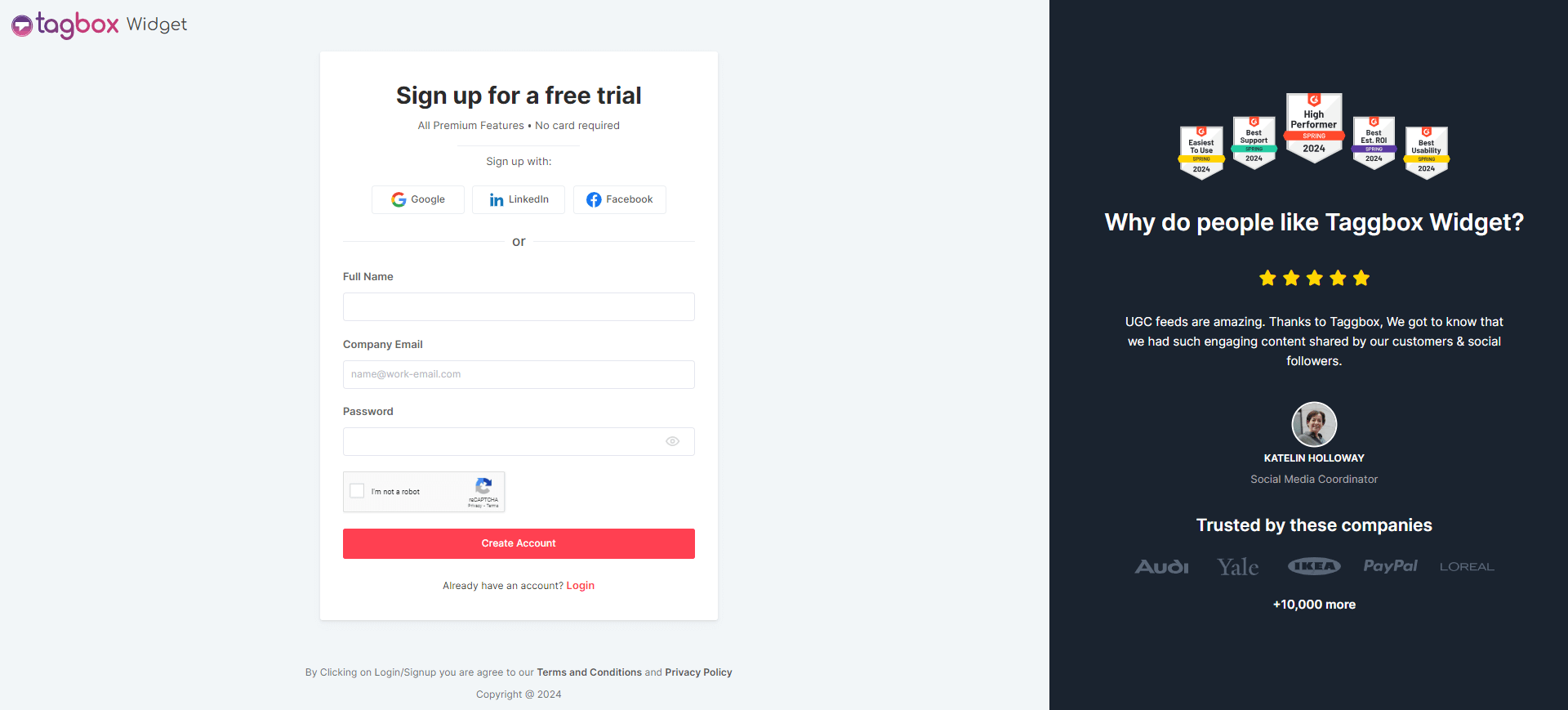
Step 1: Sign up for free
Head over to Taggbox and create your free account. It’s quick, just use your email or Google sign-in, verify it, and no credit card is ever asked for the free plan.
Step 2: Build your feed
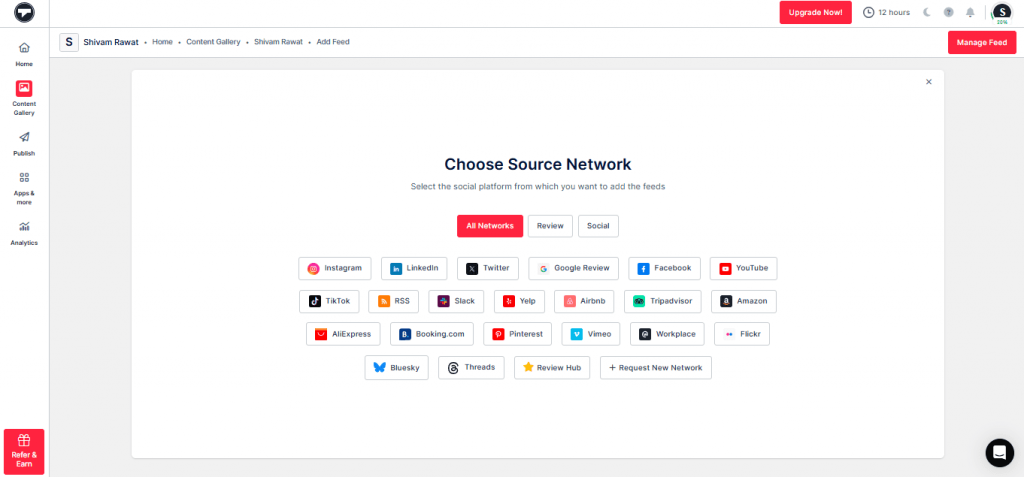
Once you’re in the dashboard, pick “Social Feeds on Website,” select Instagram as the source, choose what to pull (like your profile posts, a hashtag, mentions, etc.), connect your public Instagram account, and hit “Create Feed” to generate the gallery.
Step 3: Make it yours
Jump to the Theme tab to pick a layout that fits (grid, masonry, carousel/slider — whatever matches your site’s style), then head to Customization to tweak colors, fonts, spacing, card styles, etc., so the feed blends in naturally instead of looking like a pasted widget.
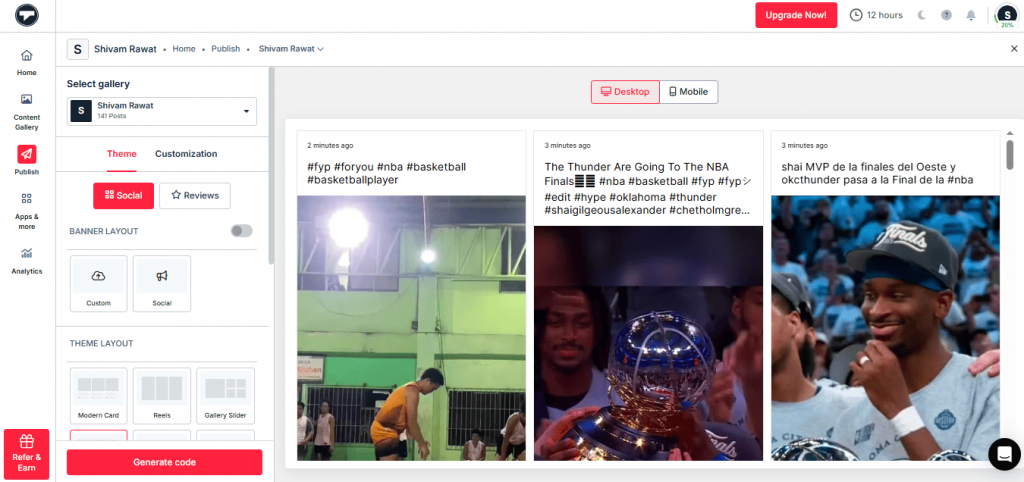
Step 4: Get the code
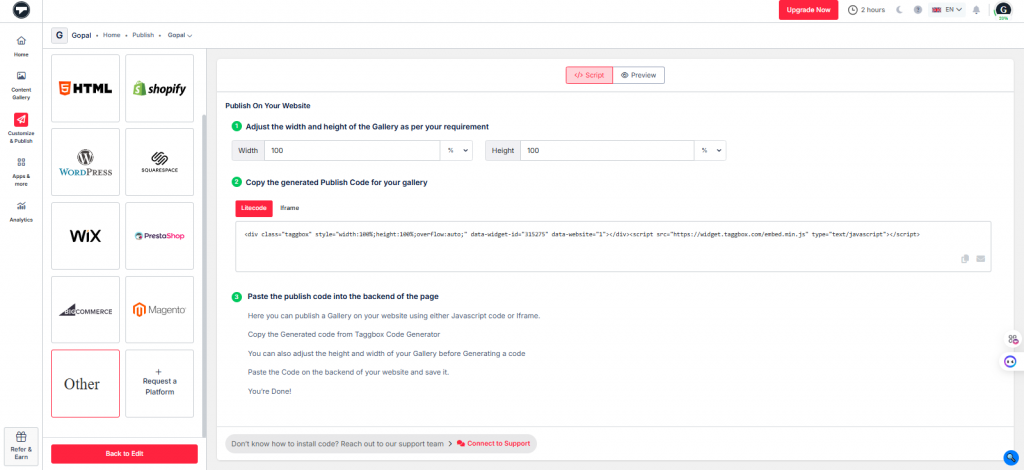
Click “Publish” in the sidebar, choose Google Sites (or “Other” if not listed directly), adjust the width and height if you want it to fit perfectly, then generate and copy the embed code — it’s an iframe snippet ready to go.
Step 5: Add to site
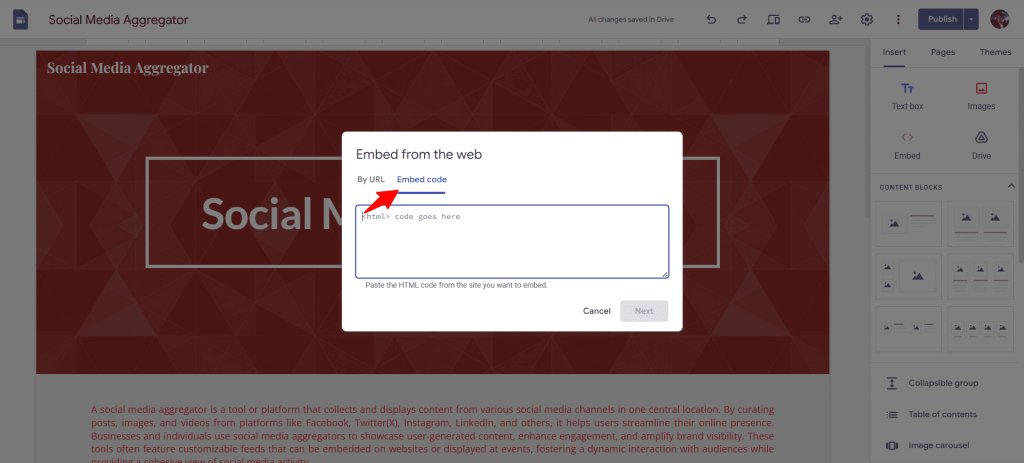
Open your Google Site, click Insert → Embed (or the + icon in a section), paste the copied code into the embed box, preview if needed, and hit Publish — your live, auto-updating Instagram feed should now show up and refresh as you post new stuff.
Why does this method stand out as the best?:
- Auto-updates – New post on Insta? Shows up on site instantly.
- Looks pro – Clean grids/sliders instead of clunky singles.
- Mobile-friendly – out of the box.
- Beats manual embeds – Faster, more stable, no breaking layouts.
Instagram Feed Not Showing on Google Sites? Common Fixes
Still seeing Instagram for Google Sites unblocked errors or a blank embed box? Almost never actually “blocked.” Here’s what usually happens and the quick wins:
Almost never “blocked.” Here’s what usually happens + quick wins:
- Not loading at all. Double-check: public account? Try iframe embed instead of URL. Republish the site.
- HTTPS mixed content. Is the site HTTPS? Embed must be too (Taggbox is).
- Private account Switch public no workaround.
- Cache lag in Google Sites can take minutes. Check incognito or wait.
- Mobile weirdness: Preview mobile view before final publish, some older embeds glitch.
Best Practices for Your Instagram Feed on Google Sites
Make your feed feel like a natural, thoughtful part of the page instead of something just slapped in. Here are the key tips to keep it pro, fast, and user-friendly.
1. Pick light layouts
Go for simpler options like smaller grids or carousels with fewer posts visible at once (e.g., 6-9 max). These load quicker, especially on mobile, and create a cleaner, less overwhelming look that matches Google Sites’ minimal vibe without slowing everything down.
2. One feed per page
Resist the urge to add multiple Instagram feeds or Instagram widget on the same page; it tanks performance and makes the site feel cluttered. Stick to just one well-placed feed to keep load times snappy and give visitors a focused, enjoyable experience.
3. Add context around the feed.
Don’t let the widget sit alone; surround it with a short intro sentence, heading, or descriptive text explaining what the feed shows (e.g., “Latest behind-the-scenes from our team”). This boosts accessibility for screen readers, adds alt-text value, and helps everyone understand the purpose.
4. Placement game
Think strategically: put the feed above the fold on your homepage or portfolio if it directly sells your brand, builds trust, or drives engagement. For secondary/supportive content, drop it lower down or in a sidebar/footer so it complements rather than competes with your main message.
5. Speed first and keep it clean.
‘Heavy embeds can drag your Google Site’s performance, frustrating visitors and hurting SEO. Prioritize lightweight customizations, limit post count, enable any lazy loading in the Instagram widget if available, and always preview/test load times on mobile/desktop before going live. Less is truly more here.
SEO Perks of Embedding an Instagram Feed on Google Sites
No, adding an Instagram feed won’t magically shoot your Google Site to position #1 tomorrow, direct ranking boosts from social embeds aren’t a thing Google officially confirms. But it does pump up indirect signals that search engines actually care about, like user behavior and page freshness. Here’s the real value:
a.) Fresh content vibe
Search engines prioritize active, regularly updated pages. Your embedded feed pulls in new posts, Reels, and visuals automatically from Instagram, making your Google Site feel alive and current without you lifting a finger to rewrite text. This “freshness” signal tells Google your page isn’t stale, which can help with relevance and crawl priority over time.
b.) Longer visits (dwell time)
Visitors love scrolling through real, authentic Instagram content — photos, stories, behind-the-scenes stuff. They linger longer to check out your latest posts instead of bouncing right away. Higher dwell time (time spent on page) is a strong user-engagement signal that Google uses to gauge quality and can indirectly lift rankings.
c.) Trust boost (credibility + social proof)
Seeing genuine Instagram activity right on your site builds instant trust — real followers, likes, comments, and user-generated vibes prove you’re legit and active. This social proof reassures visitors (and indirectly Google) that your brand or profile is trustworthy, encouraging more engagement and better behavioral metrics.
d.) Engagement signals (lower bounce, more interaction)
A dynamic feed often drops bounce rates because people explore, scroll, and interact instead of leaving quickly. Combined with longer sessions, these positive user signals (time on site, pages per session) feed into Google’s quality assessment, helping your site perform better in search results over static pages.
Conclusion
Single post? The native embed is quick and painless. Want that dynamic, always-fresh feel? Grab a free widget like Taggbox that helps you add an Instagram post on Google Sites without hassle. And if you’ve been running into Instagram unblocked Google Sites frustrations — now you know exactly what to check and how to fix it fast.
Just test mobile, republish, and check incognito. Google Sites stays simple; adding Instagram doesn’t have to be a pain. Give Taggbox a spin and watch your site come alive!