Staying relevant online means keeping your website fresh and engaging all the time, but doing this manually can be hefty and time-consuming. That’s where adding RSS feed on website becomes more important than ever. It allows you to pull the latest updates or news from multiple sources and showcase them directly on your website. However, most marketers believe that embedding RSS on your website is too complex. Well, we have the secret – Taggbox. It’s no-code RSS feed magic. In this blog, we’ll guide you to the simple steps to integrate RSS feed on your website for free using Taggbox.
RSS stands for Really Simple Syndication and the RSS feed widget is a tool that automatically updates information in an XML file format that can be easily decoded by the computer.
The information is then converted by the RSS reader into a readable format so that the users can access and engage with the information without any hassle.
RSS content is updated in real-time and displays the latest fresh content on top. It contains summaries, snippets, headlines, updates, articles to the web pages of content.
You can use Website Widget to aggregate and add RSS feed to your website.
Collect > Curate and Add RSS feed to Website
Access All PRO Features | No Credit Card Needed
Here are the four simplest methods to find a website’s RSS feed URL to :
a.) Add ‘/feed/’ to the end of a sites
- To find a WordPress RSS feed, just add “/feed” at the end of the website’s URL. For example, “mydomain.com/feed“.
- For Tumblr, add “/rss” at the end of the URL, like “mydomain.tumblr.com/rss“.
- For Blogger, add “feeds/posts/default” at the end of the URL, such as “mydomain.blogspot.com/feeds/posts/default“.
- For Medium, add “/feed/” before the publication’s name in the URL. Like “medium.com/feed/my-site“.
- For Squarespace, find RSS type “www.mydomain.com/pageslug?format=rss“
b.) Check the source code
- To find an RSS feed, check a webpage’s code. Right-click the webpage, select ‘View Page Source‘.”
- Now search the RSS in the code.

If searching ‘rss‘ doesn’t help, try ‘atom‘ instead. Find an RSS URL as shown above, then copy it to your feed reader.”
c.) Use Chrome Extension
Here’s another way to find a website’s RSS feed: use a Chrome browser extension like FeedPro. If you’re developing your own extension to detect RSS feeds or testing tools locally, you can even load an unpacked extension in Chrome via chrome://extensions for more control.
Get Started with Taggbox Now!
Embed Free RSS Feeds on the Website automatically!
Collect, Moderate, and Add RSS Feeds on Website
All PRO Features Cancel any time.
RSS feeds bring together the feeds from different websites into a feed for better readability and easy content discovery. Having a social media aggregator can make the feed more attractive and engaging with its vast functionalities.
Taggbox Widget, as a social media feed widget tool, comes with the option to display RSS feed on websites and has features to make the feed interactive, engaging, and attractive.
You get a diverse range of themes for the feed, font colors, content highlights, feed style, background, banners, tickers, layout, and more customizations for better readability and attractive visual display.
Moderation allows you to maintain the finest quality content and restrict profane & irrelevant content. You get real-time updates for the content instantly with tremendous user interaction & engagement possibilities.
We have listed how you can add RSS feed widget to your website using Taggbox and the whole process below:
Step 1: Go to Tagbox, log in, or create your free account.

Step 2: A new window will open with the following options: Social feeds on website, Shoppable feeds on website, or display feeds on screen. Select Social feeds on website for easy embed RSS feeds.

Step 3: Choose your industry, add your contact details, and click ‘Submit’. Verify your email address and proceed further.
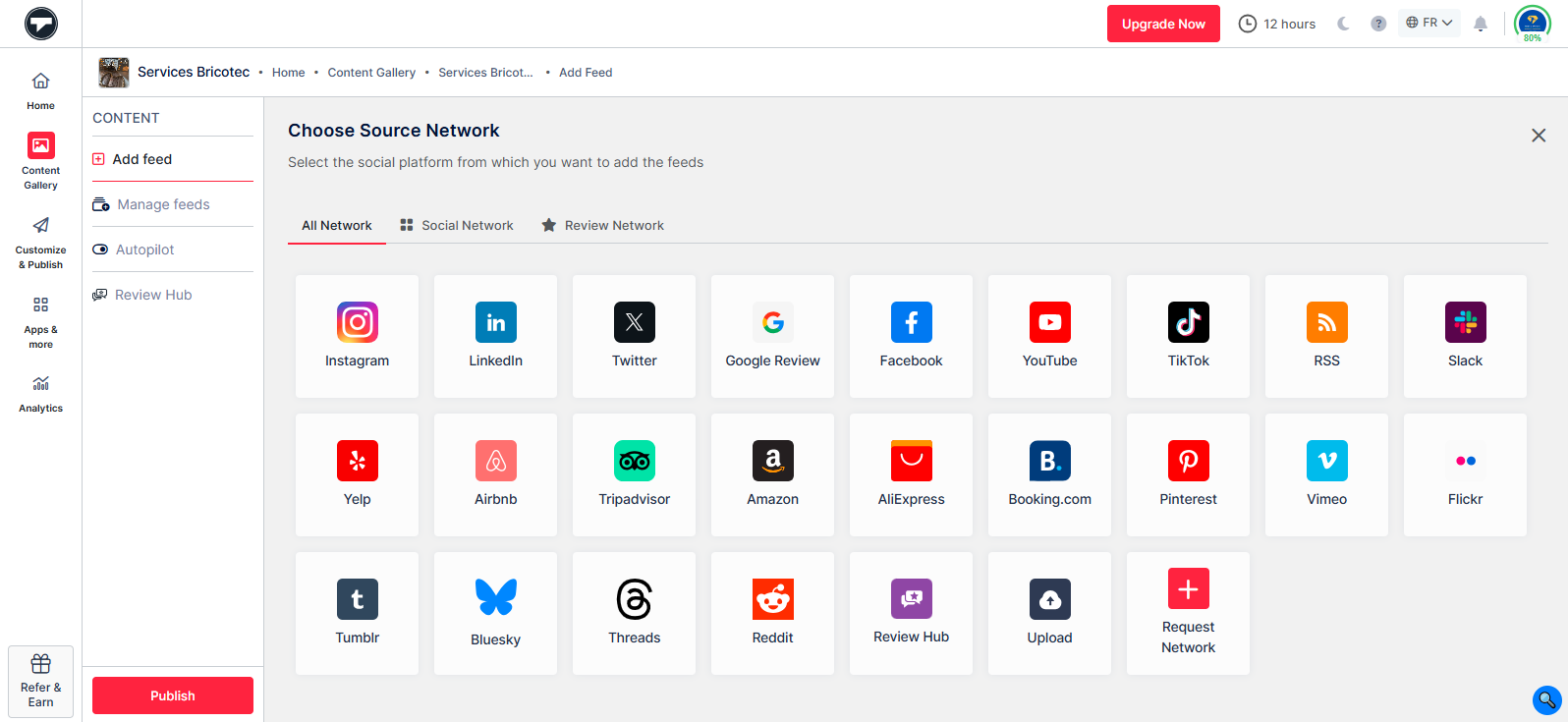
Step 4: Choose ‘RSS Feed’ as your source network from the ‘Content Section’ on the sidebar.
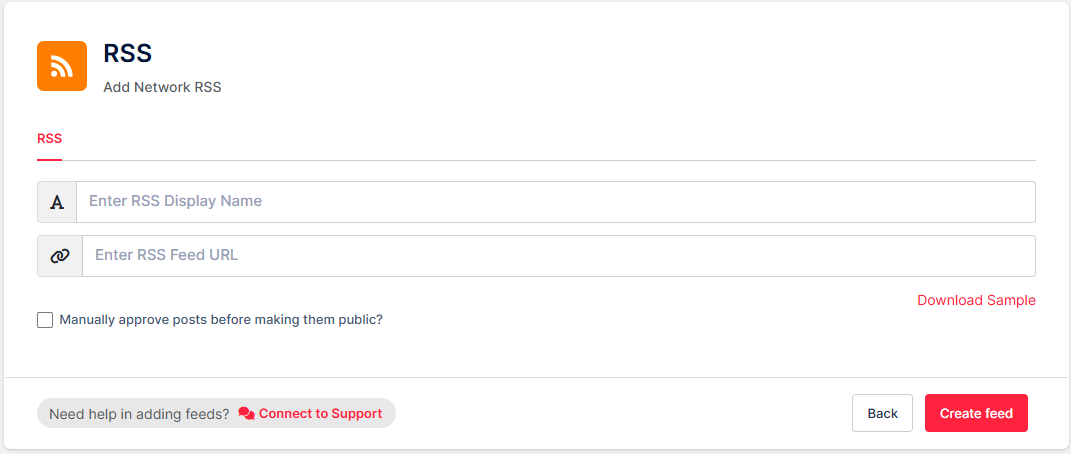
Step 5: Enter the RSS display name and enter the RSS feed URL. Once done, click on ‘Create Feed’.
Get Started with Taggbox Now!
Create An Amazing RSS Widget
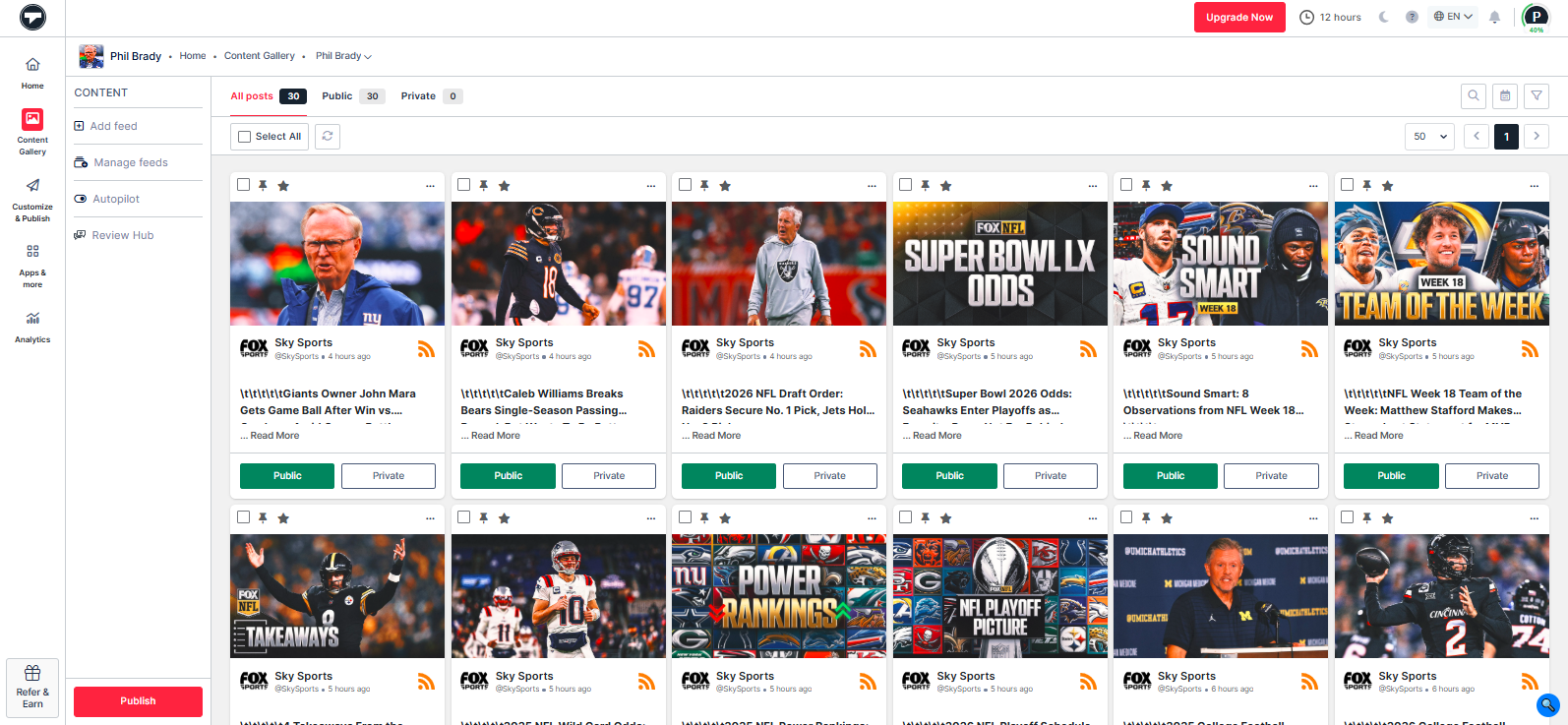
Step 6: Now, moderate your feed by removing irrelevant content. Do it manually or use the autopilot feature.
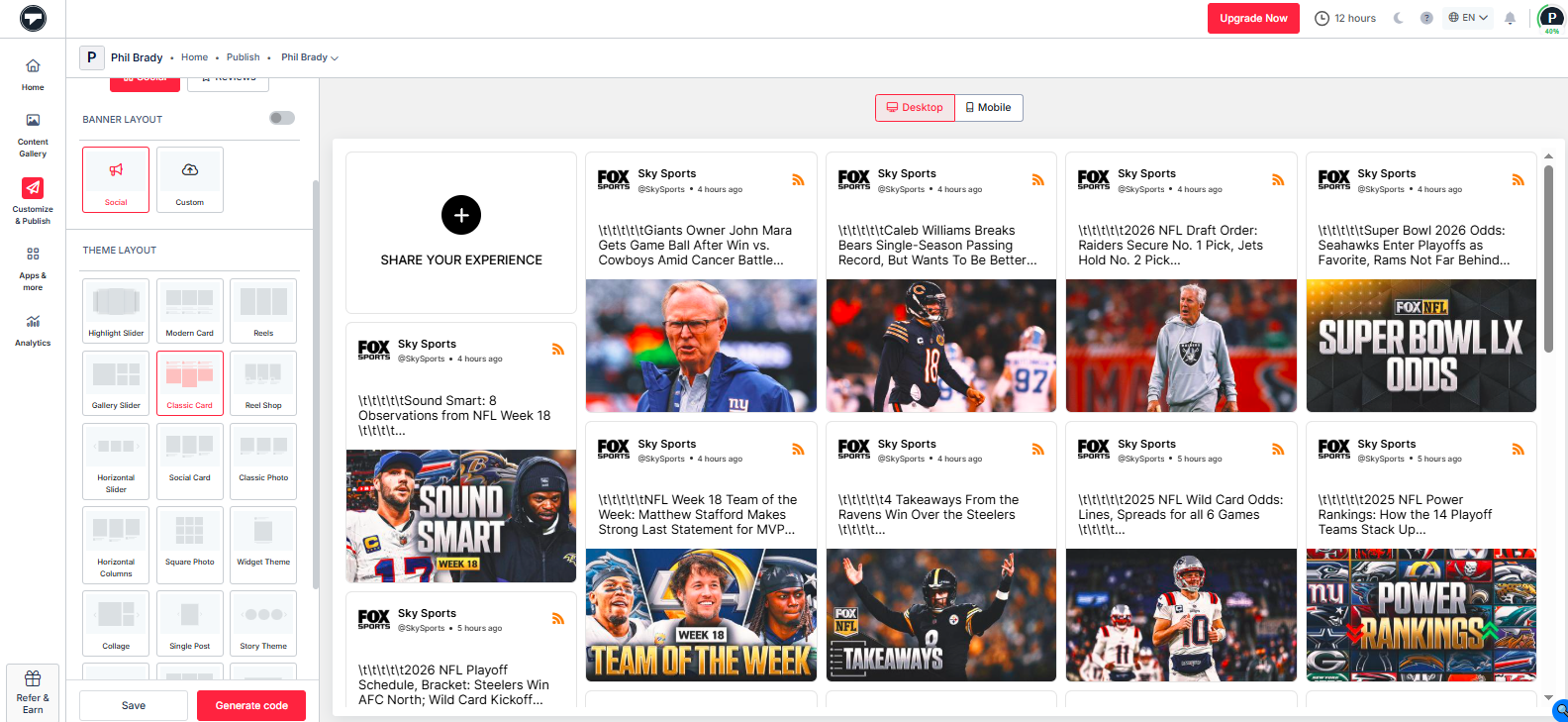
Step 7: Next, go to the ‘Customize & Publish’ option & select ‘Website’ as your channel network. Choose from the available customization options, like layouts, themes, backgrounds, fonts, and more.
Step 8: Click on ‘Generate Code’ and choose your preferred CMS platform. Adjust the width and height of your RSS gallery and copy the embed code.
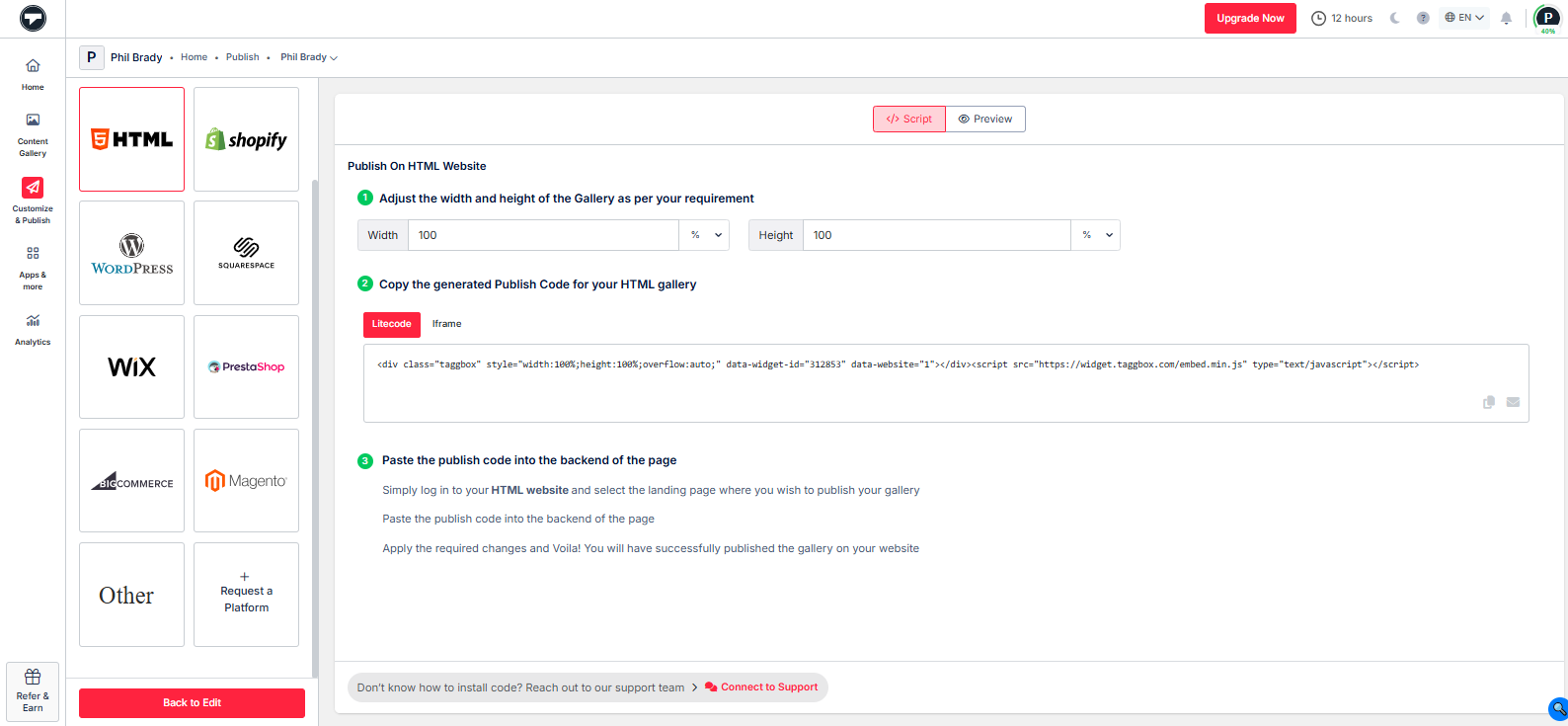
Step 8: Go to the backend of your CMS website and paste the embed code; you’re done.
You’ve successfully embedded your RSS feed on your website using Taggbox.
- Select HTML as your CMS platform from Taggbox and copy the embed code.
- Go to your HTML website
- Select the page where you want to embed your RSS feed.
- Paste your Taggbox widget code where you want your feed to appear
- Save your HTML page, and you’re done
- Select WordPress as your CMS platform and copy the RSS feed code.
- Log in to your WordPress admin dashboard
- Go to the page or post where you want the feed to appear
- Click ‘Edit’ on the selected page or post
- Add a custom HTML block
- Paste your Taggbox’s RSS feed into the HTML block
- Save and publish
- Select Shopify as your CMS platform and copy the RSS feed code.
- Go to your Shopify admin panel.
- On the left side, click ‘Online Store’.
- Click Pages. Add a new page or edit your existing page.
- On the page details, click the Show HTML icon (<>).
- Paste the Taggbox embed code and click the Save button.
- Click the view page button, and you’re done.
- Copy the RSS widget code from Taggbox.
- Log in to your Squarespace website.
- Create a new page or edit your existing page.
- Click the ‘Edit’ button and find the ‘Code block’ and click it.
- Paste the RSS code from Taggbox
- Save the changes, and you’re done.
To get Tumblr RSS feed embed, follow the steps mentioned below
- Copy the RSS Embed Code and Open the Tumblr.
- Click “Add Element.” & Select “More elements.”
- Choose Widget/HTML, paste the embed code where you want the RSS Feed posts.
- Save to make the changes.
- Select Wix as your CMS platform and copy the embed code.
- Log in to your Wix website
- Beside the ‘Main Pages’ section, click ‘+’.
- Then click the ‘Add page’ button.
- Name your page and click ‘Enter’.
- On the left, click ‘Add Element’.
- Next, click the ‘Embed Code’. Click and drag ‘Embed a site’ on your page.
- Click ‘Change website address.’
- Paste the RSS feed code and click ‘Apply’.
- Copy the RSS feed code from Taggbox.
- Go to Weebly and navigate to the page where you want to embed the feed.
- On the left navigation, drag “Embed Code” and drop it in the position where you want to display the feed.
- Click on ‘Edit Custom HTML’ and paste the Taggbox RSS widget code there.
- Log in to your Jimdo website
- Open your Jimdo page editor
- Click ‘Add Elements’ and click the ‘More Elements and Add-ons’ button.
- Click ‘HTML widget’ and paste the RSS feed code that you copied from Taggbox.
- Click the ‘Save’ button, and you’re done.
- Log in to your Joomla website builder.
- Choose or create an article where you want to display the feed.
- On the ‘Content’ tab, click the ‘Article Text’ editor.
- Click the <> icon and then paste the RSS feed code from Taggbox here
- Save and publish your article.
- Log in to your Elementor website and go to its dashboard.
- On the left side, click the ‘Pages’ menu. Click ‘Add New’ and then ‘Edit with Elementor.
- Type ‘HTML’ and drag and drop the widget to the content block of your page.
- Paste the RSS widget code that you copied from Taggbox.
- Click save, and you’re done.
- Log in to BigCommerce
- Go to the page where you want to embed the feed.
- Click ‘Storefront’ on the left.
- Click ‘Web Page’ and ‘Create a Web Page’.
- Click the ‘HTML button’ on the page.
- Paste the RSS feed embed code that you copied from Taggbox, and you’re done.
It is no surprise that embedding RSS feeds on your website enhances appearance, look, & feel, making your website more interactive to visitors. Many high-authorized websites are displaying a carousel of RSS feeds, leveraging some amazing results in an efficient and effective manner. Thus, it is a fruitful opportunity & strategy for every website owner to add RSS feeds on websites & avail exceptional benefits on their website.
Here below, we have mentioned some significant benefits of showing RSS feeds on your website that you might experience just after activating RSS feeds.
a.) Display Diversify Content Categories
RSS feeds are a collection of content from other website/s (that you have selected) that add blogs or articles of different categories on your website.
No website can create content for hundreds of categories, or if you’re taking this challenge, you will require tons of money, time, and effort to break the records.
Whereas leveraging RSS feeds to your website from different content categories of other websites is cost-effective.
You can display more variety of content to offer your audiences or visitors more opportunities to find more information and valuable content on your website.
b.) Automate Unique & Fresh Content
RSS feed widget updates your website with the latest blogs, articles, news, etc., and maintains a flow of fresh content on your website. Displaying similar content topics might break the interest of the audience on your website.
To keep your audience engaged and come back to your website, you must build rapport with recently upgraded content.
RSS feeds can automate and channelize fresh content streams on your website from the latest updates on other websites.
Keep your website fresh, informative, and useful for your visitors, and make them engaged & delighted with unique content every time they visit your website.
c.) Enhance Interaction & Engagement Factor
Audience engagement is a vital factor for every website. It helps build strong relationships and imprint the website in the minds of the visitors.
Your audience stays engaged on your website when they receive unique experiences while exploring your website.
Displaying beautifully customized RSS feeds to enhance the visual appearance that attracts visitors’ attention and engross them throughout your website.
d.) Fortify Website Traffic
Who doesn’t want to have more traffic on their website? As it results in boosting awareness and word of your website with a large audience.
RSS feed widget to increase your website visibility with qualitative and informative content on your website. RSS feeds build authentic content that earns the trust and reliability of your visitors. Eventually, it increases the shareability of your website, bringing more traffic to your website.
Conclusion
Embedding an RSS feed on your website is a smart and effective way to keep your content fresh and engaging. It allows you to display real-time updates, build engagement, and reduce manual content management. We hope this blog has made it clear to you about the free method of embedding an RSS feed to your website using Taggbox. It not only helps you improve your user experience but also gives various premium features to make your feed brand aligned. Get started with this free tool today and build massive levels of engagement on the go.