You spent hours designing your Wix website, the layout looks great, the visuals are on point, and your product pages are ready to go. But there’s still something missing, isn’t there?
The problem is, your website feels static.
That is exactly why you must add social media feeds to your Wix website.
Imagine your website coming alive with real customer photos, fresh Instagram posts, and authentic user stories all updating in real time. That’s not just design; that’s social proof in action.
In this guide, we will show you how to add a social media feed to a Wix website using Taggbox, a powerful social media aggregator tool. By the end, you’ll know how to turn your Wix site into an interactive, high-converting digital experience.
Here is a simple guide on how to add a social media feed to a Wix website using Taggbox. Take a look at the steps.
1. Log in to Taggbox
- To get started, log in to your Taggbox account. If you’re new, sign up and create a free account; it only takes a few minutes.

- From your Taggbox dashboard, click on “Social Feed on Website” to begin.

- Select your industry type, add your business details, and verify your email address to continue.
2. Create Your Feed
- Next, choose your content source, in this case, Instagram.

- Now, choose the feed type from the options: hashtags, handle, stories, mentions, tagged, and more.

- Select your preferred option, connect your Instagram account, and click “Create Feed”.
- Your Instagram feed will appear now.

3. Cutomize And Publish
- Next, moderate your feed by removing all irrelevant content.
- Click publishing options, choose ‘Website’ as your display channel.
- Here, you can fully customize your Instagram gallery:
- Choose layouts like Grid, Carousel, or Masonry. Match fonts, colors, and background to your Wix website’s theme.
- Add CTAs or headers like “Follow Us on Instagram”
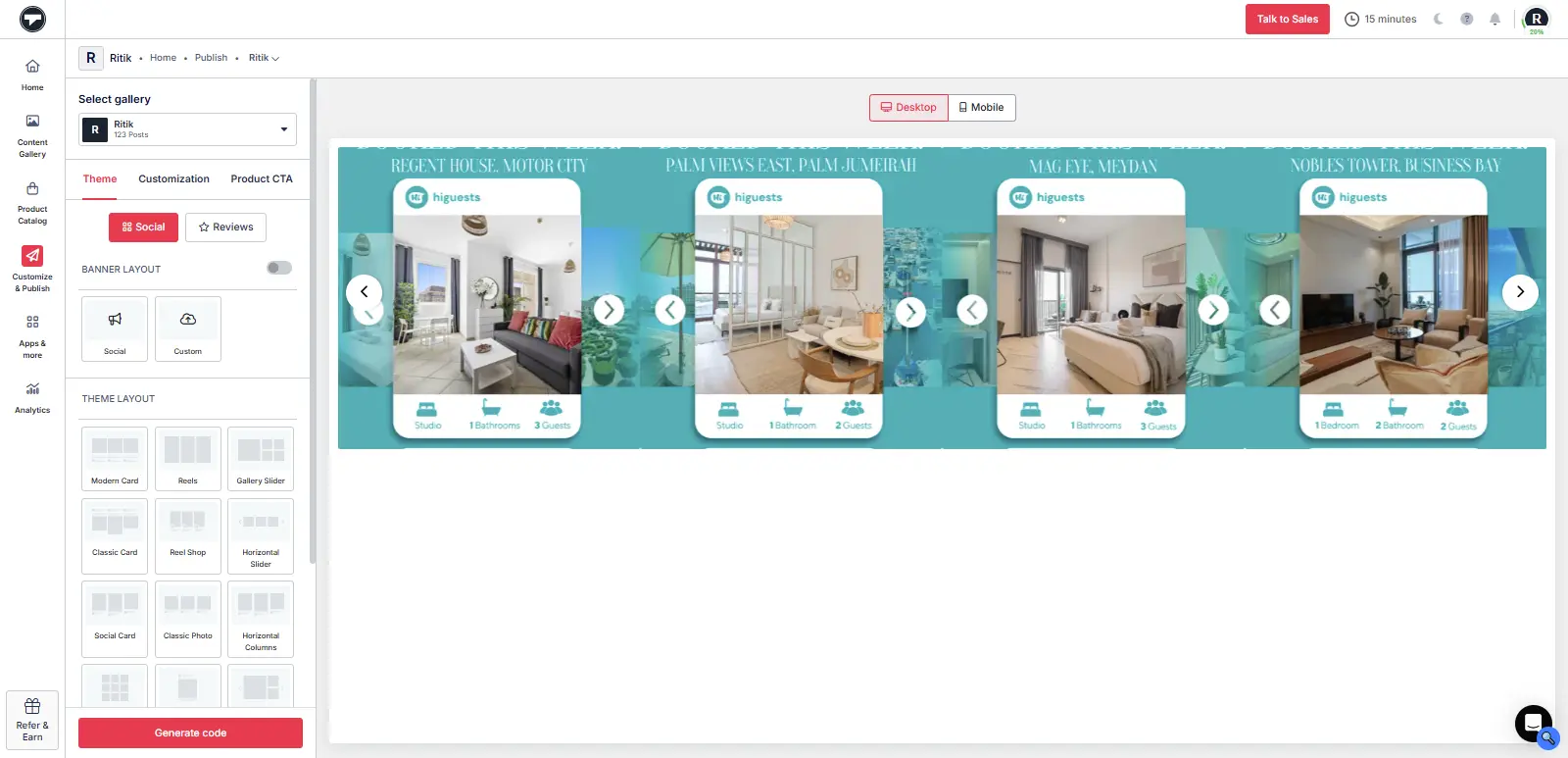
Note: Once you generate your code, select the CMS platform. If you use other platforms like Shopify or Webflow, Taggbox also allows you to embed social media feed to Shopify.
4. Generate Code
- Once satisfied, click “Generate Code.”
- From the list of CMS platforms, select Wix.

Now, adjust the widget dimensions for a perfect fit, then copy the provided embed code.
And just like that, you’ve generated your social media feed embed code for Wix!
Now that your embed code is ready, let’s add it to your Wix site:
- Log in to your Wix account.
- Navigate to the page where you want to display your social media feed.
- Click on the “+ Add” button on the left-hand menu.
- Go to More → Embeds → Embed HTML iFrame.
- Paste your Taggbox embed code into the HTML field.
- Click Apply to save your changes.

That’s it! You’ve successfully added your social media feed to your Wix website using Taggbox.
Now your site will automatically update whenever you post on social media, giving visitors a dynamic, real-time glimpse of your brand’s social world.
Taggbox is an excellent social media aggregator tool that helps users collect social media content and embed it on a Wix website. When you use Taggbox to add social media feeds to a Wix website, you make your site more engaging, interactive, and trustworthy. Learn more about the benefits of embedding social media feeds on a Wix website using Taggbox :
1. Easy Setup – No coding needed
Taggbox is made for everyone, which means you don’t need any technical knowledge. You just have to log in to Taggbox; you don’t need any technical knowledge. Connect your social media account, customize your feed, and paste the code on your Wix site. The process takes only a few minutes.
2. Automatic Updates
Once your feed is live, it updates automatically whenever you post on social media. You don’t have to upload new content manually. Taggbox social media feed will always show fresh posts in real time.
When you add a social media widget on website, it acts as social proof for your business.
3. Customization Options
With Taggbox, you can easily change how your social feed looks. There are several options, including grid, slider, and carousel layouts. You can also match the colors, fonts, and style of your Wix website to your brand so it fits perfectly.
4. Full Control Cover What Appears
Not every post needs to go on your website. Thankfully, with Taggbox, you have the power to moderate the social media feed on your website. Not only this, but you can filter, hide, or highlight certain posts. This helps you show only the best and most relevant content to your visitors.
5. Better Engagement and Trust
People trust real content more than ads. When you showcase their real posts, customers’ photos and user-generated content from your social media, you build trust and keep visitors engaged longer.
Taggbox provides an analytics feature that helps users with a dashboard to track how their feed is performing. For example, they can know how many people are viewing or interacting with their social media feed on the Wix website. This helps you understand what kind of content works best for your audience.
Your social media feed will look great on all devices, whether someone visits your Wix website from a phone, tablet, or computer. Taggbox automatically adjusts the size and layout of your feed so it loads fast and looks clean everywhere. Taggbox offers a responsive social media feed for Wix websites, which means the widget automatically adapts its size and flow based on the device your visitors are using.
Ready To Make Your Wix Website More Engaging?
Wix’s great feature is its adaptability; practically anywhere on your website, you can put a feed of your social media. The appropriate positioning will depend on your objectives, design layout, and the kind of content that you want to present. Some clever placement ideas for your Wix site:
1. Homepage
Your homepage is basically the first impression of your brand that visitors get. Placing a social media feed on the Wix homepage allows them to connect with your updates in real time and get to know the brand’s personality right away. It automatically refreshes your website, so visitors are more likely to continue browsing your site.
2. Product Pages
What can be more effective than displaying customer-generated content (UGC) like the photos of customers or posts of influencers to promote your products, and at the same time create credibility for your brand and encourage visitors to purchase? The best social proof is that the real customers who are using your products.
3. About Page
Make your social feed work on the “About Us” page to tell the story of your brand. Show behind-the-scenes moments, team news, or client quotes that give a face to your brand.
Putting a small and continuously moving social feed in your blog will help the readers to be engaged while they are reading your posts, and will also create the desire to follow you on social platforms.
The footer section is perfect for a quiet yet powerful placement. Your feed will be there on every page, without interfering with the layout.
Where you put it is important; your feed should be in a place where it gets noticed, goes there naturally, and makes the visitors want to interact with your brand.
Final Take
Embedding a social media feed on a Wix website is one of the simplest yet most effective ways to make your site more engaging, trustworthy, and enjoyable.
With Taggbox, the process is quick and effortless, with no coding, no design complexity. You can connect your social media account with Taggbox and start aggregating content.