
Read summarized version with
 ChatGPT
 Perplexity
 Gemini
 Claude
 Grok
Grok
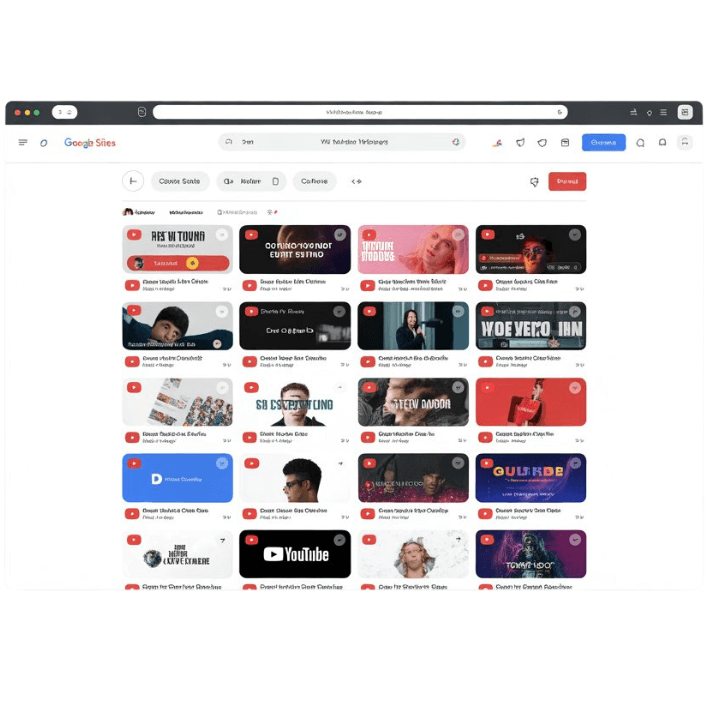
Want your Google Site to show YouTube videos without making visitors leave your page? You are at the right place. Adding a YouTube feed to your Google Sites is easier than you think, even if you are looking for YouTube unblocked Google Sites solutions. You don’t need to be a tech expert to do the same.
In this step by step guide, we will walk you through the easiest method to add YouTube feed on Google Sites using a reliable tool. You will learn how to transform a static Google Site into an engaging content hub by showcasing your latest YouTube videos without coding or complex setup, while also ensuring smooth playback for unblocked YouTube Google Sites environments.
Add an Unblocked YouTube feed To your Google Site


| Multiple Themes |
Why Add YouTube Content on Google Sites?
To be honest, adding YouTube content to Google sites is necessary because nobody likes static walls of text on any website. Videos instantly make your website feel alive Reviews, testimonials, funny clips, or product demos, embedding them makes your page interactive, engaging, and honestly a lot cooler. All over, it helps in
- Boosting engagement
- Showcase your social proof
- Keep your site fresh and updated
- Give your site a professional appearance
What Videos Can I Embed on a Google Site?
While this is basic, let’s talk about different types of YouTube embeds you can use on Google Sites, including setups that support YouTube unblocked Google Sites.
- Standard Embed: This is the usual copy-paste method, which lets you embed a single YouTube video via a link. Go to the YouTube video, click on the 3 dots, click on copy the embed link, and paste it on your website, and you’re done.
- Playlist embed: This shows multiple videos in a row like a YouTube playlist. It is great for keeping visitors engaged on your Google Site and works well for YouTube unblocked Google Sites use cases.
- Live stream embed: It lets you showcase live YouTube videos in real time on your Google Sites.
- Responsive embed: This embed widget adjusts automatically to screen size, making it easy for everyone to view content smoothly, even on YouTube unblocked Google Sites, and it also contributes to better SEO performance.
Step-by-Step Guide: How to Add a YouTube Feed on Google Sites
There are two major methods to add a YouTube feed to Google Sites. Both methods also help if you are trying to manage YouTube unblocked Google Sites more effectively.
1. Native Method
This method lets you add a single YouTube video to your Google site. Here are the steps for it:
- Go to your YouTube channel.
- Select the YouTube video you want to embed.
- Click on the ‘Share’ option.
- Select the embed option
- Click the copy button
- Open your Google site and paste the embed code on the page where you want the YouTube video to appear.
- Save your page, and you’re done.
2. Using Taggbox
Using a social media aggregator like Taggbox is one of the best ways to add a YouTube feed to your Google Site, especially if you want a smoother experience similar to YouTube unblocked Google Sites. Taggbox collects all your YouTube content in one place so you don’t have to embed videos manually.
Let us see its detail steps:
Create Your Free Account
1. Go to Taggbox, log in, or create your free account.

2. A new window will open with the following options: Social feeds on website, Shoppable feeds on website, or display feeds on screen.

3. Choose your industry, add your contact details, and click ‘Submit’.

4. Verify your email address and proceed further. Choose ‘YouTube’ as your source network from the ‘Content Section’ on the sidebar.

5. Select the feed type from the following options: Channel URL, Shorts, Playlist, Keywords, and Location. For example, let’s select ‘Channel URL’.

6. Once done, click on ‘Create Feed’. Now, moderate your feed by removing irrelevant content. Do it manually or use the autopilot feature.

Customize & Publish
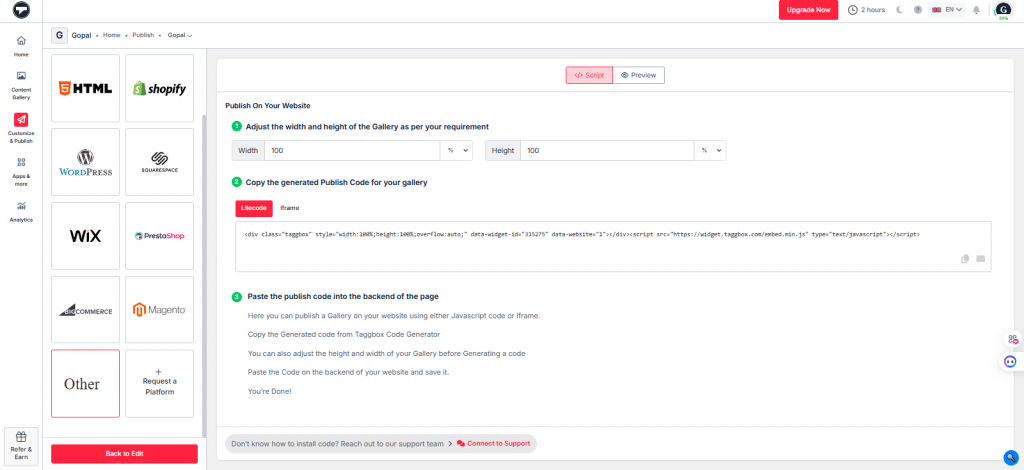
7. Next, go to the ‘Customize & Publish’ option from the sidebar. Now customize your feed by choosing your preferred theme, banners, CTAs, fonts, and more. Click on ‘Generate Code’.

8. Select ‘Other’ as your CMS platform for Google Sites. Adjust the width and height and copy the YouTube embed code.
Add YouTube Unblocked Content On Your Google sites
| Multiple Themes |
Login Google Sites
9. Go to your Google Site and log in with your Gmail account.

10. Click the ‘+’ button to start a new site or go to your existing website in the recent sites option. Create a new blank page or edit the existing page.

11. On the right sidebar, choose the ‘Embed’ option.

12. Paste the Taggbox embed code in the ‘Insert’ section. Click on display, and you’re done. Your YouTube feed will now load smoothly, even for visitors accessing YouTube unblocked Google Sites.

Common Issues & Troubleshooting
These are some of the common issues while adding a YouTube feed on Google Sites:
- YouTube video not showing up: This may happen if the video is private or restricted. Ensure the video is public, especially when targeting YouTube unblocked Google Sites.
- Embed option not working: Sometimes the website decides not to cooperate, and the embed option does not work. Refresh the page, try adding the link again, or open it in another browser to make it work.
- Feed not updating in real-time: Uploaded a new video, but not showing on the website? Try connecting the feed again or use a tool like Taggbox for real-time updates.
- Mobile view looks broken: Always make sure to check the mobile view before hitting the publish button, or adjust the layout of the feed until it works.
Benefits of Using Taggbox for Embedding a YouTube Feed
These are some of the benefits of using Taggbox for embedding a YouTube feed:
a.) Content Moderation
Taggbox allows you to moderate your YouTube channel effortlessly, either manually or using the auto-pilot feature. This way, you can make it look clean and professional for website visitors. You can automatically add or remove unwanted content from your feed and maintain your brand image.
b.) Brand Customization
You can wide range of templates and layouts on Taggbox. Choose what best aligns with your brand’s website to enhance its website aesthetics. This way, your website doesn’t look out of place but, naturally embedded. You can choose colors, fonts, backgrounds, CTAs, and more to help maintain visual consistency across your Google Sites.
c.) Shoppable Galleries
Yes, with Taggbox, you can turn your YouTube feed shoppable by tagging products within the posts. Simply add your products and add single or multiple products, and enhance the shopping experience for your visitors. This feature is especially useful for ecommerce sites, making the shopping journey extremely frictionless for users.
d.) Easy Setup
Well, Taggbox is easy to set up and requires no technical setup or coding to get started with embedding a YouTube feed. Simply curate your gallery, copy the embed code, and paste in on your website’s backend.
e.) Real Time Updates
Once your YouTube feed is live, Taggbox keeps it fresh and updated automatically. New videos show up in real time, so you don’t have to keep coming back for manual embedding. It’s like your site knows what’s new before you come back to check.
f.) Mobile Friendly
We all know that most people enjoy scrolling on phones and not desktops (until they are in the office:). Taggbox makes sure your YouTube feed is good on all screen sizes, no matter mobile, tablet, or desktop, with its responsive feature.
g.) AI-Powered Analytics
This is where Taggbox is a little bit smart. It has AI-powered analytics tohelp you understand how your YouTube feed is performing on your Google Site. It meticulously tracks important metrics like engagement rates, impressions, sentiments, and more. So instead of guessing what works for you, get useful insights.
Conclusion
So, you have seen that adding a YouTube feed to your Google Sites isn’t that difficult. With the right steps and a little patience, you can turn your boring website into a fun page. Whether you are using the native method or using tools like Taggbox, the goal is simple: Keeping visitors engaged till the end. So, get started today and skyrocket your site engagement like never before.
Frequently Asked Questions
Go to Taggbox, create your free account, choose YouTube, create your feed, publish it, copy the code, and paste it on the Google Sites backend.
Yes, it is legal to add the YouTube channel to your Google Site.