Boost trust, engagement, and credibility on your website by choosing to embed Amazon reviews. Display real customer feedback, ratings, and opinions directly on your pages, so visitors don’t have to leave your site to see what others are saying. This not only builds confidence in your products but also encourages longer visits and more interactions. With easy-to-use tools and widgets, you can quickly embed Amazon reviews on WordPress, Shopify, Wix, or any website builder. A dynamic review section improves user experience, enhances SEO signals, and helps turn visitors into loyal customers.
Amazon in E-Commerce: Important Stats
Amazon is known for its huge selection and fast delivery, but one of its biggest strengths is customer reviews. Most people check reviews before buying, in fact, research shows that around 95% of Amazon shoppers read product reviews before purchasing a product. Reviews help customers decide what to buy and build trust in products they haven’t tried yet.
The statistics that are shaping the future of Amazon
- The average daily sales revenue of Amazon is $1.6 billion.
- 66% of online buyers start their product search on Amazon.
- For 79% of customers, Amazon reviews are as valuable as personal recommendations.
How To Embed Amazon Reviews On Website
Taggbox is one of the best social media aggregator tools, with features that help with the whole embedding process.
We have explained the steps to embed Amazon reviews widget on the website. Follow it to make your embedding journey easy.
Step 1 – Sign up for Taggbox
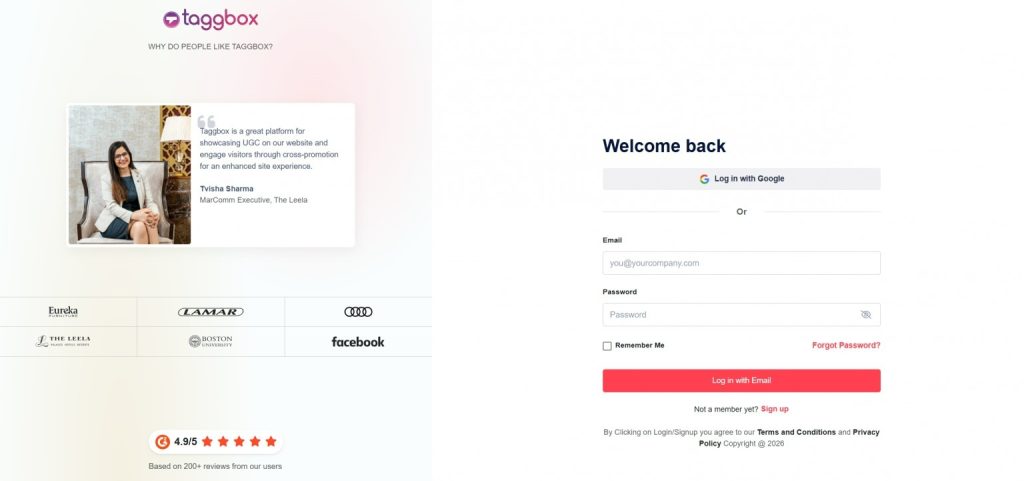
- First, log in or sign up for your Taggbox account.
- In the next step, you will see multiple channel options in the dashboard. Choose “Social Feeds on Websites” and verify your email.
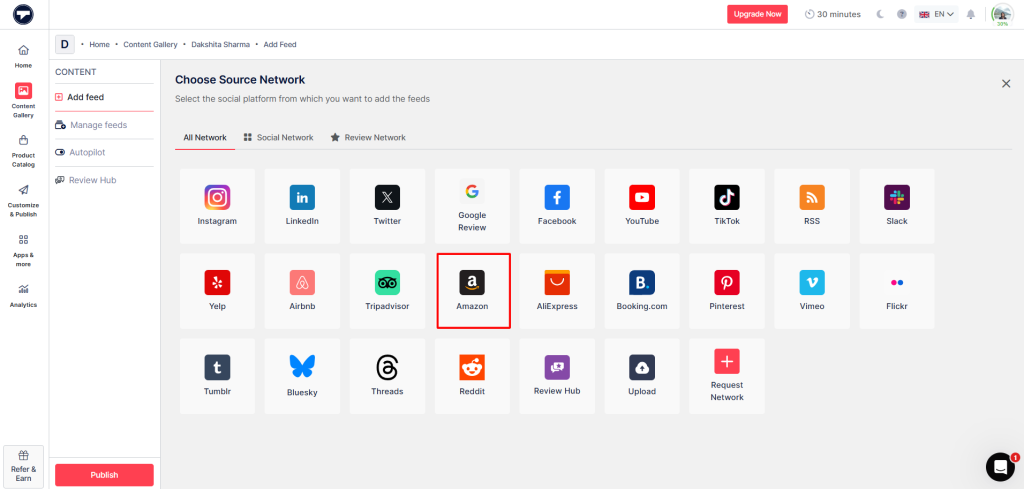
- Now, choose “Amazon” as your preferred social network.
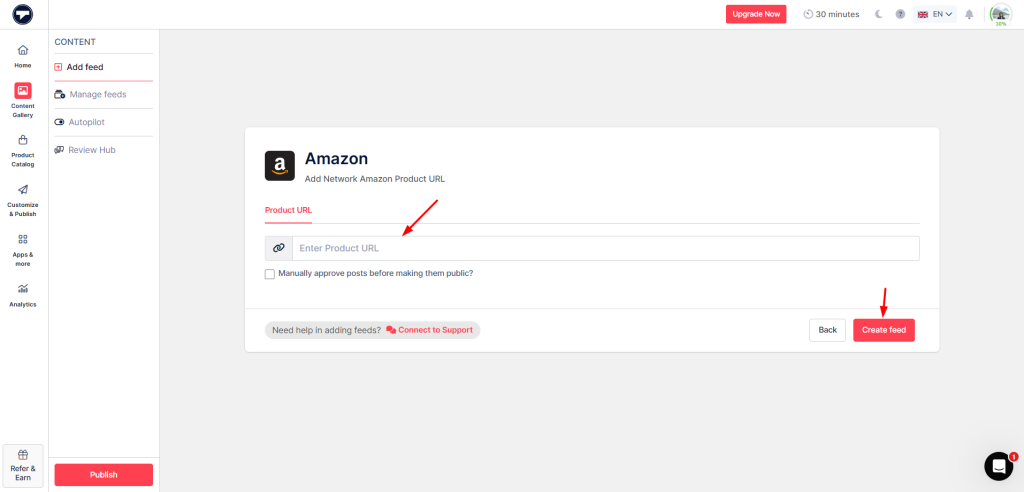
- In the next step, you have to enter “Product URL” in the dialog box to fetch the product reviews.
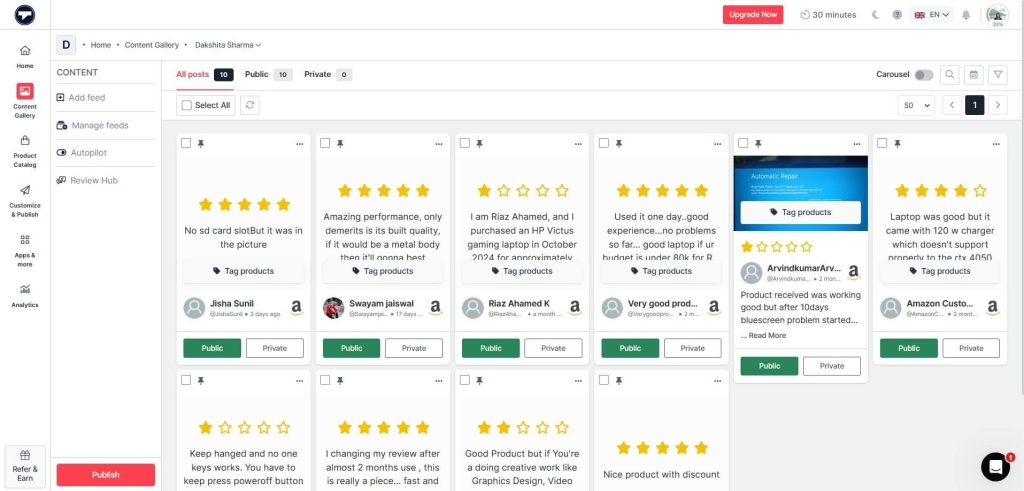
- The collected reviews are available in the dashboard. Where you can moderate the feed according to your preference.
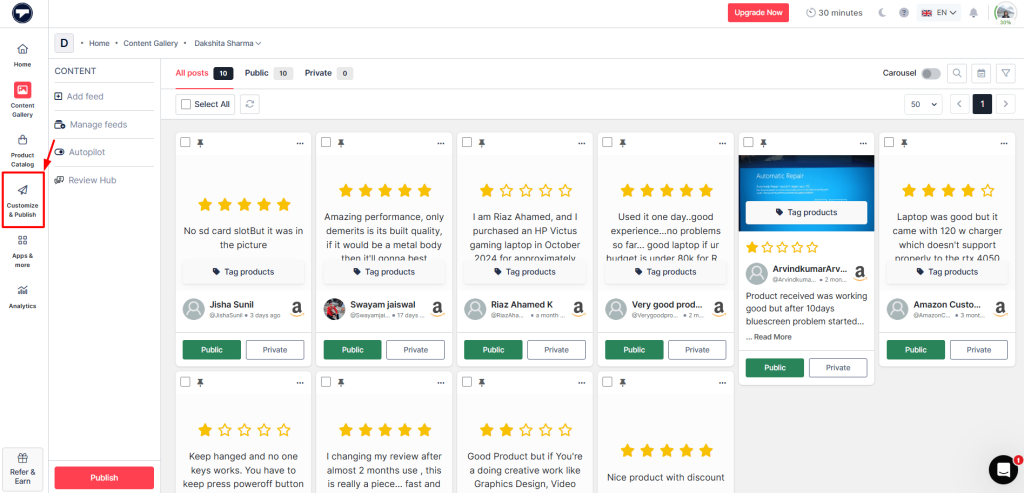
- After moderating, click on “Customize & Publish” at the left bar.
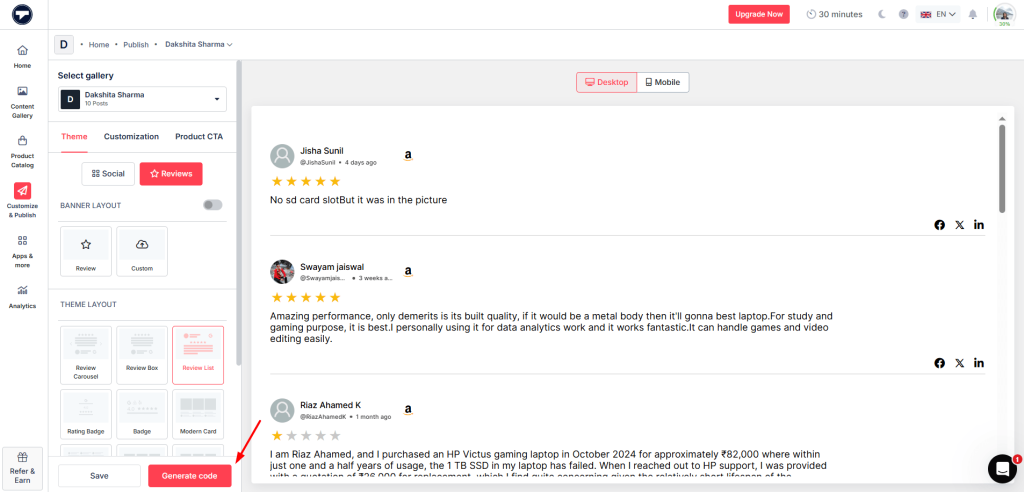
- After customizing and moderating the widget, click “Generate Code” from the bottom of the sidebar.
- You can adjust the Amazon widget’s height and width first and then copy the embed code.
- The embed code has been generated. Copy it and proceed.
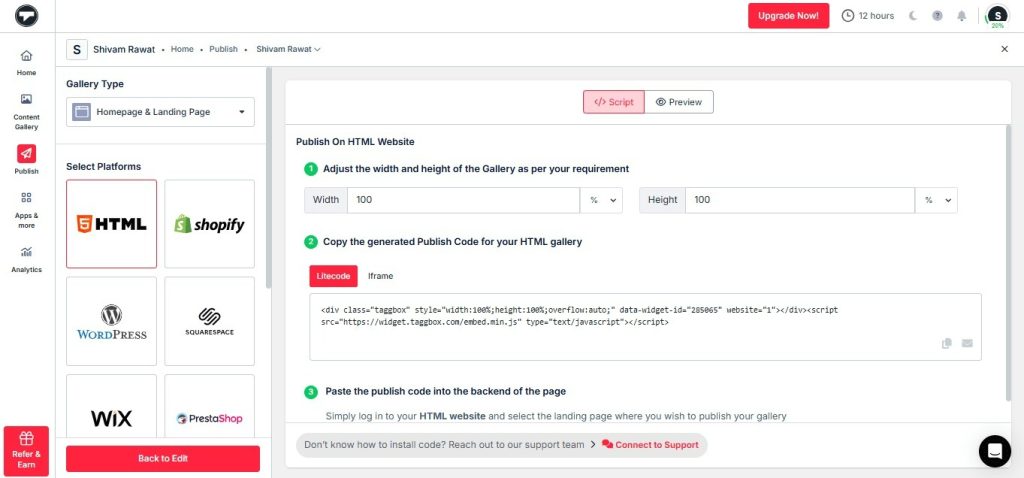
- Now, navigate to the backend of your website and paste the copied embed code at your desired location.
If you also collect feedback through Google, you can follow a similar widget-based process for how to embed google reviews on a website and display trusted customer reviews alongside your Amazon product feedback.
Display Amazon Reviews On Website
Embed Amazon ratings on your key pages in a few clicks.
Creating a website through a CMS platform? Taggbox can be connected with different CMS platforms, allowing users to embed Amazon reviews to make it attractive. The methods has been explained below.
Display Amazon Reviews on WordPress Website
- Tap “WordPress” as your preferred choice from the list of CMS platforms.
- Now, go to Taggbox and copy the embed code.
- Next, proceed and log in to your WordPress dashboard.
- After navigating to the blog or page where you want to display content, click the (+) Add block icon to add wordpress widget.
- In the next step, click “Shortcode” or “Custom HTML.”
- Lastly, Finish the process by clicking on the “Update” button.
You can see the Amazon reviews have been displayed on the WordPress website.
Show Amazon Reviews on WIX Website
- Choose WIX from the CMS platform options that are given.
- Proceed to log in to the WIX account.
- To add elements, click the (+) plus button in the menu bar.
- The whole list of elements will appear on the screen.
- Next, tap on the “More” options.
- Click on the HTML iframe present on the Embed.
- You copied the code from Taggbox Wix widget and pasted it into the code field.
- Lastly, update the changes by clicking on the “Update” button.
Your Amazon reviews have been successfully embedded on the WIX website.
Embed Amazon Reviews on HTML Website
- Click on HTML to proceed as your preferred CMS platform.
- Next, copy the generated embed code from Taggbox and paste it.
- In the last step, go to your website’s backend and embed the HTML widget code in the body section.
Kudos! You have successfully embedded the Amazon reviews on the HTML website.
Display Amazon Reviews on Squarespace Website
- Choose Squarespace as your preferred CMS platform.
- Any external code can be added to the web page through the Embed block.
- To add a block to the page, open the page editor and click the “Add Block” option.
- From the menu, click on “Embed.”
- From the URL field, click on the </> icon.
- Paste the copied squarespace widget code into the box on the screen, and proceed to click “Set.”
- Lastly, save the changes by clicking on the “Apply” button.
Embed Amazon reviews on Elementor Website
- Click on “Other” from the “Choose Your Platform” page.
- On the next page, copy the code and click “Copy code.”
- Log in to your WordPress account and redirect to the page you want to showcase the Amazon widget.
- Use its drag-and-drop features by selecting the “Edit with Elementor” option.
- Choose “HTML” from the elements and then drag it to the preferred location of your page.
- Paste the embed code you copied into the HTML element, then click the “Update” option to save the changes.
You have successfully showcased the Amazon widget on the Elementor website.
Embed Amazon Reviews on Website in Seconds!
Benefits of Embedding Amazon Reviews on Website
Amazon reviews play a significant part in influencing prospective customers to choose your brand immediately. Thus, by embedding Amazon reviews on website, you build trust with your target audience. Besides trust-building, this method has numerous business benefits, as cited below. Let’s take a look at them.
Build Trust with Social Proof
Amazon reviews are the best and most substantial social proof for brands, as they provide user insights to potential buyers. As Amazon is a recognized eCommerce platform, showcasing its reviews on the website is the best way to tell about the product’s credibility. Thus, showcasing these solid social proofs on the website will help drive potential customers’ trust.
Supports Better Buying Decisions
Amazon reviews provide authentic insights into product quality, usability, and value. By embedding them on your website, visitors can access real customer feedback without leaving your site, helping them make informed decisions while boosting trust, engagement, and conversions.
Boosts Conversions
By embedding reviews on your website, you reduce uncertainty and highlight positive customer experiences. This builds trust, reassures potential buyers, and significantly increases the chances that visitors will complete a purchase, sign up, or engage with your service.
Strengthens SEO and Site Authority
Fresh content from real customer reviews helps your pages rank better in search results. It attracts more visitors, builds trust, and shows search engines that your website is active, reliable, and valuable to users.
Conclusion
Showing real Amazon reviews on your website makes it easier for visitors to trust your products and your brand. Star ratings and genuine feedback give shoppers quick proof that others have bought and liked what you sell.
With a tool like Taggbox, you can automatically bring these reviews to your site and display them in a clean, on‑brand widget without coding. This simple addition can make your pages more convincing and help turn more visitors into customers.