Shoppable video is video content: reels, stories, UGC, or live streams with clickable product tags layered directly on top. Viewers tap the item they see in the video and go straight to buying it, often without leaving the feed. For WooCommerce stores specifically, this means your existing social video content stops being a marketing-only asset and starts working as a sales channel.
Quick Steps:
Sign Up → Create a Content Gallery → Pick Network & Source → Sync Product Catalog → Tag Products in Videos → Customize Feed → Generate Code → Add to WooCommerce → Test → Go Live → Track & Optimize
You’ve already done the hard part. Your Instagram is full of Reels, UGC and Stories showing your products in real use, their texture and reactions. People watch, people like, and then… nothing. There’s no way for someone to tap the bag they just saw and actually buy it. The video sells the product, then hands the viewer back to a search bar and a menu, and most of them never make it to checkout.
That gap (great video, no cart) is where a lot of potential revenue vanishes. And shoppable video closes this exact gap, so you get a video where every product shown is tappable, tagged, and one click from the cart.
With this guide on using shoppable videos on WooCommerce, you’ll be geared up to set up live shopping & shoppable videos for WooCommerce using Taggbox, from connecting your social feed to embedding the final gallery on your store.
Requirements Before You Start
Before you begin, make sure you have:
- An active WooCommerce store with products already listed (product name, images, and pricing filled in; this is what gets matched during catalog sync).
- Admin access to your WordPress dashboard, since you’ll need it to either paste embed code or install a plugin.
- A connected social account (Instagram, TikTok, etc.) with video content already published: Reels, Stories, UGC, or tagged posts, depending on which source you want to pull from.
- A Taggbox account (free to create, covered in Step 1)
- If you plan to use direct sync for your product catalog, have your WooCommerce store URL and store credentials on hand.
- A rough idea of where the gallery will be published on your site (homepage, a specific product page, or a new shopping page), since this affects theme and layout choices later in customization.
Have your store and social account ready?
Get your gallery live in the next 10 minutes.
Steps For Setting Up Shoppable Video on WooCommerce
Setting up shoppable video on WooCommerce takes less time than it looks; most stores are live within a day. Here’s the full process, from creating your account to embedding the gallery on your site:
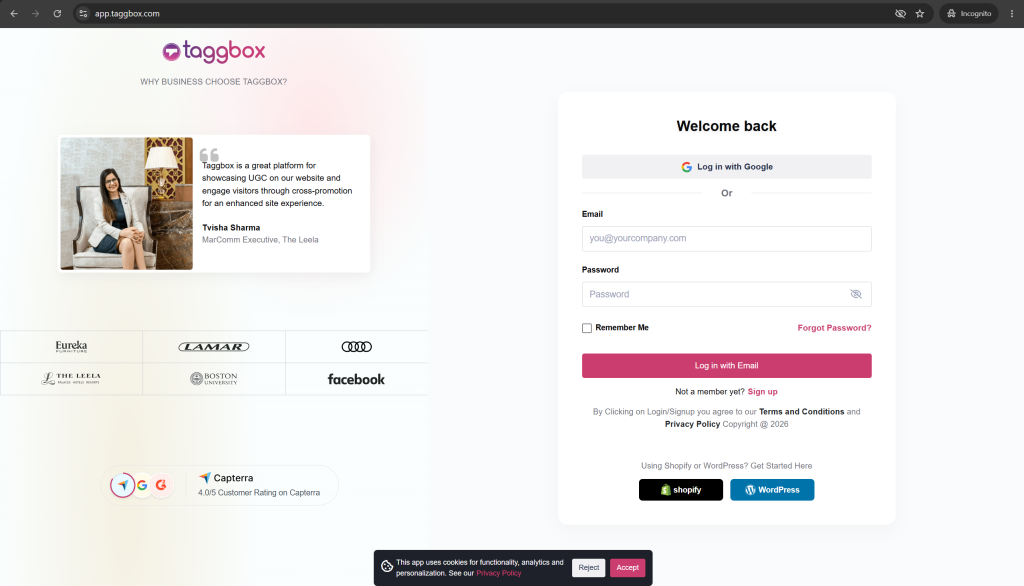
Step 1: Sign Up or Log In
Create a Taggbox account, or log in if you already have one.
Step 2: Create a New Content Gallery
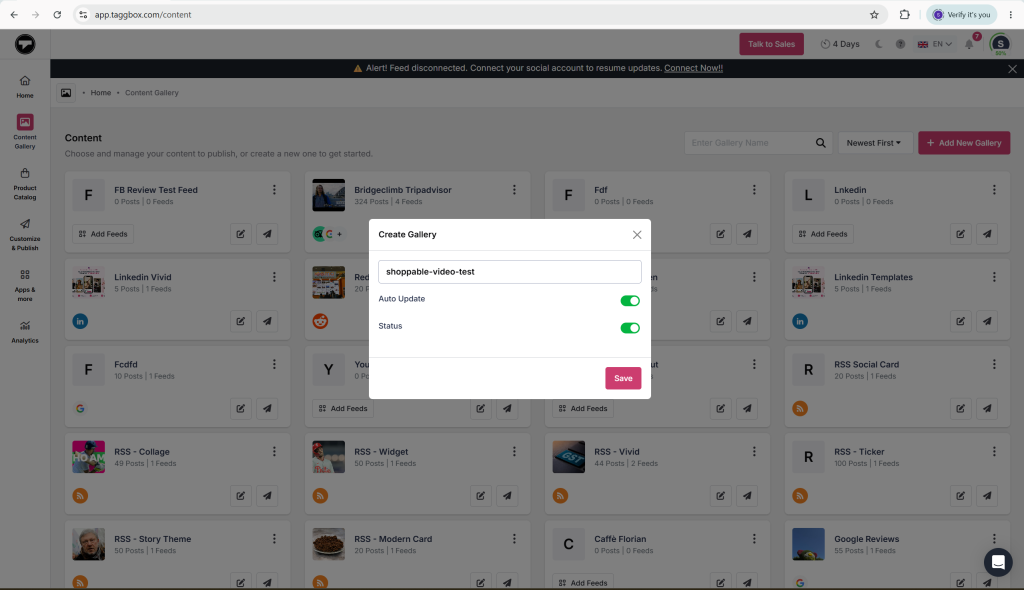
Go to ‘Content Gallery’ from the left panel and click ‘Add New Gallery’. Name your gallery, choose whether you want it to auto-update, and set its status.
Step 3: Choose Your Social Network and Feed Source
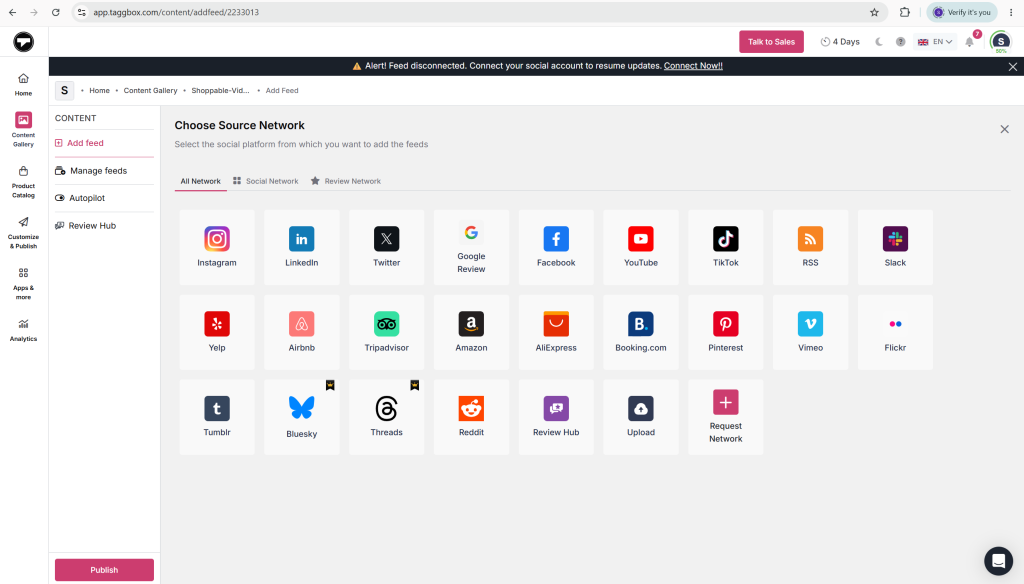
Select the social network you want to pull video shoppable content from (for example, Instagram, YouTube, TikTok). Taggbox lets you source your feed from several options: Handle, Hashtag, Stories, Mentions, Tagged, or Reels.
Step 4: Set Up Your Product Catalog
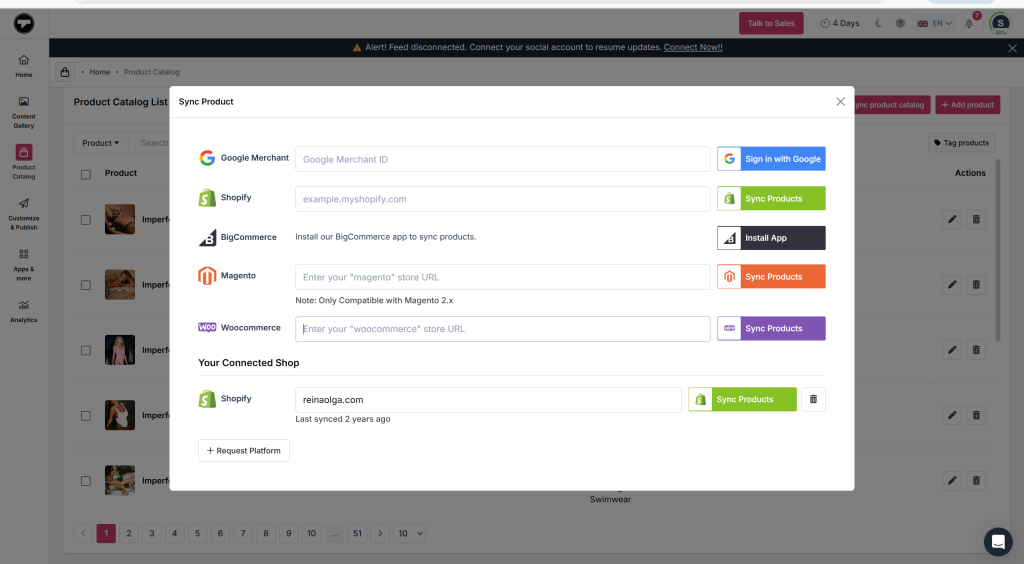
Go to Product Catalog in the left panel. You have three ways to sync your WooCommerce products:
- Direct sync: Click Sync Product Catalog and enter your WooCommerce store URL
- CSV/Excel import: Click Import Product List and upload your catalog file
- Manual entry: Click + Add Product and enter product details one at a time
Step 5: Tag Products in Your Videos
Go back to Content Gallery and select the feed you created. Click Tag Products to tag a post, then select the relevant product from the dropdown. You can also enable Hotspot, which shows a small dot on the video indicating a tagged product is available. You can tag up to 5+ products per post.
Once you’ve tagged all relevant videos, click Publish, then create a Channel.
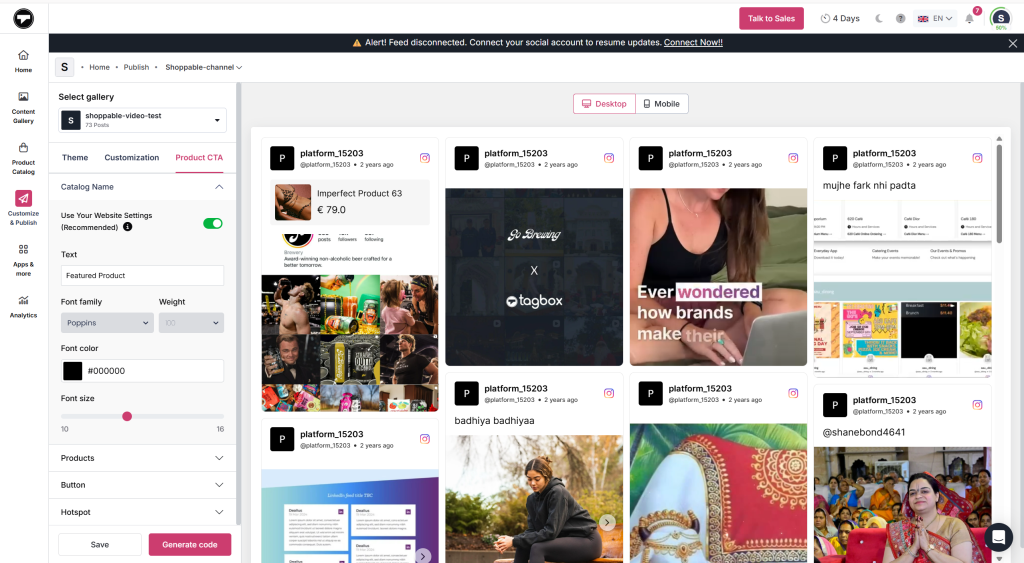
Step 6: Customize Your Feed
Fine-tune how the gallery looks and behaves. Some core things to customise:
- Select a theme, or request a custom theme if none of the presets fit
- Choose a banner layout and adjust other visual elements
- Add custom CSS to match your website’s design
- Integrate Google Analytics to track feed performance
- Use the localization feature to auto-translate your widget into any language, so you can speak to global audiences in their native tongue
- Set your product CTA (call-to-action) text
Step 7: Generate the Embed Code
Once you’ve finished customizing, click Generate Code.
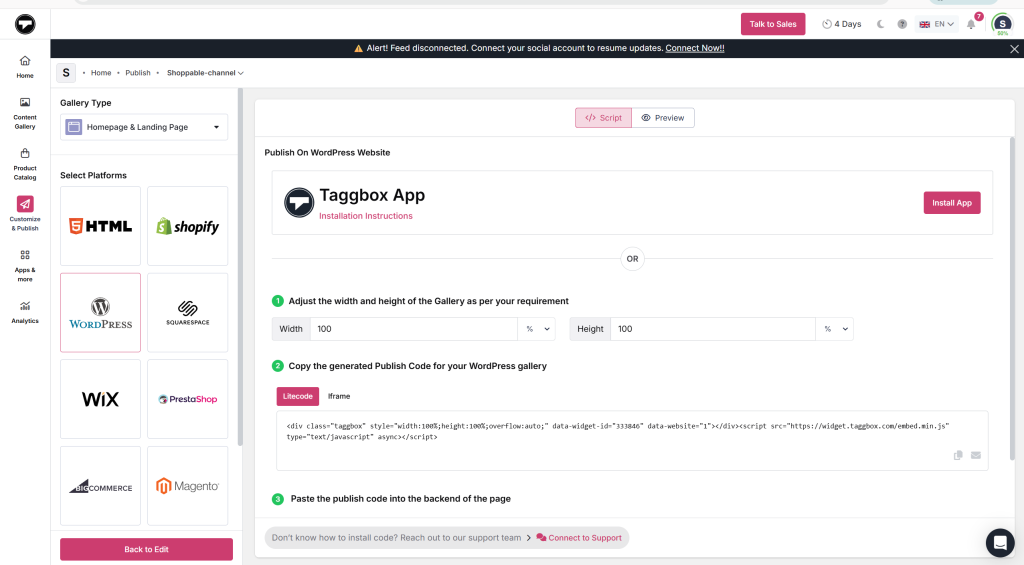
Step 8: Add the Feed to Your WooCommerce Site
You have two options here:
Option A: Manual Embed
Select the WordPress logo option to get your embed code, then paste it into a Custom HTML block wherever you want the shoppable video gallery to appear (homepage, product page, etc.)
Option B: Taggbox WordPress Plugin
- In your WordPress dashboard, go to Plugins > Add New
- Search for Taggbox Widget, click Install Now, then Activate
Install Now
- Connect your Taggbox account from inside the plugin
- Copy the shortcode for your shoppable video gallery from your Taggbox dashboard and paste it wherever needed
Step 9: Test Before Going Live
Preview the live page on both desktop and mobile. Click through a few tagged products yourself to confirm they land on the correct WooCommerce product pages, and check that pricing and product details match what’s currently live on your store.
Once your gallery is live, use Taggbox’s built-in analytics (or the Google Analytics integration set up in Step 6) to monitor impressions, clicks, CTR, and engagement on your shoppable videos.
Use this data to see which videos or tagged products drive the most traffic back to WooCommerce, then adjust accordingly: swap out low-performing videos, retag products, or try a different theme/layout to improve conversion over time.
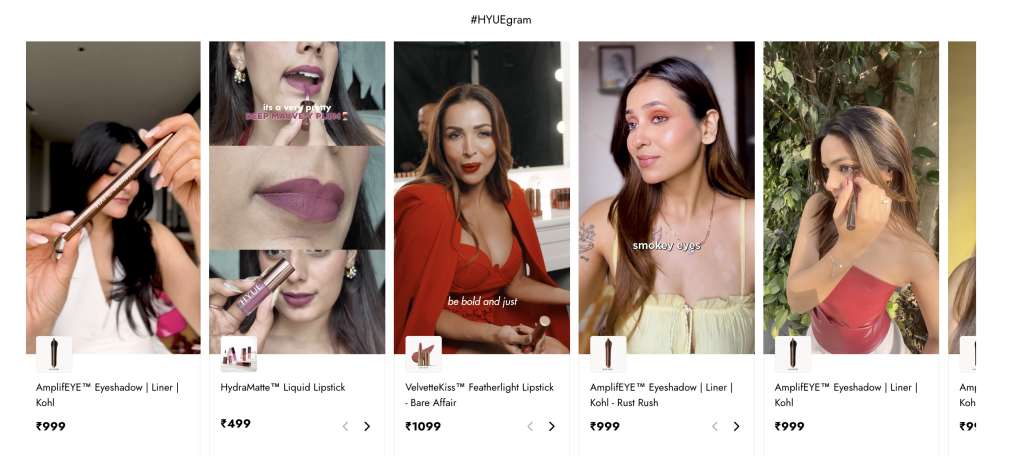
See How Hyue Achieved 171% CTR With Taggbox Shoppable Gallery
Core Challenges
Limited social proof, missing authentic voices, low website engagement, missed shoppable opportunities.
Taggbox Solutions
- Turned UGC into social proof: Showcased authentic customer stories to build trust and credibility.
- Created shoppable galleries: Added engaging, shoppable UGC galleries to product pages.
- Curated high-quality content: Moderated and selected the best customer posts for a polished feed.
- Launched customer-led campaigns: Used campaigns like #HydraGlowLooks to celebrate customers and spotlight creators.
- Connected UGC across touchpoints: Enabled HYUE to extend engaging content beyond its website to other marketing touchpoints.
Outcomes Achieved
- 17.2k Widget views
- 29.3K Clicks
- 171% CTR
Read the detailed case study: https://taggbox.com/case-study/hyue/
What To Do After The Launch
Now, once your gallery is live, check back in two weeks. See which tagged products get the most taps versus which ones get ignored, and swap out the underperformers. Shoppable video works best when you treat it like a merchandising shelf rather than a set-and-forget widget. The videos and products you feature should shift with what’s really converting, the same way you’d rearrange a physical storefront.
If you’d rather not run this optimization loop manually, our team can help you set up tracking and refine your gallery based on real performance data. Reach out, and we’ll walk you through it.