Integrating your Instagram feed into your BigCommerce website is an effective way to engage visitors and showcase your brand’s personality. By displaying posts, stories, reels, and hashtags directly on your site, you can create a more dynamic and visually appealing experience for your audience.
This guide will take you through each step to set up your Instagram feed with Taggbox, customize its style to match your brand, and seamlessly embed an Instagram feed in your BigCommerce store.
Add Instagram Feed on Bigcommerce using Taggbox Widget
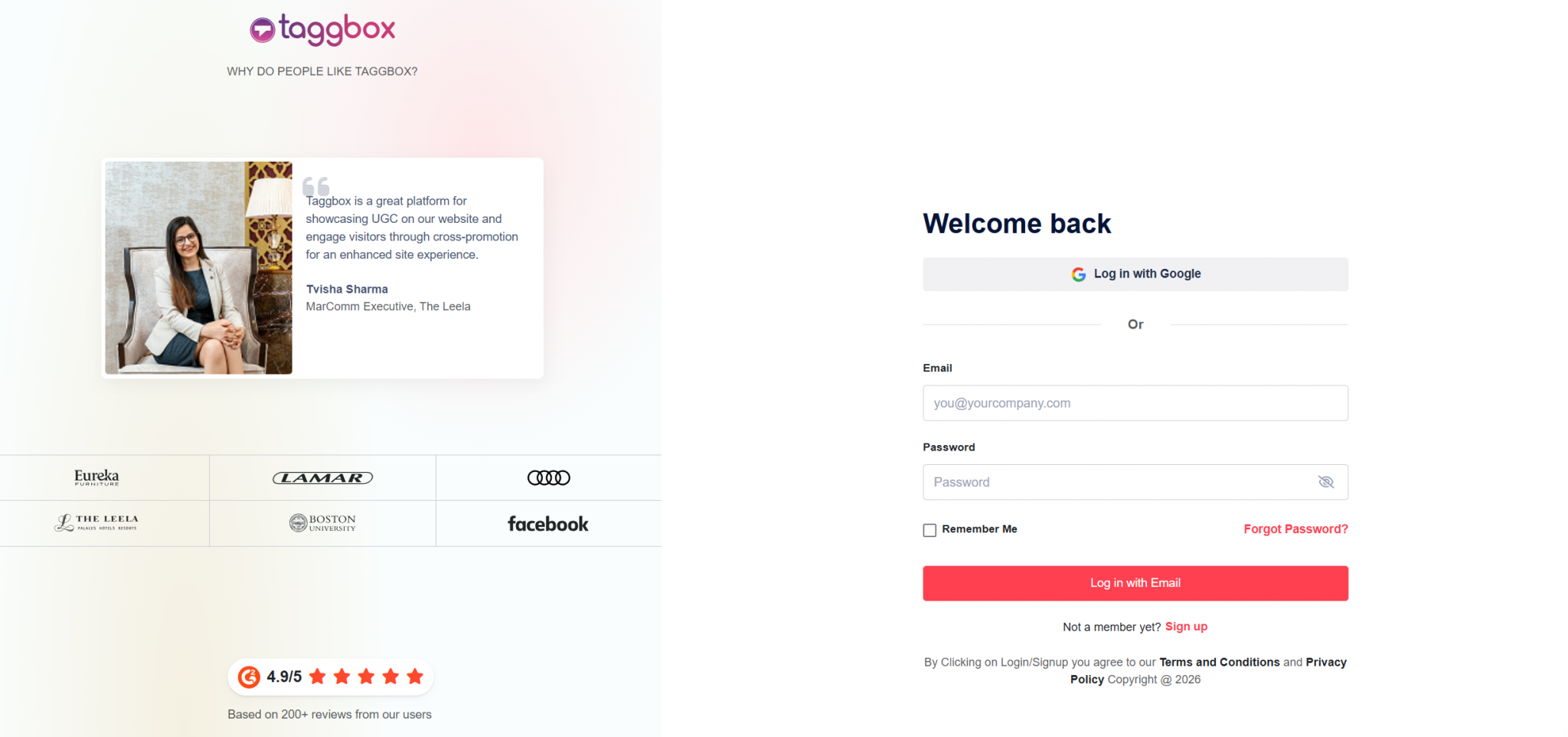
Step 1: Set up your Taggbox Account
- Create a new Taggbox Widget account or log in to your existing account.
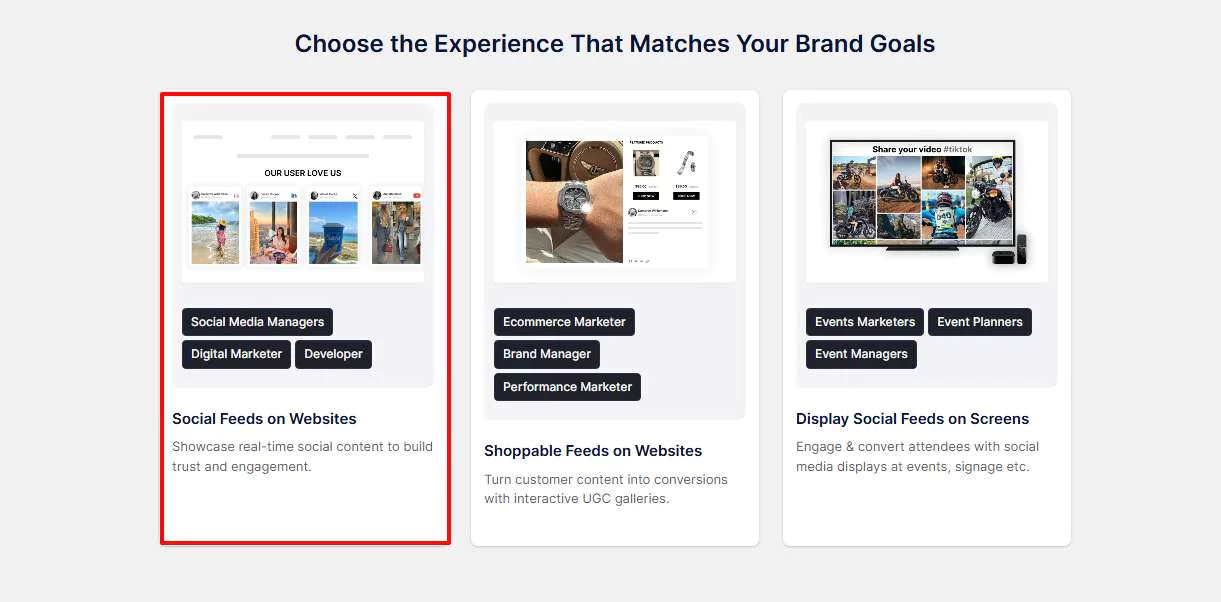
Step 2 – Choose your preferred experience
- Select “Social Feed on Website” to set up your Instagram feed on Bigcommerce.
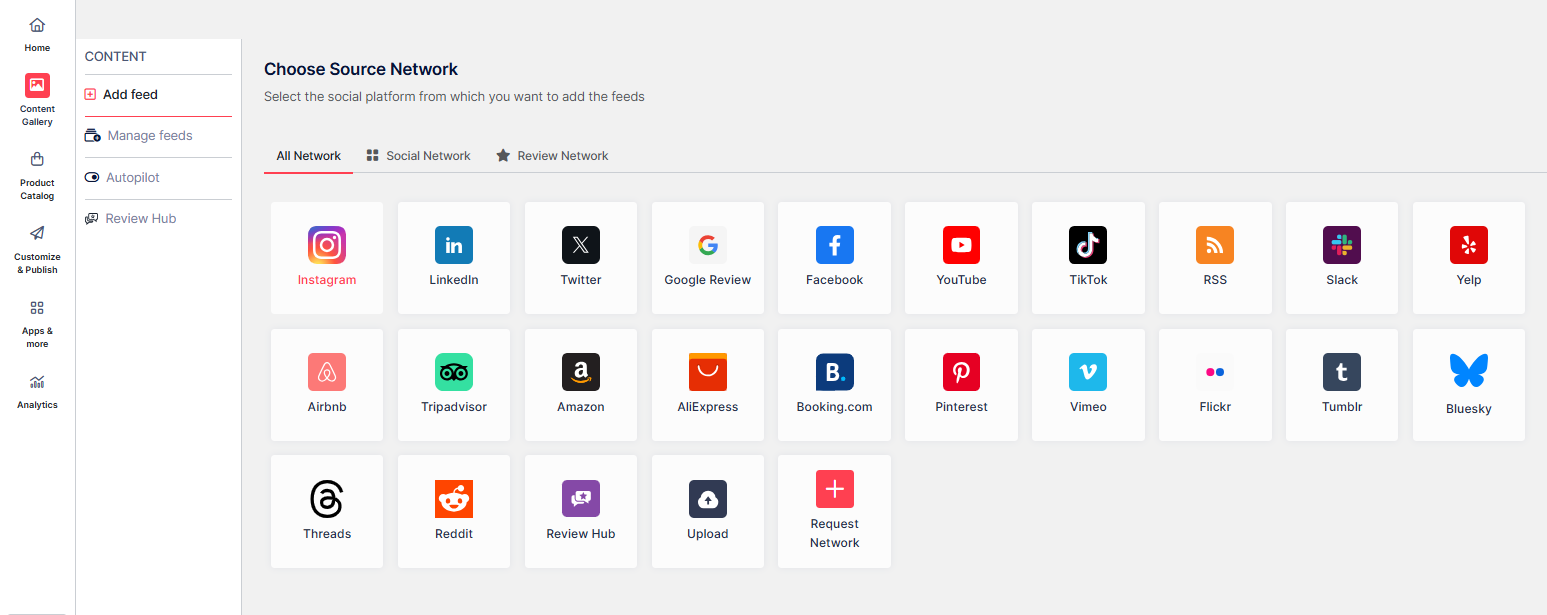
Step 3 – Select Your Source Network and Build Your Feed
- From the All Networks tab, click on “Instagram” to create your feed.
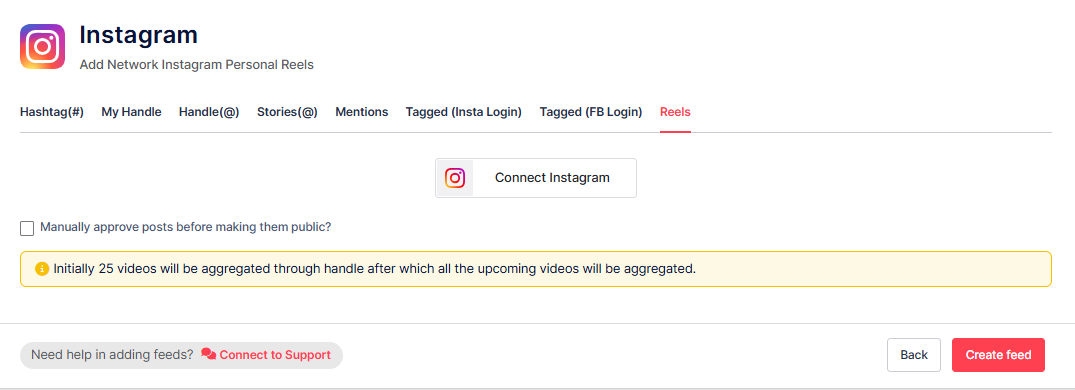
Next, choose the type of Instagram feed you want to display on Bigcommerce:
- Hashtag (#) – Show Hashtag Instagram feed on your website using selected hashtags.
- My Handle – Connect your Instagram account to show your own posts.
- Handle (@) – Fetch posts from any public Instagram account.
- Stories – Display Instagram Stories from your profile to your website.
- Mentions – Show posts where your account is mentioned on Instagram.
- Tagged (Insta) – Display posts in which your Instagram profile is tagged.
- Tagged (FB) – Display posts where your Facebook profile is tagged.
- Reels – Embed Instagram Reels on your website pages.
Step 4 – Customize and Personalize Your Instagram Feed
- Choose the posts you want to feature on your BigCommerce and set them as public or private. You can also enable Autopilot to manage your feed automatically. Once done, click “Publish”.
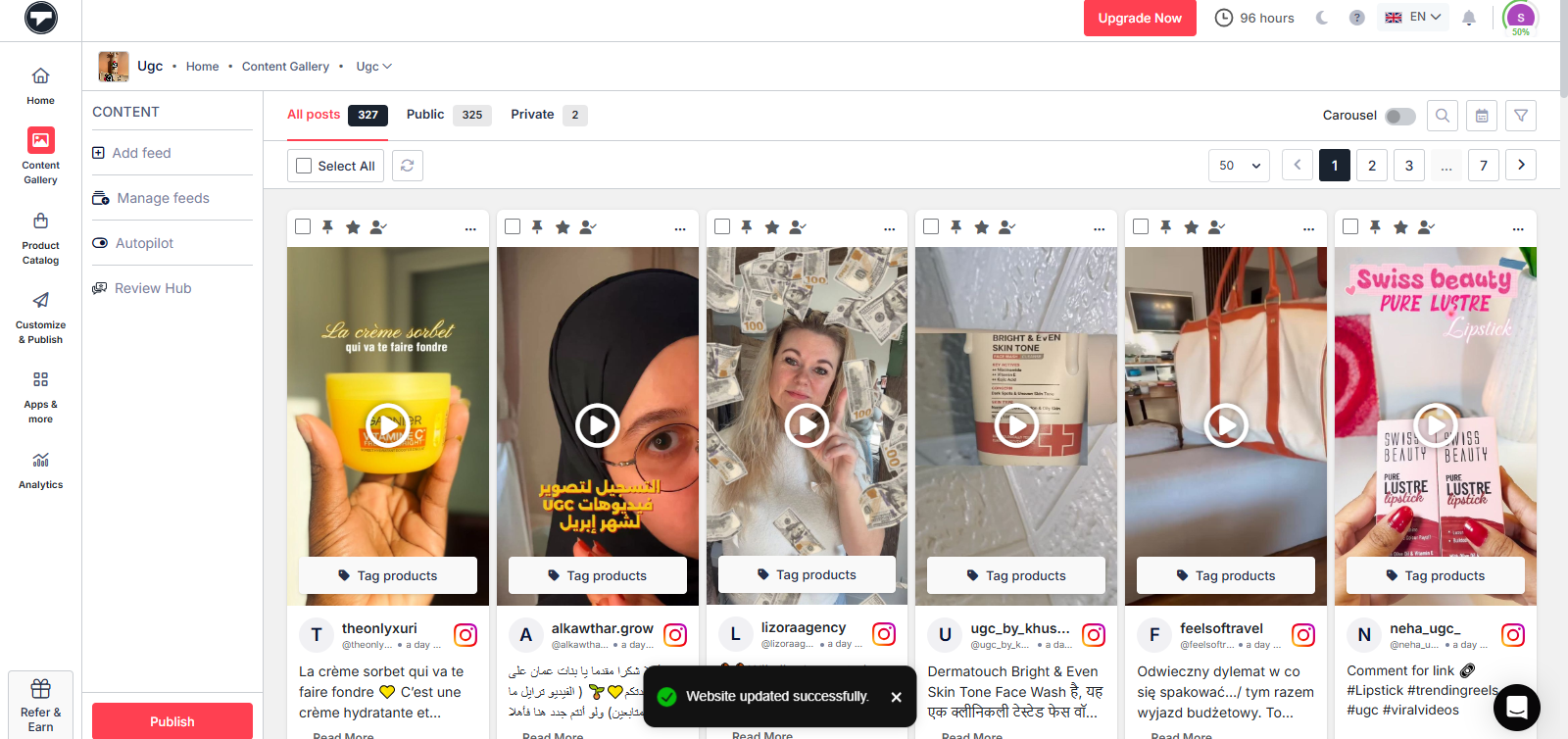
- Select your preferred feed style, customize the design elements to align with your brand, and your Instagram widget for website will be ready to go.
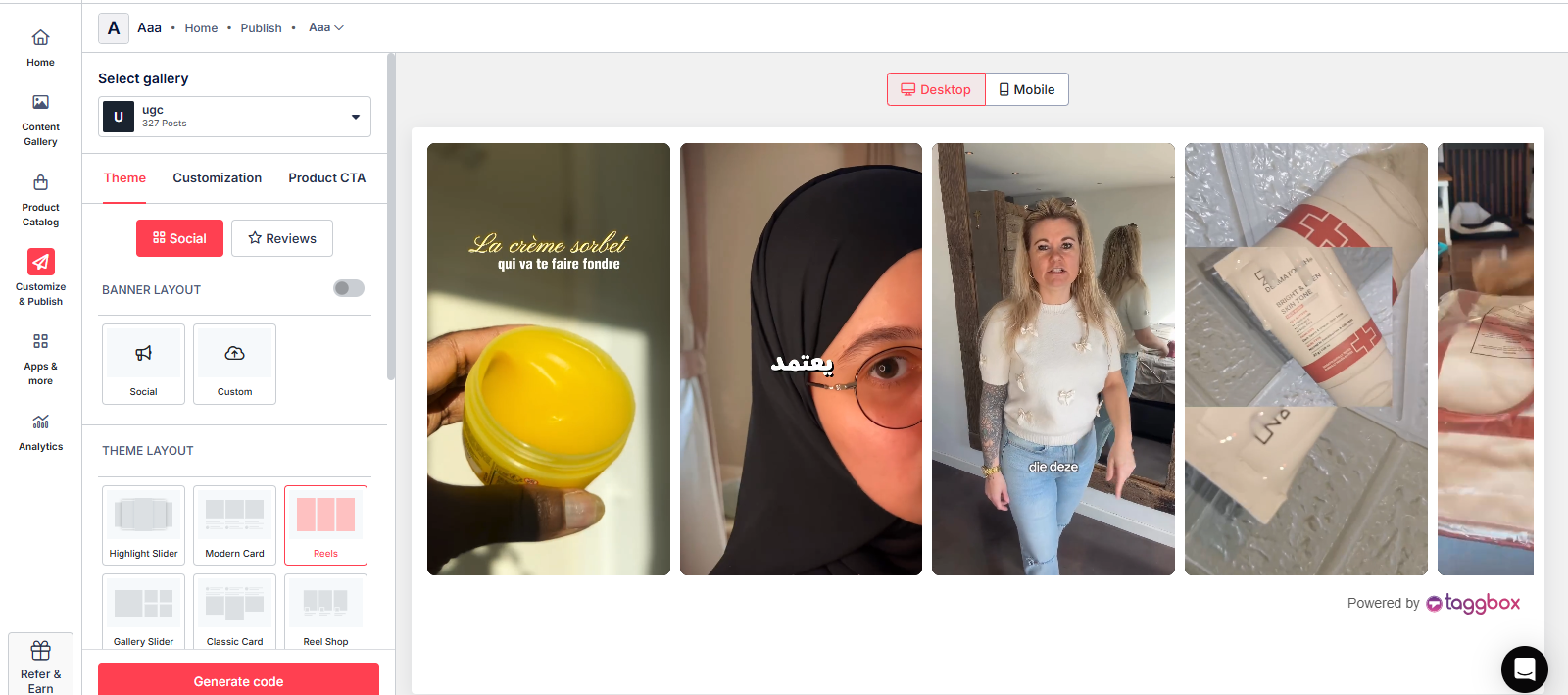
- Now, click on “Generate Code”.
Step 5 – Select the Platform and get the Embed Code
- Click on “Bigcommerce” to generate the embed code for your website.
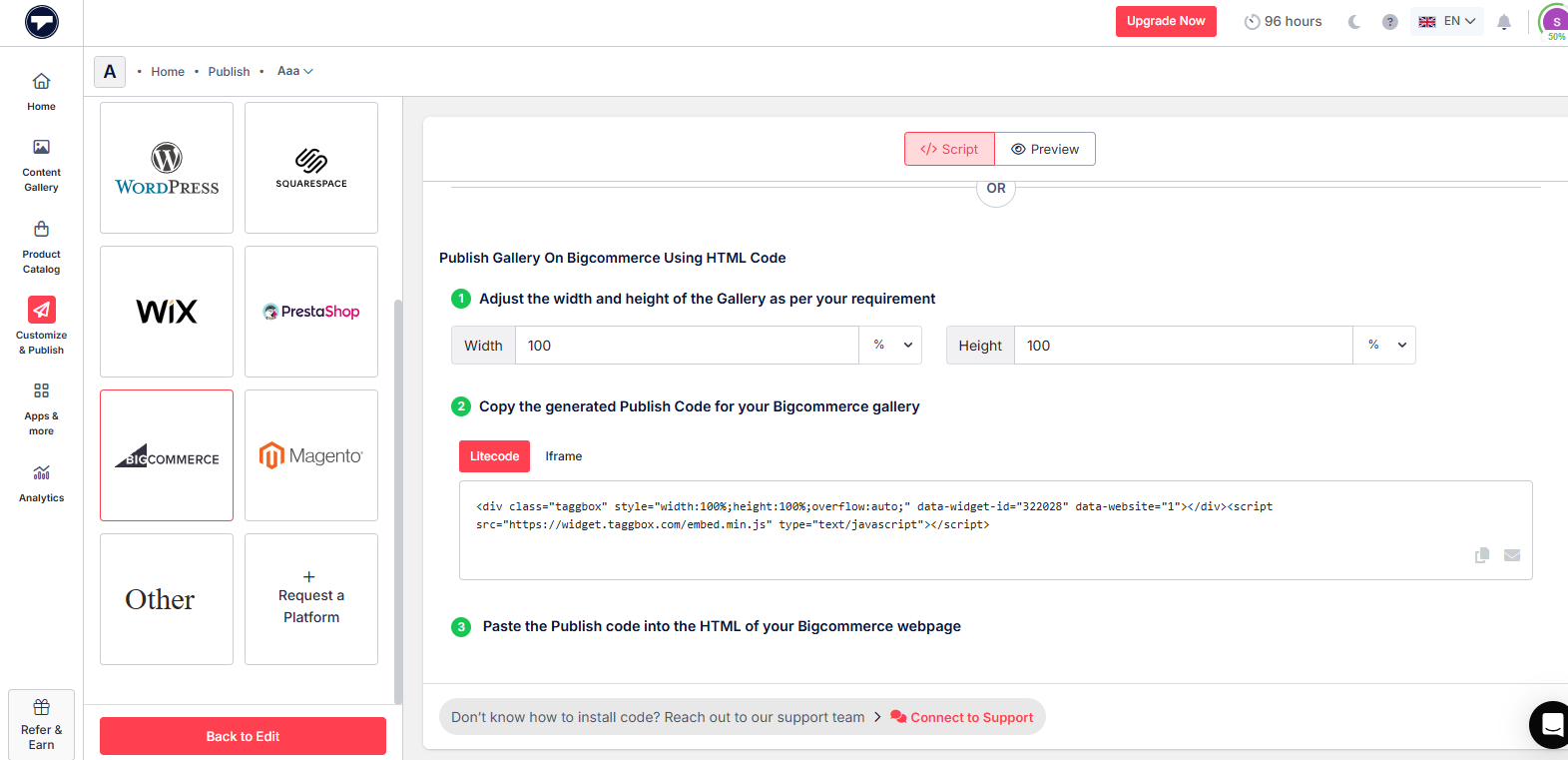
- Copy and paste the code to display your Instagram feed on the website.
Steps to connect the Instagram Feed to the Bigcommerce website with the embed code
- Log in to your BigCommerce Dashboard and navigate to the “Storefront”.
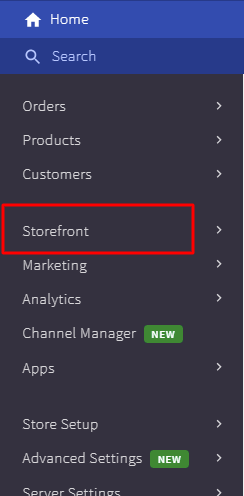
- Now select “Webpages” to embed the Instagram feed code in your store.
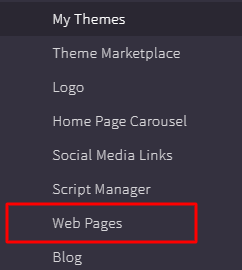
- After selecting “WebPage”, you will be redirected to all pages. Here you can create a new Instagram Feed Page or edit an existing one.
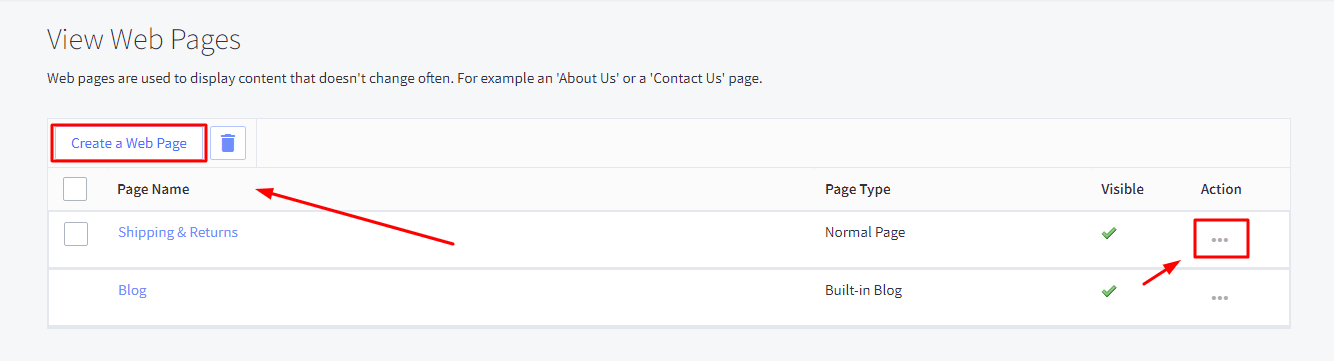
- Fill in all the required page details.
- Click on the HTML button
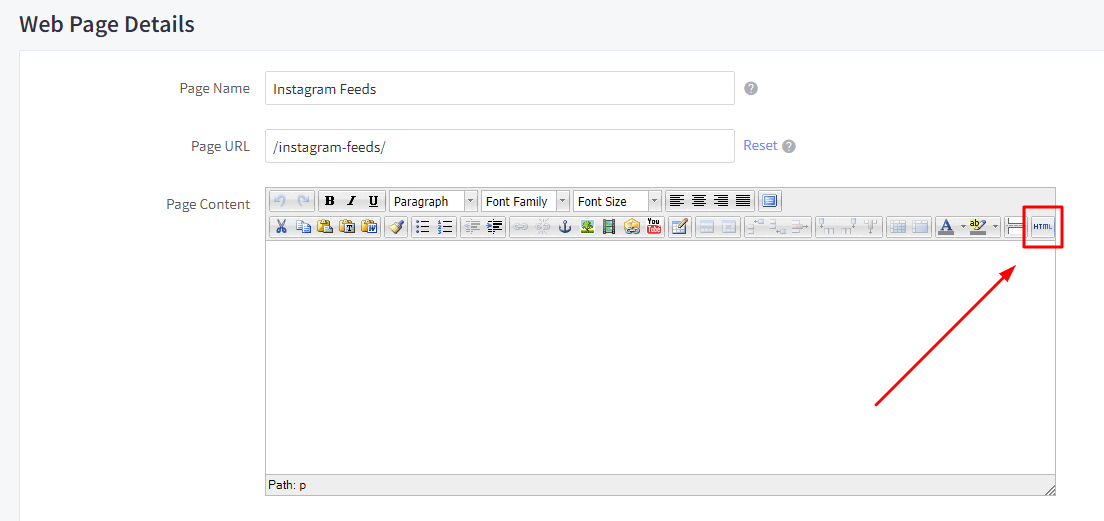
- Now, paste your Taggbox embed code here
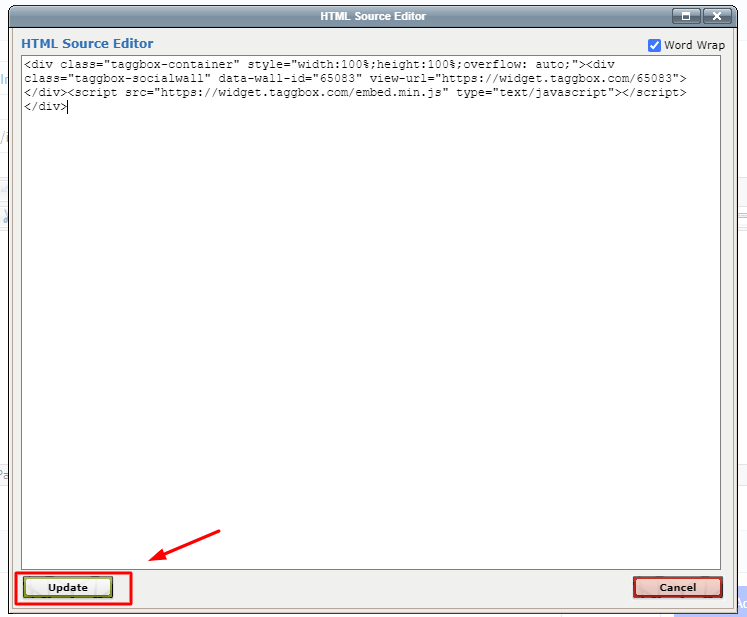
- After pasting the code, click on update
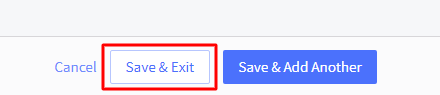
- Scroll down and click “Save & Exit” to finish.
That’s it, you have successfully embedded Instagram feeds on your BigCommerce Store.
If you have any questions or need help, please contact us or write to us at support@taggbox.com