88% of customers read Google reviews before engaging with a local business. That stat alone tells you how much weight reviews carry.
In eCommerce, trust is fragile; people won’t risk money on a brand they don’t know. Ads can attract clicks, but they don’t guarantee confidence. Reviews do. They’re proof that real shoppers bought, tested, and liked what you sell.
Adding Google Reviews to your Shopify store isn’t just a “nice to have” in 2025; it’s the shortcut to instant credibility, higher conversions, and stronger visibility online.
Add Google Reviews To Shopify
Google My Business
Reviews(GMB)
Try Now

| Multiple Themes |
Why Add Google Reviews to Shopify?
Nothing convinces your potential customer like another customer saying, “Yes, this store is worth it.” That’s why adding Google Reviews to your Shopify store isn’t just smart, it’s essential.
Here are some key benefits of Google Reviews getting embedded on your Shopify site –
1) Builds Instant Trust and Credibility
Google reviews on Shopify work as social proof. They aren’t scripted sales lines, they’re raw feedback from real people. When visitors see Google Reviews tied to verified customers, the message is clear: others trusted this brand, so you can too.
2) Increases Conversions and Reduces Hesitation
Every shopper hesitates, and Google Reviews eliminates that hesitation as they work as social proof for your product. They answer doubts before customers even ask them, turning uncertainty into a confident “Add to Cart.”
3) Boosts SEO and Local Search Visibility
Google favors user-generated content. Therefore, authentic Google Reviews improve ranking, especially in local searches. Moreover, you can add a review schema and suddenly your stars can appear in search results, drawing the eye, winning clicks.
4) Makes Your Brand Stand Out
Thousands of Shopify stores fight for the same customer. Google Reviews give you an edge, showing authenticity that ads alone can’t match. In a crowded market, trust is your best differentiator.
Different Ways To Add Google Reviews To Shopify
There isn’t just one way to bring the Google reviews widget into your Shopify store. You’ve got options, but not all are equal.
A. Manual Method: Screenshots
The old-school way is simple: take screenshots of your Google Reviews and paste them on your site. It works, but it’s messy. Every time you get new reviews, you’ll need to update it again. And honestly, it starts to look outdated fast.
B. Using a Review Aggregator
A smarter way is to use tools like Taggbox. Instead of manually adding stuff, Taggbox pulls your Google Reviews in real-time and shows them beautifully on your Shopify store. No coding, no repeated copy-pasting. Plus, you can customize the widget to match your brand. That means fresh reviews always live on your site, working 24/7 to build trust.
Let’s move ahead and understand how you can add Google Reviews to Shopify websites seamlessly using best review feed aggregators such as Taggbox.
How to Add Google Reviews to Shopify
There are two primary methods through which you can add Google Reviews to your Shopify site.
Methods 1: Adding Google Reviews Through the Taggbox Shopify App
Adding Google reviews to your Shopify store with the Taggbox Shopify App is quite simple:
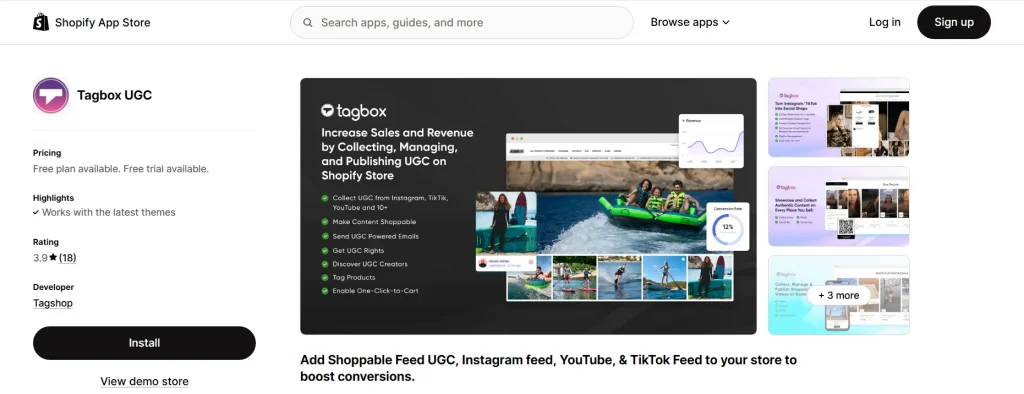
- Install the app first – Go to the Shopify App Store, search for “Taggbox” and hit that Add App button. Done.
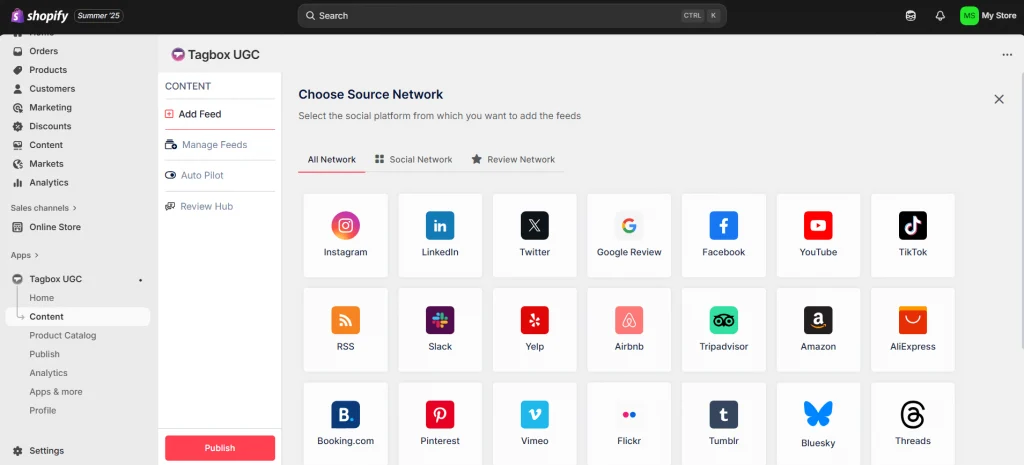
- Open the app – Once installed, you’ll land on the Taggbox dashboard. Look for the Add Feed option and pick Google Reviews from the screen.
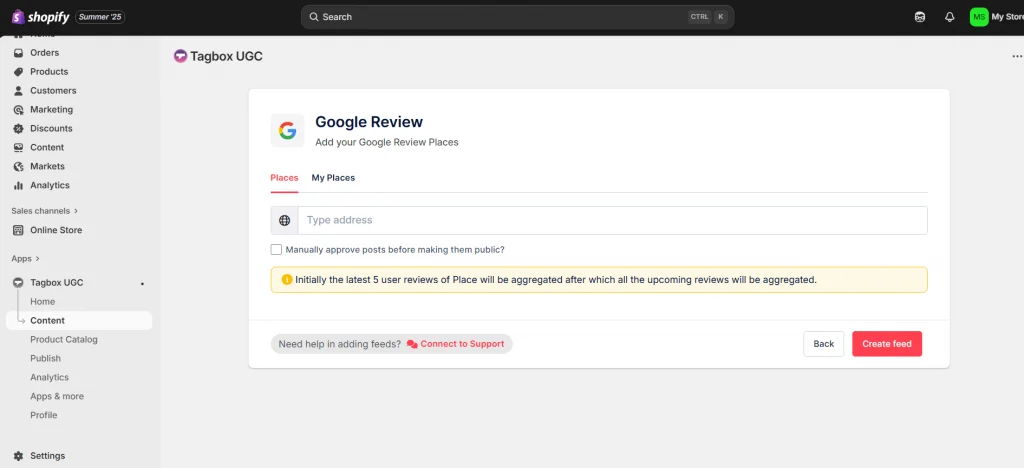
- Choose your source – You’ll see two options: Places or My Places. Select the one that fits your need.
- Connect your account – From the pop-up, choose how you want to connect. Fill in the details, then hit Create Feed.
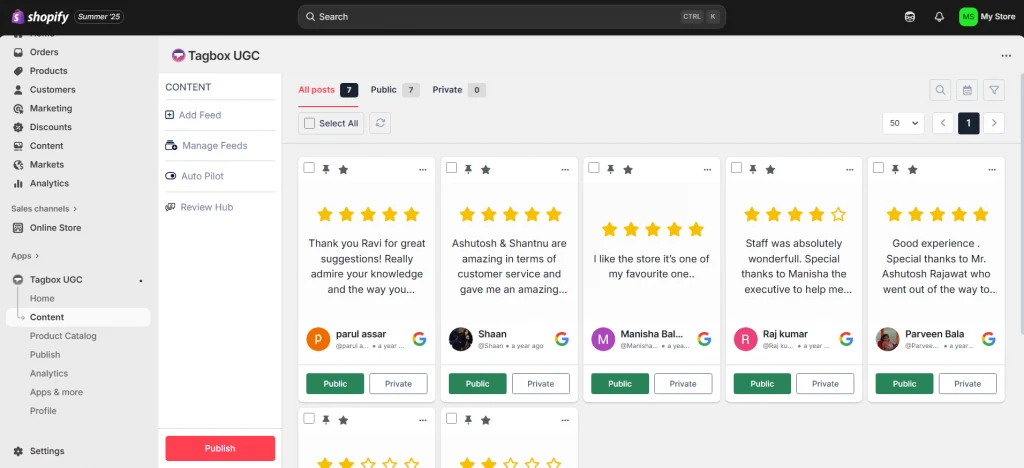
That’s it—you’ve added Google reviews to your Shopify store. But wait, let’s make it look good.
- Customize the design – Head over to Personalization & Layouts. Select a theme, adjust the card style, add banners, and fine-tune the settings until it aligns with your store’s vibe.
- Filter what shows up – Not all reviews deserve the spotlight. Use Taggbox filters (manual or auto) to hide the ones you don’t want.
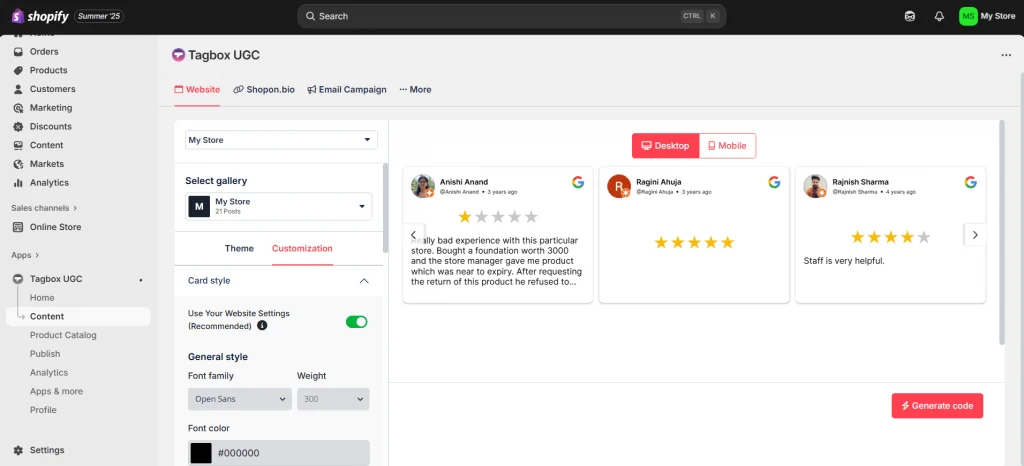
- Embed it live – Finally, click Embed/Display, copy the shortcode, and paste it into your Shopify site or choose any other option according to your preference. Your reviews are live.
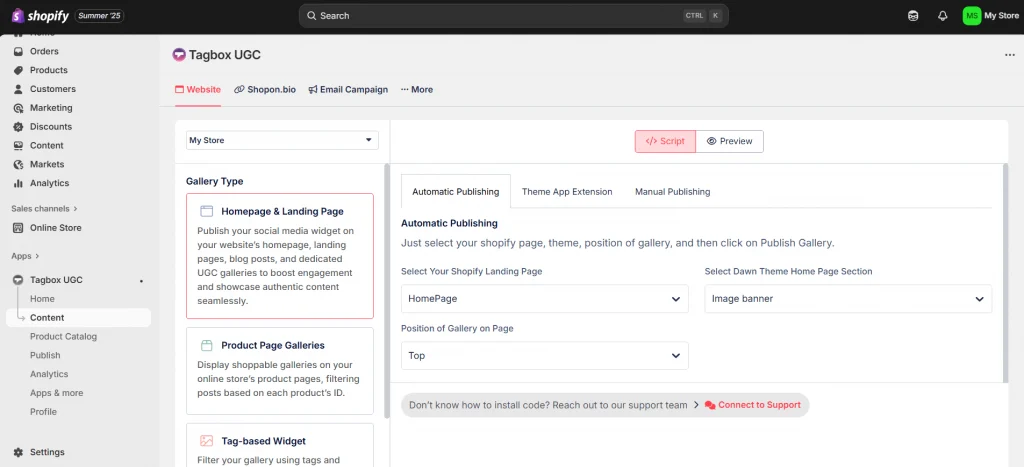
Display Google Reviews On Shopify
Use Taggbox to display real customer reviews on your site, build trust, and inspire visitors with genuine stories.
Methods 2: Adding Google Reviews to Shopify with Taggbox
With Taggbox, you can set it up in minutes, no coding headache. Here’s how:
Step 1: Sign Up
- Make a free Taggbox account or log in if you already have one.

- A new screen will open, choose “Social Feeds On Websites“
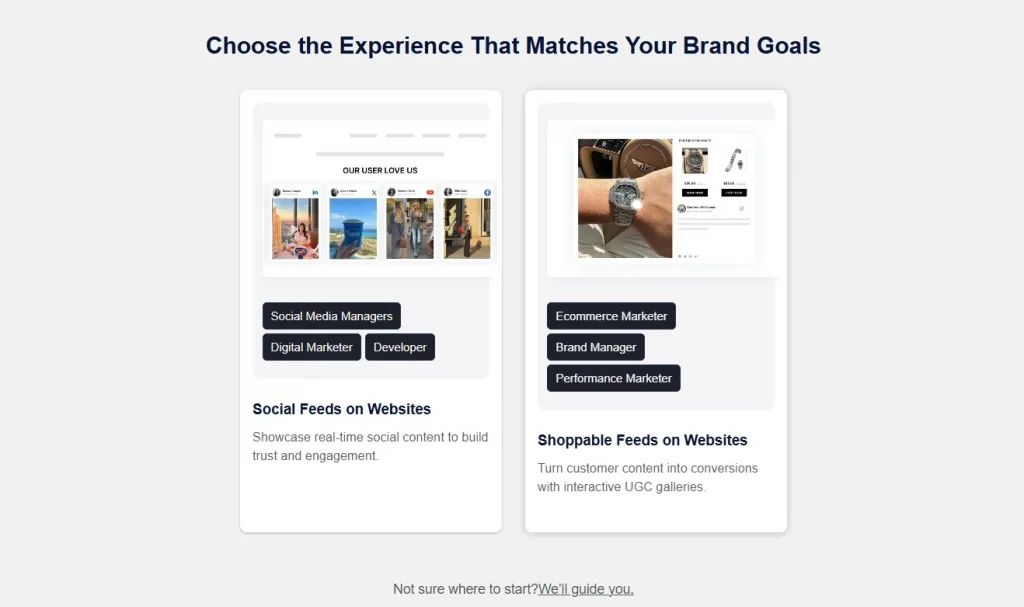
- Now, select your industry type and submit it to verify your email address.
Step 2: Build Your Gallery
- Go to Content Gallery, you’ll probably see a default feed waiting. If not, just hit Add New Gallery, name it.
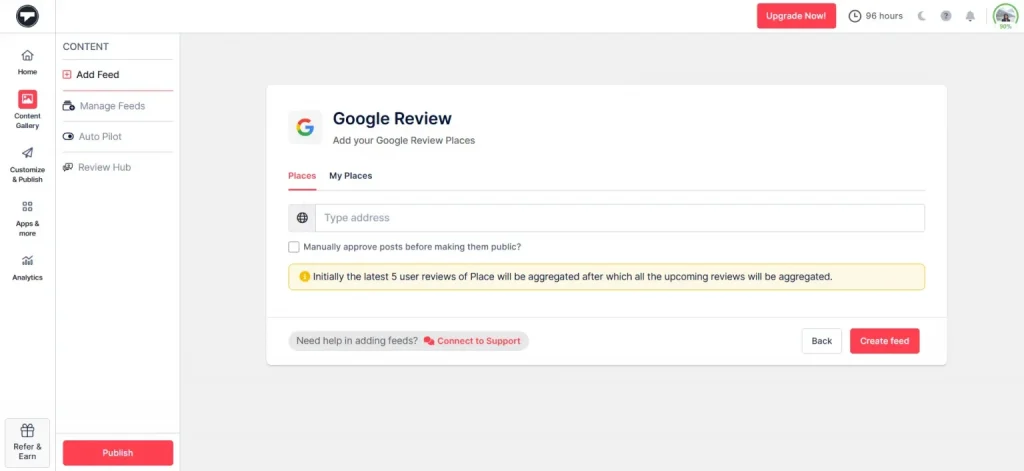
- Pick “Google Review” as your source.
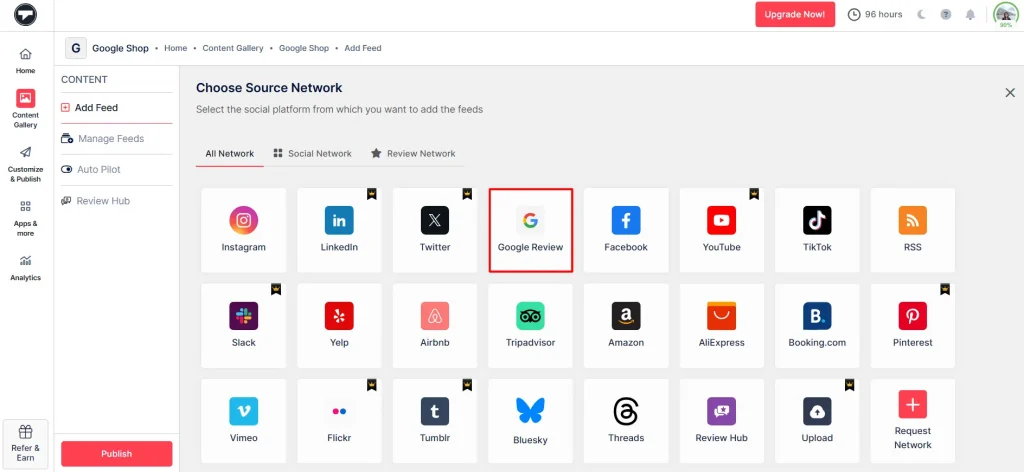
- Select how you want to source reviews:
– My Places: Pull reviews directly from your own Google Business Profile.
– Places: Gather reviews from multiple profiles or different business locations.
- Fill in the necessary details and hit “Create Feed” to get started.
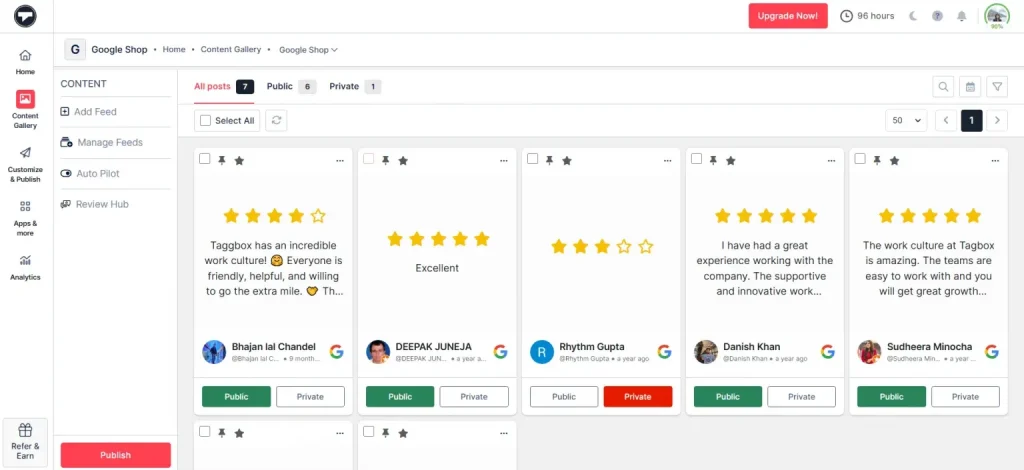
- Your Google review gallery has been created successfully. You can moderate it, like make them public or private accordingly.
Step 3: Tweak & Customize
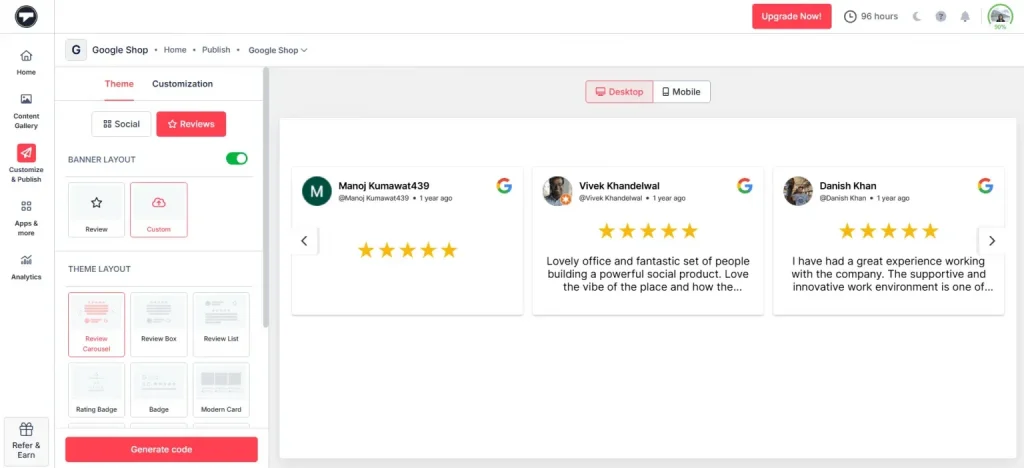
- Click on “Customize & Publish” and select the website as your channel. Then style it, layouts, fonts, colors, so it looks like it’s part of your store, not some pasted widget.
Add Google Reviews On Shopify
Boost trust and drive conversions by adding Google Reviews to your website today!
Start For Free
Step 4: Add to Shopify
- Click “Generate Code,” select Shopify, and copy the embed code.
- Log in to your Shopify account and navigate to Online Store under the Sales Channels section and go to Theme section.
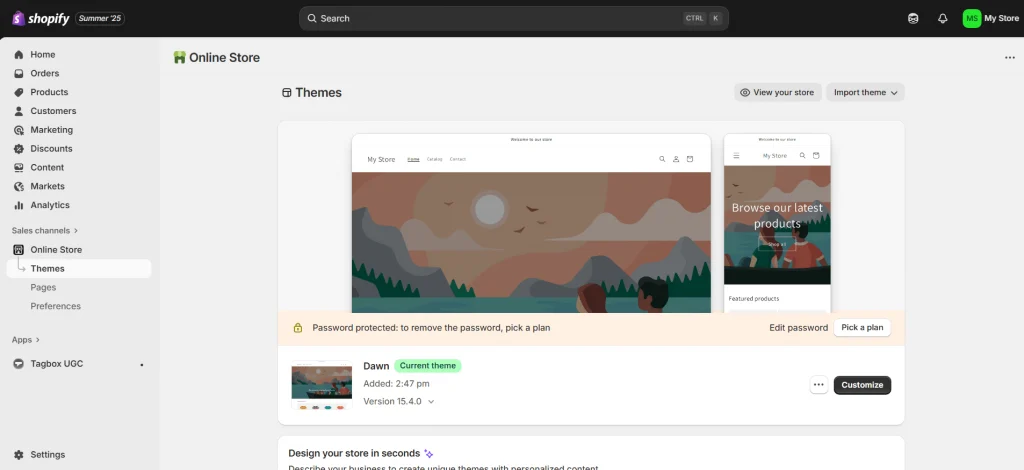
- Choose “Customize” and you will be redirected to a new window, select “Custom Liquid” from add section.
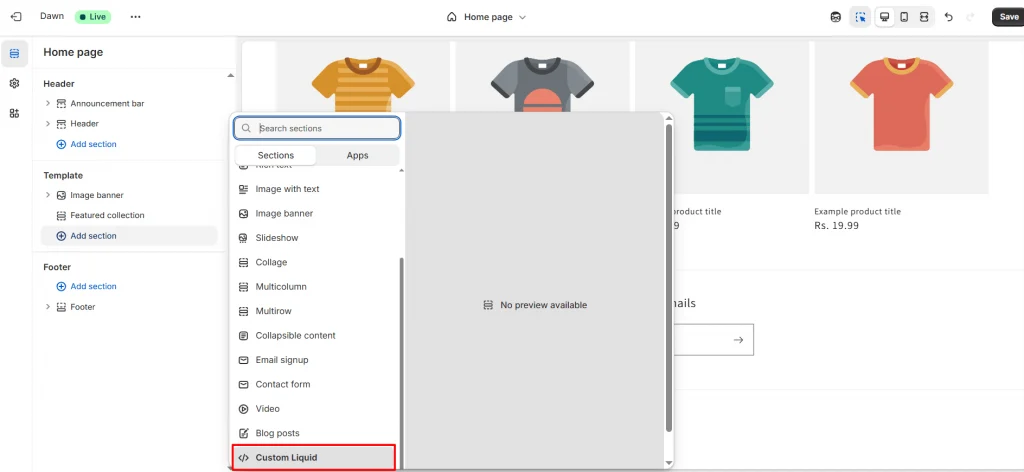
- Paste your copied code in the “Liquid code” section.
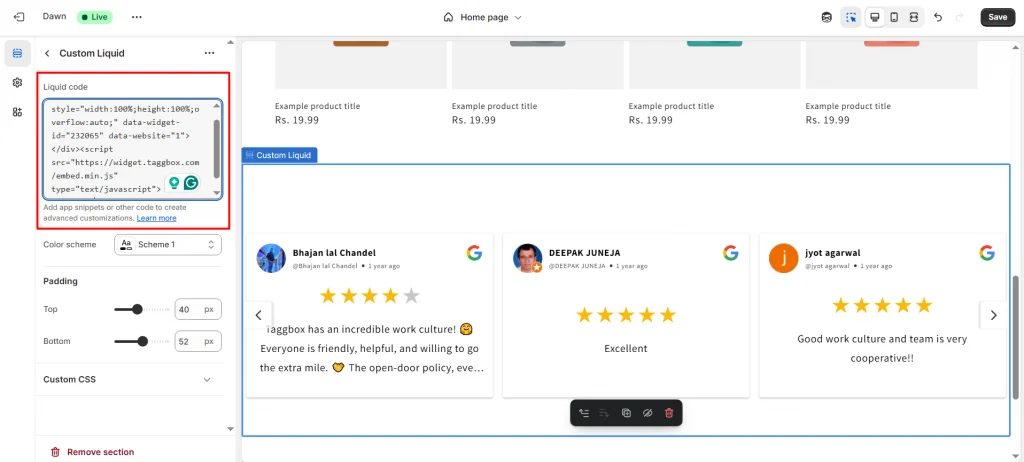
Congratulations! Your Shopify store now proudly showcases Google My Business reviews, boosting trust and engagement!
Video Guide: How to Add Google Reviews to Shopify
Best Places to Showcase Google Reviews on Your Shopify Store
The placement of your customer feedback matters just as much as collecting it. Displaying google review for website pages at the right touchpoints allows them to work like silent sales representatives, convincing visitors to trust your store and complete their purchases.
A) Homepage
Your homepage is the digital storefront. First impressions happen in seconds. Showing reviews here instantly builds credibility and reduces bounce rates.
B) Product Pages
This is where shoppers decide to buy or leave. Adding reviews close to the “Add to Cart” button gives customers that final nudge they need.
C) Checkout / Cart Pages
Cart abandonment is brutal. Drop in a few short, positive reviews here, like “fast delivery” or “easy checkout”, and watch hesitation fade.
A subtle but powerful move. A star rating badge or rotating review slider in the footer keeps trust alive across all pages.
E) About Us / Contact Pages
Visitors here want reassurance about your brand story. Reviews that highlight long-term service or happy customers reinforce authenticity.
F) Bonus Spots
Blog sidebars, custom landing pages, even email campaigns, and reviews fit everywhere. The more touchpoints, the stronger the trust.
Best Social Proof Aggregators for Google Reviews (Comparison)
| App | Review Types | Key Features | Best For |
| Taggbox | Google Reviews + UGC (multi-platform) | Real-time updates, full customization, analytics | Brands wanting powerful, all-in-one review displays |
| WiserNotify | Popups, social proof alerts | Real-time visitor counts, urgency timers | Stores wanting quick FOMO-driven boosts |
| Loox | Photo & video reviews | Beautiful carousels, referral program | Brands pushing visual reviews + referrals |
| Judge.me | Text, photo, video reviews | SEO snippets, affordable plans | Budget stores focused on SEO & basics |
Common Mistakes to Avoid with Google Reviews
Even the best Shopify store reviews can backfire if you handle them wrong. Here are the mistakes you should dodge:
- Overloading Pages with Reviews
Dumping 50 reviews on one page doesn’t build trust; it builds clutter. Pick 5–10 strong ones and rotate them. Quality beats quantity.
- Using Fake or Paid Reviews
Shoppers are smart. Google is smarter. Fake reviews get caught, and your credibility takes a hit you can’t undo. Stick to real customers.
- Forgetting Schema Markup
Star ratings in Google search results can boost clicks big time. But if you don’t add schema markup, those golden stars won’t show up.
Conclusion
Add Google Reviews smartly to your Shopify store, and you’ll see consumer hesitation turn into conversions. But doing it manually? Time taking. That’s where Taggbox helps. It pulls reviews in real-time, customizes the look, and keeps your store always fresh.