Looking to embed an Instagram feed on HTML website? Displaying your latest Instagram posts directly on your site is a great way to engage visitors and keep your content dynamic. Follow the steps below to integrate your Instagram feed into your HTML website, making your site more interactive and visually appealing.
Add Instagram Feed to an HTML Website
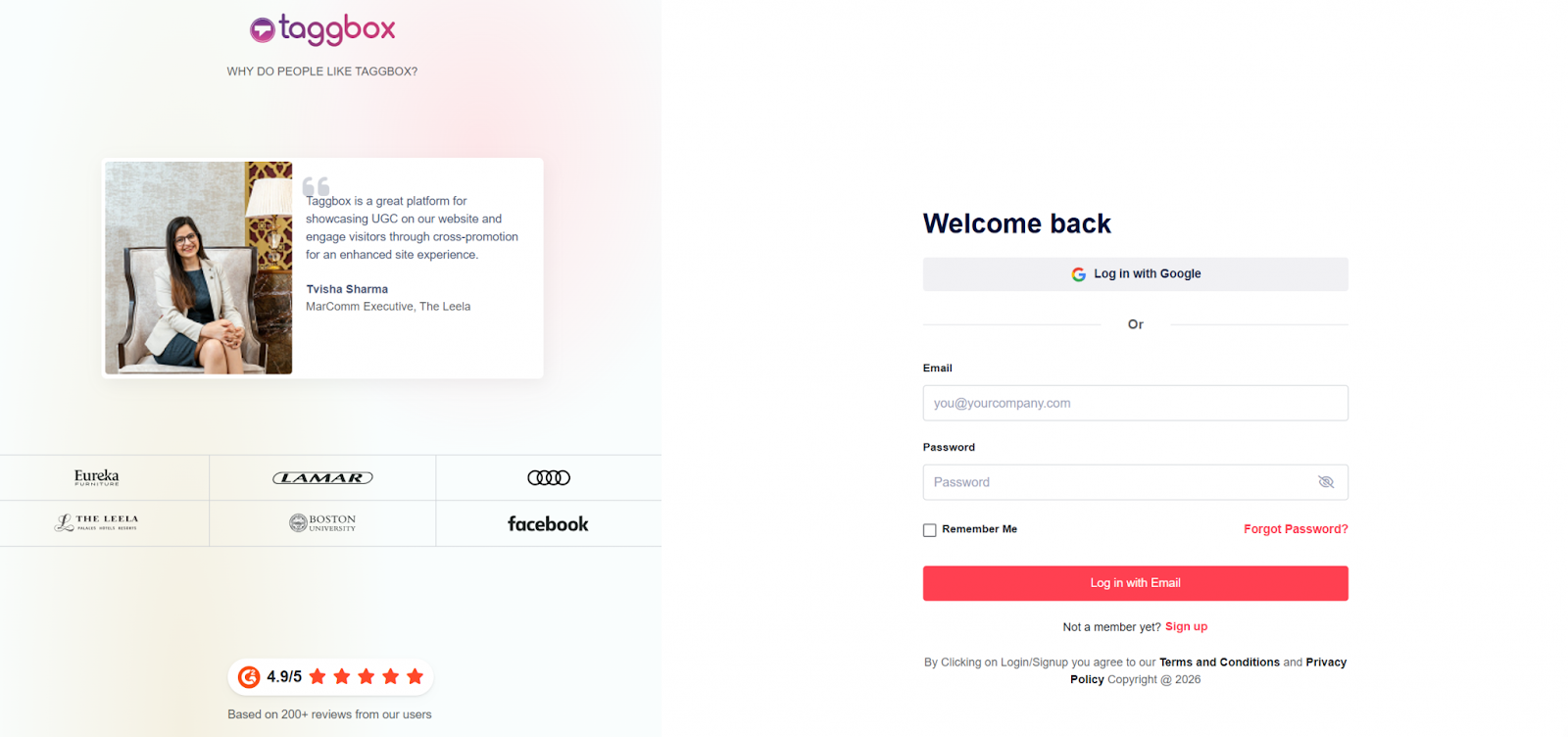
Step 1 – Log In to Your Taggbox Account
- First, create your Taggbox Widget account or Log in to your existing account
Step 2 – Pick the Experience for Building Your Feed
- Choose “Social Feed on Website” to Create Your Instagram Feed

Tip: You can also add multiple feeds from multiple sources like Instagram, Facebook, Twitter, Youtube, etc all in one widget.
Step 3 – Select your Source Network and Create your feed
- Click “Instagram” under the All Networks section.
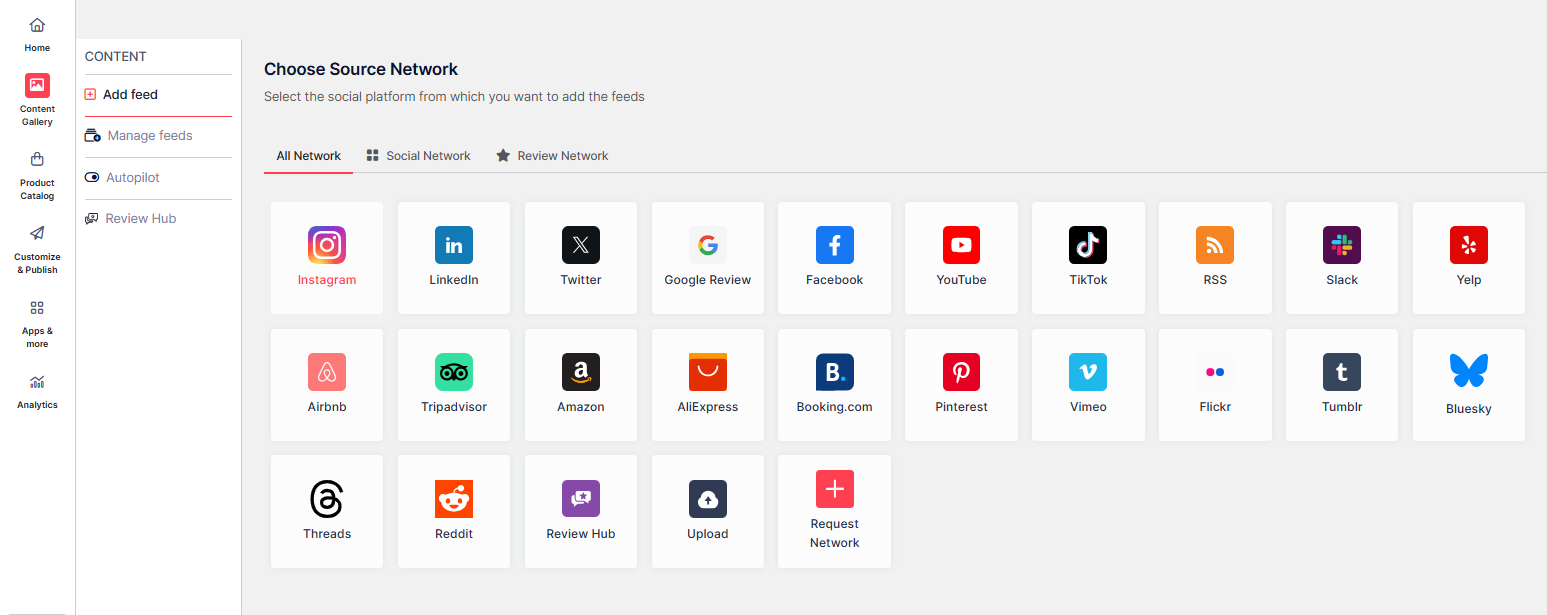
Now, choose one of the following options:
- Hashtag (#) – Create and embed Instagram hashtag feed on your website using selected hashtags.
- My Handle – Link your own Instagram account to display your posts.
- Handle (@) – Pull feeds from any public Instagram account.
- Stories – Connect your profile to display an Instagram Stories widget on your website.
- Mentions – Display posts where your account is mentioned on Instagram.
- Tagged (Insta) – Show posts where your profile is tagged on Instagram.
- Tagged (FB) – Show posts where your profile is tagged on Facebook.
- Reels – Connect to add Instagram Reels on website pages in your feed.
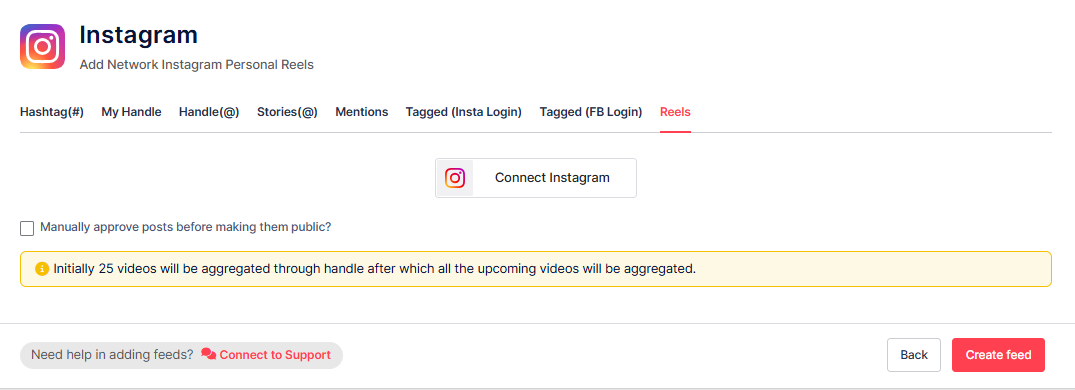
Step 4 – Personalize and Moderate Your Instagram Feed
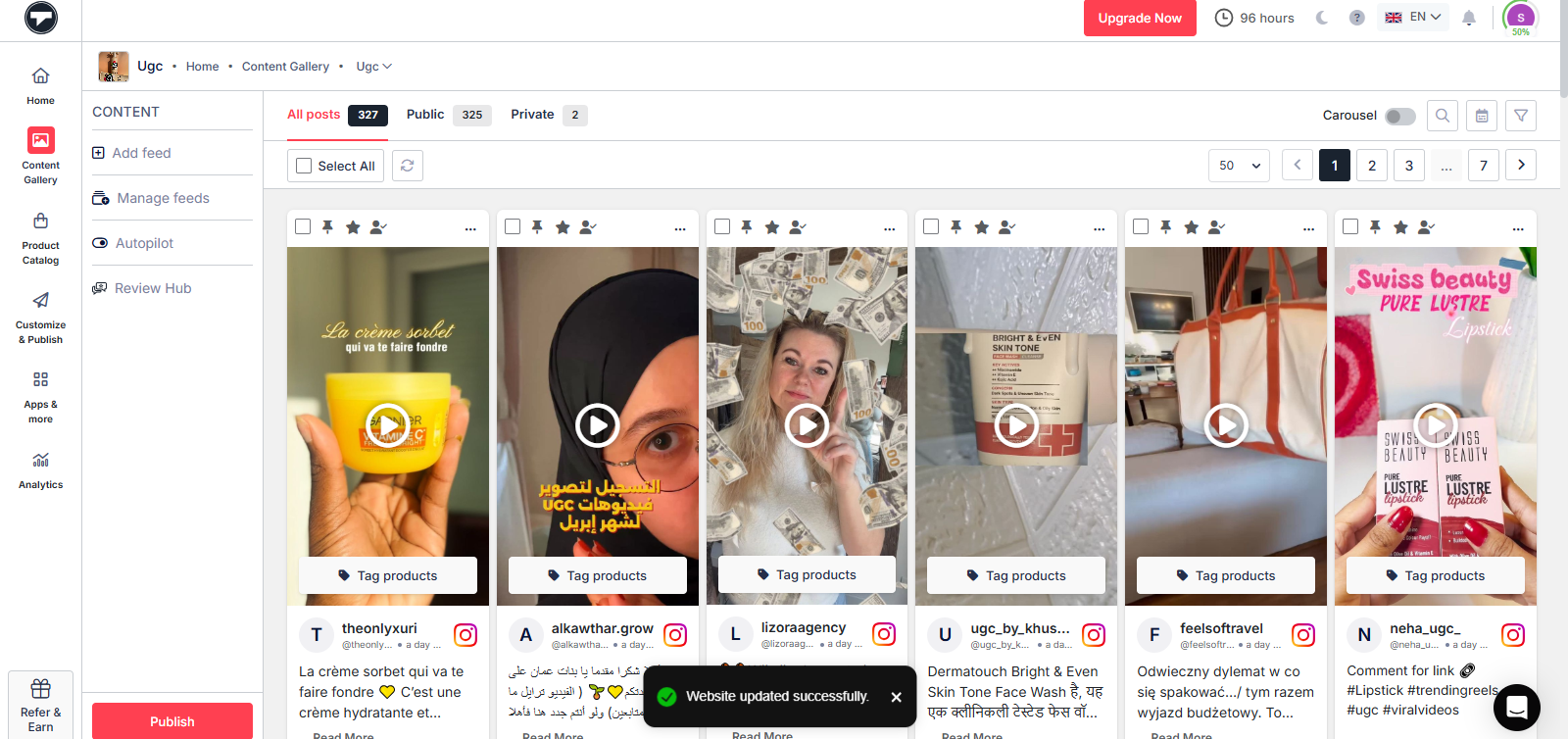
- Pick the posts you want to feature on your HTML website instagram feed and mark them as public or private based on your preference.
- Now, click on the Publish Button.
- Choose a feed layout and customize its colors, fonts, and styling to fit your website design. Then your Instagram feed widget will be ready.
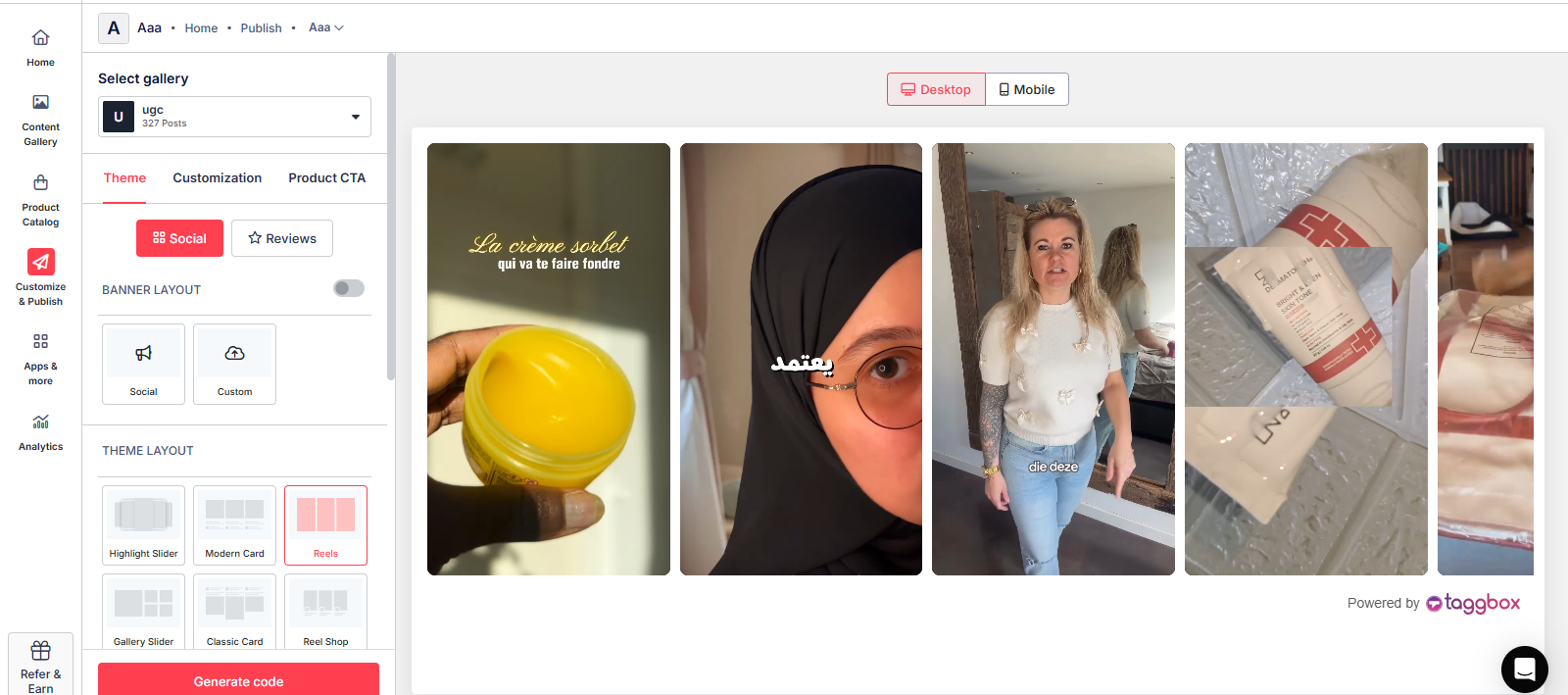
- Once done, click on “Generate Code”.
Step 5 – Choose Your Platform and Get the Code
- Click on the “HTML” option to get the embed code for your HTML website.
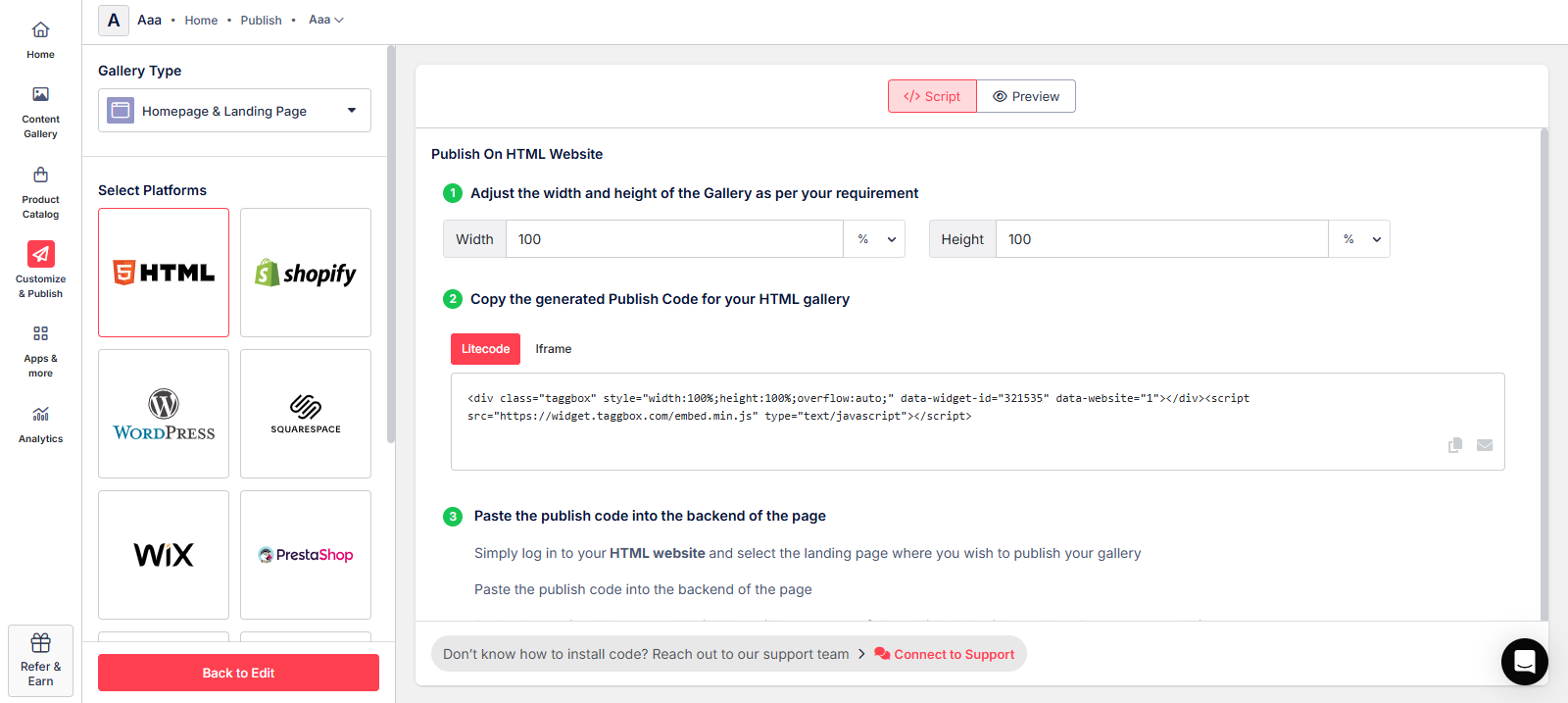
Copy the code provided to display your Instagram feed on an HTML website.
Steps to connect the Instagram Feed to the HTML Website with the embed code:
Here’s a simple way to do it:
- Log in to your HTML website and open the page where you want the Instagram feed to appear.
- Paste the Instagram feed HTML code into the desired section (such as a page, blog post, or sidebar).
- Save or apply the change.
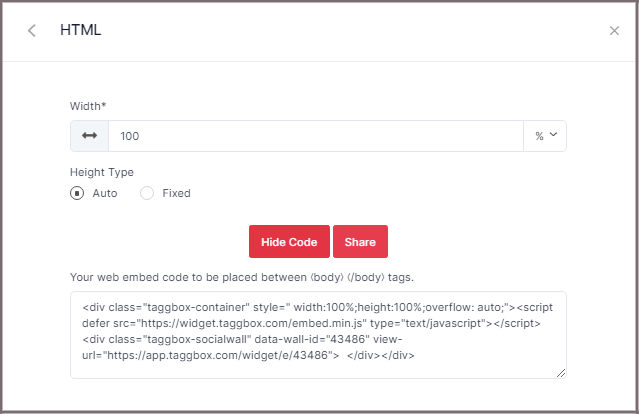
Great! You have successfully embedded Instagram feeds on your HTML website.
If you have any questions or need help, please contact us or write us at support@taggbox.com