Want to make your Canva designs more engaging and interactive? Canva allows you to easily embed YouTube videos directly into presentations, lesson plans, websites, reports, and social media designs. Instead of sending viewers to another tab, they can watch the video right inside your Canva project.
This easy step-by-step guide explains exactly how to embed YouTube video in Canva using the fastest and most reliable methods. The process works well for both free and Pro users. Let’s get started and make your designs more dynamic!
Embed a YouTube Video in Canva Using Canva Embed Option
To embed YouTube on Canva, you just need to follow simple steps. Here’s exactly how to do it, step by step.
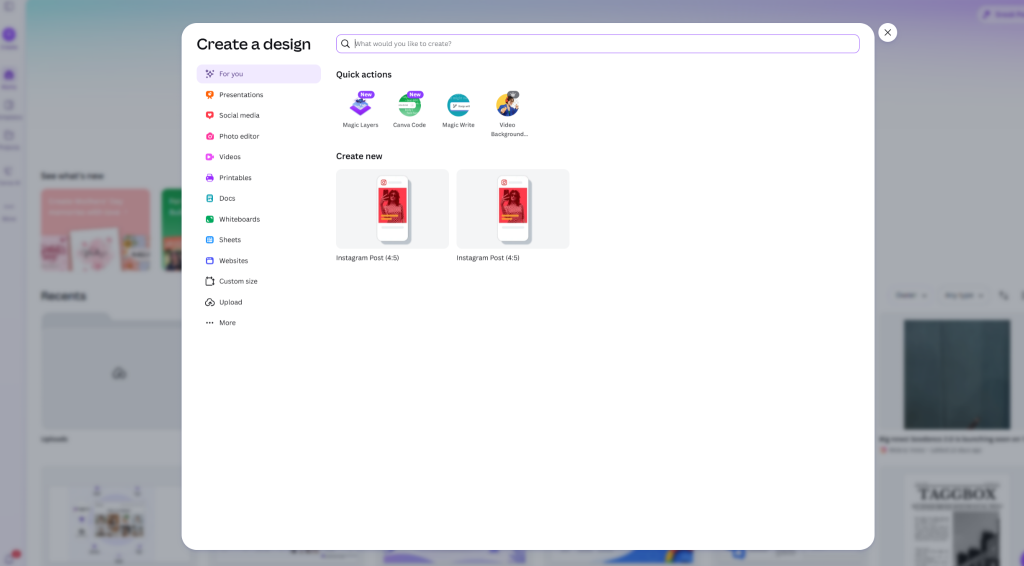
Step 1: Open Your Canva Design
To begin, log in to your Canva account and open the design you’re working on. Or just create a fresh one. It’s best to use layouts like Presentation, Website, Lesson Plan, or Document because they give the video enough room to breathe and look good.
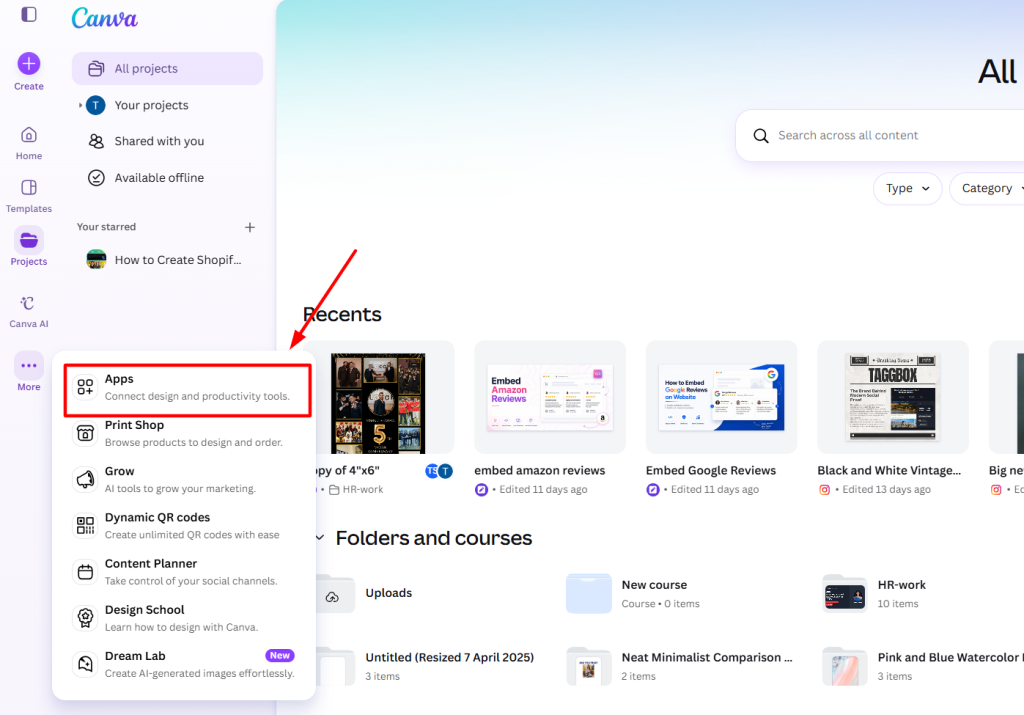
Step 2: Go to Apps
On the left side of your screen, you will notice various options. Click on Apps. This is where Canva hides all the handy extra tools.
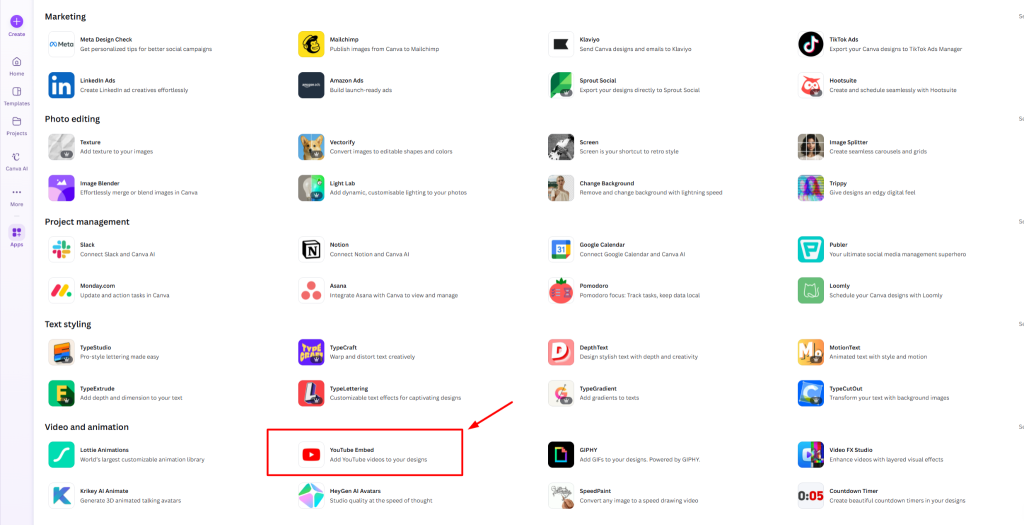
Step 3: Search for YouTube Embed
In the search bar at the top of the Apps panel, simply type “YouTube Embed”. Click on the official YouTube Embed app when it appears. This little tool is built specifically for adding YouTube videos straight into your designs.
Step 4: Search or Paste the YouTube Video Link
Now you have two easy choices. You can type in keywords to search for a video, or if you already know which one you want, just paste the full YouTube link. Pasting the URL is usually quicker and more accurate.
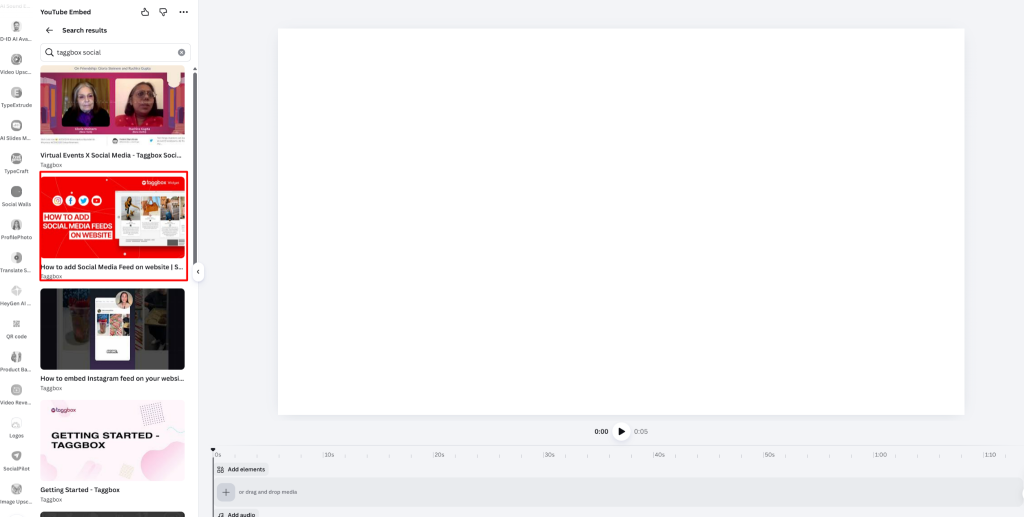
Step 5: Click the Video Thumbnail
Go through the results and click the thumbnail of the video you want. Canva will drop it right onto your canvas, ready to use.
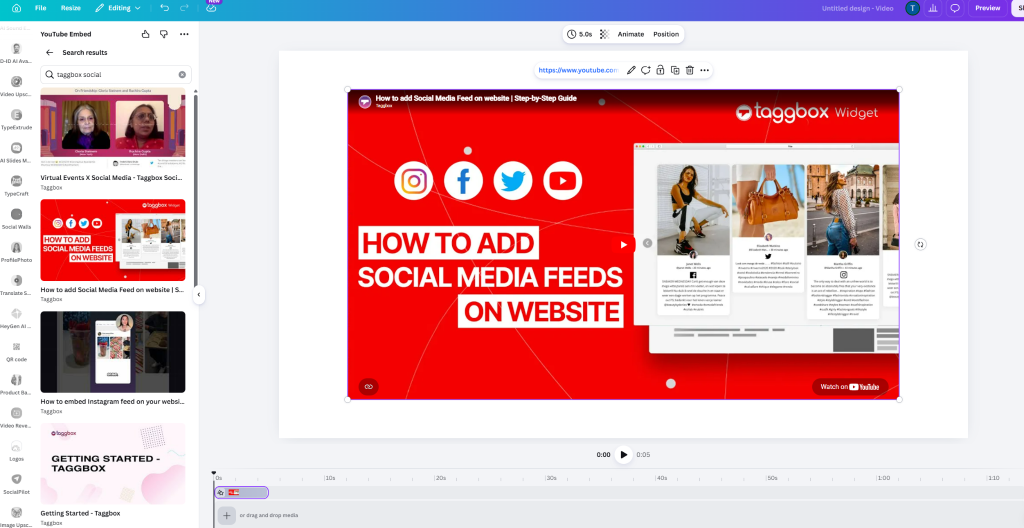
Step 6: Resize and Position the Video
Drag the video around to place it exactly where you want it. Pull the corner handles to adjust the size and try to keep the proportions looking natural. Once it’s in place, add a title, short description, or some text around it so people know why the video matters.
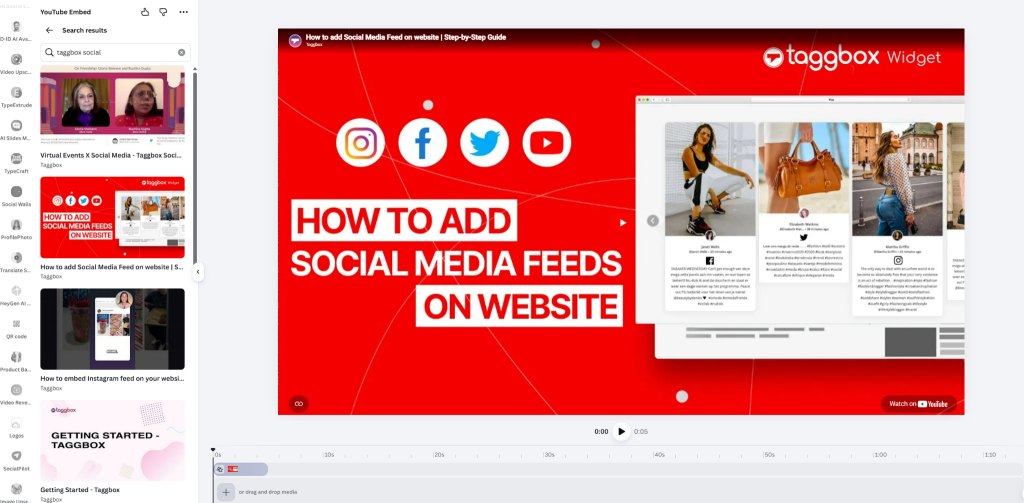
Step 7: Test the Video
Hit the play button and watch it right there in Canva. If you’re building a presentation, switch to Present mode to test it properly. Don’t forget to check your internet connection. The video needs to stream from YouTube.
Create Interactive YouTube Video Displays for Your Website
Take your video content further with Taggbox. Display interactive YouTube feeds on your website and boost visitor engagement effortlessly.
Get Started Free

How to Add a YouTube Video in Canva Using a Direct Link
If you already have the YouTube link ready, there is another quick and easy way to embed a YouTube video in Canva. This method works well when you prefer embedding youtube videos directly using a URL, and many users find it faster than using the YouTube app.
Step 1: Open Your Canva Design
Open the Canva project where you want to add the YouTube video. You can either edit an existing design or create a new one from scratch.
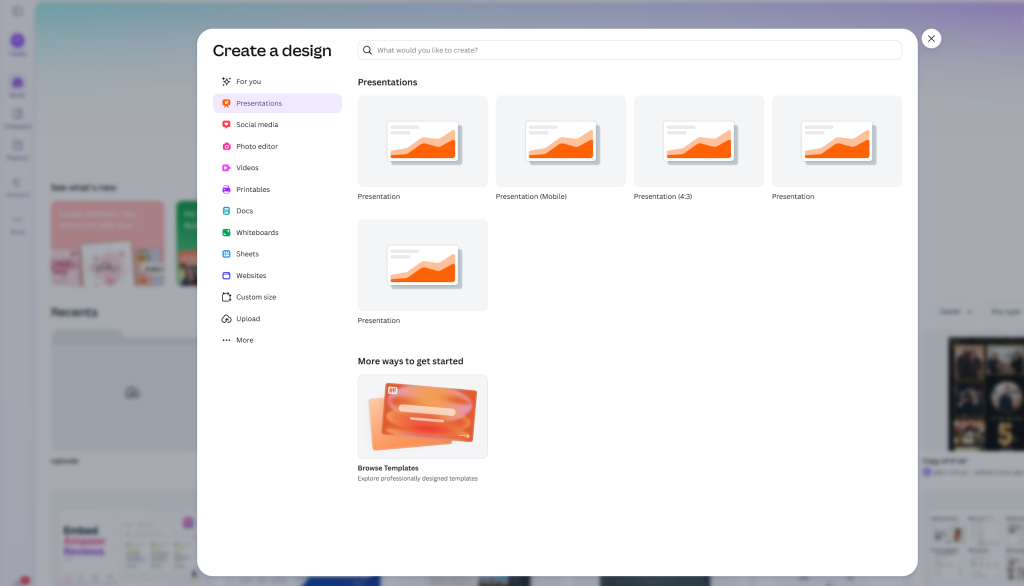
Step 2: Paste the YouTube Video URL
Copy the YouTube video link you want to embed. Then, simply paste the URL directly onto an empty area of your Canva design. Canva will automatically recognize the link and convert it into an embedded video player.
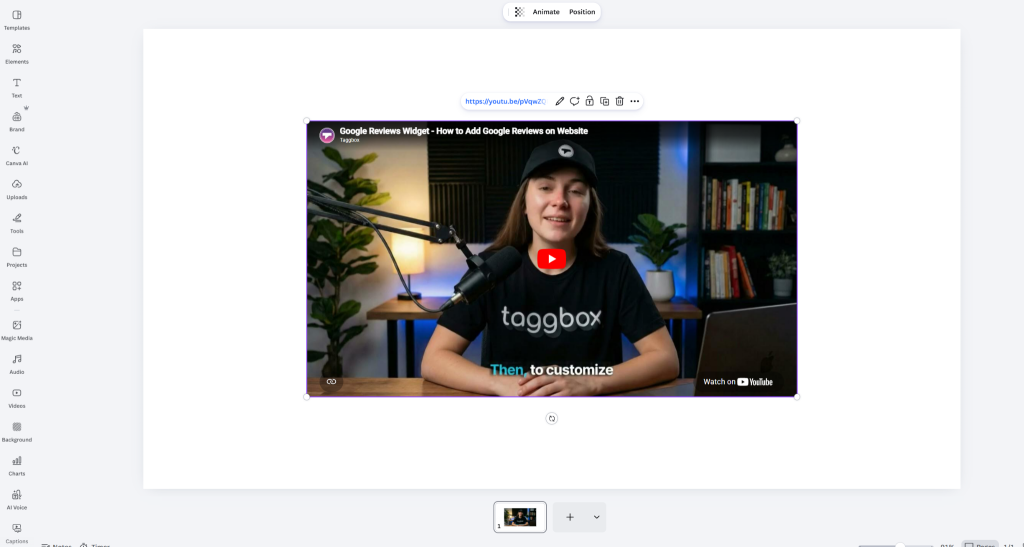
Step 3: Resize and Position the Video
Drag the video to place it wherever you want within your design. Use the corner handles to resize the video while maintaining proper proportions for a clean and professional appearance. You can also add headings, captions, or supporting text around the video to provide better context for viewers.
Best Practices for Embedding YouTube Videos in Canva
Now that you know how to embed a YouTube video in Canva, it is important to make sure your design looks clean, professional, and easy to interact with. Whether you are creating presentations, lesson plans, or marketing content, these simple tips will help you embed YouTube videos in Canva more effectively.
Use Short and Relevant Videos
Always pick videos that directly support your message or goal. Short clips between 1 to 3 minutes work best because they keep your audience’s attention. Long videos can make people lose interest and leave your presentation. Choose content that adds real value instead of just filling space. If you want to improve video performance and engagement, you can also explore these proven YouTube SEO best practices to optimize your content better.
Add Context Around the Video
Never drop a video into your Canva design without explanation. Add a clear headline above it, a short caption below it, or a strong call-to-action so viewers understand why the video matters. If you are creating content for business or branding, these YouTube videos for brand storytelling strategies can help you create more impactful video content. For brands using YouTube to connect with customers, knowing how to sell merch on youtube channel can also help turn an engaged audience into customers.
Maintain Proper Size and Proportions
Resize your video carefully using the corner handles so it keeps its original 16:9 shape. Stretched or tiny videos look unprofessional. Make sure the video is large enough to be clearly visible but does not overpower the rest of your design.
Test Your Design on Multiple Devices
Always preview your Canva design on desktop, tablet, and mobile devices. Sometimes videos that look perfect on larger screens may appear too small or misaligned on phones. For creators and marketers looking to grow their audience, these tips to grow your YouTube channel can help improve reach and engagement.
Choose High-Quality and Public Videos
Only embed public YouTube videos with clear audio and high resolution. Private, age-restricted, or low-quality videos may not play properly inside Canva. If you regularly use short-form content, learning about YouTube Shorts for business can help you create more engaging video strategies.
Optimize for Sharing and Presentations
If you plan to share your Canva design as a live link, test the video in Present mode before presenting. This helps avoid playback issues during meetings, webinars, or classroom sessions. And if you want to showcase multiple videos professionally, you can also learn how to create a YouTube video gallery on a website for better engagement and content discovery.
Embed YouTube Videos on Your Website Without Coding
Use Taggbox to collect, customize, and embed YouTube video feeds on your website in just a few clicks.
Start For Free
Final Thoughts
Now you know how to embed a YouTube video in Canva quickly and easily. Whether you use the YouTube app or paste a direct video link, adding YouTube videos to your Canva designs only takes a few clicks.
Embedding videos is a great way to make presentations, lesson plans, reports, and marketing materials more interactive and engaging. It allows viewers to watch content directly inside the design without leaving the page.
However, remember that embedded YouTube videos only work in live Canva links. If you download your design as a PDF, image, or video file, the embedded video will appear as a static thumbnail instead of a playable video.
For the best experience, always test your design before sharing or presenting it. And if you want to embed YouTube videos on a website instead of Canva, tools like Taggbox can help you display and customize YouTube video feeds more professionally.