Your website is dressed for Halloween, but the social media feed or customer reviews below your campaign banner still look the same. Taggbox Festive Themes lets you change that without rebuilding your widget. Existing users can select a seasonal theme in one click, while new users can choose one during their first widget setup.
Whether you’re displaying a social media widget, customer reviews, or UGC, your collected posts stay in place. You change the design around them and, when needed, add a banner that carries your campaign message.
What Can You Customize With Festive Themes?
Festive themes bring seasonal styling into the Customize & Publish dashboard. You can use them to coordinate a social media feed with a seasonal promotion, whether that means a Halloween offer or a Black Friday launch.
- Choose a festive design and see how it looks with your current content.
- Turn on a campaign banner with a headline, supporting copy, and coupon code.
- Set an offer deadline and add a button linking to your campaign page.
- Adjust colors, fonts, card accents, and effects, including falling effects where available.
- Preview the finished widget on desktop and mobile before saving.
A Halloween Example: Keep the Offer Close to the Content
Say a clothing store is running a Halloween sale. Shoppers scroll past its promotion and reach a gallery of customer photos. Instead of leaving that gallery in its everyday design, the store can include festive styling as part of its Halloween marketing ideas, adding a matching theme, offering a code, and adding a Shop Now button.
The same customer posts stay in place, with the offer above them and a clear link to the seasonal collection. The sample discount illustrates a store campaign, not a Taggbox subscription offer.
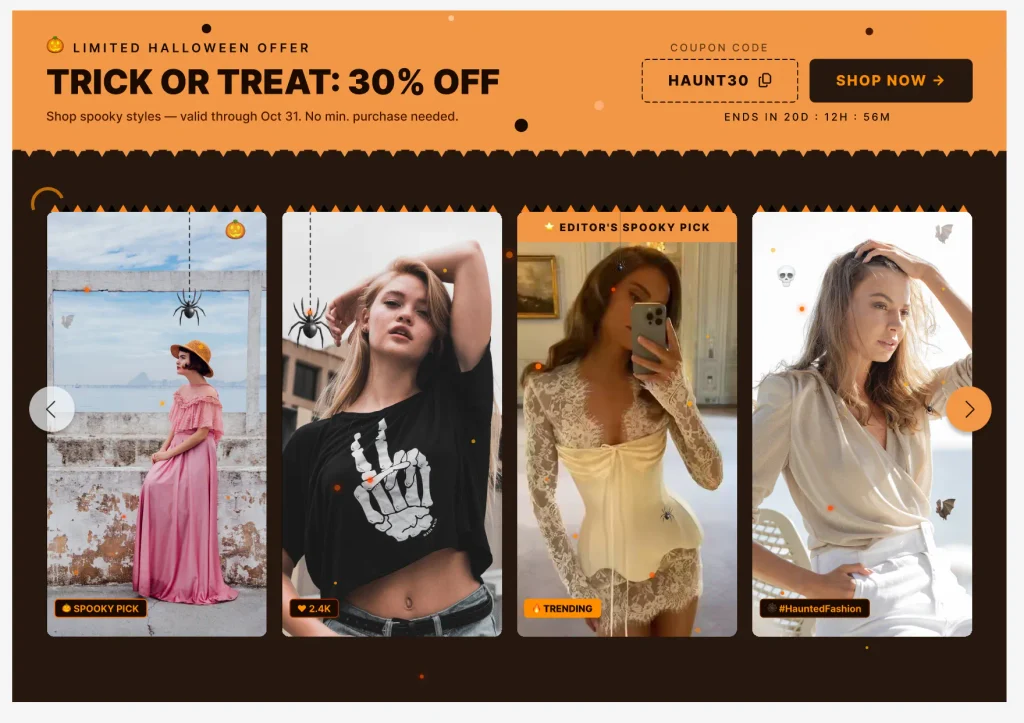
Give Your Existing Feeds a Festive Look in One Click | Promote Seasonal Offers & Discounts
Try Festive Themes
How to Apply a Festive Theme in Taggbox
Already using Taggbox? You can give your existing widget a festive look without creating a new feed. If you’re new to Taggbox, simply register and create your gallery first and apply a festive theme during customization.
- Open your gallery: Go to Content Gallery and select your existing gallery. New users can click Add feed, choose a social media or review source, and create their first gallery.
- Choose the festive banner: Navigate to Customize & Publish, open the Theme tab, enable Banner Layout, and select Festive.
- Select a festive design: Open the Customization tab and choose your preferred design under Festive Design. You can also adjust the background color, fonts, falling effects, and card accents.

- Customize your campaign banner: Add a headline, subtitle, coupon code, offer deadline, and CTA button with a destination link, depending on your campaign requirements.
- Preview and save: Check how your widget looks on desktop and mobile, then click Save. For a new widget, click Generate Code to embed social media feed on your website.
Where to Use Festive Themes on Your Website
Your festive campaign shouldn’t stop at the homepage banner. With Taggbox, you can give the social media feeds, customer reviews, and UGC galleries displayed across your website a seasonal look that matches your ongoing promotions.
Homepage
Your homepage is often the first place visitors notice seasonal campaigns. Give your existing website social wall a festive look to showcase customer content alongside Halloween, Diwali, Christmas, or other seasonal promotions.
Product Pages
Keep customer photos, videos, and reviews relevant to your festive offers. Themed product page galleries can display real customer experiences alongside your products, helping shoppers make purchase decisions without leaving the page.
Landing Pages for Seasonal Campaigns
Running a Black Friday sale, Cyber Monday promotion, or Christmas campaign? Match your social media widget with the landing page design and use a customizable banner to highlight offers, coupon codes, or a Shop Now button.
Customer Reviews and Testimonials Pages
Your reviews and testimonials don’t need to look disconnected from the rest of your seasonal campaign. Apply festive styling to your reviews widget while keeping genuine customer feedback visible, whether you’re promoting a holiday sale or a special seasonal offer.
Festive Themes & Holiday Deals
Every festive campaign has a different purpose. Taggbox lets you match your existing social media feeds, reviews widgets, and UGC galleries to seasonal promotions throughout the year.
- Halloween: Add spooky backgrounds and seasonal effects to match your Halloween campaigns.
- Diwali: Give customer photos and social feeds a festive design that complements your Diwali offers.
- Thanksgiving: Highlight customer appreciation with themed reviews and social content.
- Black Friday & Cyber Monday: Display limited-time discounts, coupon codes, and shopping CTAs to support your Black Friday marketing strategies.
- Christmas & New Year: Refresh your widgets with holiday styling that matches your year-end campaigns.
When the season changes, simply choose another festive theme while keeping your existing content and embed in place.
Make Every Seasonal Campaign Count with Taggbox
Your festive offers are live, but your social media feeds and customer reviews still look the same. That disconnect can leave your seasonal promotions less noticeable, especially when shoppers are browsing limited-time deals.
With Taggbox Festive Themes, bring your existing widgets into the campaign. Highlight seasonal discounts, promote holiday collections, and keep real customer content visible alongside your offers. Switch themes as seasons change without rebuilding your widgets.